Fix Local Disk D Almost Full in Windows 11/10
Here are seven fixes to solve the "local disk D almost full" issue and know why your D drive gets full:
Are you struggling to store files on your D drive because it's almost full? Don't worry, this article is here to help. We'll show you how to free up space on your D drive and provide seven methods to get you back on track. But first, let's explore why your local disk D is running low on storage.
Why Is Local Disk D Almost Full
Despite the rapid growth in hard drive capacity, it's surprising how quickly they can become full, which can cause problems in our daily use. A full D drive, in particular, can lead to issues such as reduced storage space, decreased performance, and potentially even system crashes.
- The computer runs slowly.
- You cannot store more large files/data on it.
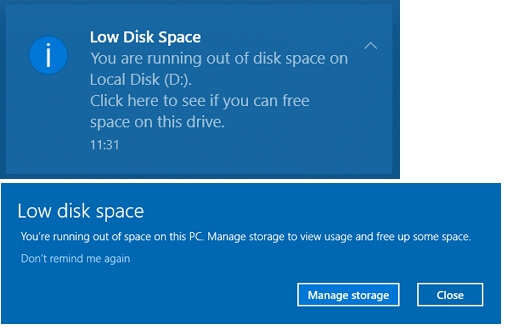
In Windows 7, 8, 10, or 11, the D drive can become full due to various reasons, including but not limited to, a large number of temporary files, system updates, and installed programs, as well as a large amount of data stored in the Downloads folder, the Recycle Bin, and the Windows Updates folder. Additionally, a full D drive can also be caused by a large amount of data stored in the Program Files folder, the Windows folder, and the System32 folder.
- The D drive is not big enough: To increase the capacity of my D drive, I would need to add an external hard drive or upgrade my current internal drive to a larger capacity one, ensuring that the new drive is compatible with my system and has enough space to meet my storage requirements.
- Large files/applications: If you store games or a lot of HD movies, this can also cause the D drive to become full.
- Hidden files: Multiple hidden files can also take up your space unknowingly.
After understanding the cause of the issue, let's move on to the solution. To free up space on your D drive, there are several effective ways to consider.
Read Also: Free Up Disk Space on Windows 8
How to Fix Local Disk D almost Full - Seven Ways
To avoid running out of disk space on your D drive, which can easily become full due to the increasing size of games and applications, consider these seven fixes to free up more disk space. 1. Uninstall unused software, 2. Use the Disk Cleanup tool, 3.
- Fix 1. Extend D Drive
- Fix 2. Transfer Large Files
- Fix 3. Uninstall Unnecessary Apps
- Fix 4. Delete Unnecessary Files
- Fix 5. Make Hidden Files Visible to Delete
- Fix 6. Run Disk Cleanup to Delete Temporary File
- Fix 7. Format D Drive
Well, this article will guide you on the seven fixes, so don't worry, and let's start with the first one.
Fix 1. Extend D Drive
To extend your D drive, you can use a professional third-party tool called Qiling Disk Master Professional. This tool can help you get more space by utilizing space from other drives or unallocated space, effectively solving the "local disk D almost full" issue. Qiling Disk Master supports all Windows versions and provides a user-friendly interface to guide you through the process.
Now, download it and follow the guide to try it.
Step 1. Locate the Target Partition.
To resize or move a partition, go to Partition Manager, locate the target partition, and select the "Resize/Move" option.

Step 2. Extend the Target Partition.
Drag the partition panel rightward or leftward to expand the current partition and add the unallocated space to it.

Extra Option: Get Space from Another Drive
If there's not enough unallocated space on your disk, right-click on a large partition with sufficient free space, and select "Resize/Move" from the context menu.
To extend the target partition, go to the "Allocate space to" column and select the partition that you want to extend. This will allow you to add more space to that partition.
Step 3. Execute Operations to Extend Partition.
Drag the dots of the target partition into the unallocated space.
To proceed, click the "Proceed" button to confirm all the changes. This will finalize the modifications and ensure they are saved.
Qiling Disk Master is a multifunctional disk management tool for Windows users that can handle various disk partition issues, and it offers more features than just extending hard drives. Download it to help with your disk management needs.
Features of Qiling Disk Master:
- Merge C and D drive
- Create or delete partitions
- Merge/split/resize partitions
- Add unallocated space to D drive
- Extend C to fix the "C drive full" issue
- Shrink or extend partition Windows 10
Fix 2. Transfer Large Files
To free up more space on your computer, you can transfer large files from the D drive to another drive. A good professional computer transfer tool, Qiling Disk Master Tech, can help you efficiently transfer large files and programs from the D drive to another drive.
Step 1. Create a backup file of the source hard drive
Launch Qiling Disk Master Tech on your Windows computer. Navigate to the "Backup & Restore" mode, click "File backup" to proceed.

Select the items you want to transfer to the other hard drive. Qiling Disk Master Tech allows users to create backup files of multiple file types, including applications, personal data, and user accounts. To transfer files from one drive to another, deselect the "Applications" and "Accounts", hover your mouse over "Files", and click "Edit".

To proceed, select the files on the source drive by expanding the drive and choosing the desired files. Once you've made your selection, click "Proceed" and wait for the process to complete.

Step 2. Restore the file to the destination drive
Launch Qiling Disk Master Tech, select a transfer method, and choose "Restore" instead.
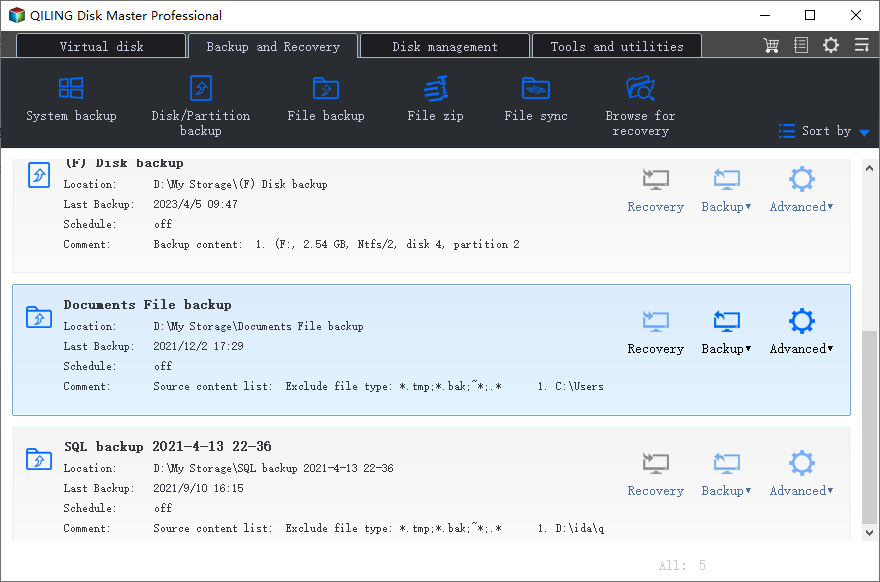
Select the existing backup file from the interface or navigate to the exact file path where the backup file is located.
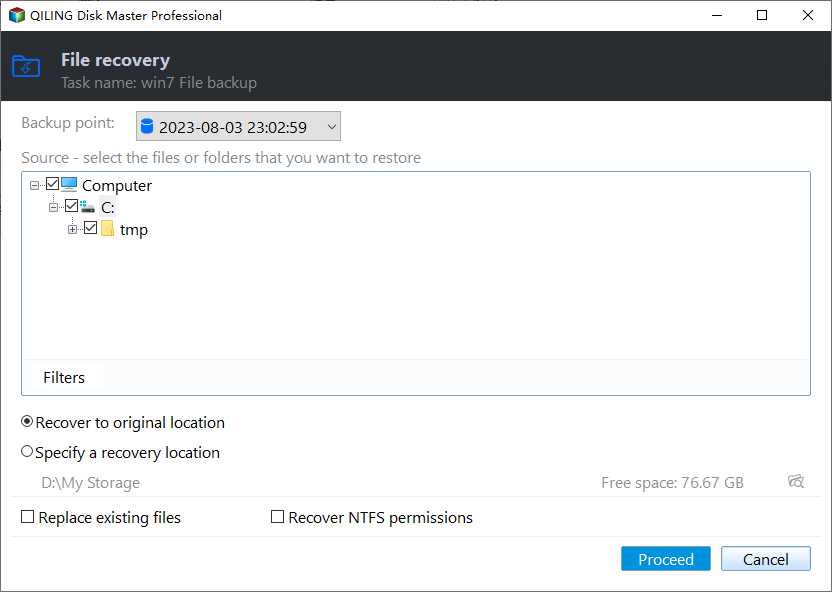
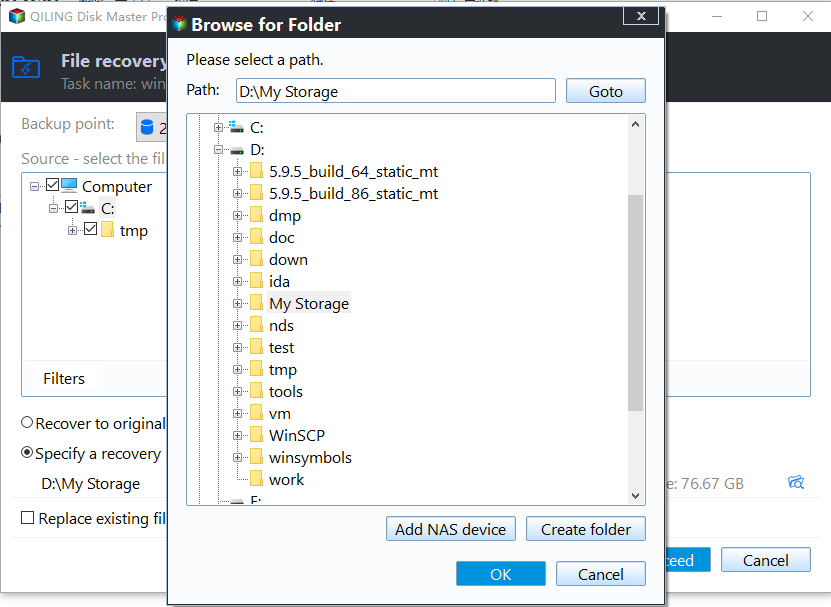
To restore from the backup file, click the pencil icon to set the target location to the other hard drive, then submit the change. After setting the basic settings, click "Proceed" to start the transfer process. Wait patiently until the process is complete.
Fix 3. Uninstall Unnecessary Apps
If you have programs installed on your D drive that you no longer need, you can uninstall them to free up space.
Step 1. Search for "Control Panel" and choose "Program."
Step 2. To uninstall a program, go to the "Control Panel," then choose "Programs and Features," and select the programs you no longer need, and select "Uninstall."

Step 3. Repeat this process to remove all your unwanted applications.
Fix 4. Delete Unnecessary Files
If you have many large files, movies, music, or videos stored on your D drive, it can quickly become full. To prevent this, it's essential to regularly delete unnecessary files to free up space on your D drive.
Step 1. Click "This PC" and locate your D drive.
Step 2. Open your D drive, right-click on the unwanted files, and select "Delete."
Fix 5. Make Hidden Files Visible
To free up hard drive space, make the hidden files visible on the D drive by changing the folder options, and then delete the unwanted hidden files. This will allow you to see and remove the files taking up space that were previously hidden.
Step 1. To view the contents of the D drive, click on "This PC" in the Start menu, then navigate to the D drive and click on "View" to see the contents.
Step 2. Select "Show" and click "Hidden Items."
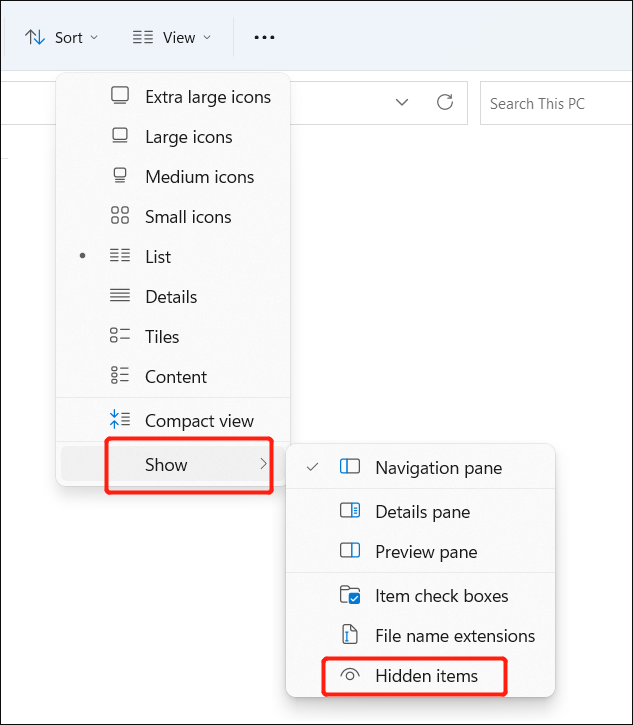
Step 3. Find the unnecessary and delete them.
Fix 6. Run Disk Cleanup to Delete Temporary File
Windows offers various tools to help users maintain a clean and organized computer and hard drive. One such utility is Disk Cleanup, which enables users to delete unnecessary temporary files. To utilize this feature, users can follow a series of steps to efficiently remove these unwanted files.
Step 1. Click on "This PC" and select the D drive.
Step 2. Right-click on the drive you want to clean up, select "Properties," and then click Disk Cleanup. This will open the Disk Cleanup tool, allowing you to free up space on your drive.
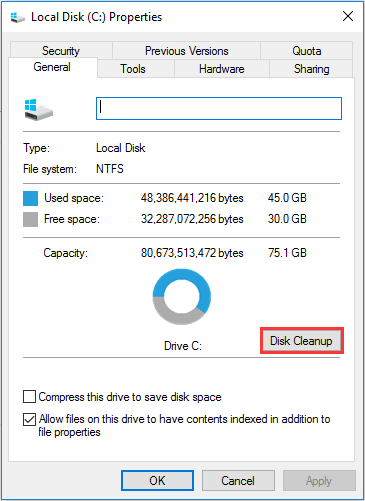
Step 3. Find the files you want to delete, right-click on them, and choose "Delete."
Fix 7. Format D Drive
If your D drive is full but you can't find many files in it, you can format it to make it like new. Qiling Disk Master can also help you format or reformat your hard drive safely. To do this, download Qiling Disk Master and follow the guide below to format your D drive.
Step 1. Right-click the hard drive partition and choose the "Format" option.
Step 2. Create a new partition in the new window by setting the Partition label, File system, and Cluster size for the partition.
Step 3. To proceed with formatting the hard drive partition, click the "Proceed" button. This will initiate the formatting process, which will erase all data on the selected partition.
Step 4. You can see a warning window, click "Yes" to continue.
Conclusion
If you're experiencing the "local disk D almost full" issue, there are seven fixes to help you free up more space on the D drive. One of the most effective solutions is to extend a partition, which can be achieved using a tool like Qiling Disk Master that can move unallocated space to the D drive or other hard drives to increase the hard drive size. This, along with other fixes, can help you resolve the issue and make more space available on your D drive.
You may also like the following content:
Local Disk D Almost Full FAQs
If you're experiencing the "local disk D almost full" error, there are a few things you can try to resolve the issue. First, check if there are any large files or folders taking up space on your disk. You can do this by checking the disk usage in Windows Explorer or by running a disk cleanup tool.
1. How do I free up space on my local disk D?
To free up space on the D drive, consider deleting unnecessary files, emptying the recycle bin, and uninstalling unused programs. You can also compress files and folders to reduce their size, or use a disk cleanup tool to remove temporary files and system logs.
- Extend your D drive
- Delete large files or hidden files
- Uninstall the apps you don't need
- Transfer larger files to other hard drives
- Run Disk Cleanup to delete temporary files
2. How do I increase space on my D drive?
You can allocate space from other drives to D drive via Qiling Disk Master or extend your D drive via Disk Management if there is unallocated space adjacent to the D drive.
3. Why does my disk say it's full when it's not?
Viruses on a hard drive may cause the issue, and hidden files on the target hard drive are also consuming disk space.
Related Articles
- Fix 'Windows Cannot Be Installed to This Disk MBR'
- Convert FAT32 to NTFS Without Losing Data [2024 Tutorial]
- Partition Magic Server 2003 Free Download for Windows Server 2003 [How-To Guide]
- Easily Solved: Can't Delete System Partition of Windows 10, 8, 7
If you're unable to delete the system partition within Windows Disk Management, this article can provide a solution. It offers a guide on how to delete the C drive in Windows 7, 8, or 10. - [Easily Solved] Delete Volume Greyed Out in Windows 10, 8, 7
Find Delete Volume grayed out in Disk Management? In this article we introduce Qiling Disk Master to solve the problem. - Proven Best Disk Formatting Utility| Freeware Download
In this article, we would like to share you with 4 free yet effective disk formatting utilities for Windows 11, 10, 8, 7. You can easily format a hard drive for your own requirements.
Products
Articles & Tutorials
- Data Recovery
- Data Backup
- File Recovery
- File Backup
- System Backup and Restore
- Disk and Partition Clone
- Technical articles
- Mobile articles
- Disk Master Help
- Windows Data Recovery Tutorials
- Windows Secure Delete Tutorials
- Windows Partition Management Tutorials
- Windows File Backup and Restore Tutorials
- Windows System Backup and Restore Tutorials
- Windows Disk Backup and Restore Tutorials
- Windows Clone Tutorials