What Should You Do When Low Disk Space But Nothing to Delete [Full Guide]
This page provides solutions to the "low disk space but nothing to delete" issue. You'll learn why this problem occurs and four methods to resolve it, helping you free up space on your disk.
Windows users often find themselves in a dilemma where their local disk is running out of space despite having few files to delete. To resolve this issue, it's essential to first understand why the disk space is low. This can be attributed to various factors, including temporary files, system files, and other hidden data taking up space. Fortunately, there are four fixes that can help resolve this problem, which include identifying and deleting unnecessary files, freeing up space by deleting temporary files, checking for and removing system file errors, and using built-in tools to identify and remove duplicate files. By implementing these solutions, users can reclaim their disk space and ensure a smoother computing experience.
Why Low Disk Space But Nothing to Delete Issue Occurs
When dealing with low disk space, deleting files from the local disk is a common solution, especially when there are many files saved on the drive. This approach can help free up space, but it may not always be the most effective or efficient solution.
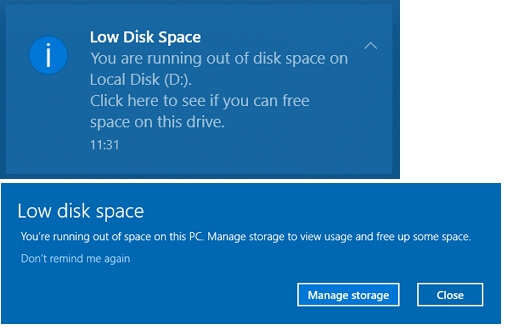
On Windows 7/10/11, if you don't have a lot of files stored on the hard drive, you may wonder, "What is taking up space on my hard drive?" The answer lies in the system files and programs installed on your computer, which can consume a significant amount of space. These include Windows system files, programs, and other system components that are essential for the proper functioning of your operating system.
The reasons are below:
- Hidden files
- Virus attack
- Temporary files
- System backups
These files take up a lot of storage space but don't show up directly on the disk, making it seem like fewer files to delete.
To resolve the "Low disk space but no files to delete" issue, you can try deleting temporary files, system files, and other unnecessary data using built-in tools like Disk Cleanup or CCleaner. Additionally, check for any duplicate files, empty folders, or files that are no longer needed, and delete them accordingly. If you're using Windows, you can also use the built-in "Disk Cleanup" tool to remove temporary files, system files, and other items you don't need.
How to Solve Low Disk Space But Nothing to Delete Issue - 4 Methods
Here are 4 methods to clear disk space:
Method 2. Show Hidden Files to Delete
Method 4. Delete System Restore Point
The recommended fix, Fix 1, provides a professional disk manager called Qiling Disk Master Professional, which can help resolve low disk space issues.
Method 1. Extend Partition
Qiling Disk Master is a tool that allows you to easily extend your partition, providing more disk space when needed. Its user-friendly interface makes it accessible, and it is compatible with various Windows versions, including Windows 11/10/8.1/7, XP, and Vista. This makes it a convenient solution for the "low disk space but nothing to delete" problem.
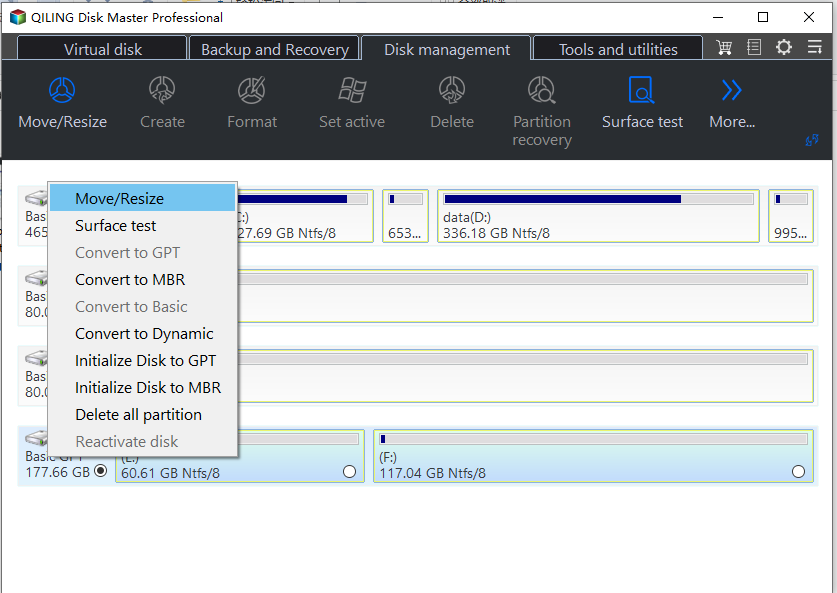
Step 1. Locate the Target Partition.
To resize or move a partition using the Partition Manager, locate the target partition and select the "Resize/Move" option.
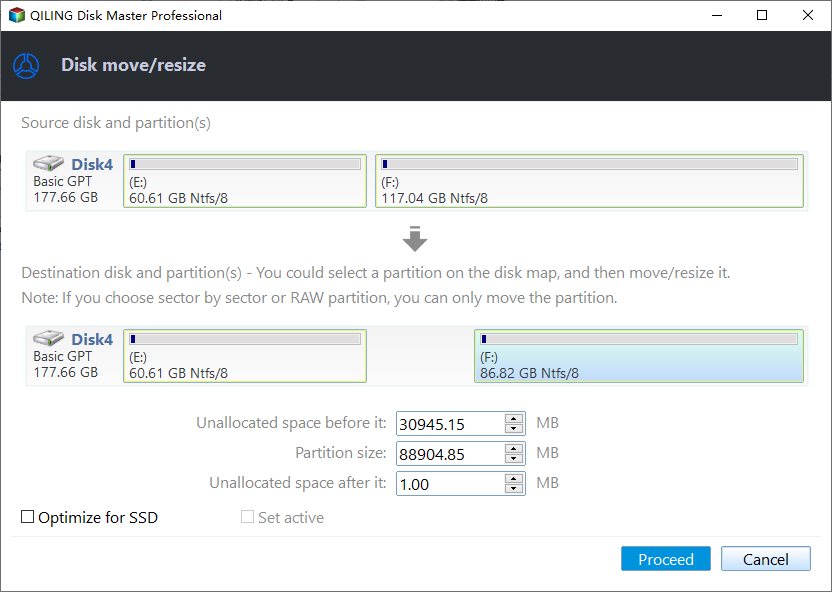
Step 2. Extend the Target Partition.
To add unallocated space to your current partition, drag the partition panel to the right or left, incorporating the unallocated space into your existing partition.
Extra Option: Get Space from Another Drive
If there's not enough free space on your disk, right-click on a larger partition with available space, then select "Resize/Move" to free up space.
To extend a partition, select the target partition that you want to extend at the "allocate space to" column in the database management system.
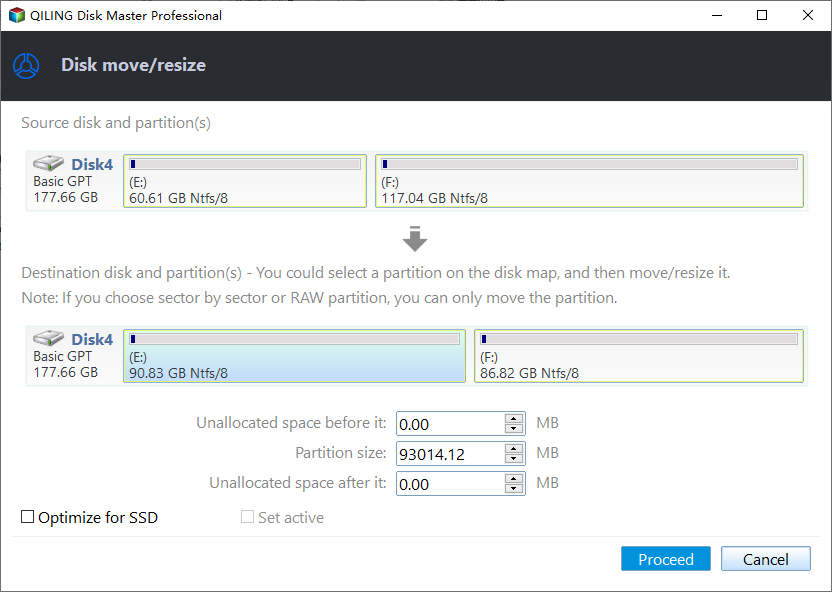
Step 3. Execute Operations to Extend Partition.
Drag the dots of the target partition into the unallocated space to resize the partition.

Then Click the "Proceed" to keep all the changes.
Qiling Disk Master is a powerful disk manager for Windows that allows users to extend partitions, convert MBR to GPT, clone disks, and more. After using the software to extend a partition, users can resize their partition to make better use of their disk space. Additionally, Qiling Disk Master offers a range of features beyond disk management, providing users with a comprehensive toolset for optimizing their Windows system.
Other Features of Qiling Disk Master:
- Migrate OS to SSD or HDD
- Expand SSD C drive across disks
- Merge/split/extend/ and shrink partitions
- To extend your C drive, you'll need to move the D drive's unallocated space to the C drive. This can be done by following these steps:
- Extend the partition to remove the "C drive full" error
- Create partitions on USB drive or other external drives
If you're experiencing low disk space issues or other disk management problems, you can download Qiling Disk Master to help resolve them.
Method 2. Show Hidden Files to Delete
Hidden files take up storage space, but these files are not displayed on the disk. Making them visible allows us to delete unneeded hidden files and free up hard drive space.
Step 1. Click "This PC" on the desktop and find "View."
Step 2. Choose "Show" and click "Hidden items."
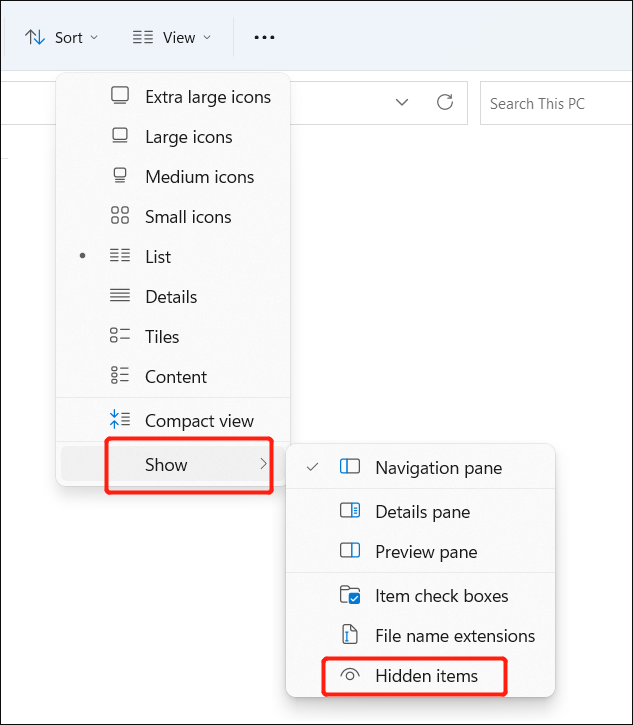
Step 3. To free up space on your device, you can locate and delete any unnecessary files or hidden items that are taking up space. This can include temporary files, cache files, and other items that are no longer needed.
By the way, click the link below if you meet problems such as:
Method 3. Run Disk Cleanup
Windows comes with many tools to help users keep their computers tidy, including Disk Cleanup, which allows users to delete temporary files. To delete temporary files, follow these steps.
Step 1. Click "This PC" and choose the target hard drive.
Step 2. Right-click the hard drive, choose "Properties," and click "Disk Cleanup."
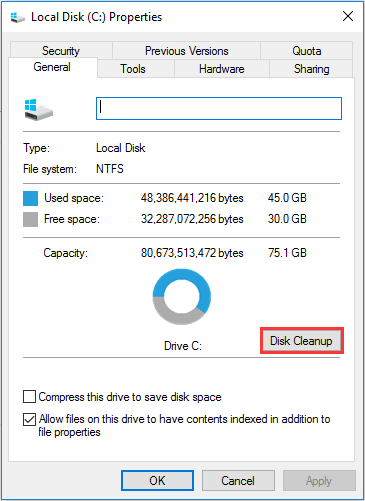
Step 3. Choose the files you want to delete and click "OK."
Method 4. Delete System Restore Point
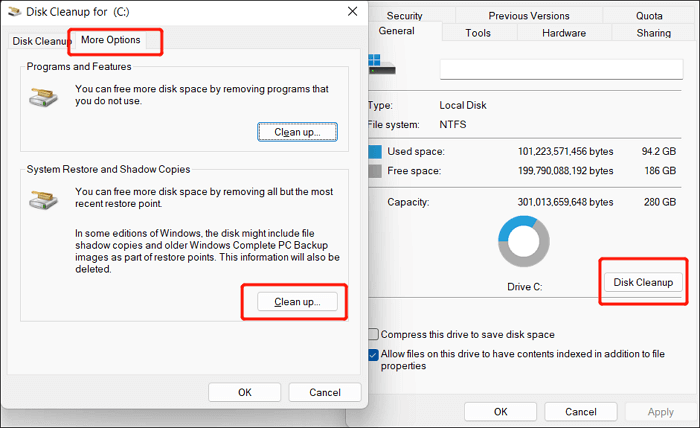
The C drive often runs out of space because it stores a lot of data, including system backups. To free up space, you can delete all backup files except for the latest restore point, which allows you to restore your computer to its most recent version if needed.
Step 1. Right-click on the C drive in "This PC" and select "Properties."
Step 2. Click "Disk Cleanup" in the new window.
Step 3. To clean up System Restore and Shadow Copies, go to the "Properties" section of the drive where the problematic system files are located, click on the "More Options" button, and then select "Clean up" under the "System Restore and Shadow Copies" section.
Conclusion
Daily use can generate many temporary and hidden files, taking up valuable disk space and leading to low disk space issues. To address this, extending the partition is the most effective solution, allowing you to immediately gain more disk space.
You may also like the following:
By the way, you can continue to read if you get other questions related to hard drive low disk space.
Low Disk Space But Nothing to Delete FAQs
Do you know how to fix "low disk space but nothing to delete" issues? This part lists some further questions to help you learn more about it.
1. How do I free up space when there's nothing to delete?
To resolve the issue, delete the hidden files, temporary files, and system backups which are causing the error.
2. Why C drive is full but no files?
There are several causes for this problem:
- Hidden files
- Temporary files
- Virus corruption
- System file backups
3. What is taking up all my space in my C drive?
C drive always stores the following files:
- Documents, photos, and personal data on the desktop
- Applications, software, and Windows built-in programs
- Windows operating system, system-related files, and related settings
Related Articles
- How to Run Xbox One SSD Performance Test [Step-by-Step Guide]
- Qiling Disk Master Full Version Free Download with Serial Code/Key
- How to Convert MBR to GPT in Windows Server 2022/2019/2016/2012
- [Fixed] Seagate External Hard Drive Slow on Windows 11/10
- How to Fix Disk Management All Options Greyed Out on Windows
How to fix Disk Management all options greyed out problem on Windows 7/8/10/11? You can find solutions from this article. - Extend System Partition into Non-Contiguous Space with Freeware
If you're unable to add unallocated space to your C drive in Windows, you can use free partition software to extend your partition into non-contiguous unallocated space. This allows you to utilize free space that's not adjacent to your C drive, effectively expanding your C drive's capacity.
Products
Articles & Tutorials
- Data Recovery
- Data Backup
- File Recovery
- File Backup
- System Backup and Restore
- Disk and Partition Clone
- Technical articles
- Mobile articles
- Disk Master Help
- Windows Data Recovery Tutorials
- Windows Secure Delete Tutorials
- Windows Partition Management Tutorials
- Windows File Backup and Restore Tutorials
- Windows System Backup and Restore Tutorials
- Windows Disk Backup and Restore Tutorials
- Windows Clone Tutorials