How to Fix Windows 11 Update Stuck at 100% | Full Guide🚩
View the methods to fix Windows 11 update stuck at 100%:
| Workable Solutions | Step-by-step Troubleshooting |
|---|---|
| 1️⃣Quick Tips to Fix Windows 11 Update Stuck |
Fix unstable internet connection and power supply Remove all USB external devices...More tips |
| 2️⃣Check and Clear the SoftwareDistribution Folder | Check the SoftwareDistribution folder...Full steps |
| 3️⃣Extend the System Partition with Enough Space | Extend System C drive with unallocated space...Full steps |
| 4️⃣Install Windows 11 from a Bootable USB | Launch Qiling Disk Master and go to the Bootable Media section...Full steps |
Microsoft has released Windows 11 23H2, but some users are experiencing issues with Windows Update, with downloads getting stuck at 100% or showing a "Working on update 100% complete" message.
If the Windows 11 update download process is interrupted, it may be due to a network or power outage, software or driver conflicts, insufficient storage space, or incorrect system files. Qiling offers a troubleshooting guide to help resolve the issue of Windows 11 update being stuck at 100%.
Quick Tips to Fix Windows 11 Update Stuck at 100%
Many issues can cause the Windows 11 update to get stuck at 100% or 0. To fix the Windows 11 installation stuck at 100%, try the quick tips first, such as restarting the update, checking for disk space, and ensuring the system is not overheating. If these don't work, try the real solution, which involves using the Windows Update troubleshooter, checking for corrupted system files, and running a System Restore to a previous point before the update. If none of these solutions work, you may need to seek further assistance from a professional.
- Fix unstable internet connection and power supply
- Remove all USB external devices
- Perform a clean boot
- Disable and enable the Windows Update service
- Run Windows Update Troubleshooting
- Reset Windows Update components
If the tips provided didn't help, there are more reliable methods to explore. If you found the suggestions in this article helpful, consider sharing them with others who may benefit from them.
Method 1. Check and Clear the SoftwareDistribution Folder
The Software Distribution folder temporarily stores files needed to install Windows 11 updates. Checking its size can indicate if the update is downloading or paused. If the update is stuck at 100%, clearing the folder's contents forces Windows to restart the download process.
Stage 1. Check the SoftwareDistribution folder
To check the SoftwareDistribution folder for activity, follow these steps: Open the Run dialog box by pressing Windows key + R, type "services.msc" and press Enter, and look for the "Windows Update" service; if it's not running, start it.
- Navigate to C:\Windows.
- Click on the SoftwareDistribution folder and check its size to verify it.
If Windows Update is stuck, clearing the SoftwareDistribution folder can resolve the issue. This folder stores downloaded Windows Update files, and if they become corrupted or accumulate, it can cause the update to hang. To clear the SoftwareDistribution folder, you can try deleting its contents, but be aware that this may restart the download process, which could take some time.
Stage 2. Clear the SoftwareDistribution folder
Follow the steps to remove the SoftwareDistribution folder safely:
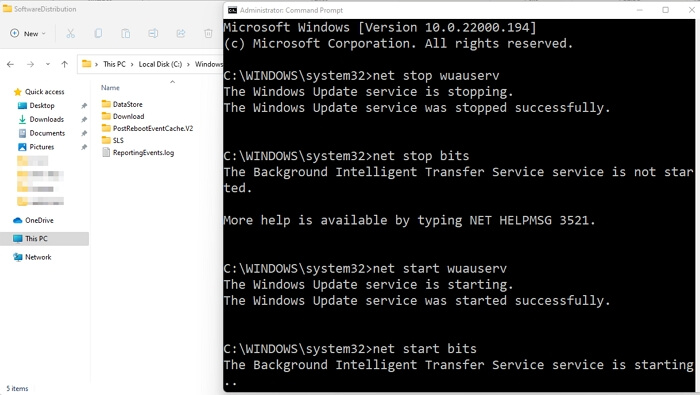
Step 1. Run a command prompt as an administrator.
Step 2. Input the following commands one after the other, then hit Enter.
- net stop wuauserv (it will stop the Windows Update Service)
- net stop bits (it will stop the background Smart Transfer service)
Step 3. Navigate to C:\Windows\SoftwareDisrtibution and delete all the folders in it.
Step 4. To continue, return to the command prompt and start the stopped Windows Update and Background Intelligent Transfer Service (BITS) services.
- net start wuauserv
- net start bits
To resolve the issue of Windows 11 Update getting stuck at 100%, you can try restarting your device, then download and install Windows 11, and ensure that the update process completes successfully. This may resolve the issue and prevent the update from getting stuck.
Fixed: Windows 11 Update Assistant Stuck at 99
To resolve the Windows 11 Update Assistant getting stuck at 99%, users can try restarting the update process, checking for any pending updates, running the System File Checker (SFC), and checking the Event Viewer for any errors. Additionally, users can also try running a System Restore to a previous point when the update was working, or resetting the Windows Update components. If none of these methods work, users can try running the Windows Update Troubleshooter, or seeking professional help from Microsoft Support.
Method 2. Extend the System Partition with Enough Space
To avoid issues with installing the Windows 11 update, ensure there's enough space on your system partition. You can free up space by uninstalling unnecessary apps or use a disk management tool like Qiling Disk Master Professional to extend your C drive, allowing you to proceed with the update.
Option 1. Extend System C drive with unallocated space
- 1. Right-click on the System C: drive and select "Resize/Move".
- 2. To increase the size of the C: drive, drag the system partition end into the unallocated space, effectively merging the two and expanding the C: drive's capacity.
- 3. The command to extend the C drive is being executed. This process may take a few minutes to complete, depending on the size of the disk and the amount of free space available.
Option 2. Extend System C drive without unallocated space
- 1. Right-click a big partition with enough free space on the system disk, select "Allocate Space" to resize the partition.
- 2. Select the system drive at the "Allocate Space From" section, and drag the end of the System C drive into the unallocated space.
- 3. Click "Proceed" to save the changes and extend the C drive.
Method 3. Install Windows 11 from a Bootable USB
If the Windows update solution is not working, try installing Windows 11 from a USB drive, using Qiling Disk Master to create a safe and usable installation media by burning the Windows 11 ISO to the USB drive.
Step 1. Launch Qiling Disk Master and go to the Bootable Media section. Click "Burn ISO" and click "Next".

Step 2. To start the installation process, select the ISO image that you have downloaded on your PC, and click "Open".

Step 3. Click "Next" and select the target USB as destination and click "Burn" to execute the operation.
Once the burning is complete, please continue with the guide to installing Windows 11 from USB.
You May Also Like:
For Windows beginners, installing a Windows system can be challenging, especially when it gets stuck at 100% or 99%. A more efficient solution is to use the manual service provided by Qiling software, where experts can assist in installing the OS to a new disk without any issues.
Qiling experts offer 24/7 manual services to fix various Windows configuration issues, providing free evaluation services and resolving errors with decades of experience in Windows update, installation, and daily OS issues.
- 1. To fix Windows update errors, such as update failure, unable to upgrade Windows, etc., try restarting your computer, checking for any conflicts with other installed software, and running the Windows Update Troubleshooter.
- 2. To successfully download and install the latest Windows operating system on your PC, you can follow a straightforward process. First, ensure your computer meets the minimum system requirements for the new Windows version.
- 3. To resolve daily Windows system errors, start by running the built-in System File Checker (SFC) and Deployment Image Servicing and Management (DISM) tools to scan and replace corrupted system files. Next, update your drivers using the Device Manager or a third-party driver update tool to ensure all hardware components are functioning properly. Additionally, check and adjust permission settings for files and folders to prevent access issues.
Conclusion
Hopefully, this guide will help you eliminate Windows 11 updates or installations stuck at 100%, by ensuring you have a good internet connection and a stable power supply, and utilizing the Software Distribution folder to resolve many of the issues.
If Windows 11 is not working properly, it may be due to corrupted system files or extended partitions. Qiling Disk Master can be used to repair these issues. If the problem persists, it may be necessary to reinstall Windows 11.
FAQs About Windows 11 Update Stuck on 100%
This section provides additional questions about the Windows 11 update, which can be read on.
1. What should you do if the Windows 11 update is stuck?
If the Windows 11 update is stuck, try removing your computer from update mode and if that doesn't work, try restarting the computer.
2. Why are my Windows 11 updates underway 100?
Windows 11 updates may get stuck at 100% download due to unstable internet connection, power outage, outdated drivers, or corrupted system files.
3. How long does it take to update Windows 11?
The process of installing Windows 11 typically takes around 20 minutes, but if you experience any Windows Update issues, the upgrade to Windows 11 may take up to 1 hour.
Related Articles
- How to Format Write Protected SD Card and Repair It to Usable Again [2024 Newest Guide]
- How to Boot ASUS Laptop from USB [Quick & Efficient Way]
- How to Extend Partition in Windows 7 without Data Loss🚀
- How to Remove MBR Partition in Windows 7/8/10/11
- Windows Server 2003 Extend C Drive: Two Ways to Extend System Partition
To extend the system partition on Windows Server 2003, you can use either the Diskpart command or Qiling Partition Master Server Edition. Both methods are simple and easy to use. With Diskpart, you can extend the C drive by using the command “extend” and specifying the size of the partition. - How to Extend Windows Server Partition [Server Guide]
To extend a Windows partition, you can follow these steps: First, ensure there is unallocated space available on the disk. Then, open the Disk Management tool, right-click on the partition you want to extend and select “Extend Volume”. Finally, restart your computer to see the changes take effect.
Products
Articles & Tutorials
- Data Recovery
- Data Backup
- File Recovery
- File Backup
- System Backup and Restore
- Disk and Partition Clone
- Technical articles
- Mobile articles
- Disk Master Help
- Windows Data Recovery Tutorials
- Windows Secure Delete Tutorials
- Windows Partition Management Tutorials
- Windows File Backup and Restore Tutorials
- Windows System Backup and Restore Tutorials
- Windows Disk Backup and Restore Tutorials
- Windows Clone Tutorials