How to Fix Windows 11 Won't Install from USB | 2024 Guide🔥
Key Takeaways
- Windows 11 won't install from USB due to USB drive errors, insufficient disk space, USB corruption, or misconfigured settings.
- Checking the USB, creating a bootable USB, updating the USB drive, and freeing up space can help fix the error of Windows 11 not installing from a USB drive.
- This article will also introduce one of the best comprehensive tools - Qiling Disk Master to help you solve the problem.
Windows 11, the latest operating system, has gained popularity among users who want to install it from a USB drive.
To overcome Windows 11 installation failure, various solutions can be applied to resolve issues such as Windows 11 won't install from USB or on a new PC. These fixes can help ensure a successful installation of Windows 11 on your computer.
How to Fix Windows 11 Won't Install from USB
To resolve the "Windows 11 won't install from USB" issue, check that your USB drive is properly formatted, has enough free space, and is recognized by your PC. Ensure the Windows 11 installation media is valid and the BIOS settings are set to boot from USB. If the issue persists, try booting in Safe Mode, disabling any conflicting software, and updating your PC's drivers.
Quick tips to fix the "Windows 11 won't boot from USB" error:
✔️Check compatibility: The PC Health Check application should be used to confirm that your device meets the minimum system requirements.
✔️Try a different USB port: To resolve the issue, try plugging the USB into a different port on the computer, then install Windows 11 on the USB drive. This will help determine if the problem lies with the USB port or the drive itself.
✔️Check if the USB drive is bootable: To access Windows 11, launch it from the Quick Start menu. Once in, use File Explorer to browse and examine the contents of the USB drive, allowing you to view its files and folders.
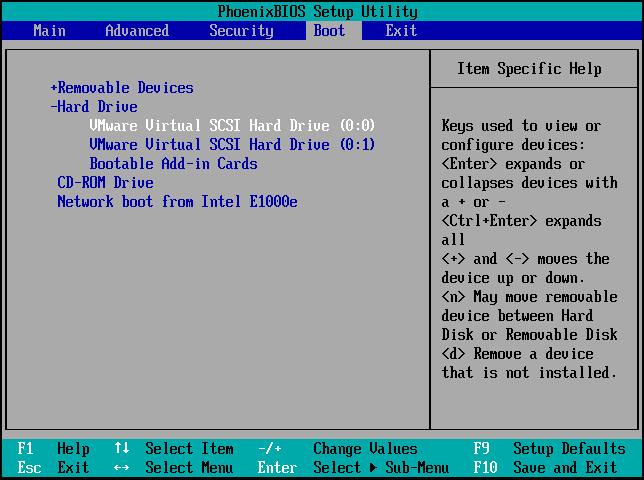
- To restart the computer and access the Advanced Boot Options screen, press the power button to shut down the computer, wait for it to completely power off, and then press the power button again to turn it back on. As soon as the computer starts booting, press the F2 key repeatedly until the Advanced Boot Options screen appears.
- Click Use a device and select the target bootable USB.
If the computer boots successfully from the USB, it's bootable; otherwise, recreate the installation USB drive.
The following solution is applicable to fix the error of Windows 11/10/8/7 can't install from USB:
- Method 1. Create a Bootable Installation USB Drive
- Method 2. Free Up Space on System Drive to Install Windows 11
- Method 3. Update USB Driver
- Method 4. Check for USB Corruption
- Method 5. Format the USB Drive
- Method 6. Reset UEFI Firmware Settings
- Method 7. Run Windows Troubleshooting
- Method 8. Try a Different USB Drive
Method 1. Create a Bootable Installation USB Drive
When installing Windows from a USB drive, use an official Windows ISO file and create bootable installation media with a professional ISO burner like Qiling Disk Master Professional, which has a Burn ISO feature specifically designed for Windows 11/10 installation from USB. This approach simplifies the process and improves the success rate of the installation.
To recreate the bootable installation USB and install Windows 10/11 from USB, follow the steps below.
Stage 1. Download the ISO: https://www.microsoft.com/en-us/software-download/windows11
Stage 2. Burn the ISO file using Qiling Disk Master
The tool has a user-friendly interface that makes it easy for anyone, even those without extensive computer knowledge, to solve problems like a computer expert.
Step 1. Launch Qiling Disk Master and go to the Tools section, then click "Create bootable media".

Step 2. Select the ISO image that you have created on your PC.

Step 3. Click "Proceed" to execute the operation.
Stage 3. Set up the installation process
If you're familiar with the installation process, you can successfully install Windows 11 using the created bootable installation media. If you're not, you can refer to the article on the installation process for guidance.

How to Install Windows 11 from USB Step by Step
To install Windows 11 from a USB drive, you can use a bootable USB or the Windows Media Creation tool. Alternatively, you can directly migrate the OS to a new HDD/SSD on a new PC. This allows for a smooth and efficient installation process.
Method 2. Free Up Space on System Drive to Install Windows 11
Windows 11 requires a minimum of 64GB of free space on the system drive and more than 20GB on the USB drive, otherwise the installation from the USB will not be possible. To resolve the issue, delete unnecessary files and uninstall unused applications.
To effectively reinstall Windows 11, it's best to extend the system partition using Qiling Disk Master, a partitioning software that can easily free up space by resizing the partition, ensuring Windows 11 has enough space for reinstallation.
Option 1. Extend System C drive with unallocated space
- 1. Right-click on the System C: drive and select "Resize/Move".
- 2. To increase the size of the C: drive, drag the system partition end into the unallocated space to add it to the C: drive.
- 3. Click "Proceed" to execute the operations and extend the C drive.
Option 2. Extend System C drive without unallocated space
- 1. Right-click a big partition with enough free space on the system disk, select "Allocate Space" to make the free space available for other partitions.
- 2. Select the system drive at the "Allocate Space From (*) To" section, and drag the end of System C drive into the unallocated space.
- 3. The C drive will be extended by 1000 MB. To proceed, click "Proceed".
The tool offers a range of features to help you manage your device's space, including a disk space analyzer and app mover, in addition to its main functionality. Download it for free to experience its advanced features.
Method 3. Update USB Driver
To resolve the issue of Windows 11 failing to install from USB due to outdated USB drivers, update the USB drive by following these steps: ensure the USB drive is properly connected, go to Device Manager, expand the 'Universal Serial Bus Controllers' section, right-click on the USB drive, and select 'Update driver'. Alternatively, you can also uninstall and then reinstall the USB drive. This should resolve the issue and allow Windows 11 to install successfully from the USB drive.
Step 1. To access Device Manager, right-click on the Windows icon on your desktop and choose Device Manager from the context menu.
Step 2. Right-click on the Universal Serial Bus Controller category, then select the problematic USB device, and choose Update driver from the context menu.
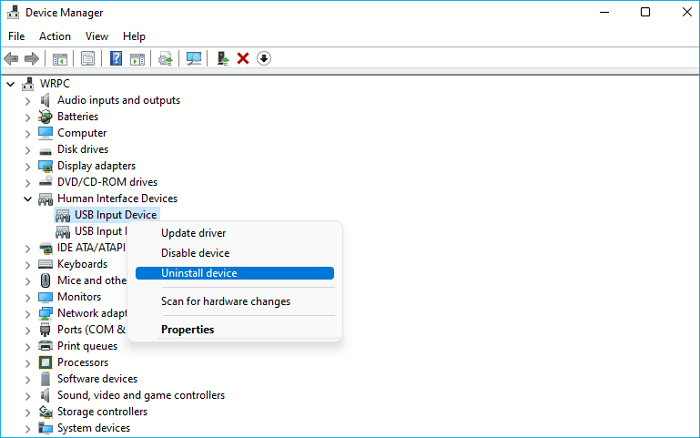
Step 3. To complete the update, select either Automatic or Manual Update and follow the on-screen instructions.
Method 4. Check for USB Corruption
If Windows 11 installation from a USB drive is not working, it might be due to bad sectors or an outdated USB. You can use a third-party tool or command prompt to check the USB and identify the issue.
Step 1. Run the Command Prompt application as administrator.
Step 2. The CHKDSK command is used to check the integrity of the USB drive. To do this, open the Command Prompt, type "chkdsk c:/f/r" and press Enter.
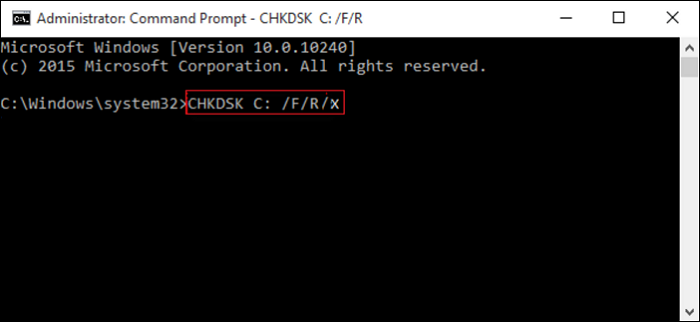
After fixing the error, you can try installing Windows 11 from USB and see if it works.
Method 5. Format the USB Drive
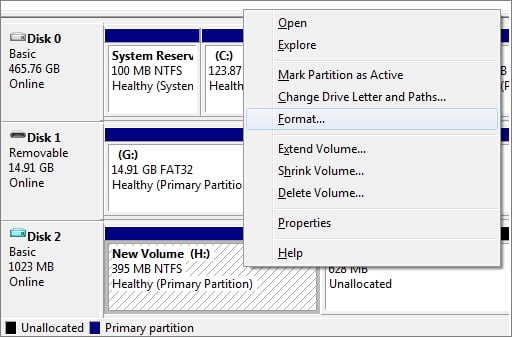
If your PC boots in UEFI mode, ensure the bootable Windows 11 installation USB is in FAT32 format, as other formats may be incompatible with Windows 11, preventing installation from the USB. You can format the USB using Windows' built-in tools or Qiling Disk Master.
This tool can bypass Windows limitations and errors, and allows for converting NTFS to FAT32 format without data loss, making it a useful tool for managing USB drives.
Step 1. Launch Qiling Disk Master, right-click the partition on your external hard drive/USB/SD card which you want to format and choose the "Format" option.

Step 2. Assign a new partition label, file system (such as NTFS, FAT32, EXT2, EXT3, EXT4, or exFAT), and cluster size to the chosen partition.

Step 3. To start formatting your external hard drive/USB/SD card, click the "Proceed" button.

Step 4. In the Warning window, click "Yes" to continue.
How to Format A USB Drive That Doesn't Show Up
If your USB drive is not showing up, don't worry! This guide offers three solutions to help you format an unrecognized USB drive. By following these steps, you can easily resolve the issue and get your USB drive up and running again.
Method 6. Reset UEFI Firmware Settings
If you're unable to install Windows 11 via USB due to an incorrect UEFI configuration, try resetting the UEFI firmware settings. This may resolve the issue and allow you to install Windows 11 properly.
Step 1. To initiate the Windows Recovery Environment, navigate to Windows Settings > System > Recovery > Advanced startup and click Restart now.
Step 2. Reboot your computer and select Troubleshoot>Advanced options>UEFI Firmware Settings.
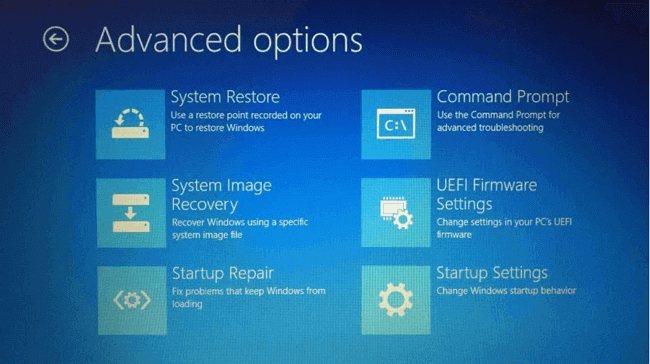
Step 3. To resolve the issue, click the "Restart" button, navigate to the BIOS Configuration, and modify the UEFI Firmware Settings of your computer.
Method 7. Run Windows Troubleshooting
If you're having trouble installing Windows 11 from a USB drive, you can try using the built-in troubleshooting tool with Windows. This tool can automatically troubleshoot some OS-related issues that might be preventing the installation from completing.
Step 1. To troubleshoot, you can try searching for "Troubleshooting" in the Windows search box, then selecting the option from the results that says "Troubleshooting" and choose Options > Troubleshooting.
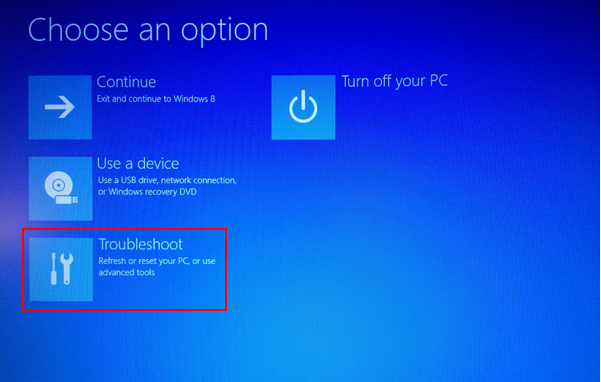
Step 2. Navigate to Windows Update and select Run.
Method 8. Try a Different USB Drive
If the above methods don't resolve the "Windows won't install from USB" issue, you can purchase a new USB drive, preferably with a USB 3.0 port, and use Qiling Disk Master to format and create a bootable USB drive.
If you're experiencing issues, our team is here to help you resolve them efficiently and effectively. We'll work together to identify the root cause of the problem and implement a solution tailored to your specific needs. Our goal is to get you back on track as quickly as possible, minimizing any disruption to your workflow.
Qiling experts offer 24/7 one-on-one manual services to fix various Windows configuration issues, providing free evaluation and efficiently resolving errors and issues using their extensive experience.
- 1. To fix Windows update errors, such as update failure, unable to upgrade Windows, etc., you can try the following: Run the Windows Update Troubleshooter, which can be found in the Settings app under Update & Security.
- 2. Serve to download and install the latest Windows operating system on PC with success.
- 3. To resolve daily Windows system errors, start by updating drivers for hardware devices, such as graphics cards, sound cards, and network adapters. This can be done through the Device Manager or by using a driver update tool. Next, check and adjust permission settings for files and folders to ensure they are set correctly.
If you're experiencing issues with installing Windows 11 from a USB drive, don't worry - there are solutions! To fix the problem, try checking the USB drive for errors, ensuring it's properly formatted, and verifying the installation media. If the issue persists, you can try creating a new installation media, checking for BIOS updates, or running a System File Checker scan to resolve any corrupted system files.
Why Windows 11 Won't Install from USB
Many users encounter this problem when installing Windows 11 from USB. Some users have reported this issue in the Microsoft forums:
To prevent Windows 11 installation from USB failure, consider the following possible reasons: The USB drive may not be bootable, the BIOS settings might not be set to boot from USB, the Windows 11 installation media might be corrupted, or the USB drive might not meet the minimum system requirements for Windows 11. Ensure the USB drive is bootable, the BIOS is set to boot from USB, and the USB drive meets the system requirements. Also, verify the integrity of the Windows 11 installation media and try a different USB drive if necessary.
- Windows 11 bootable USB drive error: USB is not set to bootable.
- USB is damaged or faulty: The USB drive may not show up in the BIOS due to its configuration settings, specifically the USB drive's boot order settings. If the USB drive is set to not boot from USB in the BIOS, it will not be recognized and thus will not show up in the BIOS.
- USB format error: In legacy BIOS mode, the operating system should utilize the NTFS file system, whereas in UEFI mode, the FAT32 format should be employed.
- USB drive is outdated: Windows 11 computers do not support older USB devices.
- USB drive is too old: USB 1.0 or USB 2.0 will not work on Windows 11.
- Insufficient space on the PC: The system drive needs at least 64GB of free space to install Windows 11.
- Incorrect UEFI firmware settings: Incorrectly configured UEFI settings may interfere with the installation.
If your Windows 11 installation from USB is not working, it may be due to various issues. These problems can prevent your desktop or laptop from booting from a USB Windows 11 UEFI/BIOS. To resolve this, you can try the suggested solutions to help you overcome the issue.
You May Like:
Conclusion
If Windows 11 installation fails or can't install from USB, refer to the guide in this article for help recreating the bootable installation USB, freeing up space on your system drive, and formatting the USB using Qiling Disk Master.
If you're experiencing issues installing Windows 11 from a USB drive, you can try updating the USB drive, checking the USB, or resetting the UEFI firmware settings. This should help resolve any problems you're facing. You can find detailed solutions on the provided page to successfully install Windows 11 from USB.
FAQs About Windows 11 Won't Install from USB
If Windows 11 won't install from a USB drive, try booting from the installation media and then running the installer from the USB drive. You can also try running the installer from the Windows Recovery Environment, which can be accessed by booting from the installation media and then selecting the "Troubleshoot" option. If you're still having issues, you can try using the Media Creation Tool to create a new installation media and then try installing Windows 11 again.
1. Why is my bootable USB not working?
A bootable USB may not be working due to various reasons, including incorrect settings in the BIOS or UEFI, a faulty USB drive, or issues with the operating system installation process. Additionally, the USB drive may not be properly formatted or partitioned, or the bootable image may be corrupted.
- Most external USB drives are formatted with the NTFS file system, but need to be reformatted to FAT32 to be compatible with older operating systems and devices.
- USB not displayed in BIOS can be caused by errors in the USB port or cable, preventing the USB from being recognized or displayed in the BIOS settings.
- An outdated USB drive can cause Windows to not recognize a USB device, leading to issues with connectivity and functionality.
2. How do I force Windows 11 to boot from USB?
Use the Windows Media Creation Tool to create a bootable USB drive, then boot your computer from the USB. This process will allow you to install Windows 10 on your device.
Step 1. To recover your Windows PC, plug the USB into your computer and go to Start > Settings > Update and Security > Recovery.
Step 2. Under Advanced Booting, select Restart Now and choose to use USB storage.
3. Why Windows 11 won't install on new pc?
Windows 11 may not install due to incompatibility with minimum hardware requirements or incorrect installation media.
Related Articles
- Which Is The Best File System Format for (Bootable) USB/External Hard Drive
- How to Convert FAT32 to NTFS Windows 10 Without Losing Data in 3 Ways
- How to Fix Windows 10 Start Menu Not Working | 7 Ways🏅
- How to Fix Windows 10 Stuck on Welcome Screen | 2024 🔥
- How to Fix Dell Laptop Running Slow on Windows 10/11
If your Dell laptop is running slowly, it can be due to various reasons, and we'll explore what causes this issue and how to fix it in this article. Continue reading to learn more! - How to Fix Dell Laptop Won't Turn On | 2024 New💡
If your Dell laptop won't turn on, this guide is here to help. Learn about the common issue of a Dell laptop not powering on and discover the possible causes and solutions to get your laptop up and running again.
Products
Articles & Tutorials
- Data Recovery
- Data Backup
- File Recovery
- File Backup
- System Backup and Restore
- Disk and Partition Clone
- Technical articles
- Mobile articles
- Disk Master Help
- Windows Data Recovery Tutorials
- Windows Secure Delete Tutorials
- Windows Partition Management Tutorials
- Windows File Backup and Restore Tutorials
- Windows System Backup and Restore Tutorials
- Windows Disk Backup and Restore Tutorials
- Windows Clone Tutorials