How to Format A USB Drive That Doesn't Show Up
Key Takeaways:
- USB drives not showing up in Windows or not being recognized can result from connection problems or USB issues, causing the device to be undetected or unresponsive.
- When Windows Explorer can't identify a USB drive, it often results in the failure to format the drive, as the operating system is unable to recognize it as a valid device.
- To resolve the issue, ensure the USB drive is visible, update its driver if necessary, and then format it using Qiling Disk Master, a professional formatting tool.
To format a USB drive that doesn't show up on your Windows PC, you can try using the built-in Disk Management tool or a third-party software like Qiling to format the USB drive. If the USB drive is not recognized, you can try checking the USB drive for physical damage, updating the USB drivers, or using the Command Prompt to initialize the disk. If the issue persists, you can try formatting the USB drive using a Linux live USB or a USB formatting tool like Qiling, which can help you format the USB drive even if it's not recognized by your Windows PC.
| ⏱️Duration | 3-5 minutes |
| 🧑💻Difficulty | Easy, suitable for newcomers |
| ⚒️Software Required | Qiling Disk Master, Disk Management, CMD |
| 👣Steps |
How to Format A USB Drive That Doesn't Show Up
It's normal for a USB not to show up or not be recognized in Windows File Explorer, and this issue can be resolved by restarting the computer, checking the USB port, and ensuring the USB drive is not write-protected. Additionally, updating the USB drive or reinstalling the USB drivers may also resolve the issue. Furthermore, checking for any malware or viruses on the computer and running a disk check on the USB drive can also help resolve the problem.
If you're having trouble with a USB drive not showing up, this tutorial can help. We'll guide you through two stages to fix and format your USB drive successfully.
Quick Guide: Use Qiling Disk Master to Format USB Not Showing Up
I highly recommend choosing a professional formatting tool, such as Qiling Disk Master Free, which can easily format unrecognized USB drives or those that don't show up in Windows, and sometimes directly detects USB that Windows does not detect.
This tool overcomes the limitations of Windows built-in tools, enabling users to easily format external hard disks to various formats, including NTFS, FAT32, and exFAT, and even revive an unreadable USB drive without requiring specialized computer knowledge or command-line expertise.
Step 1. Launch Qiling Disk Master, right-click the partition on your external hard drive/USB/SD card which you want to format and choose the "Format" option.

Step 2. Assign a new partition label, select a file system (NTFS, FAT32, EXT2, EXT3, EXT4, exFAT), and set the cluster size for the chosen partition.

Step 3. To start formatting your external hard drive, USB, or SD card, click the "Proceed" button. This will initiate the formatting process, which will erase all data on the device.

Step 4. In the Warning window, click "Yes" to continue.
If this solution doesn't solve your problem, read on. We have a two-stage process to help you continue formatting the USB:
You May Also Like:
2 Stages to Format A USB Drive That Doesn't Show Up
Stage 1. Make USB drive Show up in Windows
You can try some quick options for troubleshooting first:
- After connecting the USB device, restart your computer to check if Windows can show it.
- To troubleshoot the issue with the USB drive, it's recommended to connect it to another computer to rule out any damage to the drive itself. This step helps determine if the problem lies with the drive or the original computer.
- If the USB drive can't be displayed in File Explorer but can be displayed in Disk Management, you can directly refer to the second stage of the solution to format it.
To identify issues with a USB, perform a series of simple checks. First, ensure the USB is properly inserted into the port. Next, check the USB's physical condition for signs of damage or wear.
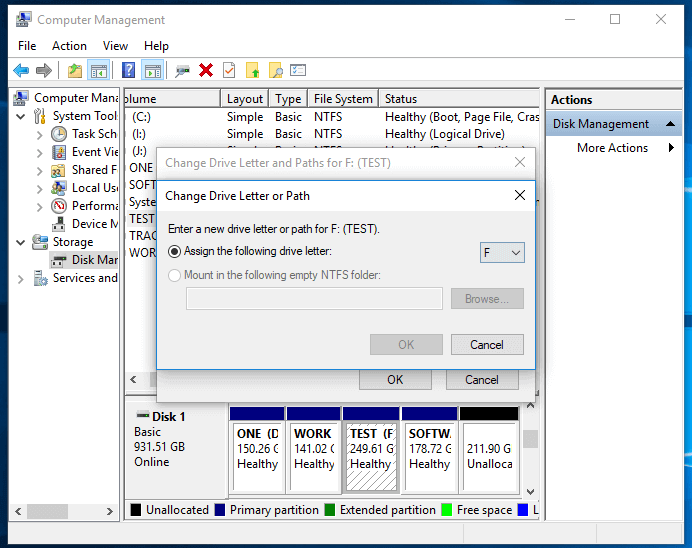
How to Fix USB Flash Drive Not Showing Up
If your USB flash drive is not showing up in Windows 11, try restarting your computer, checking the USB port, and ensuring the drive is properly inserted. You can also try updating your USB drivers, running a disk check, and checking for any software conflicts. If none of these solutions work, consider formatting the drive or seeking further technical assistance.
Once the USB bootloader is made visible or recognizable, it can be formatted in various ways. Three comprehensive formatting options are available, allowing you to customize the USB bootloader to suit your specific needs.
Way 1. Use Disk Management to Format Unrecognized USB
If File Explorer is ignoring a USB drive, try formatting it in Disk Management to assign a drive letter.
Step 1. To access Disk Management, you can either press Windows + R to open the Run window and type "diskmgmt.msc" or right-click the Windows icon to open Disk Management.
Step 2. Right-click on the unrecognized USB drive and select "Format."
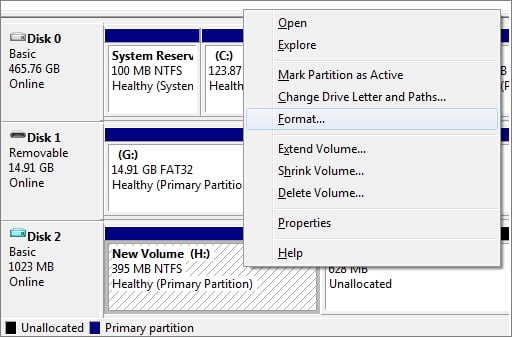
Note: If the USB drive has a black bar at the top, create a simple volume by right-clicking on the unallocated space and selecting that option, then use a compatible file format.
Step 3. Select the desired file system, change the volume label, and set the allocation unit size.
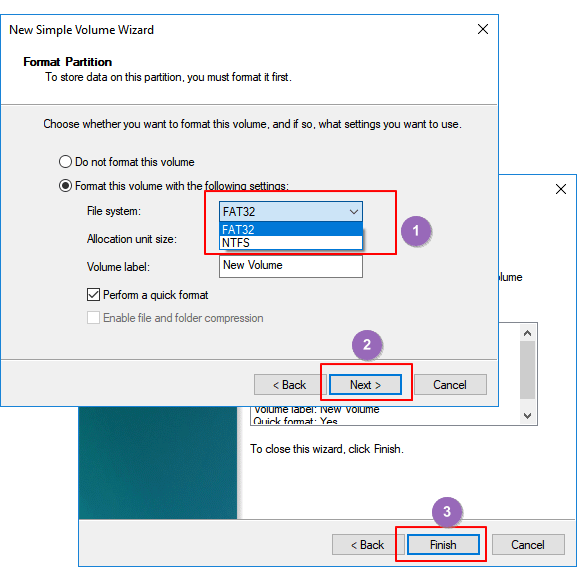
Step 4. Select Perform Quick Format and click Finish.
Way 3. Use Diskpart to Format Unrecognized USB
Diskpart provides the same formatting features as Disk Management and is perfect for those used to command line tools. If there are no issues with the physical drive itself, you can follow the steps to format a USB flash drive that doesn't show up in Windows Explorer.
Step 1. To open the Command Prompt, press the Windows key + R to open the Run window, then type "cmd" and press Enter. This will open a new Command Prompt window where you can execute commands.
Step 2. Type the following commands to create a partition on the USB and press enter:
Note: If there is already a partition on the USB, you can skip this step and proceed to the next one. Otherwise, you would need to create a partition on the USB drive.
diskpart
list disk
select disk 0
create partition primary size=20480
The issue of no partition on a USB drive can be resolved by running the command `fdisk /dev/sdb` and then creating a new partition using the `n` option, followed by `p` to make it a primary partition, and finally `w` to write the changes to the drive. This process ensures that the USB drive is properly partitioned and can be used for storing files.
Step 3. Enter the following commands to format the USB drive:
list disk
select disk 2
list volume
select volume 10format fs=ntfs quick
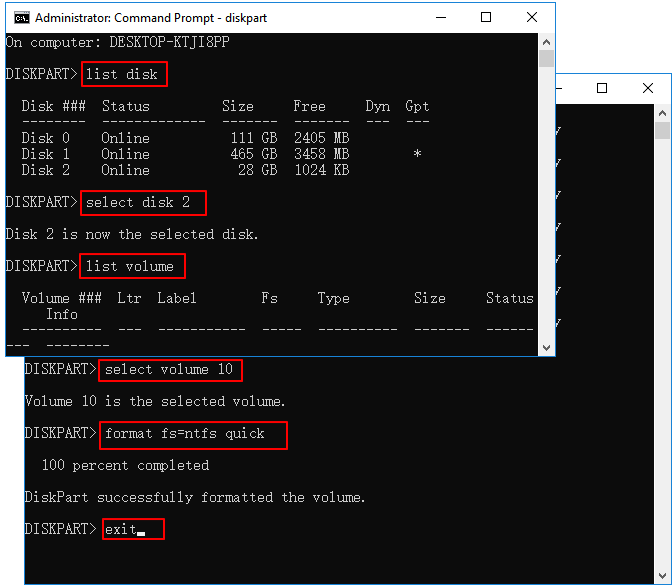
After completing the above commands, you can successfully format the USB drive.
If you find the text tutorial difficult to understand, you can refer to the video below.
Why A USB Drive IS Not Showing Up
A USB drive may not display or be recognized on a Windows computer for various reasons, including hardware issues, such as a faulty USB port or a malfunctioning drive, or software problems, like outdated drivers or conflicting software configurations. Additionally, the drive may be damaged or corrupted, or it may be set to a file system that Windows does not support.
- USB port failure
- USB corruption
- USB format incompatibility
- Outdated USB drive
- File system error
- Disk drive conflicts
If your USB drive isn't appearing on your computer, don't worry - the solution is just a click away. You can use the steps outlined in this article to resolve the issue, and then format the undetected USB drive using Qiling Disk Master.
Conclusion
After reading this tutorial, you should know how to format a USB drive that doesn't show up. You can try using Qiling Disk Master, which sometimes directly detects external drives that are not detected by Windows and provides a quick formatting solution.
If the USB drive is not visible in File Explorer, try some fixes to make it recognizable within Windows, format it using Diskpart or Disk Management, and consider the possible reasons provided for a more vigilant approach next time.
FAQs About How to Format USB Drive That Doesn't Show Up
What is a format unrecognized USB and how do I resolve the issue?
1. Can I force a USB stick to format?
To force a USB to be formatted, you can use a few methods depending on whether the USB is recognized or not. If it's not recognized, try using Qiling Disk Master for a quick format. If it is recognized, you can directly format it through Disk Management or Diskpart.
2. Why is my USB drive not showing up?
Here are the possible reasons why the USB might not be showing up:
- The drive is not installed correctly
- The USB port is damaged
- USB format incompatibility
- Outdated USB drive
- File system error
3. How to fix usb not showing up but making a sound?
If a USB drive makes a sound, it may be due to a hardware issue. To troubleshoot, try switching to a different port or connecting to another computer to rule out any issues with the USB connection.
Related Articles
- exFAT Converter: How to Convert exFAT to NTFS/FAT/FAT32
- Failed to Create a New Partition on the Selected Unused Space? Fix Now!
- How to Clone Hard Drive From Boot [Step-by-Step Guide]
- Create D Drive from C Drive in 2 Simple Ways
- How to Make MSI Boot From USB | Best Tutorial🔥
Additionally, if you're trying to install MSI, you may need to use a third-party tool or software to create a bootable USB drive specifically designed for MSI, as the process can vary depending on the specific model and version of MSI you're trying to install. - How to Fix MSI Laptop Black Screen Efficiently [Tutorial]
Learn how to resolve the MSI laptop black screen issue in this comprehensive guide. Whether your MSI laptop is stuck on the black screen, this guide will walk you through the steps to get it up and running again. Dive in and start learning now!
Products
Articles & Tutorials
- Data Recovery
- Data Backup
- File Recovery
- File Backup
- System Backup and Restore
- Disk and Partition Clone
- Technical articles
- Mobile articles
- Disk Master Help
- Windows Data Recovery Tutorials
- Windows Secure Delete Tutorials
- Windows Partition Management Tutorials
- Windows File Backup and Restore Tutorials
- Windows System Backup and Restore Tutorials
- Windows Disk Backup and Restore Tutorials
- Windows Clone Tutorials