How to Fix MSI Laptop Black Screen Efficiently [Tutorial]
MSI laptops are known for their performance and reliability, but sometimes they can experience issues, such as powering on with a black screen, a frustrating problem that can occur for various reasons.
If your MSI laptop screen suddenly goes black and displays random colors, don't worry! Follow the troubleshooting steps outlined in this guide to identify and resolve the issue, and you'll be back to using your laptop in no time.
Fix the MSI Laptop Black Screen Automatically
When dealing with the frustrating MSI laptop black screen issue, Qiling Disk Master Pro offers a powerful and user-friendly solution. Its boot repair feature is specifically designed to address boot-related problems, including the black screen issue, and provides a swift and effective solution to get your laptop's display back up and running. This tool goes beyond conventional troubleshooting methods and offers a versatile remedy for an array of boot issues, making it a reliable solution for MSI laptop users.
Following are the steps you need to follow to fix the MSI laptop black screen issue using Qiling Disk Master:
Step 1. After connecting the external drive/USB to your computer, open Qiling Disk Master and go to the "Tools and utilities" tab, then click "Create bootable media".

Step 2. Insert a blank USB drive or CD/DVD and click "Proceed" to begin the installation process.

Step 3. Connect a bootable drive to a new computer, reboot by pressing F2/Del, set the drive as the boot disk, and exit the BIOS by pressing F10.
Step 4. To resolve the issue, boot the computer again, access the WinPE interface, and within it, open Qiling Disk Master. From the "Tools and utilities" tab page, click on "Fix Boot" to initiate the repair process.

Step 5: Select the system you want to repair and click "Proceed".

Step 6. The system has been successfully repaired. Click "OK" to complete the boot repair process.
If you're experiencing the MSI laptop black screen issue, we recommend downloading Qiling Disk Master to simplify the troubleshooting process and resolve the problem with minimal hassle and maximum efficiency, even for those with limited technical expertise.
Fix the MSI Laptop Black Screen Manually
Automated tools like Qiling Disk Master can be helpful in resolving the MSI laptop black screen issue, but sometimes a more proactive approach is needed. To address this issue methodically, consider the following six manual solutions: 1) Check for loose connections, 2) Inspect the power adapter and cable, 3) Run a System File Checker, 4) Run a DISM scan, 5) Check for BIOS updates, and 6) Perform a System Restore. These steps can help identify and resolve the root cause of the black screen issue.
To boot your MSI laptop into safe mode, follow these steps:
🚩To diagnose and potentially resolve the black screen issue on your MSI laptop caused by software or driver conflicts, boot it into Safe Mode. This mode loads only essential drivers, which can help identify and address software-related problems. To do this, follow the steps to boot your laptop into Safe Mode.
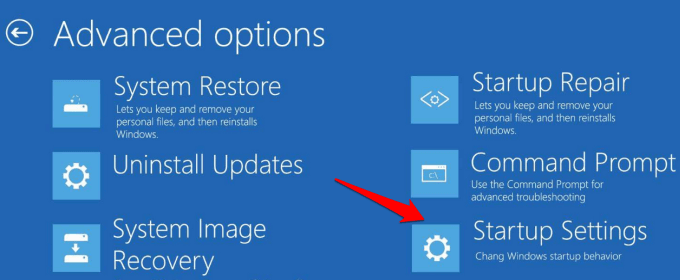
Step 1: Reboot your MSI laptop and, as soon as the MSI logo appears, press the "F3" or "F11" key repeatedly to activate the Windows Recovery Environment. Once there, click "Advanced Options" and navigate to the "Troubleshoot" section.
Step 2: To reboot into Safe Mode, tap "Advanced Options" and access "Startup Settings." Then, press "Restart" and use the "F4" or "F5" key to reboot into Safe Mode.
Further Reading:

To fix a Windows 11 black screen with a cursor, try booting in safe mode, disabling the graphics driver, or using the built-in System Restore feature. If the issue persists, you can try booting from a USB drive with a Windows installation media, or using the Windows Recovery Environment (WinRE) to reset the system.
If your Windows 11 PC is stuck on a black screen with a cursor, don't worry, you can fix it quickly. Follow this guide to troubleshoot and get your PC back to normal.

Fix 1. Update Graphics Card Driver
A corrupted or outdated graphics card driver can cause screen issues, such as a black screen with a cursor on an MSI laptop, so it's essential to ensure the driver is up-to-date or properly installed.
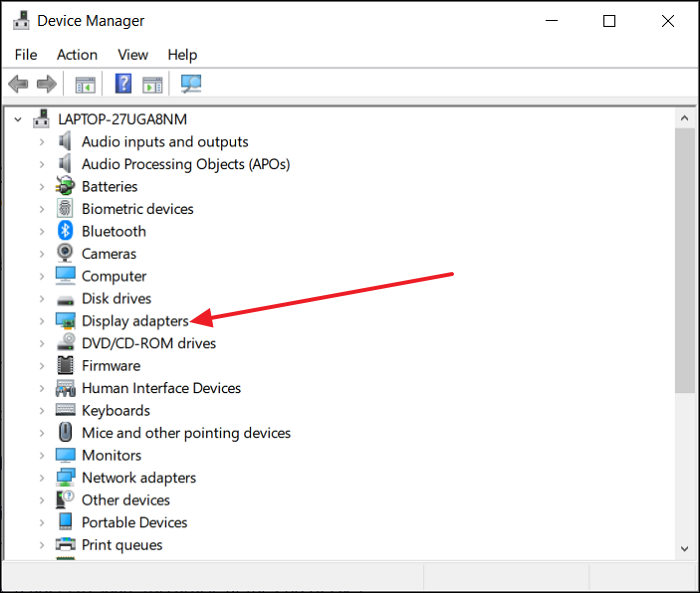
Step 1: To access the Power menu using the "Win + X" keys, select "Device Manager," navigate to "Display Adapters," and tap it to expand the option.
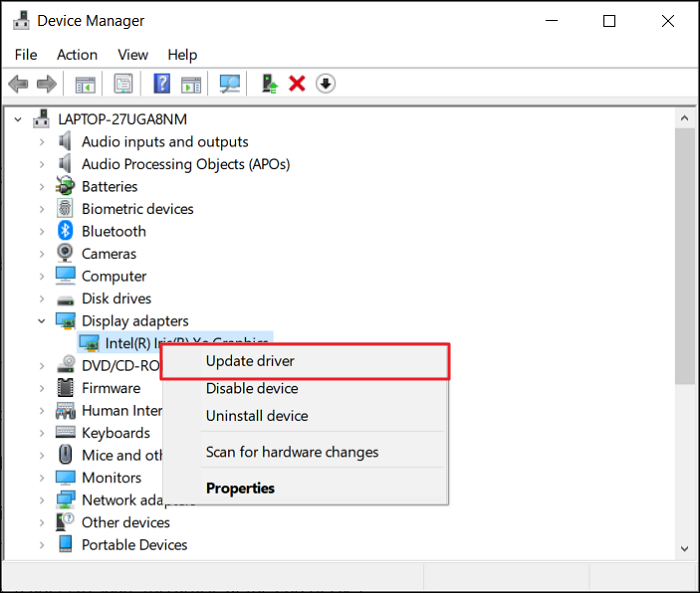
Step 2: Right-click on your graphic card driver and select "Update Driver". Then, choose "Search automatically for drivers" and follow the on-screen instructions to complete the updating process.
You may like:
Fix 2. Change Power Settings
To resolve the MSI black screen issue, you can modify the power settings on your laptop. Go to the Start menu, type "Power Options" and open it. Then, click on the "Choose what power buttons do" option. Finally, select the "Change settings that are currently unavailable" option and change the settings for both the plugged in and unplugged power sources to "Preferably" or "Always" on.
Step 1: To access the Power Options, go to the Windows search bar, type "Control Panel," and open it. Then, click on "Hardware and Sound," followed by "Power Options" on the next screen.
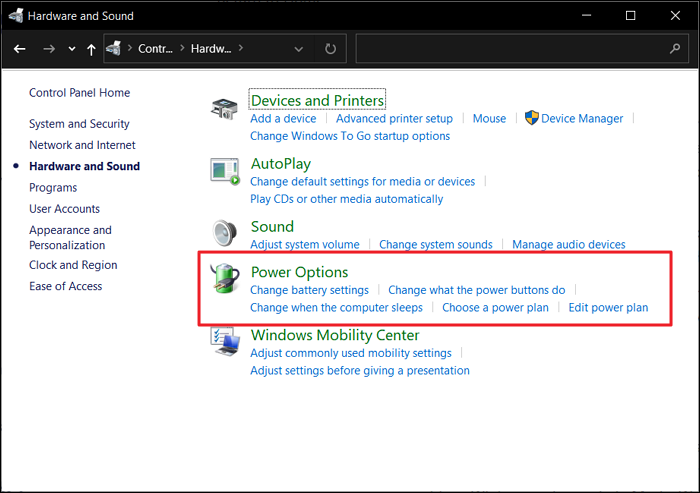
Step 2: To change the power plan settings, tap "Change Power Plan" and adjust the "Turn off Display" setting to "Never". Then, click "Save Changes" to apply the changes.
Fix 3. Scan for Malware or Viruses
Malware or viruses can interfere with your MSI laptop's normal operation, causing issues like a black screen. To fix this, perform a thorough malware and virus scan to remove any malicious software. However, since Windows Defender is inactive in Safe Mode, you may need to use an alternative antivirus software to scan your system.
If you encounter a situation where your computer is unable to start normally due to malware, you can try booting it in 'Safe Mode with Networking.' This allows you to access the internet to download and install a third-party antivirus program. Once installed, run a full scan to detect and remove any malware that might be present. This can help resolve the issue and get your computer running smoothly again.
If this guide helped you resolve the black screen issue on your MSI laptop, consider sharing it with others who may face a similar problem, making tech troubleshooting straightforward for everyone.
Fix 4. Factory Reset MSI Laptop
If all previous fixes for the black screen issue on your MSI laptop have failed, and you suspect a software-related problem, you may want to consider a factory reset as a last resort, but do so with caution.
To factory reset your MSI device, make sure to back up any important data first, as this process will delete all data and restore your laptop to its initial factory configuration. Follow these steps to complete the factory reset below.
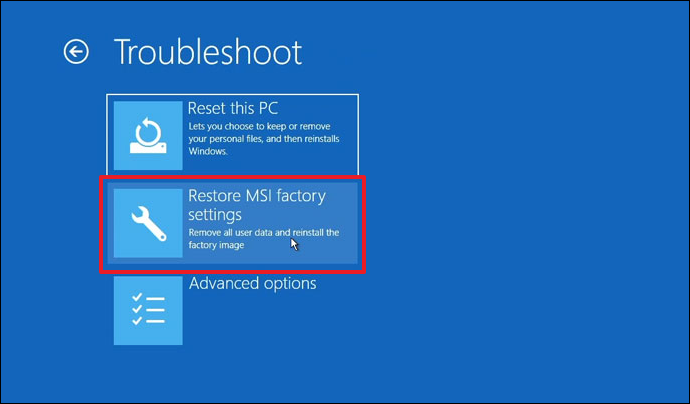
Step 1: Reboot your MSI device, press the F3 key repeatedly when the MSI logo appears, access the Windows Recovery Environment, select "Troubleshoot", and then choose "Restore MSI factory settings" from the "Choose an Option" screen.
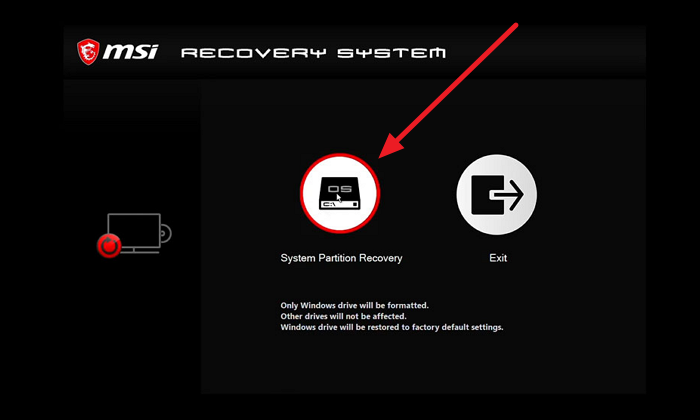
Step 2: On the next screen, select "System Partition Recovery" and confirm the reset by choosing "Yes" when prompted with "All files and settings will be reset and lost on the computer."
Read Also: MSI Boot from USB
Fix 5. Hard Reset Your MSI Laptop
To resolve the MSI black screen issue, power down your computer, disconnect it from the power source, remove the battery if possible, and any external peripherals. Hold down the power button for a full 60 seconds, then let it go. This can help clear temporary glitches and power-related problems.
If you're experiencing the MSI laptop black screen issue, try removing the battery, waiting for 30 seconds, and then reinserting it. Next, plug in the charger and power on your computer. Verify if the problem has been resolved. If this guide helped you resolve the issue, consider sharing it with others who may be experiencing the same problem, as sharing can make a significant difference.
Read Also:
Fix 6. Try An External Monitor
If you're experiencing a black screen on your MSI laptop, it's possible that the issue is related to the internal display or graphics hardware. To troubleshoot this, try connecting your laptop to an external monitor using the appropriate cable. This will help determine if the problem is with the laptop's internal display or if it's a hardware issue.
If your MSI laptop screen remains black while the external monitor displays an image, it may be due to internal display or graphics hardware issues.
Conclusion
This guide provides a comprehensive overview of manual fixes to resolve the MSI laptop black screen issue, covering hardware checks, software adjustments, and other solutions to help diagnose and efficiently resolve the problem.
Qiling Disk Master is a standout solution in our troubleshooting journey, offering a powerful tool for partition management and a robust "boot repair" feature. It has proven effective in resolving various boot issues, including black, white, or blue screens, and a boot stuck at the logo.
You May Also Like:
MSI Black Screen FAQs
Some users may experience issues with their MSI laptop screen, resulting in a black screen. This can be caused by a variety of factors, including a faulty display, a malfunctioning graphics card, or a problem with the laptop's power management system. In some cases, the issue may be resolved by simply restarting the laptop, while in other cases, more extensive troubleshooting may be required.
1. Why is my MSI laptop running but no display?
If your MSI laptop is running but not displaying anything on the screen, it could be due to various reasons. First, try connecting an external monitor to rule out display issues. If the external monitor works, the problem might be with your laptop's built-in display.
2. Why is my MSI laptop turning on, but the screen is black?
A black screen on an MSI laptop, despite it turning on, can be caused by various factors, including a hardware problem, such as a defective screen-motherboard connection or a malfunctioning graphics card.
3. How do I reset the MSI monitor with a black screen?
To factory reset an MSI monitor with a black screen, try pressing and holding the power button for 10 seconds to discharge any residual power. Then, unplug the monitor's power cord and press the power button again for 10 seconds to discharge any remaining power.
Step 1: To reset your MSI monitor, locate the red button at the rear of the monitor and press it. Next, navigate to the "Settings" option in the menu.
Step 2: To reset your MSI monitor, select the "Reset" option using the right button, confirm your selection by pressing the right button again, and then choose "Yes" to reset the monitor to its factory default settings.
Related Articles
- Top 5 Free Disk Format Utility Recommend for Windows & Mac
- Ultimate Guide on SSD Benchmark, Everything You Should Know
- How to Check Hard Drive Health in Windows [Six Working Solutions]
- [Fixed] Can't Save Files to USB Flash Drive - 100% Working Guides
- Freeware: Reformat Hard Drive to FAT32 from NTFS or exFAT
If you need to reformat a hard drive from NTFS to FAT32 or exFAT, you can use various tools such as Disk Management, Diskpart, or a free partition manager to complete the task. - How to Remove OEM Partition in Windows 10, 8, 7?
You can remove OEM partition on Dell or Lenovo with the help of diskpart or Qiling Disk Master if you don't need it any more.
Products
Articles & Tutorials
- Data Recovery
- Data Backup
- File Recovery
- File Backup
- System Backup and Restore
- Disk and Partition Clone
- Technical articles
- Mobile articles
- Disk Master Help
- Windows Data Recovery Tutorials
- Windows Secure Delete Tutorials
- Windows Partition Management Tutorials
- Windows File Backup and Restore Tutorials
- Windows System Backup and Restore Tutorials
- Windows Disk Backup and Restore Tutorials
- Windows Clone Tutorials