Selected Boot Device Failed - 6 Quick Fixes with Pictures
Through this guide from Qiling, we'll learn how to fix the "Selected Boot Device Failed" error and provide six quick ways to help you resolve this issue. Encountering this error can be frustrating and disruptive, but with these step-by-step instructions and pictures, you'll be able to fix it quickly.
Many users have complained about the "Selected Boot Device Failed" error on various social platforms. This issue has caused significant inconvenience to users, as evident from the following user cases, where users have expressed their frustration and difficulties in resolving the problem.
User Case 1:
The Dell T3600 with BIOS version A14 may not have a "Secure Boot" option. Instead, try disabling "Legacy Support" and setting the USB drive to be the first boot device in the BIOS settings. This might resolve the "Selected boot device failed" error when trying to boot from the Windows 10 USB.
User Case 2:
"Hello, I encountered the 'selected boot device failed' error and seeking help. Recently purchased a new hard drive in hopes of resolving the issue. Had previously dealt with the idle buddy virus, which was successfully removed using Malwarebytes. Wondering if the error might be linked to a faulty CPU. Your assistance is greatly appreciated. - Microsoft User"
If you're experiencing the "Selected Boot Device Failed" error, don't worry, it's an easily solvable issue. Simply follow the provided fixes with complete instructional steps, and you'll be able to eliminate this error and restore your computer's functionality.
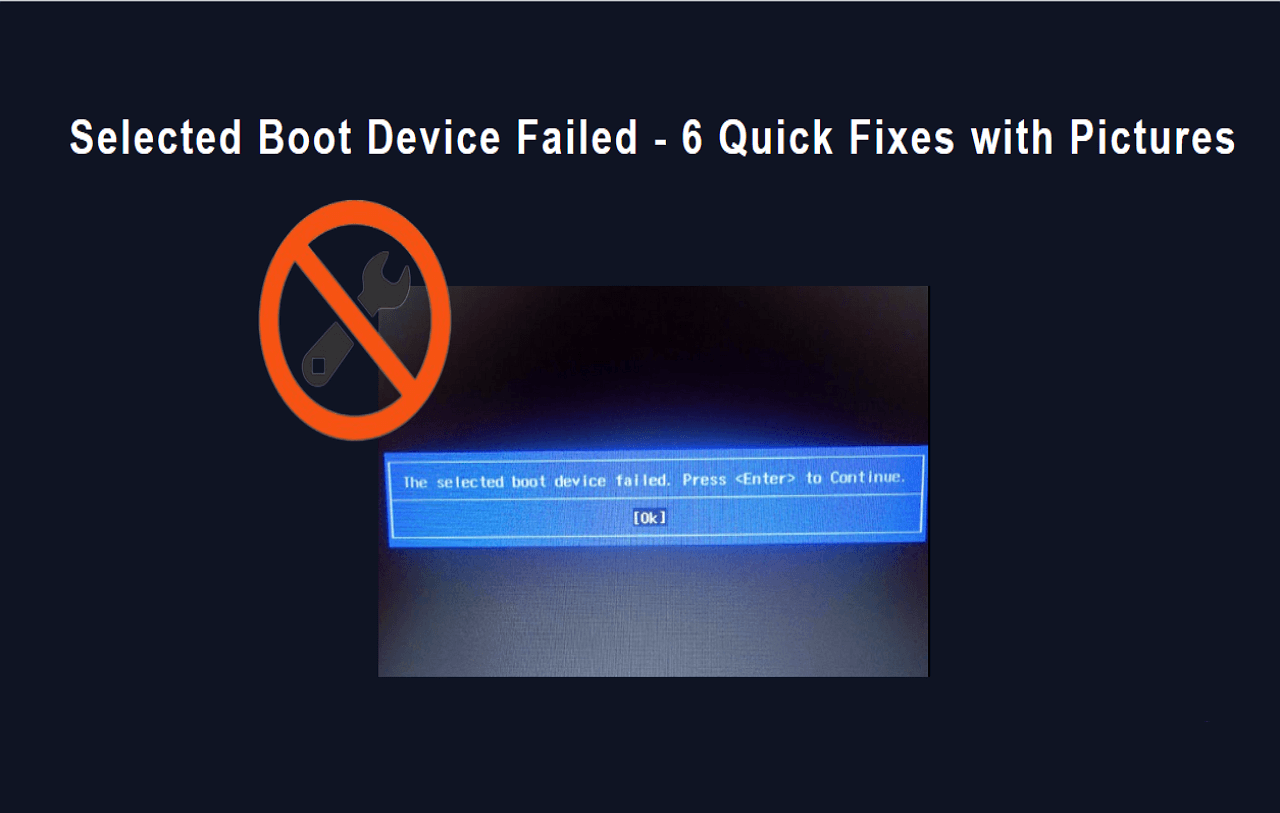
Why Does the Selected Boot Device Fail
When a computer is unable to boot from a bootable USB or CD/DVD drive, it indicates a problem with the system's ability to initiate the boot process from an external device. This can be caused by a variety of factors, including a malfunctioning USB port, a corrupted boot sector, or an issue with the BIOS settings. As a result, the selected boot drive fails to initiate the boot process, preventing the system from starting up normally.
This error can be caused by various factors, including software or hardware issues, incorrect system settings, or conflicts with other programs. It may also be related to a problem with the system's ability to read or write data, or a malfunctioning device. In some cases, the error can be resolved by restarting the system or reinstalling the affected software.
- Improper BIOS settings: This error can occur when the BIOS settings are not configured correctly, such as enabling "Secure Boot" when it should be off or setting the boot order incorrectly.
- Wrong boot order: If the boot order in BIOS is set to boot from an unavailable or non-bootable device, it can cause the "Selected Boot Device Failed" error.
- Corrupted or missing system files: When critical system files required for booting become corrupted or are missing, the system may fail to locate the necessary files, leading to this error.
- Hard drive failure: A failing or malfunctioning hard drive can cause the system to fail booting, resulting in a "Selected Boot Device Failed" error message.
- Boot sector is damaged: Damage to the boot sector of the hard drive or storage device can prevent the system from initiating the boot process, resulting in this error.
Now that we've identified the potential causes behind the "Selected Boot Device Failed" error, let's move forward to explore effective solutions that can help you resolve this issue and get your system back on track, with the next step being to resolve the issue automatically.
Automatically Fix Selected Boot Device Failed Error
If you're experiencing the "Selected Boot Device Failed" error, you can use Qiling Disk Master's "Boot Repair" feature to automatically resolve the issue, providing a simpler alternative to manual fixes.
Qiling Disk Master's research and development team has enhanced the product algorithm by thoroughly researching multiple types of boot problems, making it possible to fix various boot-related issues, including the "Selected Boot Device Failed" error, and other common boot errors, with ease.
Step 1. To create a bootable media, connect the external drive/USB to your computer and launch Qiling Disk Master. Go to the "Tools and utilities" tab page and click on "Create bootable media" to proceed.

Step 2. Insert a USB drive or CD/DVD, then click "Proceed" to begin the installation process. Alternatively, you can burn the Windows ISO file to the chosen storage media.

Step 3. Connect a bootable drive to a new computer, reboot by pressing F2/Del, enter the BIOS, set the bootable drive as the boot disk, and exit by pressing F10.
Step 4. Boot the computer again and enter the WinPE interface. From there, open Qiling Disk Master and click on "Fix Boot" under the "Tools and utilities" tab page.

Step 5: Select the system you want to repair and click "Proceed".

Step 6. The system will be successfully repaired after a wait, and an alert will be sent. Click "Finish" to complete the boot repair process.
6 Fixes: Selected Boot Device Failed Windows 10/11
Worries can be overwhelming, but there are quick fixes to help you manage them. Start by taking a few deep breaths and focusing on the present moment. Then, try to reframe your worries as hypothetical scenarios rather than certainties.
Fix 1. Change the Boot Order
If you're experiencing the "Selected Boot Device Failed" error, it's likely due to an incorrect boot order. To resolve this, you can change the boot order by following these steps:
Step 1. Restart your computer and press the appropriate key (usually F2, F12, or DEL) to access the BIOS settings, which may vary on your PC.
Step 2. Locate the "Boot" or "Boot Sequence" settings inside the BIOS.
Step 3. To ensure a successful boot process, place the drive you intend to boot from at the top of the list, then verify that the boot order is correct and the primary boot device contains complete startup files.
Step 4. Once you've confirmed all settings are correct, go ahead and exit or save and exit, then confirm your exit with "Yes".
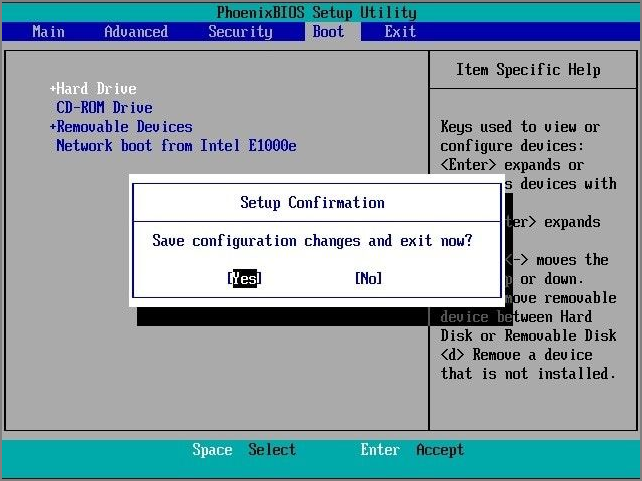
After changing the boot order, restart your PC to check if the problem is solved. If you are using an HP laptop, click the following link to get more details.
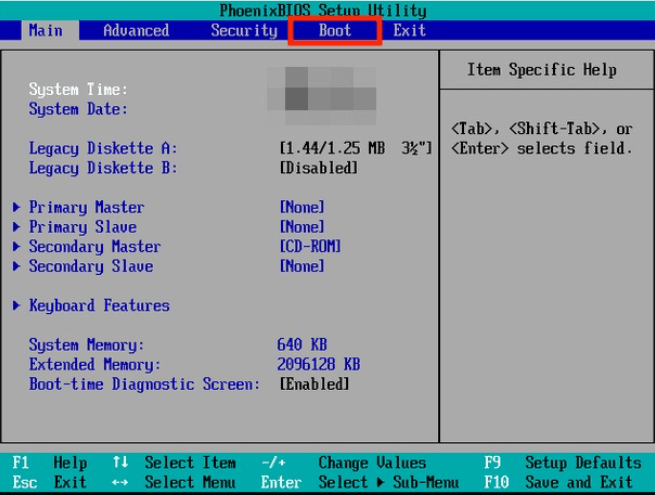
Boot Device Not Found Hp Laptop? How to Fix?
If you're experiencing a 'Boot device not found' error on your HP laptop, try troubleshooting by ensuring the power cord is securely connected, booting in safe mode by pressing F2 during startup, resetting BIOS settings to default, updating BIOS or UEFI firmware, booting from a USB drive or CD/DVD, or attempting a system restore or reinstalling the operating system. If none of these steps resolve the issue, it may be worth seeking further assistance from a professional or contacting HP support.
Fix 2. Rebuild BCD
When the Boot Configuration Data (BCD) becomes corrupted or damaged, it can cause a PC to fail to start, resulting in an error like "selected boot device failed HP." To resolve this issue, rebuilding the BCD is necessary. This involves using the built-in command-line tool, Bootrec, or the Windows Recovery Environment (WinRE) to restore the BCD to its default settings, allowing the PC to boot normally again.
To rebuild BCD, enter Command Prompt in the Windows Recovery mode and run the following commands one by one:
- bootrec /fixmbr
- bootrec /fixboot
- bootrec /scanos
- bootrec /rebuildbcd
Fix 3. Run SFC and DISM Commands
If you're encountering the "selected boot device failed" error, it might be due to corrupted or missing system files. To resolve this issue, you can run SFC and DISM scans, which can help repair or replace any damaged system files, potentially resolving the problem.
Step 1. To access Windows Recovery, go to Windows settings, click on "Update & Security," then click on "Recovery," and finally click on "Restart now."
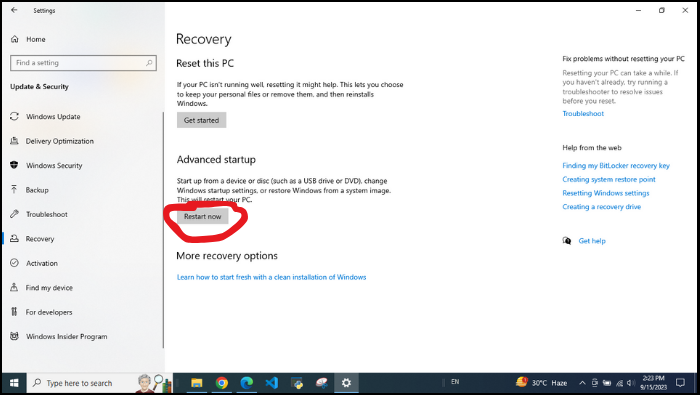
Step 2. To access the Command Prompt, go to "Advanced options" > "Troubleshoot" > "Advanced options" > "Command Prompt."
Step 3. In the Command Prompt window that appears, type "sfc /scannow" and press Enter to initiate the scan.
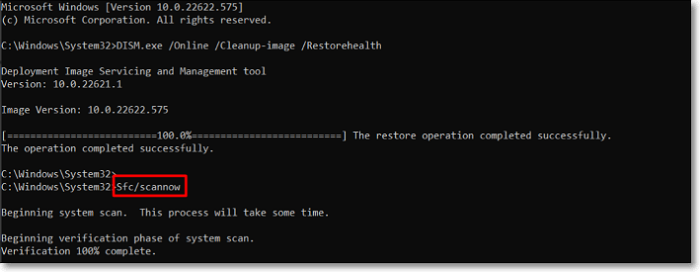
Step 4. After scanning, restart your computer and reopen Command Prompt in Windows Recovery mode.
Step 5. In the Command Prompt window, enter the following commands one at a time, pressing Enter after each:
- DISM /Online /Cleanup-Image /CheckHealth
- DISM /Online /Cleanup-Image /ScanHealth
- DISM /Online /Cleanup-Image /RestoreHealth
Execute these commands as specified to resolve issues related to corrupted or missing system files causing the "selected boot device failed" error.
Fix 4. Adjust the BIOS Settings
To resolve the "selected boot device failed" error, it's essential to check and adjust the BIOS settings. This involves entering the BIOS setup, navigating to the Boot Order or Boot Priority settings, and ensuring that the correct device (such as the hard drive or SSD where your operating system is installed) is set as the primary boot device. Additionally, you may need to save the changes and exit the BIOS setup, then restart your computer to see if the issue is resolved. If the problem persists, you may want to check for any loose connections or try resetting the BIOS settings to their default values.
Step 1. To access the BIOS on your Windows 10, restart your PC and press the boot menu key during the rebooting process. This key is usually F2, F12, or Del, and the exact key may vary depending on your computer's manufacturer and model.
Step 2. Go to the System Configuration tab and select Boot Options.
Step 3. To enable Legacy Support and disable Secure Boot, open the BIOS settings, look for the "Legacy Support" or "CSM" option, and enable it. Then, look for the "Secure Boot" option and disable it.
After making these changes/adjustments, save the changes and restart your PC to see if the error has been resolved.
Fix 5. Run Automatic Repair
To fix the "selected boot device failed" error, you can try running a Startup Repair. This can be done by booting from the installation media for your operating system, such as a Windows installation DVD or USB drive. Once booted, select the language and other preferences, then click on "Repair your computer" from the bottom-left corner of the screen.
Step 1. Turn your PC off, then turn it back on, and immediately turn it off again.
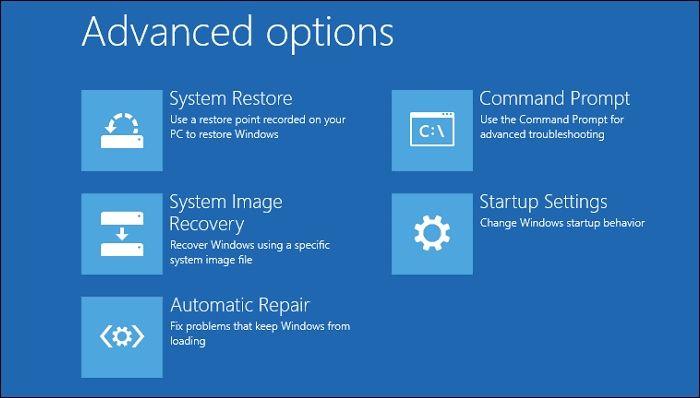
Step 2. Continue to restart your computer until you reach the Windows Recovery screen. From there, select the "Advanced options" choice.
Step 3. To access the "Automatic Repair" feature, navigate to the "Advanced options" menu, then select "Troubleshoot," followed by "Advanced options," and finally choose "Automatic Repair."
Fix 6. Check the Hardware
When your PC encounters hardware issues, it can result in the failure of the selected boot device, so a thorough hardware check is advised to fix this error effectively.
- Check Connections: Ensure all hardware components, including cables and drives, are properly connected. This includes checking the power cord, data cables, and any other peripherals to ensure they are securely plugged in and functioning correctly.
- Test RAM and Hard Drive: Run the built-in diagnostic tools on your computer to check for any issues with your RAM and hard drive. These tools can help identify problems and provide solutions to fix them.
- Check for Physical Damage: Physically examine your hardware to see whether it's physically damaged.
Conclusion
The "Selected Boot Device Failed" issue can disrupt your computer's startup process. This problem can manifest in various ways, from preventing the computer from booting at all to displaying a blue screen of death. To resolve this issue, you can try adjusting your BIOS settings, running SFC and DISM scans to fix corrupted system files, performing startup repairs, rebuilding the BCD, or conducting hardware checks to troubleshoot and resolve the error effectively.
For a simple and easy solution, use Qiling Disk Master with its "Boot Repair" feature, which can automatically fix various boot-related issues, including the "Selected Boot Device Failed" error.
Share these fixes
Selected Boot Device Failed FAQs
Here's a one-paragraph summary: If the selected boot device can't work on your PC, it's likely due to a compatibility issue, incorrect boot order, or a hardware problem. If you're experiencing a similar issue, you can find more information and answers to your questions in the provided FAQs.
1. Why am I unable to boot with a USB boot disk?
If you're unable to boot with a USB boot disk, it may be due to incorrect BIOS settings, an improperly created bootable USB drive, or hardware issues. To fix this, check and adjust your BIOS settings, recreate the bootable USB drive, and ensure your hardware is functioning correctly.
2. How do I fix the Windows 10 boot device failed?
To resolve the "Windows 10 boot device failed" issue, you can try the following steps: First, ensure that the boot order is set to prioritize the correct device, such as the SSD or hard drive where Windows 10 is installed. Next, check for any loose connections between the device and the motherboard, and ensure that the power cord is securely connected.
- Verify the boot order in BIOS settings.
- To fix corrupted or missing system files, you can run System File Checker (SFC) and Deployment Image Servicing and Management (DISM) scans. These tools can identify and replace damaged system files, ensuring your system functions properly.
- Enable Legacy Support and disable Secure Boot in the BIOS settings.
- Run Windows Startup Repair.
- Rebuild the Boot Configuration Data (BCD).
- Check for hardware problems.
3. What causes a PC to fail to boot?
A PC can fail to boot due to various reasons, such as a faulty power supply, a malfunctioning motherboard, a corrupted operating system, or a hardware failure such as a failed hard drive or RAM. Additionally, issues with the BIOS or UEFI settings, a loose or damaged connection to the power source, or a problem with the boot order or device priority can also prevent a PC from booting.
- Incorrect BIOS settings.
- Corrupted or missing system files.
- Damaged or failing hardware components (e.g., hard drive, RAM).
- Malware or virus infections.
- Boot sector issues.
- Problems with peripheral devices.
- Software conflicts.
- Operating system errors.
Related Articles
- Quick Format VS Full Format, Which Should I Use? Check The Answer Here
- SD Card Benchmark 2023 Tutorial with Full Step Guide
- HP USB Disk Storage Format Tool Review 2023 [Benefits and Drawbacks]
- How to Remove SD Card Notification in Samsung S7/S7 Edge
- I Can't Format USB to exFAT on Windows 10, What Should I Do
This short page lets you know why you are unable to format USB to exFAT on Windows 10. And you can bet on the best solution to fix the format error on Windows. - Can't Safely Eject External Hard Drive on Windows 10, How to Solve It?
If you encountered the 'Problem Ejecting a USB Mass Storage Device' problem and can't safely eject an external hard drive on Windows 10, you can try the solid ways in this post to fix this issue.
Products
Articles & Tutorials
- Data Recovery
- Data Backup
- File Recovery
- File Backup
- System Backup and Restore
- Disk and Partition Clone
- Technical articles
- Mobile articles
- Disk Master Help
- Windows Data Recovery Tutorials
- Windows Secure Delete Tutorials
- Windows Partition Management Tutorials
- Windows File Backup and Restore Tutorials
- Windows System Backup and Restore Tutorials
- Windows Disk Backup and Restore Tutorials
- Windows Clone Tutorials