Quick Format VS Full Format, Which Should I Use? Check The Answer Here
When using a computer, high-High-level formatting, which targets partitions, is often mistakenly believed to be a single operation. However, in actual practice, it is split into two modes: quick format and full format, also known as general formatting. This distinction is crucial for computer users to maximize their disc usage efficiently.
Quick Format and Full Format are two disk formatting options that can be used to erase data on a computer's storage device. While Quick Format is a faster and more convenient option that simply deletes the file system and frees up space, Full Format is a more thorough process that completely erases all data on the device, including files, folders, and the operating system. The key difference between the two is that Quick Format does not overwrite the data, whereas Full Format completely overwrites the data, making it unrecoverable. Therefore, if you're looking to securely erase sensitive information, Full Format is the better choice, but if you're simply looking to free up space or prepare a device for reuse, Quick Format may be sufficient.
Quick Format VS Full Format, Everything You Need to Know
The difference between quick Format and full Format lies in their features and pros and cons. Quick Format is a faster method that reinitializes the partition without deleting its data, whereas full Format completely erases all data on the partition, including its file system, making it unavailable for use. The key distinction between the two is that quick Format preserves data, whereas full Format deletes it. Quick Format is ideal for situations where data recovery is not a concern, while full Format is necessary when data security is paramount.
Quick Format
A Quick Format is a fast way to format a hard drive or storage device, but it doesn't actually erase the data. The files are still present and can be recovered if the volume is rebuilt. This method skips the inspection of damaged sectors to speed up the process, leaving the drive appearing empty but still containing the original files.
Features
- The command deletes all the files, but it does not fully erase the files, it only removes the references to them. The files themselves remain on the disk, taking up space until they are manually deleted or the disk is formatted.
- The command doesn't rebuild the filesystem, check for faulty sectors, or remove the already present data. It simply creates a new partition table and formats the disk.
Pros
- It saves time.
- You can analyze errors without worrying about data loss.
- It removes viruses.
- You can recover files after quick formatting.
Cons
- If your drive has any issues, Quick Format will not resolve the problem.
- It isn't a secure method of erasure.
Full Format
In a full format, all files on the drive are erased, the file system is updated, and the drive is scanned for damaged sectors, requiring more time than a quick format.
Windows supports both quick and full formats of FAT and NTFS, but full formatting removes all files and requires external software for data extraction.
Features
- Full formatting takes longer than quick formatting since it involves fully deleting all files from the disc. Quick formatting, on the other hand, only deletes the file table, leaving the actual files intact.
- It helps in rebuilding the file system, volume label, cluster size, and scanning the partition for bad logical sectors.
Pros
- It increases the PC's performance.
- It solves your drive's issues.
- It will check errors without losing any data.
- Cleans your PC.
Cons
- Time-consuming
- Not recommended for SSD
Before formatting your device, make sure to back up all important files and data, and also be aware that formatting may damage your system or data, so it's essential to be prepared and take necessary precautions.

To backup files before formatting in Windows 10/8/7 PC and laptop, create a system image, back up files to an external drive, use cloud storage, or use a backup software like Qiling Disk Master. You can also use the built-in Windows Backup and Restore feature. Make sure to back up all important files, including documents, photos, videos, and installed programs, to a safe location.
Be prepared to back up your files before formatting Windows 10/8/7, ensuring a complete backup of your hard drive, external hard drive, programs, documents, videos, photos, emails, and all data you're concerned about on your PC and laptop.

Quick Format VS Full Format, Which Should I Choose?
When to use quick Format and when to use full Format can be confusing. Quick Format is used when you need to format a drive quickly, such as when you're selling or giving away a computer. Full Format, on the other hand, is used when you're formatting a drive that you'll be using regularly, such as your primary hard drive.
A quick format is sufficient since you're the owner and plan to use the drive again, but a full format is also a good option if you suspect any issues with the drive.
If the drive contains sensitive information, you should securely erase it before giving or selling it. This will protect the privacy of the data and prevent unauthorized access. You can use a secure erase tool or a physical method like drilling a hole through the drive to render it unusable.
Cases for Quick Format
Computer users can opt for a quick format if they don't need to scan their discs for damaged sectors or don't want to wait a long time in case they ever need to retrieve their data. This option is faster but may not be suitable for users who need to ensure data integrity.
When installing Windows, clearing out unused files from a partition to make room, the file system can become corrupted or a quick format may occur, resulting in a notification that says "Before using the disc, it must be formatted. Do you wish to format it at this time?" This can happen.
Cases for Full Format
Computer users typically do a full format because they no longer require the data and don't want it to be recoverable by others, or to check the disc for problematic sectors.
When a brand-A full format of a computer device is typically performed when a new disc is acquired, an older disc with numerous faulty sectors is chosen, a device is sold or donated, a computer contracts a virus, etc. This process completely erases all data on the device, making it unrecoverable by others, which is often a desirable outcome for users who want to protect their personal information.
Quick Format VS Full Format, How Do I Perform Formatting on Windows
When using Windows Explorer and Disk Management to format, Quick Format is automatically selected if the partition is in Format mode on a computer. Quick Format is enabled by default, but if it's unchecked, the full format mode is chosen instead. This allows users to choose between a faster quick format or a more thorough full format, depending on their needs.
Method 3. Perform Quick Format or Full Format Using DiskPart
Method 1. Windows Explorer
Step 1. Right-click a local disc under This PC in File Explorer.
Step 2. Next, select "Quick Format."
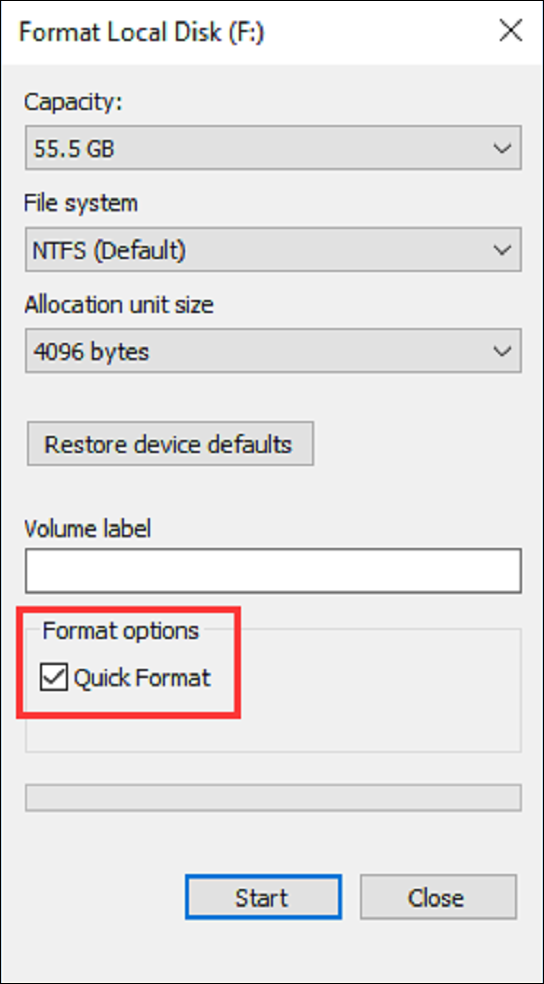
In Quick Format, the Full Format is executed.
Method 2. Disk Management
Step 1. launch Disk Management, use "Windows + R" and type "diskmgmt.msc."
Step 2. Select "Format" by right-clicking a partition after that.
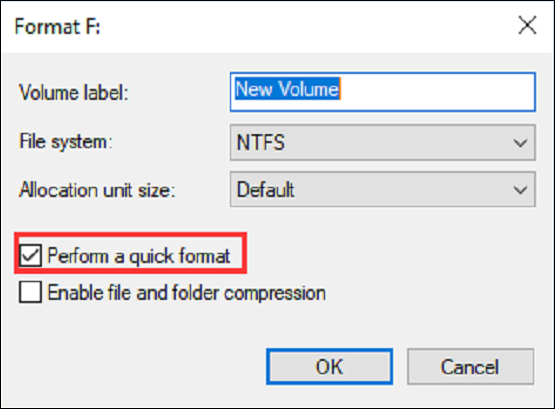
If you select "Perform a quick format", the tool will conduct a Quick Format. Otherwise, it will conduct a Full Format.
Method 3. Perform Quick Format or Full Format Using DiskPart
Step 1. Open cmd window by pressing "Windows+R" and type "cmd."
Step 2. Open the diskpart window, and then type "diskpart."
Step 3. To find the partition, you can use the "list disc" command, which will display a list of available discs. Select the disc you want to work with using the "select disc" command. Then, use the "list partition" command to view the partitions available on the selected disc.
Step 4. Type "format fs=ntfs quick" to carry out the quick Format.
Step 5. Type "format fs=ntfs" to perform full format.
Recommendation: Turn to Quick/Full Format Tool - Qiling Disk Master
Qiling Disk Master is a powerful tool that offers quick and full format capabilities. This software is user-friendly and packed with features that can enhance your computer's performance. With Qiling Disk Master, you can easily manage your hard drive's partitions, making it a valuable asset for anyone looking to optimize their computer's functionality.
- Check disk and partition
- It supports Windows 7 up to 11
- It's an all-in-one partition management utility
- It offers conversion methods, like MBR to GPT
- It offers file system format conversion, like FAT to exFAT
Download it today and run formatting on your PCs.
Conclusion
Formatting a drive can be done in two ways: quick format and full format. If you plan to reuse the drive and are the owner, a quick format is sufficient. However, if you suspect the drive has issues, a full format is recommended to ensure its functionality. There are three methods to format a drive, with one of the best being the Qiling Disk Master tool, which is user-friendly and supports quick formatting.
FAQs about Quick Format vs. Full Format
If you are still confused between quick Format and Full Format. Read the answers below and make yourself clear about formatting. Leave your queries in the comment section so that we can answer you!
1. Which is better: Quick Format or Full Format?
A quick format is suitable if you're still the owner and intend to use the drive again, but a full format is a better option if you suspect the drive may have issues, as it ensures the drive is in perfect working order.
2. Is a Quick Format good enough?
When you select Quick Format, the partition's files are deleted, but the disc is not checked for damaged sectors, making it a faster option, but potentially less reliable. It's best to choose this option only if you're confident the hard drive is not damaged and has already been formatted.
3. Why is a Full Format more beneficial than a Quick Format?
A full format is faster and uses the FAT32 file system, whereas a quick format is slower and uses the NTFS file system, and it only deletes files without checking for damaged sectors.
Related Articles
- Fix 'Windows Cannot Be Installed to Disk 0 Partition 1' Error
- Kingston Format Utility Fail? Fix with Kingston Format Tool [2024 Guide]
- How Do I Securely Erase Hard Drive/SSD, Wipe Confidential Data? Your Reliable Guide Is Here
- How to Convert Dynamic Disk to Basic Disk without Deleting?
Converting a dynamic disk to a basic disk can be a straightforward process that doesn't require deleting any data. - Can not Merge Partitions
Read this guide to learn Can not Merge Partitions with clear steps, practical tips, and safer troubleshooting methods. - Some volumes will be lost after converting dynamic disk to basic
Solutions for how to avoid volumes lost after converting dynamic disk to basic.
Products
Articles & Tutorials
- Data Recovery
- Data Backup
- File Recovery
- File Backup
- System Backup and Restore
- Disk and Partition Clone
- Technical articles
- Mobile articles
- Disk Master Help
- Windows Data Recovery Tutorials
- Windows Secure Delete Tutorials
- Windows Partition Management Tutorials
- Windows File Backup and Restore Tutorials
- Windows System Backup and Restore Tutorials
- Windows Disk Backup and Restore Tutorials
- Windows Clone Tutorials