SD Card Benchmark 2024 Tutorial with Full Step Guide
The proliferation of counterfeit SD cards in the market necessitates the use of a benchmarking tool to assess their effectiveness, making hardware benchmarking a crucial step in evaluating the performance of SD cards.
Key Takeaways of SD Card Benchmark:
- Users can choose the fastest SD card for their devices to get the best performance and loading speed.
- Follow this article to learn about SD card benchmarks, including how to choose a reliable tool and a step-by-step guide on running an SD card benchmark test with Qiling Disk Master.
What is SD Card Benchmark?
To get the best performance and loading speed from your devices, it's essential to choose the quickest SD card, which can be done by looking at the benchmark statistics. To obtain this information, you can use SD card benchmark apps that provide comprehensive data on the card's performance and speed, allowing you to make an informed decision.
Why is it essential for users to benchmark their SD cards?
This software is secure, effective, simple, and valuable, providing precise information about SD card speed, and offering quick and dependable technical support services.
How Do I Select a Reliable SD Card Benchmark Tool
When selecting an SD card benchmark tool, consider factors such as whether it can fulfill your needs and offers bonus features to improve SD card performance.
| 🎈Features: | To test storage device speeds, you can run tests on various types of storage media, including SD cards/Micro SD cards, external hard drives, USB flash drives, and solid-state drives (SSDs), to measure their read and write speeds. This can help you determine which devices are the fastest and most efficient for your specific needs. |
| 👨💻Compatibility: | Compatible with your current OS: Windows 11/10/8/7/Vista/XP |
| 💽Supported Types of SD Cards: | SD, SDHC, SDXC, SDUC, MicroSD |
| 💵Price: | $0, free |
If you're unsure if the current tool is qualified for benchmarking your SD card and providing a complete test result of its performance, don't worry! Follow the next part, and you'll get a recommendation of the best SD Card benchmark tool to help.
SD Card Benchmark Tool Recommend and Free Download in 2024
One of the most dependable partition management programs, Qiling Disk Master, offers benchmark information for SD cards. This tool's advanced Disk Mark feature allows users to assess the speed of various devices, including SD cards, USB drives, SSD/HDDs, and other storage devices.
⬇️SD Card Benchmark Tool Download:
You can download Qiling Disk Master for free and test the speed and performance of your SD card using this tool.
🎈Feature List for SD Card Benchmark:
The software offers additional features to enhance SD card performance, including the features listed below.
- DiskMark: Scan and test SD Card speed
- A comprehensive SD card health test report can be generated by scanning the disk for various health indicators, including bad sectors, file system errors, and disk usage. This report would provide a detailed analysis of the SD card's overall health, highlighting any potential issues that may be affecting its performance.
- Convert to NTFS/FAT32: Convert SD card between NTFS/FAT32 without formatting
- Check SD card file system error: Scan the SD card to find existing file system errors, then fix them to ensure the card is readable and writable again.
🏆Pros, Reviews, and Edtiros' Review for Qiling SD Card Benchmark Tool:
Expert's Rating:
 Pros
Pros
- Easy to use
- Free to benchmark SD card performance
- Provides further features to improve and optimize SD card speed
- Compatible with all Windows OSes
- Support all types of SD cards
 Cons
Cons
- Only available for Windows system, no Mac edition
Edtiros' Review
Qiling Disk Master is an all-Gparted is a free and open-source disk partitioning software that allows users to manage and manipulate their hard disk drives and partitions. It provides a user-friendly interface for creating, deleting, resizing, extending, shrinking, cloning, converting, and migrating partitions, making it a powerful tool for managing disk space and optimizing system performance.
Guide on Running SD Card Benchmark Test with Qiling Disk Master
The SD card speed test is a simple and quick tool that provides essential information on random read, random write, sequential read/write, delay, and I/O. To run the benchmark test, we will discuss in detail how to use Qiling Disk Master to access and analyze these key metrics.
To test the SD card performance, connect the SD card to your PC via an SD card adapter or reader, and follow the steps below:
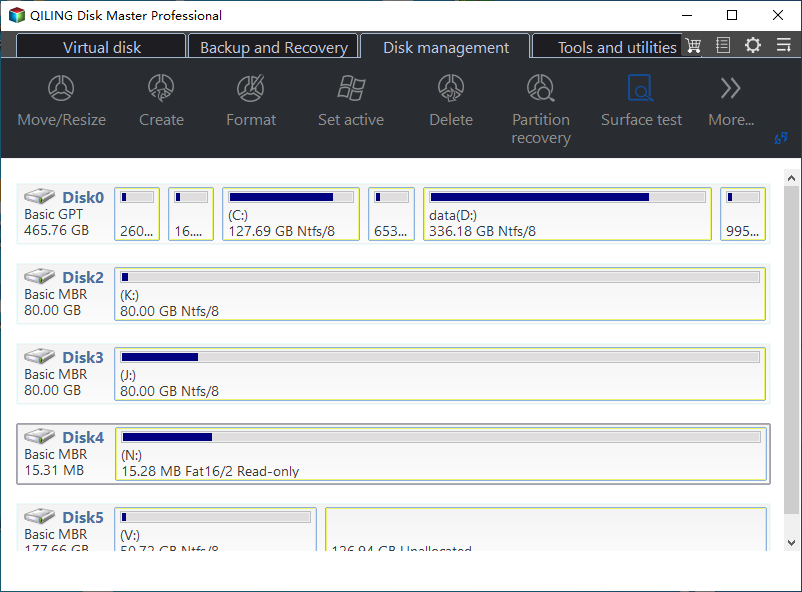
Step 1. Launch Qiling Disk Master, click the download button to activate the "Surface test" feature under the "Disk management" section.

Step 2. Select the target drive, test data, and block size from the drop-down menus to proceed.

Step 3. Once everything is configured, click "Proceed" to begin the disk test, and you'll see the Sequential read speed, I/O, and Delay data.

Bonus Tips on Improving SD Card Performance
Here are some tips to improve SD card performance:
- ✔️Set the file system of your SD card to FAT32 for cards 32GB or smaller, and exFAT for cards larger than 32GB.
- ✔️Leave sufficient space for the SD card, and prevent the SD card from being too full.
- ✔️The format or erase the SD card if necessary
- ✔️Clean virus
- ✔️Update the SD card driver
Conclusion
Benchmarking SD card performance is crucial for achieving faster performance. The Qiling Disk Master tool can be used to run an SD card benchmark test, which is a simple and easy process to execute. This test can help you understand the capabilities of your SD card and make informed decisions about its performance.
FAQs About SD Card Benchmark Tool
The results of the benchmarking test show that the Samsung EVO Plus 64GB microSD card is the fastest, with a sequential write speed of 82.7 MB/s and a sequential read speed of 90.
1. How often should I run the SD card benchmark?
Run the SD card check-up every 6 months or immediately if you notice any issues with your SD card. This ensures regular checkup results and helps identify any problems with the SD card.
2. Will the benchmark hurt or damage my SD card?
The benchmark process, which involves rigorous reading and writing on the card, is not recommended to be done daily, as it can impact the card's longevity.
3. How do I check the health of my SD card?
Step 1: Connect your SD card to your PC.
Step 2: Right-click the Start button and select Disk Management.
Step 3: All available hard drives, including HDDs, external hard drives, SD cards, and other storage media, are displayed here.
Step 4: You can examine the SD card's health by checking its size and requirement for storage.
Related Articles
- Beginner's Guide - Install A New Hard Drive/SSD in Windows 10/8/7
- How to Format 2TB Hard Drive to FAT32? Here Is A Quick Guide - Qiling
- How to Check SSD Temperature in Windows 10/11 [2024 Step-by-Step Guide]
- How to Install a Second SSD[Comprehensive Guide]
- [Fixed] Windows 10 System Reserved Partition Too Small
In Windows 10, system reserved partition too small will interfere in the OS update or upgrade. To fix this issue, you can read this post to try some solutions. - How to Check and Enable TPM For Windows 11 Update
How to check and enable TPM 2.0 for Windows 11 update? In this article, I shows you how to do it and introduce some basic knowledge about TPM for you.
Products
Articles & Tutorials
- Data Recovery
- Data Backup
- File Recovery
- File Backup
- System Backup and Restore
- Disk and Partition Clone
- Technical articles
- Mobile articles
- Disk Master Help
- Windows Data Recovery Tutorials
- Windows Secure Delete Tutorials
- Windows Partition Management Tutorials
- Windows File Backup and Restore Tutorials
- Windows System Backup and Restore Tutorials
- Windows Disk Backup and Restore Tutorials
- Windows Clone Tutorials