How to Check SSD Temperature in Windows 10/11
If you're concerned about the temperature of your SSD, Checking the SSD temperature is important to ensure it's not overheating, which can affect its performance and lifespan. To check the temperature of your SSD in Windows 10/11, you can use the built-in tools or third-party software to monitor the temperature and take necessary steps to prevent overheating.
Why Check SSD Temperature in Windows 10/11
Solid-state drives (SSDs) can greatly enhance computer performance by offering fast read access times and high throughput. With their decreasing prices, SSDs are increasingly being used as primary storage for computers and laptops, making them a popular choice for users looking to boost their system's speed.
Temperatures between 20-60°C are ideal for optimal SSD performance, with temperatures above this limit potentially degrading performance and affecting lifespan. It's therefore important to check the SSD temperature in Windows 10.
You can check the temperature of an SSD using two methods. Unfortunately, there isn't a built-in feature to monitor the temperature of an SSD, but you can use software or hardware tools to help with this issue. One way is to use software tools, such as CrystalDiskInfo or HWiNFO, which can provide detailed information about your SSD, including its temperature. Another way is to use hardware tools, such as a multimeter or a thermal imaging camera, to measure the temperature of your SSD directly.
How to Check SSD Temperature in Windows 10/11 - 2 Efficient Ways
There are two ways to check the SSD temperature, and you can choose the one that suits your Windows version and needs. You can either use the official software provided by the SSD manufacturer or use a third-party tool such as CrystalDiskInfo, which is compatible with various Windows versions.
| ⚒️Comparison | 🥇Qiling Disk Master | 🥈Manage Disks and Volumes |
|---|---|---|
| 🛞Target Systems |
All Windows versions, such as Windows 11/10/8/7/Vista/XP |
Windows 10/11 only |
| ⚙️Check Items |
✔️All SMART attributes you need to know |
✔️Temperature only |
| 🛞Suitable users | Simple for all | Users not requiring detailed smart status |
| ✨Benefits |
Alert when SSD temperature exceeds the normal range. |
Don't need third-party software. |
Manage Disks and Volumes is a new option available in Windows 10 Insider build number 20226 and above. To ensure success, consider using Qiling Disk Master. This tool can be used to check the temperature of a hard drive.
Way 1. Check SSD Temperature in Windows 10/11 - Qiling Disk Master
Qiling Disk Master is a tool that helps check the health of an SSD, providing a clear view of its temperature, status, and other attributes with one click, and alerts for abnormal temperatures, supporting all Windows versions and having a user-friendly interface.
Step 1. Launch Qiling Disk Master and click the blue arrow to activate the "Disk Health" feature under the "Tools and utilities" tab page.

Step 2. To check the health condition of your disk, select the target disk and click the "Refresh" button. This will display the current status of your disk.

The Qiling tool can display the temperature of an SSD, providing clear visibility of its status. Beyond temperature monitoring, Qiling offers additional features and functionalities, making it a comprehensive professional tool.
Key features of Qiling Disk Master:
- Migrate OS to SSD
- Extend/shrink volumes on SSD
- Split or merge partitions on SSD
- Clone Windows 10 to a larger SSD
- Check SSD health in Windows 10/11
- Check Seagate SSD temperature
- Format or reformat SSDs or other drives
Download Qiling Disk Master to better manage your SSD. Try it now.
Way 2. Check SSD Temperature in Windows 10/11 - Manage Disks and Volumes
To check the temperature of an SSD in Windows 10, follow these steps:
- Notice:
- The "Manage Disk and Volumes" option is only available for Windows 10 Build 20226 and later versions.
Step 1. Click Start > Settings > System > Storage.
Step 2. Scroll down and choose "Manage Disks and Volumes."
Step 3. Locate your SSD and click "Properties" under the bottom right.
Step 4. The temperature of your SSD can be viewed under the "Drive Health" section.
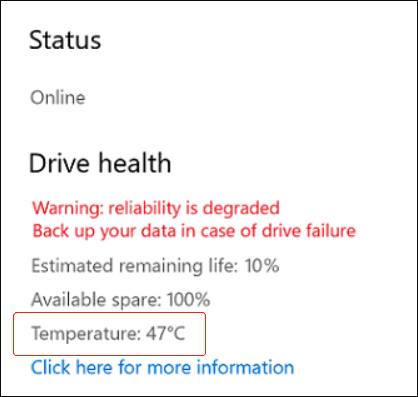
To protect your SSD from overheating, you can use the TRIM command or a third-party software like Qiling Disk Master, which can help manage your disk partition, especially if you're using an earlier version of Windows than Windows 10 Build 20226.
Conclusion
In Windows 10/11, you can check the temperature of an SSD in two ways. However, the temperature and health monitoring features built into Windows only work with internal SSDs, not with external drives like thumb drives and memory cards. To monitor the health of these external drives, you can use a third-party software such as Qiling Disk Master.
This tool provides a precise display of the current temperature and status of the target hard drive, making it easy to use and complete the action in just two steps. Download it to get started.
Check SSD Temperature in Windows 10/11 FAQs
We've covered how to check the SSD temperature in Windows 10. If you have any other questions, feel free to ask. Here are some additional popular questions and their answers related to checking the SSD temperature.
1. How can I see my SSD temperature?
Check hard drive temperature is only available in Windows 10 Build 20226 and later versions. In earlier versions, use a third-party tool like Qiling Disk Master to monitor hard drive temperature.
Step 1. Download and launch Qiling Disk Master, then navigate to the "Discovery" section and choose "Disk Health" to proceed.
Step 2. Choose the target disk and click "Refresh."
Step 3. You can see the temperature and status of your SSD.
2. What is SSD operating temperature?
The normal operating temperature range of SSDs is 0°C to 60°C, and exceeding 70°C can cause the device to fail and reach the end of its life.
3. What happens if the SSD overheats?
If the SSD temperature stays above 70°C for an extended period, it can cause permanent damage, leading to slower performance, freezes, crashes, and potential data loss.
Related Articles
- How Do I Install APK on Windows 11, Sideload Android Apps Successfully [2023 Guide]
- Kingston Format Utility Fail? Fix with Kingston Format Tool [2023 Guide]
- Windows 11 Gets/Adds a Watermark on Unsupported Hardware, How to Remove It
- Fix "Not Enough Space on the Disk in Windows Server"
- How to Check SMART Status on Windows 10 in 2024 - 2 Efficient Ways
To ensure your Windows 10 system remains stable, it's crucial to check the physical reliability of your hard drive or solid-state drive. Regularly checking the SMART status can help prevent data loss and system crashes. - 3 Efficient Ways to Check SSD for Errors on Windows 10/11
How to check SSD for errors on Windows 10/11? Bad sectors will slow down your SSD, so locating bad sectors is very important. This article provides several ways to help you.
Products
Articles & Tutorials
- Data Recovery
- Data Backup
- File Recovery
- File Backup
- System Backup and Restore
- Disk and Partition Clone
- Technical articles
- Mobile articles
- Disk Master Help
- Windows Data Recovery Tutorials
- Windows Secure Delete Tutorials
- Windows Partition Management Tutorials
- Windows File Backup and Restore Tutorials
- Windows System Backup and Restore Tutorials
- Windows Disk Backup and Restore Tutorials
- Windows Clone Tutorials