How to Clone Windows 10 to a Larger SSD
Cloning Windows 10 to a larger SSD can provide several benefits, including increased storage capacity, improved performance, and a seamless transition to a new drive. To achieve this, you can use either the built-in Windows 10 feature, Windows Clone, or a third-party cloning software like Qiling Disk Master. Both methods allow you to create an exact replica of your current Windows installation on the new SSD, ensuring that all your files, settings, and applications are preserved. By following the steps outlined in this article, you can successfully clone Windows 10 to a larger SSD and enjoy the benefits of a faster and more spacious operating system.
Why Clone Windows 10 to Larger SSD
When cloning Windows 10 to a larger SSD, it's because SSDs are more durable, faster, lighter, less expensive, and quieter, making them a popular choice for installing Windows operating systems and saving data. However, when SSDs show a "low disk space" error, the operating system and computer run slower, affecting daily use.
Cloning Windows 10 to a larger SSD is beneficial for several reasons. Firstly, it allows users to upgrade their storage capacity without reinstalling the operating system, which can be time-consuming and labor-intensive.
- To optimize the PC's working efficiency and speed up the OS: A larger Solid State Drive (SSD) enables the operating system and the entire computer to run at a faster pace than before.
- To free up hard drive space on the original drive: To free up space on the original drive, you can wipe or reformat hard drive after you clone Windows 10 to a larger SSD.
- To save the OS as a backup: You can clone the operating system back to the original hard drive to solve the issue of a crashed operating system without having to reinstall.
Cloning Windows 10 to a larger SSD can be faster than copying programs one by one, especially when the reason is to upgrade the storage capacity. Since Windows doesn't have a built-in tool for cloning the OS, using a professional third-party tool is a recommended approach.
You may also like the following:
This article provides a step-by-step guide on cloning Windows 10 to a larger Solid State Drive (SSD) using a helpful tool, allowing users to transfer their operating system and data to a newer, larger storage device.
Clone Windows 10 to Larger SSD - Qiling Disk Master [Safe & Efficient]
To clone Windows 10 to a larger SSD, you can use Qiling Disk Master Professional, which has a "clone OS disk" feature that simplifies the process, making it easy even for novices.
Before you clone your OS, make sure to back up your important files and data, and also ensure that your computer is free from any malware or viruses, as these can interfere with the cloning process. This will help prevent any potential issues or data loss during the cloning process.
- Notice:
-
1. Ensure the target SSD has enough space for your OS.
2. After cloning, access the BIOS and change the boot order to make the larger SSD the primary boot disk, allowing the cloned system to boot.
To clone Windows 10 to a larger SSD using Qiling Disk Master, first download and install the software. Next, connect the new SSD to your computer and ensure it's recognized by the system.
Guide 1. Clone Windows 10 to Lager SSD
Step 1. Launch Qiling Disk Master, go to the "Tools and utilities" tab, select "Clone OS Disk" and click "Next" to proceed.
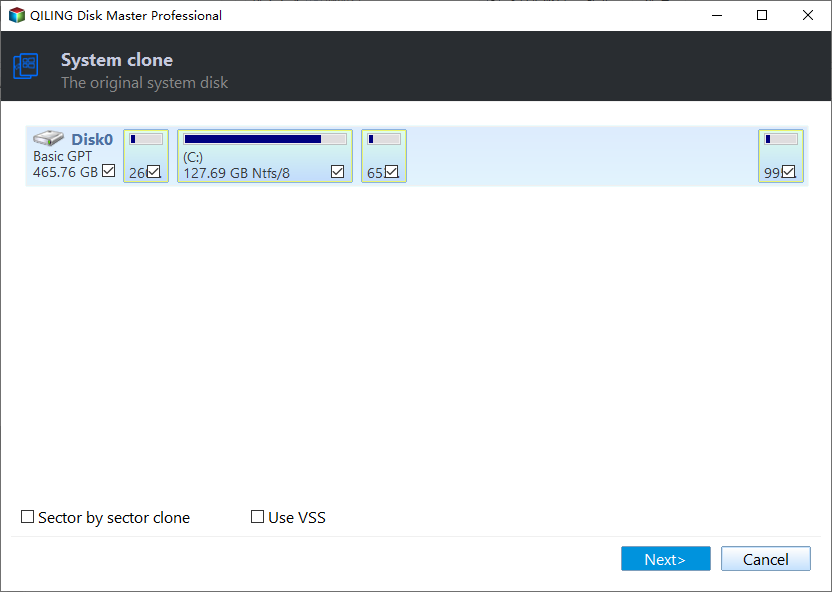
Step 2. Select the target new drive where you want to clone the OS to, and click "Next".

Step 3. To proceed with the OS cloning process, view the disk layout and click "Proceed" to start the cloning process.

Click "Yes" to confirm that you want to continue the OS disk cloning process.

After cloning your OS to the target disk, you'll need to set the larger SSD as the boot disk to boot the OS on it.
Guide 2. Set the Larger SSD as the Boot Disk
Step 1. Reboot the computer and press F2/F8/Del to access the BIOS.
Step 2. In the Boot menu, set the target larger SSD as the boot drive under the Boot Priority section.

Step 3. Save your changes and exit to finish this process.
You can clone your OS to a larger SSD, then boot your cloned OS on the larger SSD. To do this, you'll need to use a cloning software to copy your OS from your original drive to the new one. Once the cloning process is complete, you can boot your computer from the larger SSD.
Qiling Disk Master is a powerful disk manager that can perform a wide range of functions beyond just cloning an operating system. Its capabilities include disk partitioning, formatting, and resizing, as well as managing disk images and snapshots. With Qiling Disk Master, users can also create bootable USB drives, clone individual partitions, and even recover data from damaged or corrupted disks.
What Else Can Qiling Disk Master Do
The detailed features of Qiling Disk Master are below:
- Clone SSD to HDD
- Clone windows to new drive
- Move Window 10 to another drive
- Clone SD card, USB, and other external hard drives
- Wipe unallocated space or hard drive after cloning
Don't hesitate to download it to help with your disk management issues.
Conclusion
Cloning Windows 10 to a larger SSD is a fast and efficient process that doesn't require copying programs one by one, allowing for a quick and secure transfer of your system to a larger storage device.
Cloning Windows to a larger SSD using this tool is a straightforward process. After cloning, you can boot Windows from the new drive, and it also enables migrating the operating system to an HDD or SSD with a simple click.
You may also like the following articles:
Clone Windows 10 to Lager SSD FAQs
Here are some other frequently asked questions about cloning Windows 10 to a larger SSD. If you still have similar questions, please read on.
1. How do I upgrade to a larger SSD Windows 10?
To upgrade to a larger SSD in Windows 10, you can replace your existing hard drive with a new SSD, install the new SSD alongside your existing drive, or clone your existing drive to the new SSD. First, back up your data to an external drive or cloud storage.
Step 1. Clone everything you need from the original SSD to the larger SSD.
Step 2. Pull the old drive and install your new drive.
Step 3. If you want to boot your operating system on the larger solid state drive (SSD), you can set it as the boot disk. This will allow your computer to load the OS from the larger SSD instead of the smaller one.
2. Can I copy my Windows 10 to another SSD?
You can copy an operating system, but Windows doesn't have a built-in tool to help with this. A third-party tool, such as Qiling Disk Master, is needed to assist with the process.
3. Can I clone SSD of different sizes?
There are many third-party tools available that allow you to clone SSDs of different sizes.
Related Articles
- Guide to Migrate OS to SSD for Windows 8.1 with Pictures
- How to Fix "SD Card Is Blank or Has Unsupported File System" [100% Working Solutions]
- How to Format My 1TB Hard Drive to FAT32? 2023 Guide for Beginners
- How Do I Format Hard Drive on Windows 11? 2023 Complete Guide
- How Do I Clone Windows to SSD for Free? Your Reliable Guide
You can clone your Windows system to a new SSD for free without any boot issues. To do this, follow the steps outlined on this page, which provides a free solution that works to transfer your Windows OS to a new SSD without any complications. - How to Wipe Hard Drive in Windows 10 - 3 Safe Ways 🔥
Additionally, you can also physically destroy the hard drive by drilling a hole through it or crushing it, but using software is a more efficient and environmentally friendly method.
Products
Articles & Tutorials
- Data Recovery
- Data Backup
- File Recovery
- File Backup
- System Backup and Restore
- Disk and Partition Clone
- Technical articles
- Mobile articles
- Disk Master Help
- Windows Data Recovery Tutorials
- Windows Secure Delete Tutorials
- Windows Partition Management Tutorials
- Windows File Backup and Restore Tutorials
- Windows System Backup and Restore Tutorials
- Windows Disk Backup and Restore Tutorials
- Windows Clone Tutorials