How to Copy a Partition to Another Hard Drive in 2026 [Two Efficient Ways]
You may need to copy a partition to another hard drive for various reasons, such as upgrading to a larger storage capacity, replacing a faulty drive, or backing up important data. There are two ways to copy a partition to another hard drive: one is to use a cloning software, which can duplicate the entire partition, including the operating system, programs, and data, to the new drive.
If you're looking to copy a partition to another hard drive, this guide can help. This article will guide you through the process, providing two ways to achieve this. But before we dive in, it's worth noting that copying a partition to another hard drive can be useful for various reasons, such as upgrading your storage capacity or creating a backup of your important files. Whether you're looking to clone your entire hard drive or simply transfer a specific partition, the methods outlined in this article will help you accomplish your goal.
Why Copy a Partition to Another Hard Drive
Cloning a partition or hard drive involves creating an exact copy of the original drive, including all files, folders, and settings. This can be useful for backing up important data, creating a duplicate of a drive for testing or troubleshooting, or even replacing a failing drive with a new one. The cloned drive will be identical to the original, including any operating system, installed applications, and personal files. By cloning a drive, you can ensure that your data is safely backed up and that you have a working copy of your system in case something goes wrong.
- Migrating your OS: You can clone your operating system to a new drive, effectively moving it to the new drive. This will create an exact replica of your current OS on the new drive, allowing you to boot from it directly.
- Creating a backup: Partition cloning can create a duplicate of a partition, allowing for a backup copy in case of data loss or drive failure.
- Transfer data from the drive to the new computer: Cloning the partition on your old computer to the new one will ensure that all your data, settings, and programs are transferred to the new device, making the transition seamless.
To copy a partition to another hard drive, you can use the built-in Windows feature called "Disk Management" or a third-party software like Qiling Backup. These tools allow you to select the partition you want to copy, choose the destination drive, and initiate the cloning process.
How to Copy a Partition to Another Hard Drive - Two Efficient Ways
This section shows you two effective methods to help you clone a partition to another drive. The first method, using a third-party tool like Qiling Disk Master Professional, is relatively simple and recommended for those who are not computer professionals. Alternatively, you can use a complex command method, but this is not recommended unless you are familiar with command-line operations. Both methods will allow you to clone a partition to another drive, but the third-party tool approach is generally easier and more straightforward.
To copy a partition to another hard drive using Qiling Disk Master, first, download and install the software. Then, launch it and select the source partition and destination hard drive. Qiling Disk Master will automatically detect the partition size and file system.
To copy a partition to another hard drive via CMD, you need to use the `diskpart` command. Here's how to do it: Open the Command Prompt as an administrator, type `diskpart`, and press Enter. Then, type `list disk` and press Enter to list all the disks on your computer.
To copy a partition to another hard drive, the easiest method is to use a professional third-party tool called Qiling Disk Master. This tool allows you to copy a partition to another hard drive with just a few clicks, making it a convenient and efficient solution.
Method 1. Copy a Partition to Another Hard Drive via Qiling Disk Master - Easy
Qiling Disk Master allows for fast copying of FAT and NTFS partitions using sector-by-sector or file-by-file methods, with automatic partition checking to ensure safe data transfer even in case of file system problems.
Now, download it and follow the guide to copy your partition.
Step 1. Select "Disk Clone" from the tools page.
Step 2. Select the source partition and click "Next".
Step 3. Choose your the target partition and click "Next "to continue.
- Cloning a partition to an existing partition requires transferring or backing up data beforehand to prevent it from being overwritten during the cloning process.
- Check warning message and confirm "Yes".
Step 4. Click Proceed and wait for the clone to complete.
Besides cloning a partition, Qiling Disk Master still gets many other features. Let's continue to learn more about it.
Features of Qiling Disk Master:
- Clone Windows 7 to SSD
- Clone Raspberry SD card
- Clone HDD to smaller SSD
- Clone or copy NTFS partition
- Clone SD card, USB, or external hard drives
- Migrate the operating system to another drive
- Wipe unallocated space or the original hard drive after cloning
This multifunctional tool can be used to create, resize, split, merge, and delete partitions, as well as check for bad sectors and recover lost data. It can also be used to clone a disk, back up data, and restore a system.
Method 2. Copy a Partition to Another Hard Drive via CMD - Complex
To clone a hard drive using the Command Prompt, you'll need to use the built-in `robocopy` command. First, open the Command Prompt as an administrator and navigate to the drive you want to clone. Then, use the `robocopy` command with the `/mir` option to copy all files and subfolders from the source drive to the destination drive. For example: `robocopy C:\Source C:\Destination /mir`. This will copy all files and subfolders from the source drive to the destination drive, overwriting any existing files.
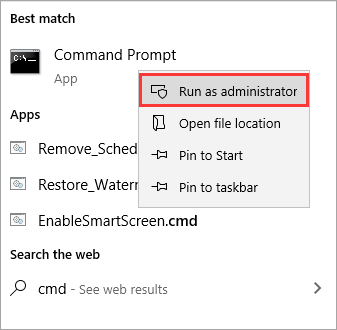
Step 1. To access the Command Prompt, type cmd in the search box and then select "Command Prompt."
Step 2. Then run Command Prompt as administrator.
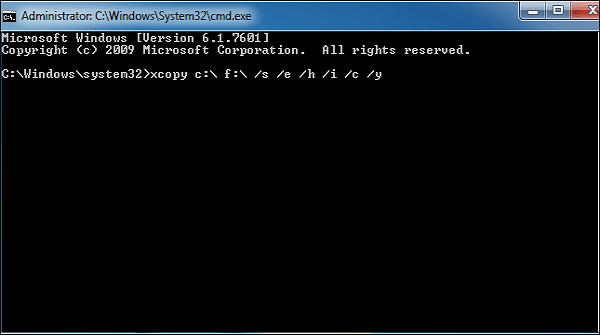
Step 3. Type the following command in the window:
xcopy c:\ f:\ /s /e /h /i /c /y
- Notice:
-
c:/: the target drive you want to clone. You can change it with another drive.
f:/: the destination you want to clone to. You can change it with the correct hard drive.
/s: copy directories and subdirectories unless they are empty.
/e: duplicate every subdirectory, even though it contains nothing.
/h: duplicate or copy system file attributes and hidden files.
/i: This command means to always assume the destination is a folder if in question, which can simplify file operations and avoid confusion.
/c: continue copying even though an error occurs.
/y: suppress prompts to confirm overwriting files.
Step 4. Wait patiently and type "exit" to finish the process.
You may also like:
Qiling Disk Master is a better choice for beginners without much experience in computing, as it can help clone disks with bad sectors, making it a helpful tool for those in need.
Conclusion
Qiling Disk Master can run smoothly on various Windows versions, including Windows 11/10/8.1/7, Windows Versa, and Windows XP. It's easier to use than CMD, allowing you to clone a hard drive with just a few clicks without typing any commands. Additionally, it can manage disk partitions well, including formatting, wiping, moving, merging, or extending your hard drive. Try downloading it to experience its user-friendly interface.
FAQs About Copying a Partition to Another Hard Drive
This part lists three further questions about today's topic, and we hope it can help if you have similar problems.
1. How do I create a copy of a partition?
You can use CMD or a third-Qiling Disk Master is a powerful tool that allows users to clone a partition sector-by-sector or file-by-file, making it a nice choice for those who need to create a backup or duplicate a disk.
Step 1. Download Qiling Disk Master.
Step 2. In the clone section, select the partition you wish to copy.
Step 3. Choose the target destination partition and click "Start."
2. What is cloning a partition?
Partition cloning is the process of duplicating one partition's contents to another, such as cloning the D drive to the E drive or another drive. This process transfers all data from the original partition to the target partition, as long as the target partition has enough available space.
3. Does cloning drive copy everything?
When cloning a drive, you copy everything on it, including boot records, files, and settings, to another drive, resulting in an identical duplicate.
Related Articles
- Install Raspberry Pi Operating System on SD Card
- Solved: HP Recovery Drive Full on Windows 10/8/7
- 4 Quick Fixes to Remove Your Login Password in Windows 11🚀
- Can I Unlock Windows Passwords? Yes [5 Beginners' Tools]
If you've forgotten your Windows account password, there are five methods to help you unlock it. Make sure to check and be prepared with these options in case you need to reset your password for any user. - How to Fix Unexpected Store Exception in Windows 10/11
If your Windows computer is troubled by a blue screen of death (BSoD) error, specifically an Unexpected Store Exception error, this guide can help. - How to Unlock ASUS Laptop Without Password - Tutorial
Forgot your ASUS laptop password? You can still unlock your laptop without it by using the methods and insights explained in this article, which provides helpful solutions for regaining access to your device.
Products
Articles & Tutorials
- Data Recovery
- Data Backup
- File Recovery
- File Backup
- System Backup and Restore
- Disk and Partition Clone
- Technical articles
- Mobile articles
- Disk Master Help
- Windows Data Recovery Tutorials
- Windows Secure Delete Tutorials
- Windows Partition Management Tutorials
- Windows File Backup and Restore Tutorials
- Windows System Backup and Restore Tutorials
- Windows Disk Backup and Restore Tutorials
- Windows Clone Tutorials