Can I Unlock Windows Passwords? Yes [5 Beginners' Tools]
Key Note on Unlocking Windows Passwords:
Remembering dozens of passwords for our PCs, bank accounts, social media, and other online services can be a challenge, as our brains don't come equipped with a built-in password manager. It's not uncommon to forget the password to our Windows PC, and while Windows offers various password recovery options, regaining access to our PC can be tricky without access to it.
How to Unlock Windows Passwords? 5 Methods

We're here to simplify the process for you. This article will discuss five easy tips to unlock your Windows password and gain access to your PC, ranging from easiest to most complex. Each method is detailed, and you can refer to the table to choose the best approach based on time and complexity.
| Windows Password Reset Tools | Duration | Complexity Level |
| 5-10 Minutes | Easiest | |
| #2. Password Reset Disk | 10-20 Minutes | Medium |
| #3. Reboot Windows into Safe Mode | 10-15 Minutes | Complex |
| #4. CMD with Other Sign-in Option | 10-20 Minutes | Medium |
| #5. Windows USB Installation Disk | 20-30 Minutes | Complex |
Now that you understand the duration and complexity level of each method, choose the one that suits you best and follow the respective method in this article. If you have limited technical know-how, we recommend using the first three methods, which are slightly more accessible than the rest. Let's get started on unlocking your Windows password.

Windows Password Unlocker [Ultimate Guide]
This page offers a professional Windows Password Unlocker - Qiling Disk Master to address Windows-related issues, including downloading the Windows password unlocker and creating a Windows password unlocker ISO.
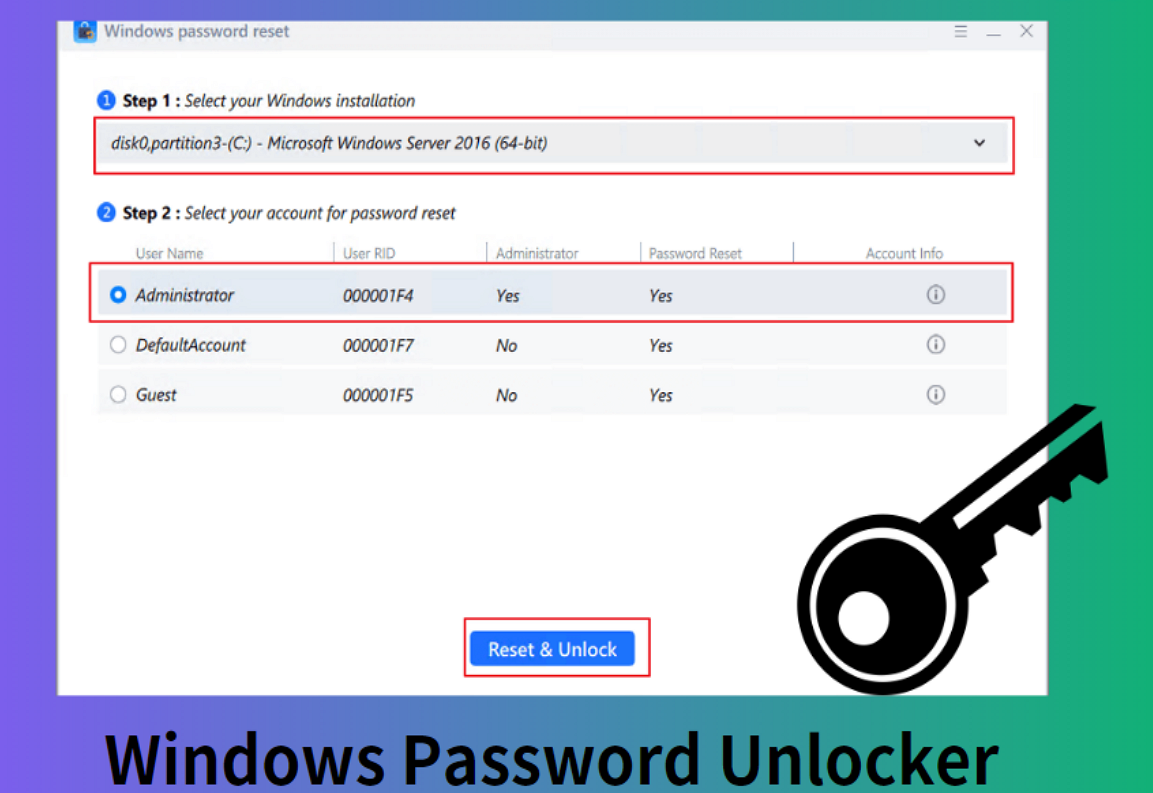
1. Using Windows Password Reset Software - Qiling Disk Master
- 🧰Tools: Qiling Disk Master, USB, healthy computer
- 👔Who to Use It: Beginner users.
If you want to save yourself from a lot of hassle and navigate through complex steps, using Qiling Disk Master Professional to unlock Windows passwords is recommended.
The software offers a Windows Password reset feature that is easy to use and allows for instant password reset, in addition to advanced disk partition management features.
Step 1. Insert the target USB disk into the computer, download and run Qiling Disk Master, and click "Tools" > "Create bootable media" to proceed.

Step 2. Select the correct USB flash drive or external mobile hard disk, click "Proceed," and wait patiently. After the password reset USB flash drive is created, click "Finish."

Step 3. To reset a password on a locked PC, remove the password reset USB, insert it into the locked PC, and restart. The PC will then ask you to change the boot drive to boot from the USB, and once completed, the system will automatically boot from USB.
Step 4. After restarting, find Qiling Disk Master again and go to "Password Reset". All accounts on the PC will be displayed in the interface; click on the target account and check "Reset".

Step 5. When you receive this prompt, click "Proceed" to continue. Your password will be erased.

Qiling Disk Master is a must-have tool for saving time and effort when managing Windows disk partitions and passwords. Share this amazing password unlock software with your friends online to help them out.
2. Creating a Password Reset Disk
- Tools: USB, healthy computer, Windows Control Panel settings
- Who to Use It: Experienced Windows Users
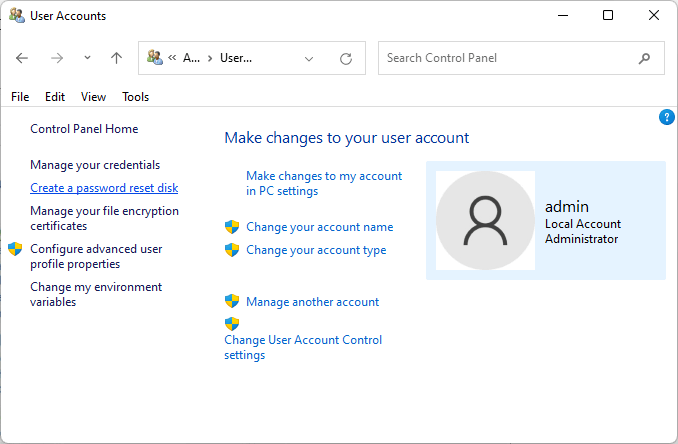
To create a password reset disk, insert a blank CD, DVD, or USB drive into your computer, then go to the User Accounts window in Control Panel. Click "Create a password reset disk" and follow the prompts to save the disk. You can then use the disk to reset your Windows password by booting from it and following the on-screen instructions.
Step 1. Open the Control Panel on your PC.
Step 2. In the search box, search, Create password reset disk.
Step 3. Click on the "Create Password Reset Disk" option, which will open a "Forgotten Password" wizard.
Step 4. To create a password reset disk, click on the "Next" button. On the next page, select the drive you want to use to create the password reset disk, ensuring that an external USB drive is plugged into your computer.
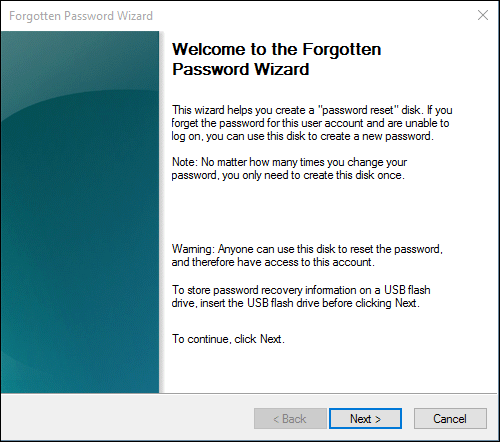
Step 5. Once selected, the process will run automatically and make it into a password reset disk. Proceed ahead.
Step 6. Once you enter the wrong password, you can find the option to reset password below the password input field.
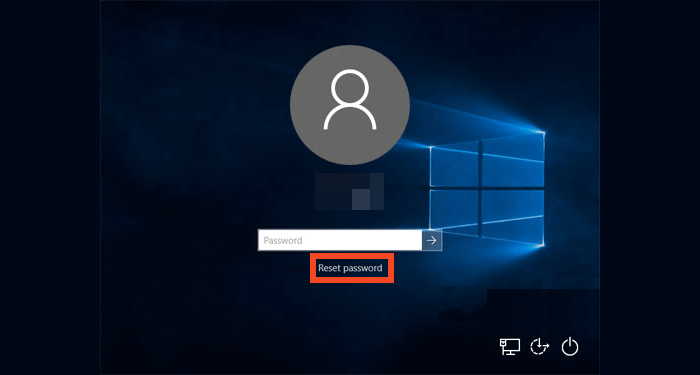
Step 7. To reset your password, click on the "Forgot password?" link. This will prompt you to answer your security questions. If you have a password reset disk, you can use it to reset your password instead of answering the security questions.
Step 8. To reset your password, open the Password reset wizard, ensure your password reset disk is plugged into your computer, and select the disk in the wizard.
Step 9. Once you proceed, you can create a new password and the password hint. Do that, and you've successfully reset your password using a Password reset disk.
Further Reading: Unlock Computer Without Password
3. Reboot Windows into Safe Mode and Unlock Windows Password
- 🧰Tools: Windows computer
- 👔Who to Use It: Experienced Windows users with experience in advanced troubleshooting.
To boot into safe mode and change the password of an in-built admin account on your Windows PC, you can follow these steps: First, restart your PC and press the F8 key repeatedly until the Advanced Boot Options menu appears. Then, select Safe Mode with Command Prompt from the menu. Next, log in to your in-built admin account using the existing password. Once logged in, open the Command Prompt and type "net user administrator *" and press Enter.
Step 1. To restart your device while on the lock screen, press and hold the shift key while clicking the restart button in the power options. This will bypass the lock screen and initiate the restart process.
Step 2. To access Windows recovery, go to Windows recovery, then open Troubleshoot and Advanced options.
Step 3. To access the advanced startup settings, you need to restart your PC and then press the F2, F11, or Del key, depending on your computer model, to enter the BIOS settings. From there, navigate to the Advanced tab and select the "UEFI Firmware Settings" or "Boot" option. Then, save your changes and exit the BIOS settings. Your PC will now restart and you should see the advanced startup options menu.
Step 4. To boot your computer into safe mode, a new page will open with multiple startup options, where you press the number key 4 to select safe mode.
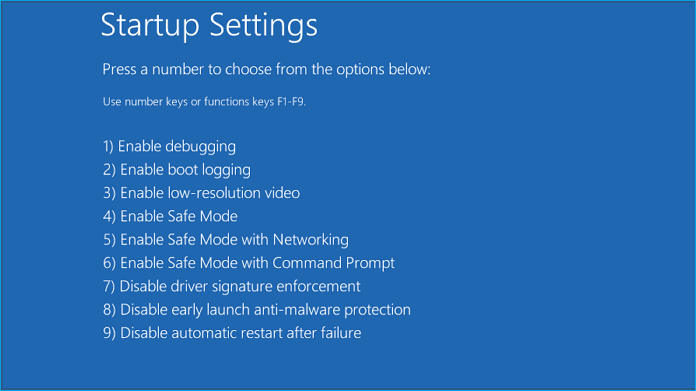
Step 5. Once in Safe Mode, access the Control Panel and search for user account settings. Locate the user account you want to change the password for. Since you have access to the default Admin account, you can reset the password for any admin account at this time.
Extended Reading: Dell Default Admin Password
4. Using CMD with Other Sign-in Option
- 🧰Tools: Windows computer, Command Prompt
- 👔Who to Use It: Experienced users who are comfortable using command line tools.
If you have another administrator account on your PC that you remember the password to or have access to, you can log in to that admin account and use the command prompt to reset the password for all accounts on the PC. To do this, simply log in to the admin account, open the command prompt, and use the appropriate commands to reset the passwords for all accounts. This can be a helpful solution if you've forgotten the password for your primary account and need to regain access to your PC.
Step 1. Firstly, do a regular login to the other administrator account.
Step 2. To open the elevated command prompt, search for "cmd" in the Start menu, right-click on the Command Prompt result, and select "Run as administrator".
Step 3. 'pip install --upgrade pip' and press enter.
Net user accountname newpass
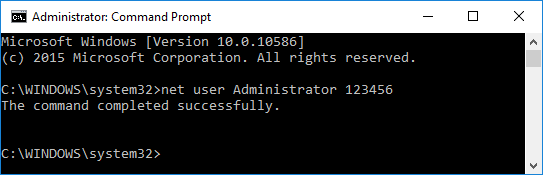
If you prefer the manual method, feel free to share it online to help your friends unlock their Windows password with ease. To do this, you'll need to insert the Windows installation media, boot from it, and select the "Repair your computer" option.
5. Using Windows USB Installation Disk
- 🧰Tools: another Windows computer, USB, Windows installation media
- 👔Who to Use It: Expert Windows users with experience in Advanced Windows troubleshooting.
The most complex and time-consuming method is using the registry editor, which requires excellent technical know-how in Windows. We recommend using one of the previous methods if you're not familiar with Windows technicalities.
Step 1. To boot your PC using Windows Bootable USB, start by changing the boot order in your PC's BIOS or UEFI. Set the USB drive as the first boot device, allowing your PC to boot from the USB instead of the hard drive. This will allow you to install or repair Windows from the USB drive. Make sure to save your changes and exit the BIOS or UEFI settings.
Step 2. When the PC boots, it will initiate the Windows installation process, starting with the first screen that offers the option to repair the PC, located at the bottom left.
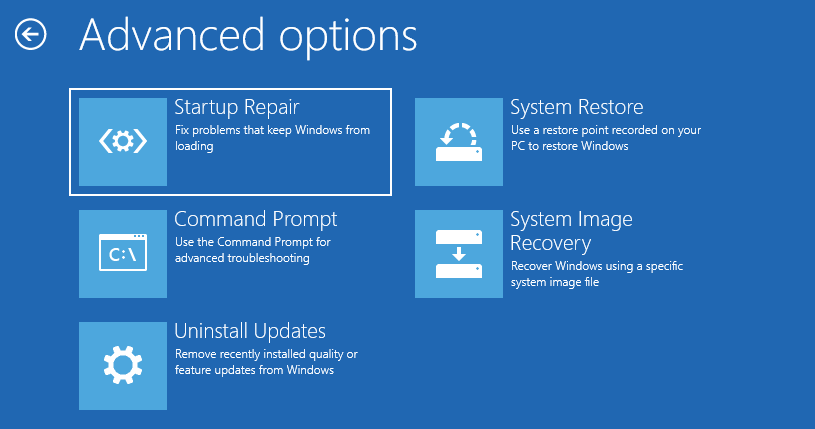
Step 3. To access the Advanced Recovery, go to Troubleshoot > Advanced > Command Prompt.
Step 4. To change the password, you can use the command `sudo passwd username` and follow the prompts. This will open the password editor, where you can enter your new password and confirm it.
Conclusion
If you find yourself in the frustrating situation of forgetting your Windows password, stay calm and use one of the methods above to regain access. For a hassle-free and time-saving solution, consider using Qiling Disk Master, which not only offers a Windows Password reset feature but also provides additional tools to optimize your drives, manage partitions, and enhance your PC's overall performance.
FAQs About Tips Unlocking Windows Passwords
While we've tried to provide fixes for the issue, there are still some questions that need to be answered.
1. What is the benefit of unlocking Windows passwords?
If you've forgotten your Windows password, you can regain access to your PC without resetting it by unlocking it, thereby allowing you to reuse your PC and retain access to your data, settings, and files.
2. Is there a free Windows 10 password recovery tool?
There are many Windows 10 password recovery tools available, but one that stands out is Qiling Disk Master, which offers free Windows password reset features, along with advanced disk management capabilities, all for free.
3. How do I unlock my Windows password if I forget it?
If you've forgotten your Windows password, you can reset it using various methods, including security questions, a password reset disk, a command prompt, or other sign-in options.
Related Articles
- Blue Screen While Playing Games? 2024 Fixes Here
- How Do I Install a Second Hard Drive? Here Is the Complete Guide
- How to Fix Windows 11 Update Stuck at 0% | 4 Valuable Ways
- Partition Magic VS Qiling Disk Master, Which Is Better & How to Select
- 3 Best CHKDSK Alternatives for Disk Error Checking Free Download [Beginners' Guide]
Running the CHKDSK command line is the most normal way to check and fix disk errors on Windows computers. However, for most beginners, it's a bit complex to run the command lines. - Easy Ways to Clean a Disk and Improve Its Performance
Cleaning a disk on a computer or a console can bring a lot of benefits, including improved performance, reduced clutter, and enhanced security.
Products
Articles & Tutorials
- Data Recovery
- Data Backup
- File Recovery
- File Backup
- System Backup and Restore
- Disk and Partition Clone
- Technical articles
- Mobile articles
- Disk Master Help
- Windows Data Recovery Tutorials
- Windows Secure Delete Tutorials
- Windows Partition Management Tutorials
- Windows File Backup and Restore Tutorials
- Windows System Backup and Restore Tutorials
- Windows Disk Backup and Restore Tutorials
- Windows Clone Tutorials