Fix Windows 11 Update Stuck at 0%, 100% on Your Own - Qiling
The Windows 11 update process is similar to its previous version, but with smaller updates. However, a common issue is that they often get stuck. If the progress bar doesn't move or gets stuck at 99% for an extended period, troubleshooting is necessary. This article covers the causes and solutions to the issue, providing suggestions to bypass problems and safely install the Windows 11 update on your PC.
| Workable Solutions | Step-by-step Troubleshooting |
|---|---|
| 1. Check and Fix Unstable Network Connection, Power Supply | Check your internet connection and power supply...Full steps |
| 2. Clear SoftwareDistribution Folder | Open Start and search for Command Prompt. Right-click on it and click on Run as administrator...Full steps |
| 3. Extending System Partition With Sufficient Space | Option 1. Extend System C drive with unallocated space...Full steps |
| 4. Installing Windows 11 From Bootable USB | Download and luanch Qiling Win11builder on your computer...Full steps |
Why Does The Windows 11 Update Get Stuck (Causes)?
The issue of a longer download time can be caused by various factors, including a slow internet connection, running out of storage space during updates, and other similar issues, requiring different approaches to resolve.
Unstable Internet Connection
The cause of most "updates getting stuck" issues is often the unstable internet connection, which cannot only cause the update to get stuck but also lead to errors in the downloading process or corrupted downloaded files, ultimately resulting in the update getting stuck.
Unstable Power Supply
An unstable power supply can cause Windows 11 updates to get stuck, as it may interrupt the installation process, leading to the update being stuck at a certain level.
Insufficient Storage
Windows 11 updates require a significant amount of storage space, typically over 4.5GB, to install, and can get stuck if the system drive doesn't have enough space to download and decompress the update. Ensure you have sufficient storage space on your system drive before starting the update process.
Corrupted ISO File
An unstable internet connection or a corrupted Windows ISO file can cause the update process to get stuck, hindering the installation of Windows 11.
How Do I Know If My Windows 11 Update Is Stuck?
Before trying to fix the issue, it's crucial to verify that the Windows 11 update is indeed stuck. This can be determined by checking for symptoms such as the update installation process being stuck on a particular screen, the progress bar not moving, or the system freezing during the update process. If any of these symptoms are present, it may indicate that the update installation process has become stuck, and further troubleshooting can be initiated to resolve the issue.
1. Stuck At Downloading: 0%, 90%, 100%, etc. or it's not progressing
If your Windows 11 update is stuck at a certain percentage of the files downloaded, it could indicate a stuck update installation process. Wait for some time to see if the download progresses or gets stuck at the same level, even with a stable internet connection.
2. Windows 11 download completes at 100% but doesn't go to the next stage, hangs for hours.
If the Windows 11 update is stuck at 100% complete, and your PC stays hanged for a long time, it's likely that the update process has stalled. In this case, you may need to restart the update process to resolve the issue. This can be done by restarting your PC and then attempting to update again.
3. Windows 11 update takes hours but doesn't move at all
If your Windows 11 update takes hours to install, it may be stuck, and you can try the solutions listed in this article to fix the issue, which should complete the update process in a shorter time.
How Do I Fix Windows 11 Update Stuck (0%, 11%, 99%, 100%) Issue
Depending on the cause of the issue, the approach needed to fix it might differ. Before diving into solutions, here are some quick tips to try:
- Disable and Enable Windows Update Service
- Reset Windows Update Components
- Turn Off Firewall Temporarily
- Unplug External Storage Devices
If the tips provided earlier don't yield results, consider the following more effective solutions. Start by checking the system update settings to ensure they are set to automatically download and install updates. If this option is disabled, enable it and check if the update process begins. Next, restart the system in safe mode and see if the update starts.
Method 1: Check and Fix Unstable Network Connection, Power Supply
If your Windows 11 update is getting stuck, it's possible that an unstable internet connection or power supply is the culprit. To troubleshoot, try checking your internet connection and power supply to ensure they're stable. You can also try restarting your router and computer, or checking for any power outages in your area.
Unstable internet connection: If you're experiencing issues with the Windows 11 update, try restarting your PC, disconnecting and reconnecting your internet connection, or using an Ethernet cable to ensure a stable connection. If the issue persists, try connecting to a different network. Make sure your PC is connected to a stable internet connection during the update installation process. This should resolve the issue and allow the update to complete successfully.
Unstable power supply:A stuck Windows 11 update can be resolved by ensuring the power supply is stable. This involves unplugging the PC from the power source, checking it for any issues, and then re-plugging it. If the problem persists, it may be necessary to switch to a different power source to rule out any instability that could be causing the update to get stuck.
Method 2: Clear SoftwareDistribution Folder And Re-download Windows 11
The Windows Update Agent is responsible for maintaining the SoftwareDistribution folder, which is a significant folder for Windows 11 updates. While there's usually no need to clear its contents, you might need to do so to force Windows to start downloading updates again. Fortunately, Windows will automatically re-download the contents of this folder later, so you don't need to worry about deleting anything important. To clear the SoftwareDistribution folder safely, follow the steps listed below carefully.
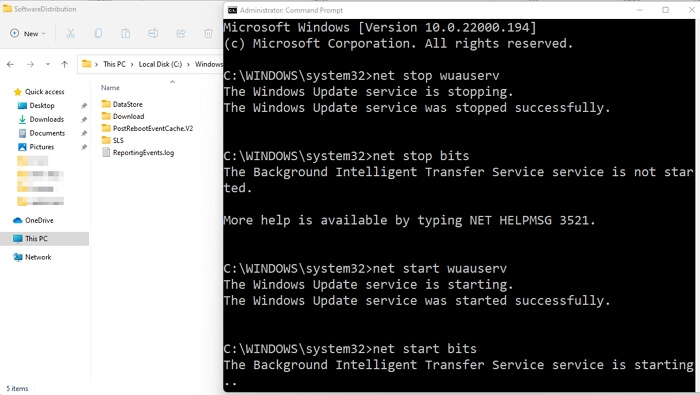
- To open Command Prompt as an administrator, start by searching for Command Prompt in the Start menu. Once found, right-click on it and select the option to "Run as administrator" from the context menu. This will open the Command Prompt with elevated privileges, allowing you to execute commands with administrator-level permissions.
- To stop the Windows Update Service, type the command: net stop wuauserv and press the Enter key. This will stop the service and prevent any further updates from being installed.
- To stop the Background Intelligent Transfer Service (BITS), type the command `net stop bits` and press Enter. This will stop the BITS service.
- To access the location C:\Windows\SoftwareDistribution, open the "This PC" window by pressing the Windows key + E, and then navigate to the specified path.
- Delete all contents in the SoftwareDistribution folder, restart the computer, and repeat the process if needed.
Next, we need to start the two services that we stopped at the beginning of this process.
- Type this command in the command prompt and press Enter: net start wuauserv
- Type this command and hit Enter: net start bits
To resolve the issue, re-download Windows 11 and ensure that you verify the files during the download process. This should be done on a stable internet connection to prevent any further complications.
Method 3: Extending System Partition With Sufficient Space
Check your C drive or where Windows is available; if it has enough space left for installing the Windows 11 update, you can proceed. If not, consider adding more space by altering partitions or uninstalling some applications and clearing your download folder.
Using the Qiling Partition Master, you can easily extend the storage of your C drive and proceed with the Windows 11 update process without any issues.
Option 1. Extend System C drive with unallocated space
- 1. Click on the System C: drive and select "Resize/Move".
- 2. Drag the system partition end into the unallocated space so to add it to the C: drive. To extend the C drive, click on the "Extend" button, then click "Proceed" to execute the operations and increase the size of the C drive.
Option 2. Extend System C drive without unallocated space
- 1. Click a big partition with enough free space on the system disk, select "Resize/Move" to make space for the new installation.
- 2. To resize the partition, drag the strong end into the itself space to shrink it, and then click "Proceed" to initiate the resizing process.
- 3. To extend the system drive, select it in the Disk Management page, then drag the end of the System C drive into the unallocated space. Once the adjustment is made, click "Proceed" to finalize the extension of the C drive.
Method 4: Installing Windows 11 From A Bootable USB
To clean install Windows 11 on your system from an external bootable USB, you'll need software like the Qiling Win11 Builder. This tool allows you to download the Windows 11 update on an external drive, which can then be used to install it on your PC, eliminating the risk of getting stuck in an error during the update process.
Step 1.The Win11 builder is integrated with the Qiling OS2Go software, allowing users to download and launch the program after installation.
Step 2.The name of the software was changed from WinToGo Creator to Windows Install Drive Creator, and it now supports the creation of Windows 11, 10, and 8.1 installations. The system information is displayed on the home screen and is updated in real-time.
Step 3.Connect your USB flash drive to the computer and click the "Create" button. Win11 builder will automatically detect your USB device.
Step 4.The software will erase data from a used USB drive, so be sure to use a blank one. Once you start the download, wait for it to finish or take a break to do something else.
Step 5.After downloading the Windows 11 iso image file to a USB drive, you can proceed to install Windows 11 on your computer by following the installation wizard step by step from the bootable USB drive.
Step 6. To prepare a USB drive for booting, the PC is restarted and the BIOS or UEFI settings are accessed. The device order of boot is then changed to prioritize the USB drive over the hard drive (HDD). Once the changes are saved and the PC is exited from the BIOS or UEFI settings, the PC will now boot from the USB drive instead of the HDD.
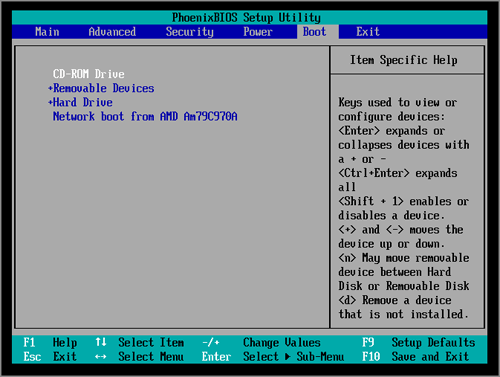
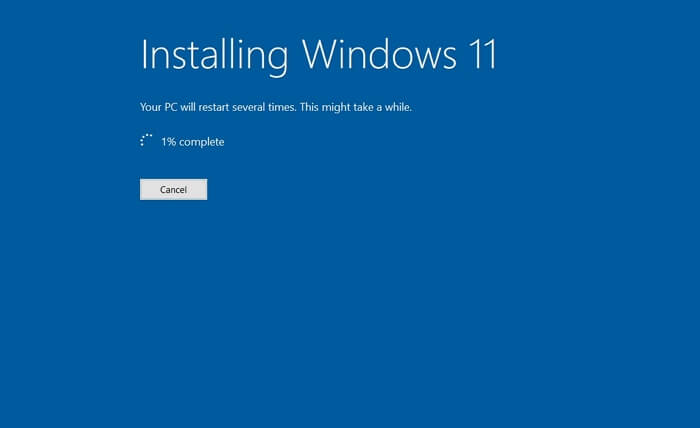
Step 7. To upgrade to Windows 11, insert the USB drive and boot your computer from it. The installation process should begin, so select the same system drive where Windows 10 was installed. If you're upgrading on a new PC, ensure you have sufficient storage. Follow the on-screen wizard to complete the installation.
Conclusion
Windows 11 will soon be available for installation and update on almost every Windows 10 system, but users may encounter issues with the update getting stuck due to various reasons. This article identifies the possible causes of the problem and provides solutions to resolve them, aiming to assist users in successfully updating to Windows 11.
Related Articles
- Solution: How to Securely Wipe Free Space on SSD
- Fixed: Windows Could Not Format A Partition on Disk 0 (Error Code 0x80070057)
- 2022 Tutorial: How to Resize C Drive in Windows 10/8/7
- How to Add Unallocated Space to D Drive on Windows 10/8/7
- Easily Manage Basic and Dynamic Disk via a Great Disk Manager
To manage basic and dynamic disk or convert dynamic into basic without data loss, you can use a powerful disk manager, Qiling Disk Master Professional. - How to Merge C Drive with Unallocated Space Directly in Windows 10 or 11?
You can merge the C drive with unallocated space directly on your hard drive to extend the C drive using Qiling Disk Master.
Products
Articles & Tutorials
- Data Recovery
- Data Backup
- File Recovery
- File Backup
- System Backup and Restore
- Disk and Partition Clone
- Technical articles
- Mobile articles
- Disk Master Help
- Windows Data Recovery Tutorials
- Windows Secure Delete Tutorials
- Windows Partition Management Tutorials
- Windows File Backup and Restore Tutorials
- Windows System Backup and Restore Tutorials
- Windows Disk Backup and Restore Tutorials
- Windows Clone Tutorials