How to Factory Reset Laptop without Password? [Everything You Should Know]
A secure password is necessary for all users to safeguard their computer's essential data. To protect your personal information and data from being exposed to others, it's recommended to set a difficult password rather than an easy-to-guess one. However, it's also important to remember your password, or you might face trouble when you forget it.
If you've forgotten your password, received a refurbished laptop, or want to sell your PC, you may need to factory reset your laptop without a password. This process will erase all saved data and restore the operating system to its default settings, securing your personal information. By doing so, you can ensure your data remains private and you don't inadvertently share sensitive information. However, keep in mind that this operation will completely wipe all data on your laptop.
What Will Happen If You Factory Reset Laptop?
A factory reset restores Windows to its default state, deleting all installed software, saved files (including formats like jpg, word, and ppt), and the administrator account used to log in.
Factory resetting your laptop can improve its performance and resolve issues caused by the hard drive and operating system. If you've forgotten your password and want to reset your laptop to its default state, don't worry - there are several methods available.
How to Factory Reset Laptop Without Password?
To factory reset your PC, simply log in, navigate to Settings > System > Recovery > Reset This PC, and follow the on-screen instructions.
If you've forgotten your laptop password, don't worry, there are other methods to resolve this issue. You can try factory resetting your PC as an efficient solution. Below are some helpful methods for you to factory reset your PC.
Method 1. Windows Installation Media
If your laptop is experiencing issues, you can easily reinstall Windows by wiping the hard drive, which is especially helpful if you've forgotten your admin password. To do this, download the Windows installation disk from Microsoft's official website and copy it to a USB drive, which will allow you to run the installation on your laptop without any problems. Then, follow the steps provided below to complete the process.
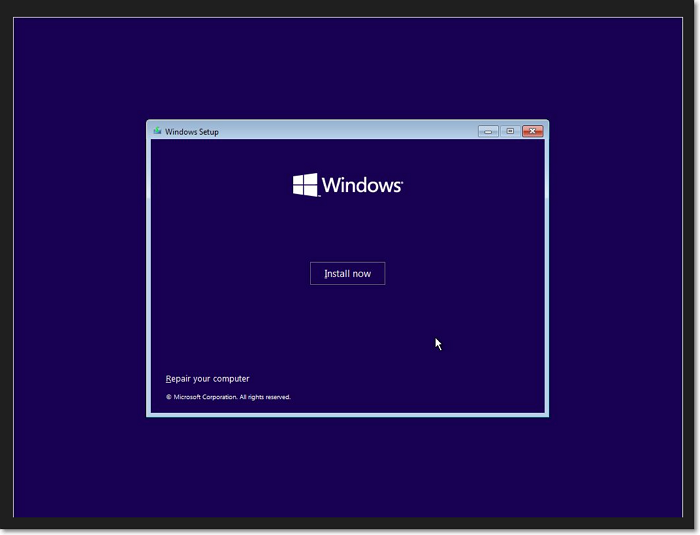
Step 1. Boot your laptop with the USB drive.
Step 2. After the installation interface appears, click on "Next" and then click on "Repair your computer".
Step 3. Select "Troubleshoot > Reset this PC".
Step 4. Click "Remove everything" to delete your personal information entirely.
Step 5. Select the C drive and choose the option to save files only on the drive where Windows is installed.
Step 6. Click on "Reset" to factory reset your PC without a password, which will erase all of your files, settings, and applications, restoring it to its original factory settings.
- Note:
- When you install Windows 11, your existing drive and copied files will be erased, and you'll need to restart your computer. After that, create a new administrator account to use your laptop again.
Method 2. Manufacturer Recovery Partition
To restore your laptop to its factory settings, you can use the manufacturer's recovery partition by pressing a specific key when starting Windows. The key to press varies by manufacturer, but typically it's the F11 key, which will take you to the recovery screen.
Step 1. Reboot the laptop and press the key corresponding to the operating system you want to enter the BIOS settings from.
Step 2. Press and hold the Shift key while pressing the Restart button.
Step 3. Then, click on the "Restart Now" button.
Step 4. Wait for a while before you are in the Windows Recovery Partition interface.
Step 5. When the Choose an option screen is shown, select Troubleshoot.
Step 6. Next, click on "Reset" this PC.
When you can't remember your admin password, this method can help improve your laptop's performance. If you can't use the recovery partition, you can try the other method. It's a good solution for any cases, despite some issues.
If you're looking for help with factory resetting your PC, we've got you covered. Our content above should provide you with the information you need. For more in-depth details, we recommend checking out the three articles below.
Conclusion
Factory resetting a laptop will erase all data on the drive and return the PC to its default state. This can be a necessary step, especially when the admin password is forgotten, which can compromise personal information and data. To avoid data loss, it's essential to back up important files before performing a factory reset. Fortunately, the methods outlined in this article can help, providing a way to recover forgotten admin passwords and restore access to the laptop.
Related Articles
- C Drive VS D Drive: What Are the Main Differences?
- Windows 7 Registry Backup Location [All You Need to Know]
- 6 Ways to Fix System Restore Is Initializing in Windows 11/10
- How to Download and Install macOS 13 Ventura [Step by Step Navigation]
- How to Backup and Restore Google Chrome Bookmarks?
This article will show you how to manually backup Google Chrome bookmarks and auto-backup Chrome bookmarks with free backup software. If you need simple methods to backup and restore Chrome bookmarks, you can follow the solutions here to find the answers now. - How to Backup OneNote in Windows 10 and How to Restore OneNote from Backup
Learn how to backup OneNote on Windows 10 and restore OneNote from backup easily. Two methods covered: automatic backup with Qiling software and manual backup.
Products
Articles & Tutorials
- Data Recovery
- Data Backup
- File Recovery
- File Backup
- System Backup and Restore
- Disk and Partition Clone
- Technical articles
- Mobile articles
- Disk Master Help
- Windows Data Recovery Tutorials
- Windows Secure Delete Tutorials
- Windows Partition Management Tutorials
- Windows File Backup and Restore Tutorials
- Windows System Backup and Restore Tutorials
- Windows Disk Backup and Restore Tutorials
- Windows Clone Tutorials