Solved: HP Recovery Drive Full on Windows 10/8/7
Using your HP computer for a while may lead to an error message indicating that the recovery partition is running out of space. This issue can be caused by various factors, including a large number of Windows updates, installation of numerous programs, or a full system drive. Qiling Software can help you identify the reasons behind the problem and provide solutions to free up space on your HP recovery drive.
To fix the HP recovery partition full error without data loss, you can either extend the recovery partition or delete the recovery partition after backing up the important data on it. This approach ensures that your files are preserved while resolving the issue.
Method 1. Extend Partition to Fix HP Recovery Drive Full
To expand the recovery partition, we recommend using third-party professional software, Qiling Disk Master, which is more secure and efficient than the built-in Disk Management tool.
- To create a partition, there must be unallocated space or free space on the disk, which is then followed by a primary or logical partition.
- The target partition must be formatted in RAW and NTFS file systems.
Qiling Disk Master Professional successfully breaks all the limitations of traditional disk tools, allowing you to expand the recovery partition of any format by utilizing non-contiguous, unallocated space or free space.
Step 1. Locate the Target Partition.
To resize a partition, go to Partition Manager, locate the target partition, and select "Resize/Move".

Step 2. Extend the Target Partition.
To add unallocated space to your current partition, drag the partition panel to the right or left, incorporating the unallocated space into your existing partition. This action will expand the current partition's size, effectively merging the unallocated space with the existing one.

Extra Option: Get Space from Another Drive
If there's not enough unallocated space on your disk, you can free up space by resizing a larger partition that has enough free space, by right-clicking on it and selecting "Resize/Move".
To extend the target partition, select the partition you want to extend at the "Allocate Space To" column.
Step 3. Execute Operations to Extend Partition.
To correct the disk partition, drag the dots of the target partition into the unallocated space. This action will resize the partition to occupy the entire unallocated space, effectively merging the two partitions into one contiguous block.
Then Click the "Proceed" to keep all the changes.
When you open Disk Management, you'll find that although there's still unallocated space, it's not adjacent to the HP recovery partition, requiring professional help from a program like Qiling Disk Master, which can also assist with other functions.
- Fix extend volume grayed out error
- Extend the C drive
- Extend the D drive
- Resize FAT32 partition
- Move unallocated space from D to C
If you have the above needs, download it and use it. I believe it will make your disk management easier and easier.
Read Also:

How to Fix HP Stream Low Disk Space [100% Working]
The HP Stream Low Disk Space issue can be resolved with practical solutions and tips to manage and optimize your device's storage, effectively addressing this common problem.
Method 2. Delete HP Recovery Partition to Fix a Full HP Recovery Drive
HP recovery drives allow you to restore your operating system to factory settings, but to avoid data loss, you need to copy the HP recovery partition to a new hard drive or USB drive before deleting the recovery partition to fix the low disk space error.
Stage 1. Copy HP Recovery Partition
Qiling Disk Master enables you to duplicate the recovery partition from an HP/Dell laptop to another drive, allowing for a system restore or replacement of the original drive.
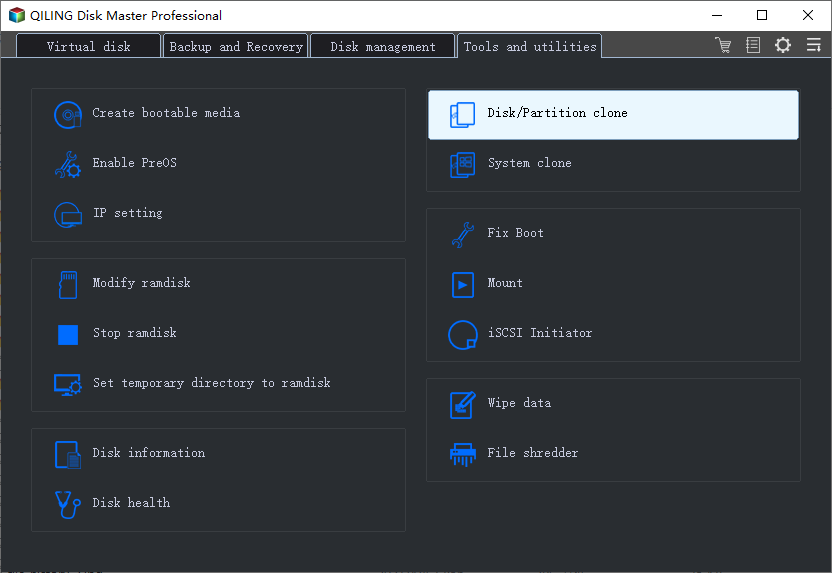
Step 1. Launch the Qiling Disk Master and go to "Tools" > Choose "Clone Partition."
Step 2. To clone the HP recovery partition, select the HP recovery partition, choose the destination partition, and then proceed with the cloning process by clicking "Next" and "Yes".
Stage 2. Delete HP Recovery Partition
To resolve the HP recovery partition's low space error, back up the recovery partition and then delete it. This will free up space.
Here is how:
Step 1. To delete the recovery partition, open Qiling Disk Master, click on "Partition Manager", right-click on the recovery partition, and select "Delete".
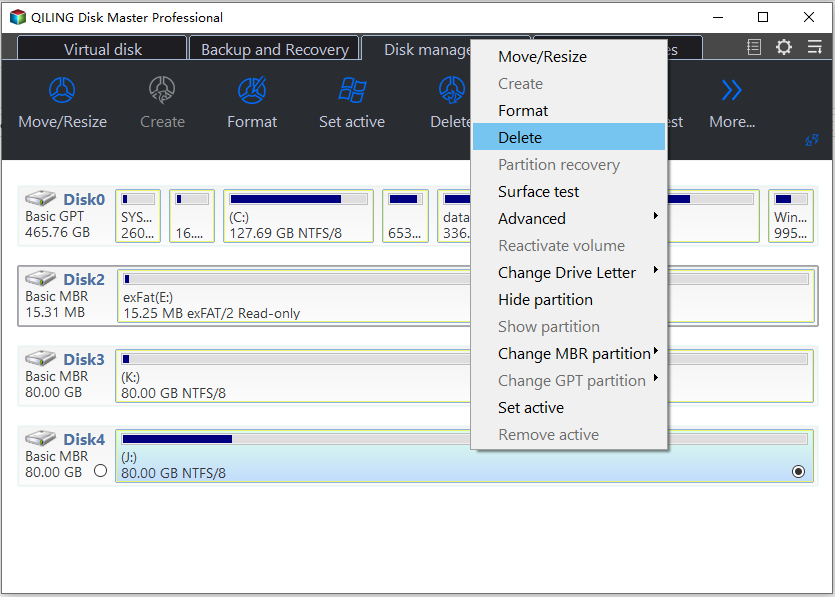
Step 2. Do you want to delete the selected partition? (Yes)
Some users have found solutions to the insufficient system space problem by disabling low disk space warnings, unhiding protected operating system files, and disabling system protection. They have shared detailed steps and other methods to address this issue on Windows.
To fix low disk space error on Windows 11/10/8/7, try deleting unnecessary files, uninstalling unused programs, and compressing files with WinRAR or 7-Zip. Disable Windows Search and Windows Defender, and enable the "Compact" option in File Explorer.
Here are 11/10 useful tips for Windows users to free up hard disk space and well manage hard drive space in daily use: clear temporary files, disable system restore, delete unnecessary Windows updates, remove temporary internet files, uninstall unused software, clean up disk space with built-in tools, compress old files, use cloud storage, limit disk space usage, and prioritize disk space usage.
What Is Taking Disk Space on the Recovery Drive
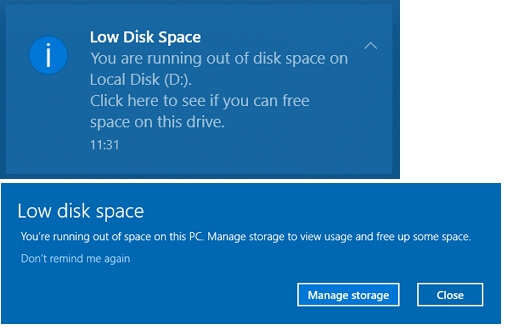
If your HP recovery partition is out of space, it means you've written files to it, possibly installing apps or using it as a backup destination.
To avoid using the HP Recovery drive as a backup destination, ensure that the drive is not set as the backup path in Windows Backup and Restore. If you have already used it as a backup destination, disable it in Windows Backup and Restore to avoid conflicts. If you're certain the drive isn't being used for backups, you can skip this step.
You can display hidden files on the HP Recovery disk by following these steps:
1. To access the File and Search Options, double-click on "Computer", click on "Organize" from the menu, and then select "File and Search Options" from the results that appear.
2. Click on the "View" tab in the File Explorer window, check the box next to "Show hidden files, folders, and drives", and uncheck the box next to "Hide protected operating system files (recommended)". Click "OK" to apply the changes.
3. The HP D Recovery partition contains a backup of your computer's original operating system, drivers, and programs, as well as any files and programs you saved to the partition. To access the HP D Recovery partition, you can follow the steps to restore your computer to its original factory settings, which will also reopen the partition.
4. To resolve the error, delete unnecessary files and uninstall unnecessary programs. This will free up space and resources, potentially resolving the issue.
Conclusion
HP recovery drives, like those from Dell or Lenovo, are created by manufacturers to restore Windows to factory settings using system backup info and registration/security files. Two effective methods can help remove errors associated with these drives.
HP Recovery Disk Drive Full FAQs
When the recovery disk on your HP laptop is almost full, you can create a new recovery disk to replace the old one. This will free up space on the old recovery disk, allowing you to use it for other purposes. The HP recovery partition is a reserved area on the hard drive that contains the operating system and other system files. It's used to restore the laptop to its original state in case of a system failure or other issues.
1. Why is my HP recovery drive almost full?
The HP recovery partition full error is primarily caused by writing data to the disk, which can occur automatically or due to user activities. The recovery partition is specifically designed to store files related to system recovery, and any other data written to it can cause the full error.
2. How do I free up space on the recovery drive?
You can try the following means to free up disk space on the HP recovery partition:
- 1 Extend HP Recovery Partition with Disk Management.
- 2 Disable System Protection.
- 3 Don't Hide Protected Operating System Files.
- 4 Disable Low Disk Space Warning on Windows 10/8/7.
- 5 Remove the Recovery Drive Letter.
- 6 Delete Recovery Drive D.
When the recovery drive runs out of space, you can use the Disk Cleanup program to scan and delete unnecessary files, but make sure to back up important system files beforehand.
Step 1. To run the Disk Cleanup tool, open the Run dialog by pressing the Windows key + R, type "cleanmgr" in the Run window, and press Enter. This will launch the Disk Cleanup tool, allowing you to free up space on your computer by deleting temporary files, system files, and other items you may no longer need.
Step 2. Choose the recovery drive and click "OK" to continue. The program will then scan and calculate the space that can be freed up.
Step 3. Select all unnecessary files, and click "OK" to free up more space on the recovery drive on Windows 10.
3. What does the HP recovery drive do?
The HP Recovery Drive is a tool that enables users to restore their HP operating system to its factory settings using system backup information and important registration and security files.
Related Articles
- Samsung Format Utility Download Free [With Guide] 🚩
- 6 Ways to Samsung 970 EVO Plus Slow Write Speed
- Easily Solved: Windows 10 Media Creation Tool Not Working
If the Windows 10 media creation tool isn't working, it can be difficult, especially when you're in the middle of installing Windows 10. Fortunately, this article offers six potential fixes to resolve the issue, as well as a convenient alternative to get you back on track. - Windows 11 Boot Repair [Step by Step Guide with Pictures]
Windows 11 boot issues are a common problem for users who have recently updated their systems. If you're experiencing this issue, we've can help. - Top 7 Windows 11 Password Reset Tools - Checklist
Forgetting your Windows 11 password can be frustrating, but, there are tools to help you reset it. This guide highlights the top 7 Windows 11 password reset tools that can assist you in regaining access to your account. - How to Fix Windows 11 Update Stuck at 100% | Full Guide🚩
If you're experiencing a stuck update at 100% when upgrading to Windows 11, this guide can help. We'll provide efficient and quick solutions to fix the Windows 11 stuck at 100% error, so you can get back to enjoying your updated operating system.
Products
Articles & Tutorials
- Data Recovery
- Data Backup
- File Recovery
- File Backup
- System Backup and Restore
- Disk and Partition Clone
- Technical articles
- Mobile articles
- Disk Master Help
- Windows Data Recovery Tutorials
- Windows Secure Delete Tutorials
- Windows Partition Management Tutorials
- Windows File Backup and Restore Tutorials
- Windows System Backup and Restore Tutorials
- Windows Disk Backup and Restore Tutorials
- Windows Clone Tutorials