Easily Solved: Windows 10 Media Creation Tool Not Working
The Media Creation Tool on Windows 10 can be used to upgrade the system to the latest version and install the latest Windows on another device, but what happens when it doesn't work? Fortunately, Qiling has shared some fixes in an article that can help resolve the issue.
- Option 1. Use Qiling Disk Master as an Alternative [👍]
- Option 2 - 6 Fixes for Windows 10 Media Creation Tool Not Working
The most efficient way to fix Windows media creation tool errors is to turn to reliable third-party software.
Option 1. Use Qiling Disk Master as an Alternative
Qiling Disk Master Professional enables the creation of a Windows installation USB/disk without the need for a Windows 10 creation tool. It directly burns a Windows 10 ISO to a USB drive, allowing for the installation of Windows 10 on any PC at any time.
Compared to the Windows 10 Media Creation Tool, this tool is more suitable for beginners, offering a smoother burning process with almost no errors. It ensures a successful installation process from start to finish.
Here is how:
Step 1. Launch Qiling Disk Master, go to the Bootable Media section, click "Burn ISO", and then click "Next".

Step 2. To begin the installation process, select the ISO image that you have downloaded on your PC, and click "Open".

Step 3. Click "Next" and select the target USB as the destination, then click "Burn" to execute the operation.
This tool is more friendly for beginners and allows making a Windows 10 bootable installation disk or burning a Windows 10 iso to USB without using the Windows 10 media creation tool, which may not work.
Option 2 - 6 Fixes for Windows 10 Media Creation Tool Not Working
If you don't want to try third-If the Media Creation Tool is not working on your Windows 10/11, you can try to fix it using party tools or through individual repair solutions that require computer operating experience. However, the latter method may take more time. To try and resolve the issue, follow the steps below to troubleshoot the Media Creation Tool Not Working error.
Fix 1. Run Windows 10/11 Media Creation Tool as Administrator
To troubleshoot issues with the Media Creation Tool, try running it as an administrator. Plug in the bootable USB, right-click on the tool, and select "Run as administrator." If prompted, click "Yes" to continue, and this should resolve the issue for most users.
Fix 2. Modify the Windows Registry
To successfully run the Media Creation Tool, you need to modify the Registry Editor slightly. This involves adding a new value to the Registry Editor that allows the Media Creation Tool to run successfully. To do this, you'll need to navigate to the "HKEY_LOCAL_MACHINE\SOFTWARE\Microsoft\Windows\CurrentVersion\Setup" key, then right-click in the right-hand pane and select "New" > "String Value".
Step 1. Press Win + R to open Run.
Step 2. Type regedit in Run and click Enter.
Step 3. Click "Yes" on the confirmation prompt.
Step 4. In the Registry Editor, go to the location mentioned below:
HKEY_LOCAL_MACHINE\\SOFTWARE\\Microsoft\\Windows\\Current Version\\WindowsUpdate\\OSUpgrade
Step 5. Right-click the OSUpgrade key and select New > DWORD (32-bit) Value option.
Step 6. Name this value AllowOSUpgrade.
Step 7. Double-click AllowOSUpgrade and type 1 under Value data.
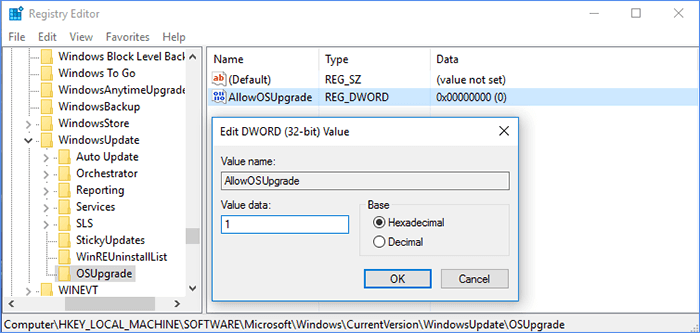
Step 8. Click OK to close Registry Editor and restart your PC.
The Windows registry contains an OSUpgrade key related to Windows Update, and creating an AllowOSUpgrade entry allows the Windows Media Creation Tool to run and upgrade your system.
See also:
Fix 3. Enable Related Services
To use the Media Creation Tool, you need to enable certain required services in Windows, which might be disabled by default. Before running the tool, ensure these services are enabled and running.
Step 1. Press the Windows + R keys to open the Run dialog box, type services.msc, and press Enter.
Step 2. To enable the services, right-click on each one as shown below and select "Start".
- Background Intelligent Transfer Service (BITS)
- Server
- IKE and AuthIP IPsec key module
- TCP/IP NetBIOS Helper
- Workstation
- Windows Update or Automatic Updates
- Windows Firewall
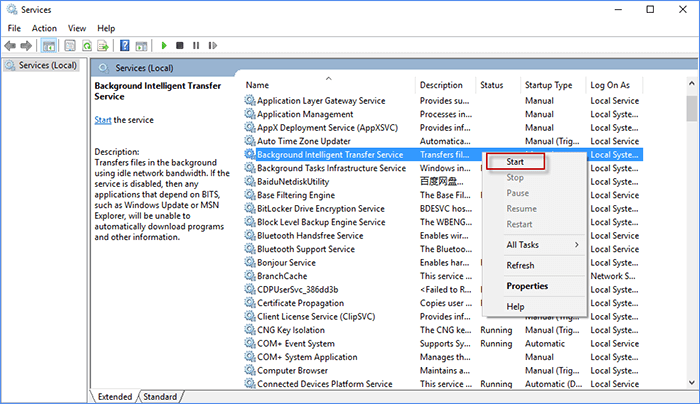
After completing the troubleshooting steps, you can re-run the Media Creation Tool to see if it successfully runs.
Fix 4. Check the Free Space on Your System Disk
To use the media creation tool, you need at least 8 GB of free space on your computer's hard drive and a USB with the same amount of free space to prevent storage issues. To check your storage space, go to your computer's settings or control panel, and look for the storage or disk space section. If you're running low, you can free up space by deleting unnecessary files, uninstalling unused programs, or transferring files to an external drive. Make sure to also check the free space on your USB before using it to create the installation media.
Fix 5. Clean Windows Update Cache
The Windows update cache may also cause the Windows 10 media creation tool not to work. To clear the cache in Windows 10/8/7, you can use the built-in Windows Update Cleanup tool, which can be accessed by going to Settings > Update & Security > Windows Update > Advanced options > View update history > Optional updates are available > Optional updates are available > Optional updates are available > Optional updates are available > Optional updates are available > Optional updates are available > Optional updates are available > Optional updates are available > Optional updates are available > Optional updates are available > Optional updates are available > Optional updates are available > Optional updates are available > Optional updates are available > Optional updates are available > Optional updates are available > Optional updates are available > Optional updates are available > Optional updates are available > Optional updates are available > Optional updates are available > Optional updates are available > Optional updates are available > Optional updates are available > Optional updates are available > Optional updates are available > Optional updates are available > Optional updates are available > Optional updates are available > Optional updates are available > Optional updates are available > Optional updates are available > Optional updates are available > Optional updates are available > Optional updates are available > Optional updates are available > Optional updates are available > Optional updates are available > Optional updates are available > Optional updates are available > Optional updates are available > Optional updates are available > Optional updates are available > Optional updates are available > Optional updates are available > Optional updates are available > Optional updates are available > Optional updates are available > Optional updates are available > Optional updates are available > Optional updates are available > Optional updates are available > Optional updates are available > Optional updates are available > Optional updates are available > Optional updates are available > Optional updates are available > Optional updates are available > Optional updates are available > Optional updates are available > Optional updates are available > Optional updates are available > Optional updates are available > Optional updates are available > Optional updates are available > Optional updates are available > Optional updates are available > Optional updates are available > Optional updates are available > Optional updates are available > Optional updates are available > Optional updates are available > Optional updates are available > Optional updates are available > Optional updates are available > Optional updates are available > Optional updates are available > Optional updates are available > Optional updates are available > Optional updates are available > Optional updates are available > Optional updates are available > Optional updates are available > Optional updates are available > Optional updates are available > Optional updates are available > Optional updates are available >
- Press Win + R, then type services.msc and press Enter.
- Find and double-click Windows Update, and then click the Stop button.
- To delete the update cache, go to the C:\Windows\SoftwareDistribution\Download folder.
- Press CTRL+A and then Delete to delete all files and folders.
- Press the Windows key + R to open the Run dialog, type services.msc, and press Enter to open the Services console.
- Find and double-click Windows Update, and then click the Start button.
Fix 6. Redownload the Media Creation Tool
If the Media Creation Tool still doesn't work, try deleting the tool file from your computer and then download and run it again. This may resolve the issue.
If the Windows 10/11 media creation tool is not working, try using the official Microsoft Media Creation Tool website, checking for updates, or using a different browser. If the issue persists, try running the tool as an administrator, checking the system's integrity, or using a different PC. If none of these methods work, you can try using a USB drive with the Windows ISO file or creating a bootable USB drive using a different tool.
Conclusion
The Windows Media Creation Tool cannot run on USB flash drives or.exe files due to various reasons, such as lack of required permissions, interference from antivirus software, insufficient storage space, etc., resulting in error messages like "The file is corrupted and cannot be opened." or "The file is not a valid Windows image.
- The Windows 10 Media Creation Tool is not working due to error code 0x80072f8f – 0x20000, which can occur when the tool is unable to connect to Microsoft's servers to download the necessary files. This error can be caused by a variety of factors, including a slow or unstable internet connection, a problem with the Windows Update service, or a corrupted download cache.
- Windows 10 media creation tools are not compatible.
- There was a problem running this tool.
- Windows 10 Media Creation Tool not working on Windows 7.
- Media Creation Tool 21h2 not working on Windows 7.
- We're not sure what's going on, but we can't run this tool on your computer.
If you're experiencing an error, this article offers seven options to help you resolve the issue. If it provides any assistance, please consider sharing the article with others.
Windows 10/11 Media Creation Tool FAQs
Do you fix the Windows 10 media creation tool failure? This part lists some further related questions and answers. Check them out if you need help.
1. How can I fix error code 0x80072f8f 0x20000?
Incompatible system requirements, unstable internet connection, or lack of administrator rights can cause this error. You can try reconnecting to the internet, checking system compatibility, and opening the Windows media creation tool as an administrator.
2. How can I download and install the Windows 10 media creation tool?
To download and install the Windows 10 media creation tool, start by navigating to the official Microsoft website. Click on the "Download Tool Now" button to begin the download process.
Go to the Microsoft website and click Download tool now to download the Windows 10/11 installation media tool.
To install the Media Creation Tool, navigate to the downloaded folder and double-click the Media Creation Tool file to run the installation process on your PC.
3. How do I fix the Media creation tool that won't load error on Windows 10/11?
If the Windows Media Creation Tool doesn't work or can't be opened on your Windows PC, try uninstalling it and redownloading it as this is the quickest solution, ensuring the downloaded tool is complete.
Related Articles
- Failed to Create a New Partition on the Selected Unused Space? Fix Now!
- Windows Can't Format USB Drive? Format USB with 6+ Fixes [Beginners' How-To Guide]
- (Solved) GPT-Formatted Disk. Legacy Boot Not Supported
- How Do I Write Protect My USB Flash Drive, Help
This article will help you learn how to write-protect your USB drive, preventing your data from being changed or written. Two solutions were provided. - Fix "Disk Already Contains the Maximum Number of Partitions" Error [Step-by-Step Guide]
If your computer warns you that 'Windows was unable to complete the format of USB drive'. - 2022 Tips to Fix 100 Disk Usage in Windows 7/8/8.1/10/11
When you are faced with disk usage 100 in Windows 7/8/8.1/10/11, you can follow the solutions here. You can fix Windows 7 100% disk usage and speed up your laptop and computer with ease.
Products
Articles & Tutorials
- Data Recovery
- Data Backup
- File Recovery
- File Backup
- System Backup and Restore
- Disk and Partition Clone
- Technical articles
- Mobile articles
- Disk Master Help
- Windows Data Recovery Tutorials
- Windows Secure Delete Tutorials
- Windows Partition Management Tutorials
- Windows File Backup and Restore Tutorials
- Windows System Backup and Restore Tutorials
- Windows Disk Backup and Restore Tutorials
- Windows Clone Tutorials