Top 5 Free Disk Formatter Recommend for Windows & Mac
Key Takeaways of Free Disk Format Utility:
- Back up important data: It's important to back up disk essentials before formatting.
- Choose the appropriate file system: Different file systems are suitable for different purposes and operating systems, each with its own strengths and weaknesses.
- Use reliable disk formatter: This page provides a list of the 5 best free disk format utilities that can be used to format a disk, offering users a convenient option to choose from.
In this article from Qiling, we'll show you how to choose a free disk format utility to easily format any type of storage device on both Windows and Mac. Let's get started.
How Can I Format My Hard Drive for Free? Top 5 Free Disk Format Utility Recommend
You can format your hard drive for free using one of the many free disk format utilities available. Some popular options include the five utilities below, each with its own features and capabilities, allowing you to choose the one that best suits your needs and format your hard disk drives efficiently in both Windows and Mac computers.
To choose the best free disk format utility, first check your computer's operating system. Then, confirm the file system format you want to use on your storage devices. Finally, refer to the comparison table below and select the utility that best suits your needs.
| Free Disk Format Utilities | Operating Systems | Price | Reason to Choose |
|---|---|---|---|
| All Windows and Windows Server systems. | Free | Free, easy to use, beginners' best choice. | |
| 2. File Explorer | All Windows and Windows Server systems. | Free | Free, to use, and appliable to all Windows users. |
| 3. Disk Management | All Windows and Windows Server systems. | Free | Free, appliable to all Windows users. |
| 4. CMD | All Windows and Windows Server systems. | Free | Free, appliable to all Windows users. |
| 5. Disk Utility | All macOS and Mac OS X systems. | Free | Free, appliable on all Mac computers. |
If you've found a disk format utility suite that works well for your device, consider sharing it with others to help them find a reliable tool online. A comparison table can be a helpful resource for others to see which disk format tools are compatible with their devices, making it easier for them to make an informed decision.
The table shows that Qiling Disk Master, File Explorer, Disk Management, and CMD are free disk format utilities for Windows, while Disk Utility is for Mac. Windows' built-in disk formatter has limitations, but Qiling Disk Master can overcome them, making it the most powerful disk formatter among the options. This provides a clear choice for formatting or reformatting a hard drive.
To format your drives using the disk format tool, follow these steps: First, ensure the tool is installed and launched on your system. Next, select the drive you wish to format from the list of available drives. Then, choose the desired format type, such as FAT32 or NTFS, and confirm the action.
1. Qiling Disk Master Free - All-in-One Free Disk Formatting Sofware
Qiling Disk Master Free is a comprehensive disk partition manager that offers a wide range of features, including both basic and advanced options, in disk format. It provides a seamless disk management experience, covering many functions that built-in tools often lack.
- Supported File Systems: NTFS, FAT32, exFAT, EXT2, EXT3, EXT4
- Applies to: All Windows beginners.
| Pros | Cons |
|---|---|
|
|
Qiling Disk Master can change the file system of your disks into another format in just a few clicks, utilizing its format features.
This software allows you to convert disk file systems between NTFS to FAT32 without formatting, providing detailed guides on NTFS to FAT32 and NTFS to FAT32 conversions for reference.
To format your hard drives with Qiling disk formatting software, follow these steps: First, download and install Qiling on your computer. Next, launch the software and select the hard drive you want to format from the list of available drives.
Step 1. To format a hard drive partition using Qiling Disk Master, simply run the application, right-click on the partition you wish to format, and select the "Format" option from the context menu. This will initiate the formatting process, erasing all data on the selected partition.

Step 2. In a new window, set the Partition label, File system, and Cluster size for the partition to be formatted.

Step 3. Click the "Proceed" button to start formatting the partition on your hard drive.

Step 4. Then you will see a warning window, click "Yes" in it to continue.
#Disk Format Tool for PC#Disk Format Utility for Windows#Free#Windows
You May Also Like: Top 5 Best Disk Formatter Software Free Download.
2. File Explorer - Windows Built-in Disk Formatter
File Explorer in Windows makes it easier to find and access files, and also offers the format function for quick disk format tasks.
- Supported File Systems: NTFS, FAT32, exFAT
- Applies to: All Windows users.
| Pros | Cons |
|---|---|
|
|
Here's how to quickly clear existing data on a target hard drive using Windows File Explorer for free disk formatting:
Step 1. To open File Explorer on your computer, press the Windows key + E keys simultaneously. This will open the File Explorer window, allowing you to navigate through your computer's files and folders.
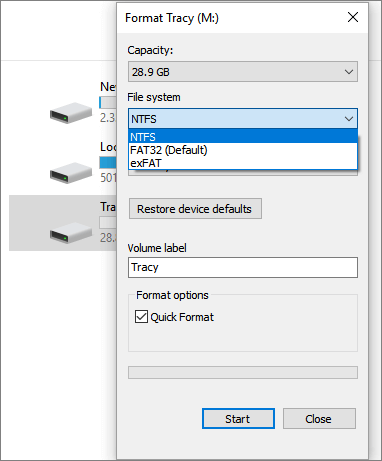
Step 2. To format a hard drive partition, locate the target partition, right-click on it, and select the "Format" option from the context menu. This will initiate the formatting process.
Step 3. To change the drive label and set a new file system format, select the desired drive, click on "Change drive letter and paths", choose a new label, and then set the file system format to NTFS, exFAT, or FAT32. Finally, tick the box for "Perform a quick format" to complete the process.
Step 4. To format the selected drives, click "Start" and then click "OK" once the formatting process is complete.
If your hard drive contains multiple partitions, you'll need to repeat the process of booting from the installation media, opening the Disk Management tool, and deleting the partitions one by one until all existing volumes on the target disk have been formatted.
#Windows Format Utility#Disk Formatter#Free#Windows
3. Disk Management - OS Build-in Disk Format Tool
Disk Management is a system utility in Windows that allows users to perform advanced storage operations, including basic disk and volume management. (From Microsoft) This built-in utility enables users to carry out all the fundamental operations on disks and volumes.
- Supported File Systems: NTFS, FAT32, exFAT
- Applies to: All experienced Windows users.
| Pros | Cons |
|---|---|
|
|
Here is how to format a partition using Disk Management in Windows:
Step 1. Right-click the Windows icon, select "Search," and type "Create and format hard disk partitions," then click to open Disk Management.
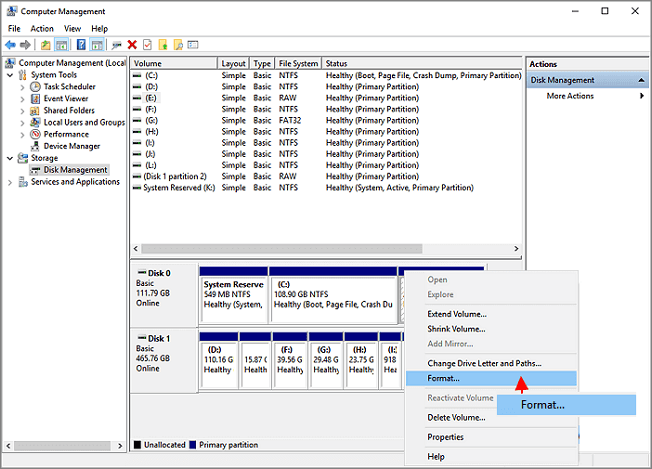
Step 2. In the Disk Management window, right-click on the target hard drive partition and select "Format..." from the context menu.
Step 3. Set a new volume label, select the file system - NTFS, FAT32, or exFAT - and check the box for "Perform a quick format". Then click "OK".
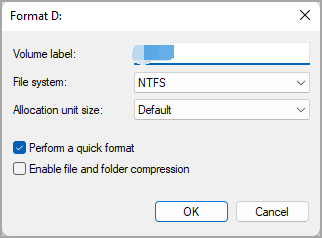
Wait for the process to finish, and you can repeat the steps to format other existing partitions on your hard drive to clean up the entire disk data.
If you're having trouble seeing the format option or it's greyed out in Disk Management, don't worry - there's a troubleshooting tutorial that can help you out.

How to Fix Disk Management Format Option Greyed Out
If the format volume option is greyed out in Disk Management and you're unable to format a hard drive or new disk, don't worry! We've got three useful solutions to help you repair and fix the issue on your Windows device.
#Windows Disk Format Utility#Free Formatter#Windows
4. CMD - Comprehensive Disk Formatter Utility
The Command Prompt, also known as cmd.exe, is a command-line interpreter application available in most Windows operating systems. It features Diskpart, which enables users to perform tasks such as formatting their drives.
- Supported File Systems: NTFS, FAT32, exFAT
- Applied to: Windows professionals and administrators.
| Pros | Cons |
|---|---|
|
|
The Command Prompt, also known as CMD or DiskPart commands, is a utility that processes command-line orders through an operating system to execute disk partitioning operations. It allows administrators to format disk partitions, create volumes, convert disk types, and more.
Here is the process that you can follow to format hard disk partitions with command lines:
Step 1. To open Command Prompt as administrator, right-click the Windows icon, select Run, and type "cmd" in the Run dialog. This will open the Command Prompt with administrator privileges.
Step 2. Open Diskpart by typing diskpart in Command Prompt and press Enter to open the Diskpart utility.
Step 3. Then type the following command lines and hit Enter each time:
- list disk
- select disk * (Replace * with the number of your USB drive.)
- list volume
- select volume * (Replace 10 with the volume number of your USB flash drive.)
- format fs=ntfs quick (You can also replace NTFS with FAT32 or exFAT.)
- exit
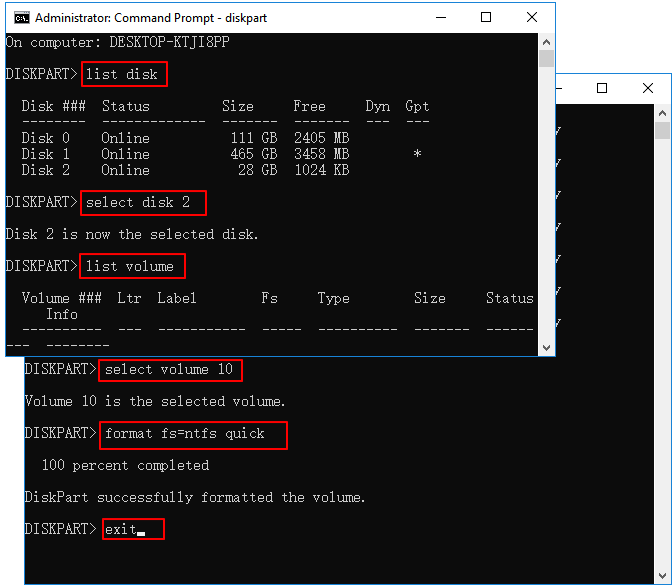
The command prompt formatting command can also be used to format other types of storage devices, such as USB drives or SD cards, in addition to hard drives and solid state drives.
#CMD Formatter#Disk Format Utility Windows#Free
5. Disk Utility - Mac Drive Formatter
Disk Utility is a built-Disk Utility is a macOS application that helps manage disks and disk volumes, allowing users to manage internal and external storage devices on their Mac.
- Supported File Systems: APFS, HFS, FAT32, exFAT
- Applies to: All Mac users.
| Pros | Cons |
|---|---|
|
|
Disk Utility is a built-in macOS tool that helps Mac users manage disk partitions. It allows users to create, delete, and format partitions, as well as change the file system for other purposes.
To format a disk drive on your Mac using Disk Utility, first, open Disk Utility by searching for it in Spotlight or by navigating to Applications > Utilities. Next, select the disk drive you want to format from the list on the left side of the Disk Utility window.
Step 1. To go to Finder, click "Go" and select "Applications".
Step 2. To access Disk Utility, double-click on "Utilities" in the Application folder, then double-click on "Disk Utility".
Step 3. Select your target hard drive on the left pane, and click "Erase" at the top menu.
Step 4. Then set a new volume label, and set a new format to your drive partition.
Then click "Erase" again to format the selected hard disk partition.
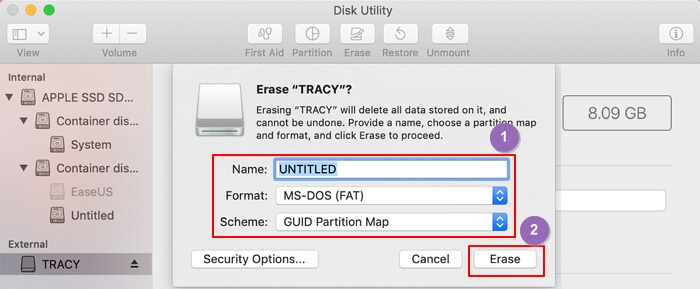
Disk Utility not only works to format hard drives, but also helps to change the format of external storage devices, such as formatting a USB flash drive to FAT32 on a Mac.
What Is Free Disk Format Utility
A disk format utility is a software tool that enables users to format their hard drives, SSDs, external hard drives, USB drives, SD cards, and other storage devices, quickly and easily cleaning up existing data. It also allows users to set the desired file system format to the target hard disk drives with ease.
The free disk format utility is a free software that allows users to format their storage devices and change the file system quickly and easily, making it a convenient tool for those who need to reformat their hard drives.
When Do We Need A Disk Formatter
Formatting a disk is the process of creating a new file system for drives, such as a hard disk drive, solid-state drive, memory card, or USB flash drive, for initial use, allowing the operating system to read and write data on the device. This is typically done when the drive needs to be used for the first time, or when the existing file system is damaged or corrupted.
🔖Preparing a New Drive
- Initial Setup: When you install a new HDD or SSD, it needs to be formatted before it can be used for data storage, which involves initializing the disk, partitioning it, and creating a file system.
🔖Changing File Systems
- Incompatibility: If the current file system is not compatible with your operating system, you may need to reformat it to a different one, which can erase all data on the drive. This is a last resort and should be done with caution.
🔖Resolving Issues
- Corruption: If your disk becomes read-only due to a corrupted file system, formatting can remove the write protection and restore normal functionality.
- Virus/Malware: Formatting a disk can help to remove malware or viruses and make it safe for reuse by overwriting the existing data with new data, essentially "cleaning" the disk.
🔖Data Removal
- Recycling or Selling: Formatting a hard drive or solid-state drive (SSD) on a device, such as a computer or smartphone, erases all data stored on it, making it impossible for others to access your personal information. This is especially important when planning to recycle or sell the device, as it ensures that sensitive data remains confidential and protected from unauthorized access.
- Freeing Up Space: Formatting a disk can be an effective way to free up space by removing all data and restoring it to its original, empty state, making it ready for new data to be written to it.
The information provided is helpful, but it is not clear what specific information you are referring to. If you could provide more context or clarify what you are looking for, I would be happy to assist you further.
Conclusion
For both Windows and Mac users, there are several free disk format utilities available to assist in formatting hard drives. For Windows beginners, Qiling Disk Master or File Explorer can be a suitable solution, while for Mac users, the Disk Utility is the best option. These free utilities can provide assistance in formatting hard drives, making it easier for users to manage their storage devices.
FAQs about Free Disk Format Utility
If you're still unsure about the free disk format utility, let me provide some answers below to alleviate your doubts.
1. What utility can be used with Windows to format drives?
In Windows operating systems, formatting a hard drive can be done through File Explorer, Disk Management, or Command Prompt. However, for Windows beginners, File Explorer is likely the easiest option among the three formatting utilities.
2. What is the best free formatting software?
Here is a list of the best free formatting software that you could apply to format disk drives on both Windows and Mac computers: 1. DBAN (Darik's Boot and Nuke) - A free, open-source disk wiping and formatting software.
- Qiling Disk Master Free
- HP USB Disk Storage Format Tool
- FAT32 Format
- HDD LLF
- Windows File Explorer
- Disk Management
- Command Prompt
- Disk Utility
- Terminal
To learn more about this formatting software, you can visit the page Top Best 9 Hard Drive Format Software for more information.
3. How do I totally format my hard drive?
- Open Disk Management, right-click one of your hard drive partitions, and select "Format".
- Set a new file system to the device, and click "OK" to start formatting the volume.
- When the process is complete, right-click another volume on your drive, select "Format", set a new format and click "OK".
Repeat all the steps until you finish formatting all the existing partitions on your hard drive, then you'll successfully format the entire disk.
Related Articles
- Toshiba External Hard Drive Repair Tool | Fix Corrupted Drives Efficiently
- How to Format USB Flash Drive to FAT32 (for 32/64/128GB...)
- All You Should Know About Erase | How to Securely Erase Your SSD Information
- 8 Fixes: Can't Install Windows on GPT or Windows Cannot Be Installed to This Disk Error
- Can Windows 11 Run MBR? Your Guide to Install Windows 11 on MBR in 2024
Windows 11 can run on MBR partitions, but it requires a specific installation process. To install Windows 11 on an MBR partition, you'll need to use the “Legacy BIOS” or “Compatibility Support Module (CSM)” option in your UEFI firmware settings. - Fix Genshin Impact Insufficient Storage Space | Best Ways 🏆
If you're planning to download and play Genshin Impact, you might encounter the 'insufficient storage space Genshin Impact' error on your device, whether it's a PC, Android, or iPhone. To resolve this issue, you can refer to this post for guidance on how to fix it.
Products
Articles & Tutorials
- Data Recovery
- Data Backup
- File Recovery
- File Backup
- System Backup and Restore
- Disk and Partition Clone
- Technical articles
- Mobile articles
- Disk Master Help
- Windows Data Recovery Tutorials
- Windows Secure Delete Tutorials
- Windows Partition Management Tutorials
- Windows File Backup and Restore Tutorials
- Windows System Backup and Restore Tutorials
- Windows Disk Backup and Restore Tutorials
- Windows Clone Tutorials