What Is MSI Boot Menu [Detailed Info]🔥🔥
MSI is a top laptop brand that offers high-quality gaming and business laptops. The boot menu is a crucial feature on your computer, and this article from Qiling will guide you on what it is and how to access it.
What Is MSI Boot Menu
The MSI boot menu is a menu that lets you select which device to boot your computer from, and it is also known as the startup menu. It is not visible by default, but you can access it by pressing a specific key during boot-up, which prompts you to press the designated key for the boot menu.
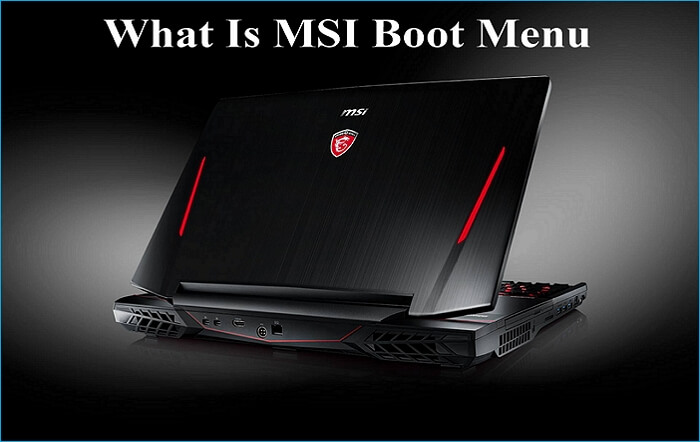
If you are experiencing startup or operation issues on your MSI computer, you can use the MSI boot menu to access various startup settings, such as BIOS, Safe Mode, and Startup Settings, to troubleshoot and repair Windows.
Tips to Access MSI Boot Menu
The boot menu is a crucial part of the computer booting process. Initially, the computer's POST (Power-On Self-Test) detects and prepares the peripherals and devices. Next, the BIOS firmware is accessed, and the computer selects the top priority boot device.
To access the MSI boot menu, you can press the key to enter the boot menu, which is usually F11, F12, or Del, depending on your computer model. Check your computer manual or the manufacturer's website for the correct key to press.
Once you have pressed the key, you will be taken to a menu where you can select the boot order, which may include options like USB, CD/DVD, or the hard drive. You can then choose the device you want to boot from and save your changes.
To access the MSI boot menu, you have 2 choices:
- Way 1. To access the MSI boot menu, press and hold the F11 key as soon as the computer turns on. This will allow you to choose the boot device.
- Way 2. To access the BIOS menu, press the BIOS key (usually Del) as soon as your computer turns on. In the BIOS menu, go to Boot and select LEGACY+UEFI & UEFI.
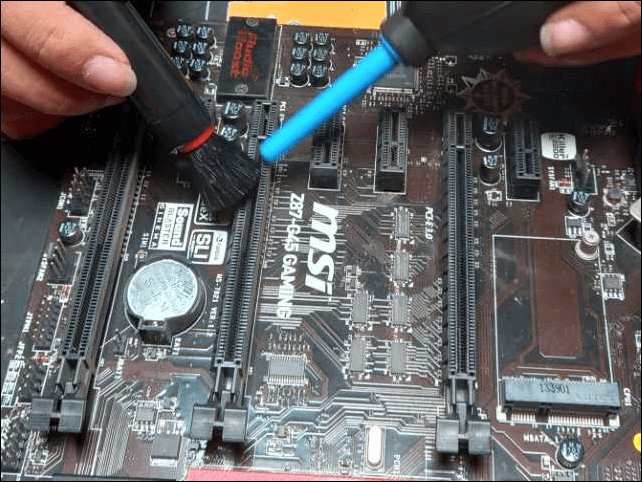
MSI Stuck on MSI Screen? How to Fix?
If your MSI computer screen is stuck on the MSI logo, there are several troubleshooting steps you can take to resolve the issue. First, try pressing the power button for 30 seconds to discharge any residual power. Next, press the power button again to turn on the computer, and then immediately press the F2 key to enter the BIOS settings.
What If You Cannot Access MSI Boot Menu
If you are having trouble accessing the MSI BIOS or boot menu, do not worry -- it is an easily solvable issue. Some users claim they cannot access it, but there are three ways to handle this situation.
You can try accessing the BIOS or boot menu through the default key combination, which varies depending on your MSI motherboard model. If that does not work, you might need to enter the BIOS or boot menu through the UEFI settings.
Way 1. Use a PS/2 Keyboard
Some USB keyboards are not recognized by the computer until the operating system loads, which means the MSI boot menu key and BIOS key are inoperable during boot.
To resolve the issue, swap from the current USB keyboard to a PS/2 keyboard, or try the alternative methods below if a PS/2 keyboard is not available.
Way 2. Enter UEFI Firmware Settings
If your PC cannot boot into Windows normally, you can access the UEFI Firmware Settings through the Windows Recovery Environment to configure your boot options.
Step 1. To enter Windows Recovery Environment, turn your computer on and off 3 times in a row. This will initiate the Windows Recovery Environment, allowing you to access advanced troubleshooting options and repair tools.
Step 2. Go to Troubleshoot > Advanced Options > UEFI Firmware Settings.
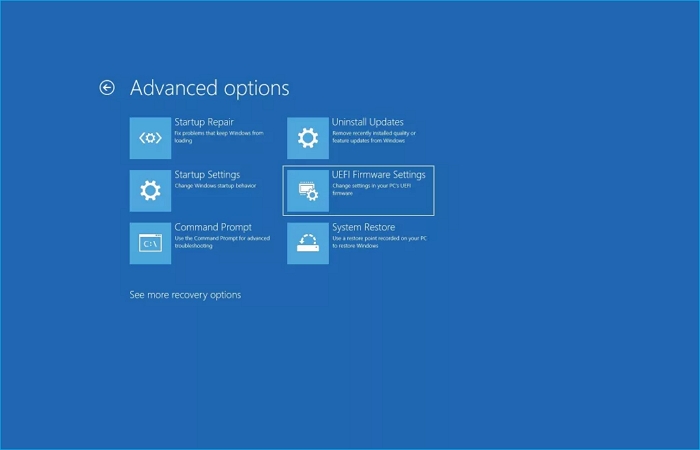
Step 3. To access BIOS and modify UEFI settings, click Restart.
Way 3. Turn Off Fast Startup
If you can boot into Windows, apply this method. Perform the steps below:
Step 1. Open Control Panel.
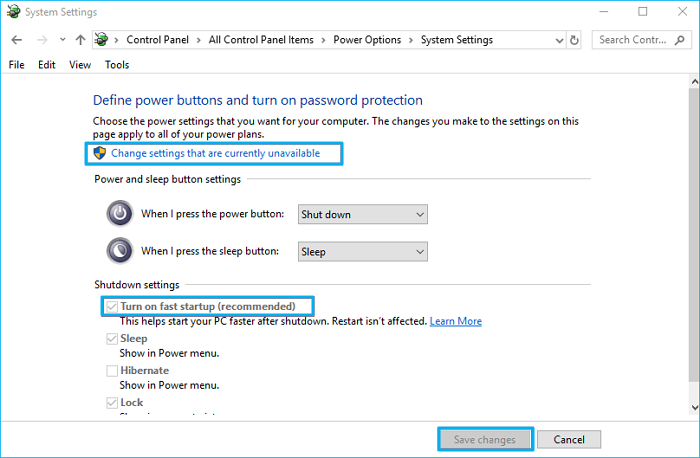
Step 2. To change what the power button does, go to System and Security > Power Options > Choose what power buttons do.
Step 3. To disable fast startup, go to the Power Options in the Control Panel, click on "Choose what the power buttons do", and then click on "Change settings that are currently unavailable". From there, uncheck the box next to "Turn on fast startup (recommended)" and click "Save changes".
Concluding Thoughts
The MSI boot menu is a feature on MSI laptops that allows users to access and manage boot options, such as choosing between operating systems, booting from a USB drive, or entering the BIOS settings. It can be accessed by pressing a specific key, usually F2, F12, or Del, during the boot process.
If you are unable to access the MSI boot menu, you can try restarting your laptop and pressing the key repeatedly until it appears. If you still cannot access it, you may need to consult your laptop's manual or contact MSI support for further assistance.
Related Articles
- What Is Windows 10 Installation Disc [All You Should Know]
- What Is Apple Universal Control, All You Need to Know
- Ubisoft Game Save Folder (Everything You Need to Know)
- What Is PowerShell ISE? [Updated 2023]
- How to Solve There Is No Partition Selected in Diskpart [Best Ways]
If you're unfamiliar with the workings of Diskpart, we recommend you utilize the Qiling Disk Master to operate on your disk. The tool works marvelously and will save you from typing the wrong commands on Diskpart. - NVRAM Reset Not Working on Mac, 3 Steps to Fix!
Apple Universal Control is a feature that allows users to control multiple Apple devices with a single keyboard and mouse, making it easy to switch between Mac and iPad.
Products
Articles & Tutorials
- Data Recovery
- Data Backup
- File Recovery
- File Backup
- System Backup and Restore
- Disk and Partition Clone
- Technical articles
- Mobile articles
- Disk Master Help
- Windows Data Recovery Tutorials
- Windows Secure Delete Tutorials
- Windows Partition Management Tutorials
- Windows File Backup and Restore Tutorials
- Windows System Backup and Restore Tutorials
- Windows Disk Backup and Restore Tutorials
- Windows Clone Tutorials