Windows 10 Won't Boot After Update? Easy Fixes
Windows 10 automatically downloads and installs updates released by Microsoft to the general public.
Windows 10 users are forced to keep their operating system updated, which sometimes causes issues with booting after installing patches, making it a common problem many users face.
Qiling will explain the problem and provide ways to resolve it, taking into account the considerations mentioned.
To quickly fix Windows 10, hold down the Power button until it restarts, press the Windows 10 logo when it appears, and repeat the process to enter automatic repair mode, where the system checks and fixes inconsistencies, allowing a normal start.
If your Windows 10 still gets the boot failure after trying the above steps, you may need to further troubleshoot the issue. This could involve running a System File Checker (SFC) scan, checking for any hardware issues, or using a bootable USB drive to repair the boot process.
Easiest Way to Fix Windows 10 Won't Boot After Update
Qiling Disk Master Professional comes with a Boot Repair function that can repair startup files, incompatible driver issues, and patches after system updates with one click, allowing Windows 10 to start normally.
This tool is particularly beneficial for beginners, offering a detailed operation guide and making it easy to solve problems, even for those without extensive computer operation experience or a deep understanding of the underlying principles.
Step 1. Connect a USB drive/external drive to a working computer, open Qiling Disk Master (RE), and click "Create Bootable Media" to create a bootable drive.

Step 2. To create a bootable Windows installation media, select your movable device (such as a USB drive or external drive) to create an image on it, or burn the Windows ISO file to the storage media.
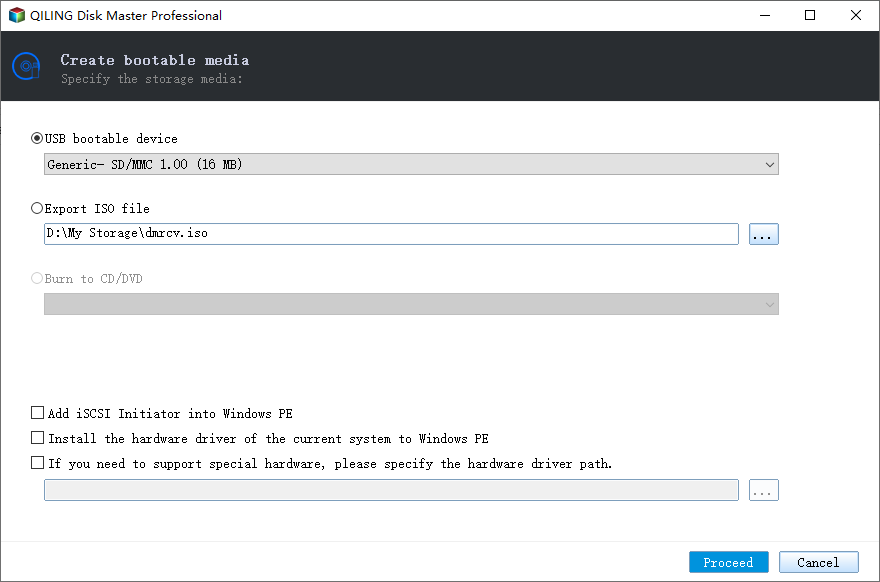
Step 3. Connect a bootable drive to a faulty computer, reboot it by pressing F2/Del, enter the BIOS, set the bootable drive as the boot disk, exit the BIOS by pressing F10.
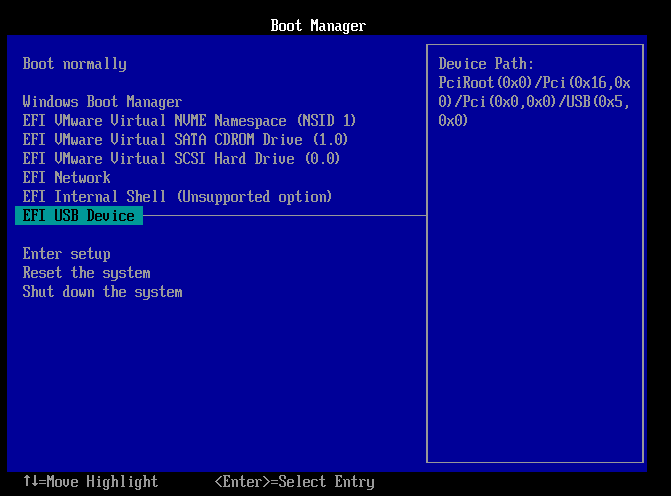
Step 4. The computer will enter WinPE desktop, where you click "Fix boot" in the tools tab and select the system you want to repair.
Step 5. Wait a moment, and you will receive an alert that the system has been successfully repaired.

If Windows 10 fails to start normally after an update, you can use a tool to resolve all startup-related software issues with a single click. Installing this tool can help you fix the problem.
This tool can assist with various boot-related problems. Concerns may include issues with booting up, failing to load the operating system, or encountering errors during the boot process. Additionally, it may help resolve problems with the boot order, boot device, or boot sector, as well as address issues with the BIOS or UEFI settings.
See also:
Other Fixes for Windows 10 Won't Boot After Update
If you're experiencing issues with your Windows 10 not booting, you can try various manual solutions to resolve the problem. With sufficient experience, you can attempt to troubleshoot and fix the issue without relying on third-party tools.
Fix 1. Run Startup Repair
To address the issue of Windows 10 not starting after an update, you can use the automatic startup repair. This can be initiated by booting from a Windows 10 installation media, such as a USB drive or CD/DVD, and following the on-screen instructions to select the repair option. Alternatively, you can also use the built-in System Restore feature to revert your system to a previous point when it was working properly.
Turn your PC on and off repeatedly using the power button until the Automatic PC Repair screen appears.
- Choose "Advanced Options" or "Troubleshoot."
- Run the Startup Repair tool to automatically fix any issues preventing your computer from starting up. This tool can often resolve problems on its own, but if it can't, it will guide you through further troubleshooting steps.
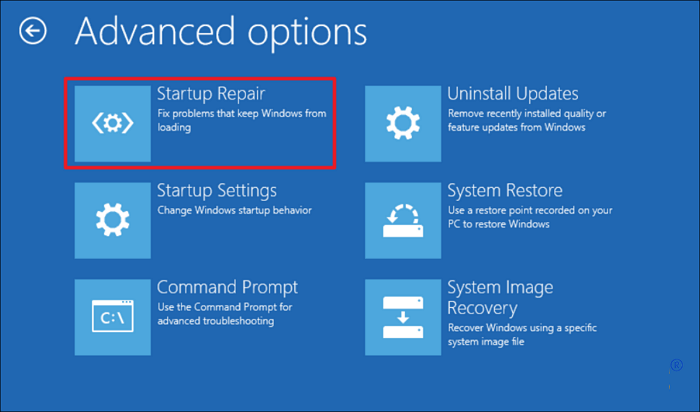
Or you can follow other steps to run it:
- Boot your PC using a bootable medium (such as an installation disk) and follow the installation instructions to install the operating system.
- Access the "Advanced Options" to launch "Startup Repair."
- Once the "Startup Repair" is complete, restart your computer. It should now operate correctly.
Fix 2. Uninstall the Updates
Windows 10/11 users often encounter issues starting their system after updating, but uninstalling the recent update can usually resolve the problem. This can be done by following a straightforward process.
Step 1. Enter advanced troubleshooting mode:
- Press the power button when you see the Windows logo to restart your Windows 10 computer.
- Repeat this process, and Windows will enter automatic repair mode.
- When the automatic repair fails, click Advanced Options on the next screen, then select Troubleshoot, followed by Advanced Options on the next screen.
Step 2. Uninstall updates:
- In the Advanced Options window, click Uninstall Updates.
- To uninstall the latest quality updates or feature updates, navigate to the Uninstall Updates window and click on the "Uninstall Latest Quality Updates" or "Uninstall Latest Feature Updates" option.
- On the next screen, select the account you want to use for uninstallation, enter your password when prompted, and click Continue.
To remove the unwanted updates, click on the "Uninstall Updates" option in the next window, which will initiate the update removal process.
Step 3. Restart Windows 10:
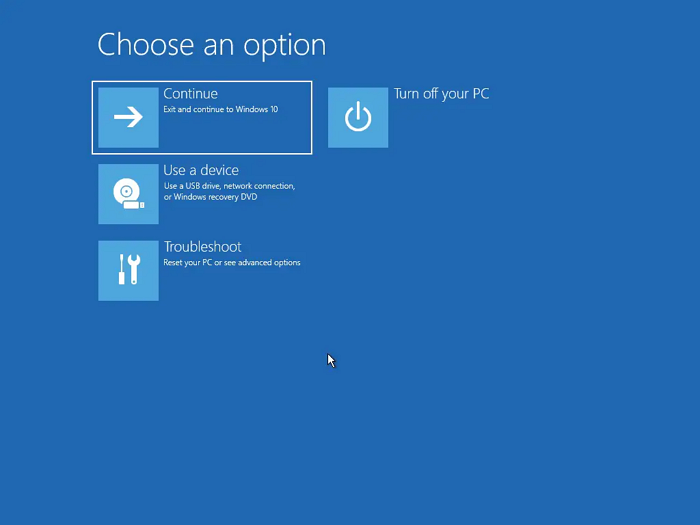
After uninstalling, click Finish to complete the process. Then, go back to the Choose an option screen and select Continue to restart Windows 10 normally.
Don't hesitate to share this article to help more users.
Fix 3. Reset the Computer
To resolve Windows 10 startup errors after updating, you can try resetting your computer, but first, you need to enter advanced troubleshooting mode. This process involves accessing the Advanced Startup Options menu, which can be done by pressing the Windows key + X and selecting the Power button, then holding the Shift key while clicking Restart. This will take you to the Choose an Option screen, where you can select Troubleshoot, then Advanced Options, and finally Reset this PC. This will erase all data on the computer, so be sure to back up your files before proceeding.
Step 1. Enter the troubleshooting window:
In the Select an Options window, click Troubleshoot to access Troubleshooting.
Step 2. Define reset preferences:
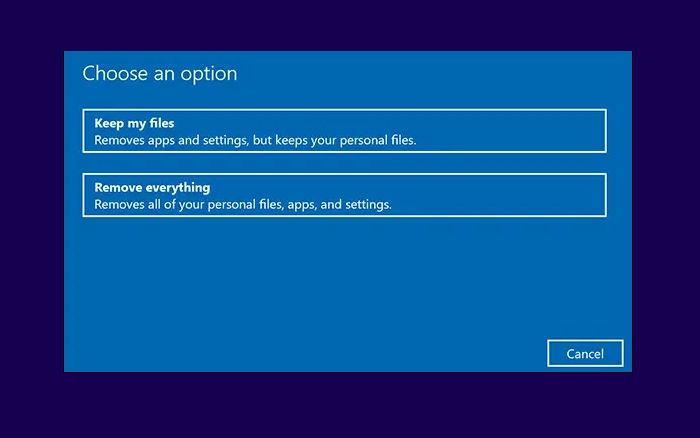
To reset Windows 10, click on the "Reset this PC" option. Then, select "Keep my files" to preserve your data and files. This will reset Windows 10 to its original settings without deleting your personal files.
Step 3. Select the Windows installation source:
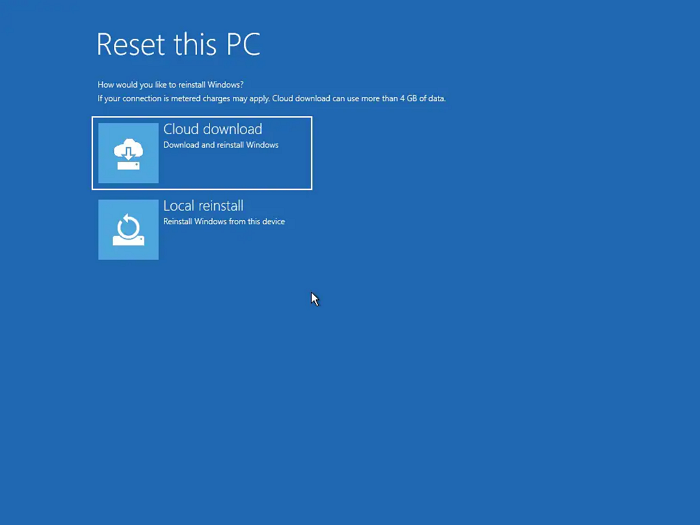
To reinstall Windows 10, click on either "Cloud Download" or "Local Reinstall" to download and install Windows files from the cloud or reinstall Windows using local files, and then follow the on-screen instructions to complete the process.
Once the reinstallation is complete, you can safely reboot your computer into a fresh copy of Windows 10, which will have a clean slate and no prior issues or problems.
How to Avoid Windows Boot Failure After Update
Here are some tips to help you prevent Windows 10 startup issues:
Keep device drivers updated
If the driver does not update automatically, you can manually update the driver by right-clicking the Start button, going to Device Manager, expanding the device category, right-clicking the device in question, and clicking 'Update Driver'.
Update BIOS regularly
Regularly check the motherboard manufacturer's official website for available BIOS updates and install the latest version as soon as possible.
Use genuine operating systems and applications
To ensure a smooth and genuine Windows 10 experience, always obtain the operating system from the official Microsoft website. Additionally, ensure that any required applications are licensed copies to prevent inconsistencies in system files and device drivers, which can lead to system instability and other issues.
Use a strong antivirus program
Windows Defender is a built-Use a strong antivirus program to remove malicious files and delete existing ones on your PC, especially for highly sensitive data.
Conclusion
Typically, Windows 10 starts normally after installing updates, but startup errors may occur if device drivers or system files are inconsistent. If you're facing such an error, you can try the above methods to help resolve the issue of Windows 10 not booting after the update. Sharing this article can also help others know how to fix this error.
Windows 10 Not Booting After Update FAQs
Installing the latest version of your system BIOS can resolve the error, as it updates the firmware that controls the system's hardware components. This can be done by visiting the manufacturer's website, downloading the BIOS update, and following the provided instructions to install it. Alternatively, some systems may have a built-in BIOS update feature that can be accessed through the system's UEFI settings. If you're experiencing issues with Windows 10 startup, you may also want to check for any driver updates, run a System File Checker (SFC) scan, or try booting in Safe Mode to isolate the problem.
1. How do I fix Windows 10 won't boot after update?
To resolve the issue, press and hold the Power button on your laptop, then release and press it again. This will trigger Windows 10's automatic repair mode, where it checks and fixes inconsistencies in the operating system, allowing it to boot normally.
2. Why is my PC not starting after an update?
When a new Windows update is installed, the computer may fail to boot due to BIOS setting issues or outdated drivers.
3. Do I have to replace the hard disk if the issue arises frequently?
If you regularly shut down your computer without properly shutting down Windows, the chances of your hard drive failing are low. In most cases, you can reinstall the operating system if the above solutions don't work for you.
Related Articles
- How to Tell If Windows Is GPT or MBR [Your Guide Is Here]
- Free Download Windows 11 Check Tool for Windows 11 Compatibility Check
- What Is Surface Test? How to Do Disk Surface Test HDD/SSD on Windows 10
- How to Fix Windows 10 Won't Boot After Update 2016 [Effective]
- Fixed: Change Block Size From 4K to 64K | 2024 Full Guide
If you want to change your block size from 4K to 64K but don't know how, then this article is for you. Continue reading for a step-by-step guide and understand the background of this tutorial. - Change Windows Password Using Command Prompt - 2 Ways
If you're having trouble changing your Windows password, you can try using the Command Prompt to do so. However, if you're looking for a more straightforward alternative, there are other options available.
Products
Articles & Tutorials
- Data Recovery
- Data Backup
- File Recovery
- File Backup
- System Backup and Restore
- Disk and Partition Clone
- Technical articles
- Mobile articles
- Disk Master Help
- Windows Data Recovery Tutorials
- Windows Secure Delete Tutorials
- Windows Partition Management Tutorials
- Windows File Backup and Restore Tutorials
- Windows System Backup and Restore Tutorials
- Windows Disk Backup and Restore Tutorials
- Windows Clone Tutorials