Acer Stuck on Loading Screen - 9 Quick Fixes 🔥
Facing the frustrating issue of an Acer laptop getting stuck on the loading screen? Don't worry, Qiling is here to help! This problem can occur due to hardware failures or software glitches on Windows 10 and Windows 11. Let's find out how to fix this issue on your Acer laptop.
Automatically Fix Acer Stuck on the Loading Screen
You can fix an Acer stuck on the loading screen by using a reliable boot repair tool, such as Qiling Disk Master. This top-rated tool features an advanced boot repair function that can quickly identify and resolve bootable issues, using algorithms researched to solve multiple boot problems effectively.
To understand how the tool works, follow the below steps.
Step 1. After connecting the external drive/USB to your computer, start Qiling Disk Master and go to "Bootable Media." Click on "Create bootable media" to proceed.

Step 2. Insert a USB drive or CD/DVD and click on "Create" to begin the process, or alternatively, burn the Windows ISO file to the storage media.

Step 3. Connect a bootable drive to a new computer, reboot and enter the BIOS by pressing F2/Del, set the drive as the boot disk and exit with F10.
Step 4. After rebooting the computer, access the WinPE interface and launch Qiling Disk Master. From there, navigate to the "Tools" page and select the "Fix Boot" option.

Step 5: Select the system you want to repair and click "Proceed".

Step 6. The system has been successfully repaired. Click "OK" to complete the boot repair process.
⭐Professional Help
For any further inquiries, please reach out to our support team for additional guidance:
Qiling experts provide 24/7 manual services to help fix Windows boot errors, BSOD, and computer boot loops. They offer free evaluation services and efficiently diagnose and resolve system boot failures, Windows stop codes, and OS lagging issues using their extensive experience.
- 1. To fix a Blue/Black Screen of Death (BSOD) error caused by a Windows update or other reasons, restart your computer in Safe Mode. Press the Windows key + X and select Restart, then press and hold the Shift key while clicking Restart.
- 2. To resolve Windows boot errors like "no bootable device found" or BCD file corruption, you can try the following: Use the Windows installation media to run a System Restore, boot from a previous restore point, or perform an in-place upgrade. If this doesn't work, you can use the Command Prompt in the Windows installation media to run the Bootrec /FixMbr and Bootrec /FixBoot commands to repair the Master Boot Record and Boot sector.
- 3. 0x000000 error codes on Windows system or OS boot loop issues can be fixed by running the System File Checker (SFC) tool, which scans and replaces corrupted system files. To do this, open Command Prompt as Administrator, type "sfc /scannow" and press Enter.
Qiling Disk Master can help resolve various PC issues, including stuck or loading errors, allowing users to quickly diagnose and fix problems with their system.
If you're experiencing a boot issue and have limited computing experience, this tool is a must-have. It can help you fix the problem without requiring extensive technical knowledge.
7 Other Fixes for Acer Stuck on Loading Screen
Many users seek help on forums like Microsoft and Reddit, asking for solutions to fix the error on their Acer PC. To address this, eight working fixes are provided below to help resolve the issue, and users can check each one to find a solution to their specific problem.
Fix 1. Remove All the Connected External Storage Devices
To resolve the issue of your Acer laptop getting stuck on the loading screen, try restarting the device without any external storage devices connected. This can help resolve peripheral and hardware issues that may be causing the problem. To do this, simply power down the laptop, unplug any external devices, and then press the power button to turn it back on.
Step 1. To prepare your Acer laptop for a clean boot or troubleshooting, you should first turn it off completely. Once it's powered down, remove any external storage devices, including external hard drives, USB flash drives, and SD cards.
Step 2. Remove the battery from your Acer laptop compartment and press the Power button for at least 15 seconds. This will discharge any residual power in the laptop and prevent any accidental boot-ups.
Step 3. Now, release the Power button, put the battery back, and press the Power button again to check if the issue is resolved.
Fix 2. Check the Battery
If your Acer laptop is stuck on the loading screen, it might be due to a battery issue, as insufficient power supply can cause the computer to get stuck. Try charging your laptop overnight and restarting it. If the battery is broken, consider replacing it to resolve the issue.
Fix 3. Test Acer with An External Monitor
If the Acer loading screen gets stuck due to firmware issues, you can troubleshoot by connecting your computer to an external monitor to see if the screen displays. To do this, follow these steps.
Step 1. Connect an external monitor to your Acer laptop.
Step 2. If the monitor shows nothing, press F4 until the screen image displays.
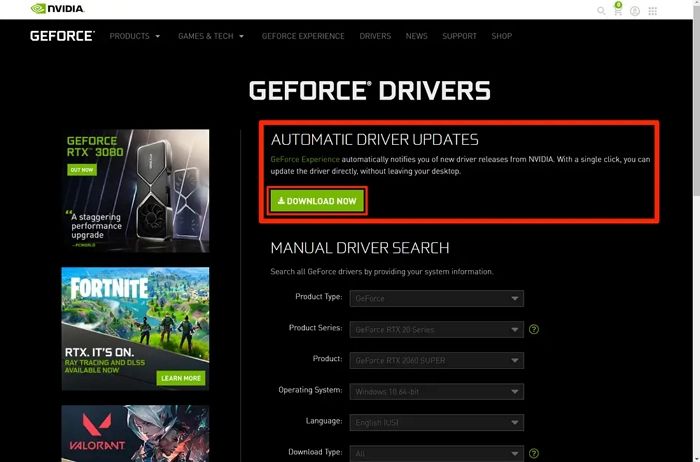
Step 3. If the monitor works fine, the issue might be due to a conflict between the GPU driver and the computer's display. To resolve this, you can manually install the latest graphics driver from the official website.
If you like this post, please share it with your friends and social media pages thanks.
Fix 4. Use Automatic Repair
To quickly diagnose and fix the loading screen issue on your Acer laptop, you can perform an automatic repair. This process can be initiated by following a series of steps, which can help resolve the problem efficiently.
Step 1. To resolve the issue, you should press the Power button to power off your Acer laptop and reboot it frequently. This will allow you to see the Automatic/Startup Repair screen.
Step 2. Press the Advanced options to enter Windows recovery mode.
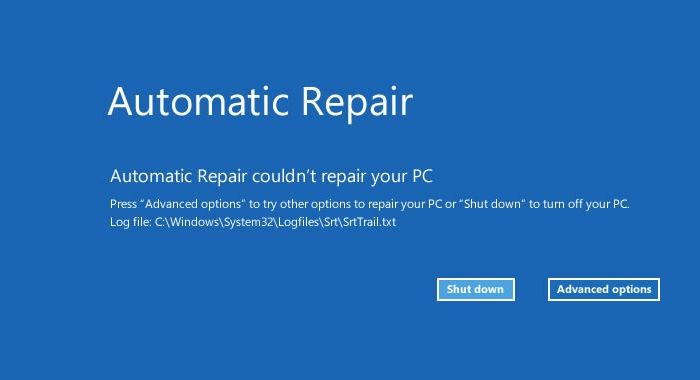
Step 3. Next, access Troubleshoot> Advanced options > Automatic/Startup Repair.
Fix 5. Reset BIOS or UEFI Settings
Incorrect BIOS settings are another prime cause that can also cause Acer's laptop to get stuck on the Acer screen. In such a case, you must reset it to default settings. Follow the below steps to reset the BIOS or UEFI settings.
Step 1. Press and hold the Power button for about 15 seconds until your computer shuts down completely.
Step 2. To access the BIOS on your Acer computer, power it on and as soon as the Acer logo appears, press the F2 key to enter the BIOS settings.
Step 3. Press F9 and press Enter to load the default configuration.
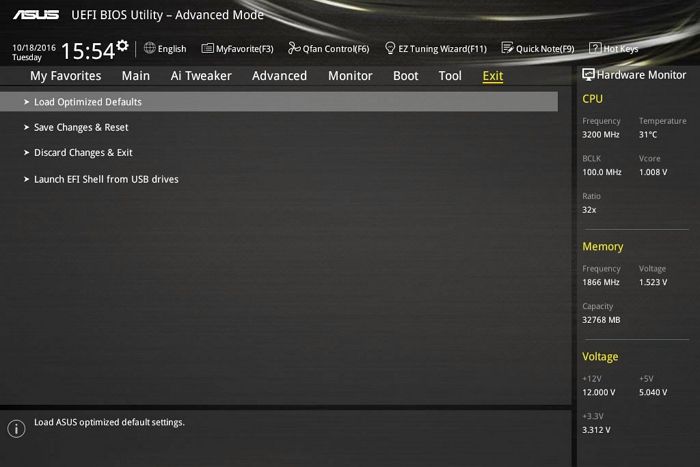
Step 4. Press F10 > Tap on Enter to save and exit.
You May Also Like:
Fix 6. Boot Acer to Safe Mode
To fix an Acer laptop stuck on the loading screen, boot it in safe mode. Start by pressing the power button, then immediately press the F2 key to enter the BIOS settings. Navigate to the boot settings and enable the "Safe Boot" option.
Step 1. To resolve the Acer laptop issue, press the Power button to power off the laptop and reboot it frequently. This will display the Automatic/Startup Repair screen.
Step 2. Press the Advanced options to enter Windows recovery mode.
Step 3. Tap on Troubleshoot > Advanced options > Startup Settings.
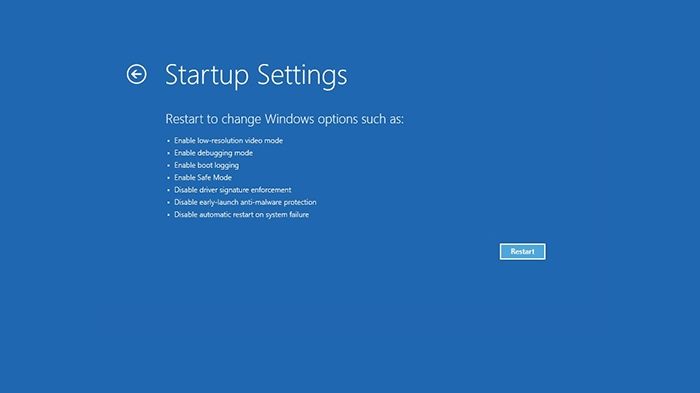
Step 4. To enable Safe Mode with Networking or Command Prompt, press the corresponding function keys F4, F5, or F6 during the boot process. This allows you to access the computer in a limited capacity, either with networking capabilities or at a command line interface.
Fix 7. Reset Your Acer Laptop
You can fix the loading screen stuck issue on your Acer laptop by resetting it. To perform the reset process, follow these steps below.
Step 1. Press and hold down the power button on your laptop until it completely shuts down.
Step 2. Turn on your Acer laptop by pressing the power button, and when you see the Acer logo, press and hold down the F8 key repeatedly until you see a menu of advanced startup options.
Step 3. Press the Windows key + X on your keyboard and select Command Prompt (Admin) from the menu. Type the following command and press Enter: `sfc /scannow`.
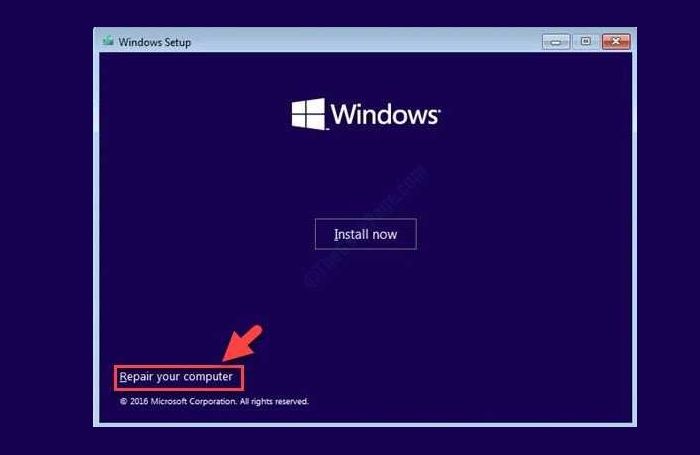
Step 4. Now select Troubleshoot and select Reset this PC.
Step 5. When you decide to sell or recycle your laptop, you will have two options: you can either keep your files or completely erase everything from your laptop, making sure to back up any important files beforehand.
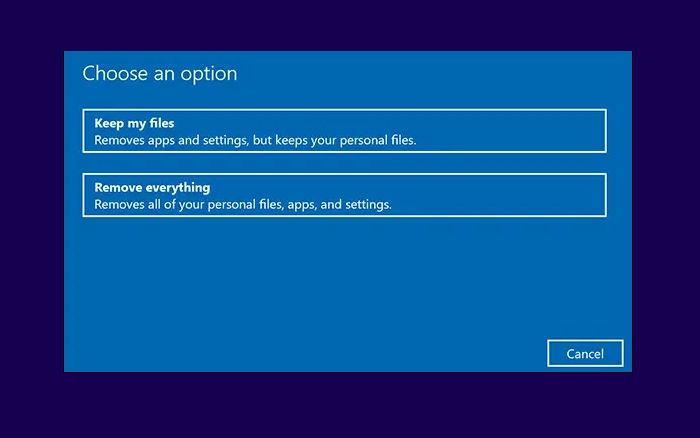
Step 6. Follow the on-screen instructions to complete the reset process.
After completing the reset process, check whether the issue is resolved.
If you found this post helpful, please consider sharing it with your friends and on your social media platforms. This will help spread the information and make it more accessible to others who may benefit from it.
Fix 8. Contact the Acer Customer Support Team
If your Acer laptop is still stuck after trying all the fixes, contact the Acer customer support team to explain your issue in detail and get the appropriate solutions. If they suggest a visit to the service center, visit an authorized service center to have your laptop repaired by professionals, who can resolve any hardware or software issues.
Conclusion
If you're still following this post, you likely understand how to resolve the Acer laptop stuck on the loading screen issue. We've provided eight best solutions, and trying all these fixes may help you determine which one works best for you.
Acer Stuck on Acer Screen FAQs
What are some common reasons for Acer laptops to get stuck on the loading screen? Some common reasons for Acer laptops to get stuck on the loading screen include a faulty hard drive, a malfunctioning graphics card, a corrupted operating system, or a software conflict.
1. Why is my Acer laptop stuck on the Acer logo?
The Acer laptop getting stuck on the Acer logo is often caused by various issues, including hardware problems, power issues, software glitches, and incorrect BIOS settings.
2. How do I fix my Acer laptop if it's stuck on the Acer loading screen?
If your Acer laptop is stuck on the Acer loading screen, you can easily reset it. To do this, follow these simple steps.
Step 1. Press the Power button.
Step 2. To boot your Acer laptop into a menu, press the Alt key and F10 keys simultaneously when the Acer logo appears on the screen. This will display a list of options.
Step 3. Click Troubleshoot and select the Reset this PC option.
Step 4. Now it shows you two options: Keep my files or Remove everything.
Step 5. To complete the reset process, choose the best option and click on the reset button.
3. How do you get out of a stuck loading screen?
To quickly get out of a stuck loading screen, you can perform an auto repair of your PC or reset your PC.
Related Articles
- Unable to Install Windows 10 on Dynamic Disk? 3 Fixes 💡
- Top 5 Free Disk Format Utility Recommend for Windows & Mac
- How to Use and Allocate Unallocated Space in Windows 11/10 [6+ Ways]
- Top 5 Best USB FAT32 Formatter [Free Download]
- How to Repair C Drive [5 Proven Ways]
Have you ever received a warning message that says 'Scanning and repairing drive C'? In this post, you will discover five practical ways to check and repair the C drive. - How to Upgrade PS5 SSD [Step-by-step Guide]
If you're running out of space on your PS5, upgrading the SSD (solid-state drive) can significantly improve your gaming experience. To upgrade, you'll need to purchase a compatible PS5 SSD, such as the Sony PS5 SSD or a third-party option, and follow the manufacturer's instructions for installation.
Products
Articles & Tutorials
- Data Recovery
- Data Backup
- File Recovery
- File Backup
- System Backup and Restore
- Disk and Partition Clone
- Technical articles
- Mobile articles
- Disk Master Help
- Windows Data Recovery Tutorials
- Windows Secure Delete Tutorials
- Windows Partition Management Tutorials
- Windows File Backup and Restore Tutorials
- Windows System Backup and Restore Tutorials
- Windows Disk Backup and Restore Tutorials
- Windows Clone Tutorials