Surface Pro Stuck on Windows Logo - Reasons & Fixes
If your Microsoft Surface is stuck at the Windows logo, it may keep showing the logo after you press the power button and never reach the login screen.
Here, Qiling will provide some working fixes that potentially resolve your issue. Don't hesitate to share these fixes with other users who'll need them.
Automatically Fix Surface Pro Stuck on Windows Logo
If you're not tech-savvy and need a quick fix for your Surface Pro stuck on Windows, Qiling Disk Master can be a helpful solution. This advanced third-party tool features an intelligent boot repair function that can efficiently resolve booting issues on your Surface Pro. The tool's research and development team has enhanced its algorithm to address various boot problems and other errors, making it a reliable option for a quick fix.
To resolve the Surface Pro stuck on Windows logo issue, follow these steps: First, ensure the device is plugged into a power source. Next, press and hold the Power button for 30 seconds to discharge any residual power.
Step 1. Qiling Disk Master allows you to create bootable media from an external drive or USB, which can be done by going to the "Tools" section and clicking on "Create bootable media" after connecting the device to your computer.

Step 2. Insert a USB drive or CD/DVD and click "Proceed" to continue the installation process. Alternatively, you can burn the Windows ISO file to the selected storage media.

Step 3. Connect a bootable drive to a new computer, reboot by pressing and holding F2/Del to enter the BIOS, set the bootable drive as the boot disk, and exit the BIOS by pressing F10.
Step 4. To resolve the issue, boot the computer again and access the WinPE interface. From there, open Qiling Disk Master and select the "Fix Boot" option under the "Tools" menu. This should help resolve the problem.

Step 5: Select the system you want to repair and click "Proceed".

Step 6. You will receive a notification when the system has been successfully repaired.
The Qiling Disk Master can also perform various tasks to resolve other boot-related issues, including but not limited to, fixing boot errors, repairing corrupted boot sectors, and restoring boot configurations to their default settings, all in an effort to ensure smooth and uninterrupted system boot-ups.
- One-click changes the boot order
- Unlock Surface without a password
- Fix boot loop on Dell/Lenovo/HP laptop
- Boot From NVMe
- Boot Samsung/Acer/Toshiba laptop from USB
- Repair all kinds of boot issues among laptops and PCs
Don't miss this tool, and install it to fix your boot issues.
🚩Read Also: Surface Won't Turn On
Fixes for Surface Pro Stuck on Windows Logo
Now, the question is how you can resolve this issue. No need to worry, as we will provide you with the five best and proven fixes to resolve your issue successfully. Follow all the fixes and associated steps carefully to resolve your issue.
Fix 1: Wait While Updates Are Installing
If the Surface Pro is stuck on the Windows logo, it might be because of installed updates. Typically, significant updates take around 20 minutes, so we recommend waiting while updates are installed successfully.
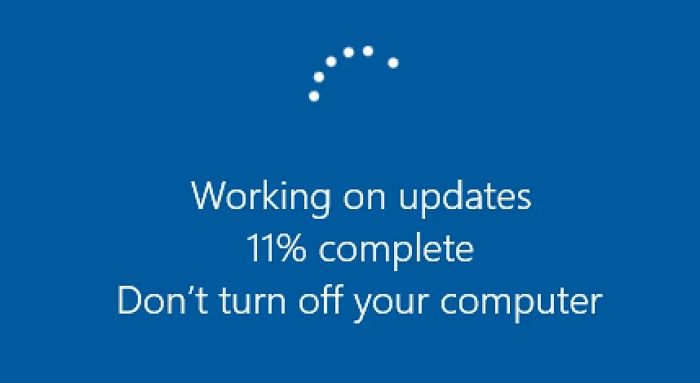

Having trouble accessing the login screen on your Surface Laptop or getting stuck in a boot loop? Don't worry, this easy guide provides a 100% working solution to fix the issue. Follow the steps to resolve the problem and get your Surface up and running smoothly.
Fix 2: Hard Reset Surface Pro
If your Surface Pro is stuck or not responding, a hard reset may help. Follow the steps below to perform it.
Step 1. Press and hold the Power button on your Surface Pro device for at least 30 seconds until your device has been turned off.
Step 2. To restart your Kindle, press and hold the Power button and the Volume Down button at the same time for 15 seconds. This will initiate a shutdown and then a restart of the device.
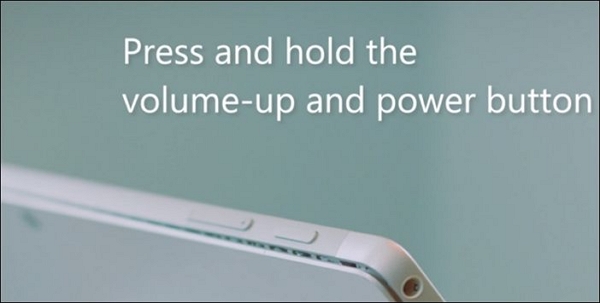
Step 3. Hold the buttons for 15 seconds, then release them and wait up to 10 seconds.
Step 4. Press the Power button on your Surface device to turn it on and check if it boots normally, which may help determine if the issue is resolved.
There are some boot issues related to other PC brands; check them out if necessary.
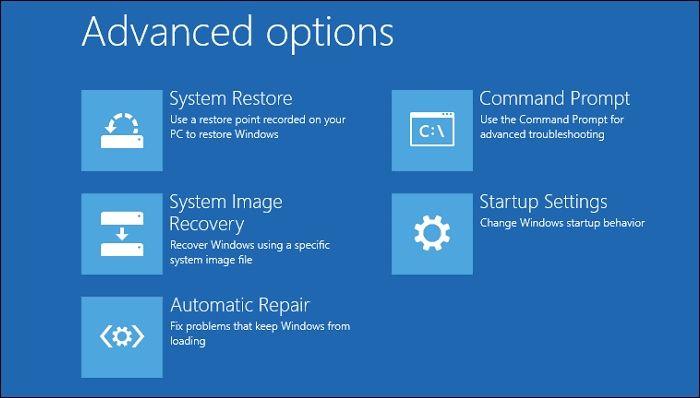
Fix 3: Run Automatic Repair
Running Automatic Repair can help fix a Surface Pro stuck on the Windows logo. Follow the steps below to start the repair.
Step 1. Press the Shift key and click on the restart button to open the recovery screen, which allows you to access the advanced boot options.
Step 2. Select the Troubleshoot option, then click the Advanced option.
Step 3. On the Advanced Options page, select the Automatic Repair option.
Windows will attempt to diagnose and fix any issues that are preventing your Surface from starting.
If Windows won't launch Automatic Repair, you can try forcing shutdown when it's trying to boot, repeating this multiple times until it launches.
Also Read: Windows 10 Startup Repair Not Working
Fix 4: System Restore
If your Surface Pro is stuck on the Windows logo, you can quickly fix it by performing a System Restore. To do this, back up all your important data first for safety, then follow the steps to perform the restore process. This should resolve the issue and get your Surface Pro up and running again.
Step 1. Boot into Advanced Recovery using a Bootable USB.
Step 2. Under Troubleshooting > Advanced options, locate System Restore.
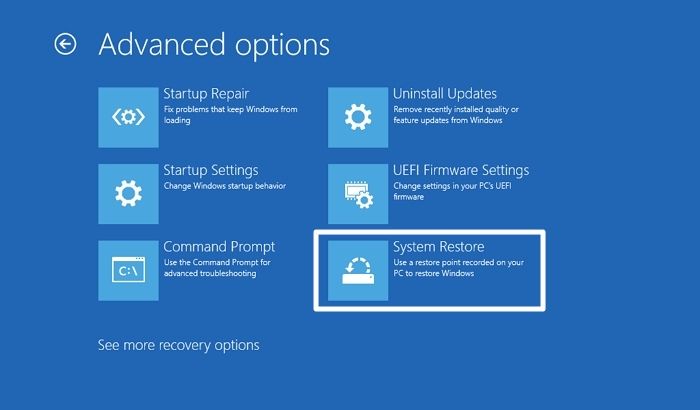
Step 3. The System Restore Wizard will guide you through the process of restoring your system to a previous state, allowing you to choose a restore point and confirm the changes.
Step 4. To resolve the issue, select the date when the PC had no issues and restore the system to that point. This will revert the PC to a time when it was functioning properly, and the problem should be resolved.
Your PC may restart several times during the restore process, and the time taken will depend on the size of the restore. It's best not to shut down or restart your PC while it's in progress.
Fix 5. Reboot Surface via Bootable USB
Rebooting the Surface can resolve the Surface Pro Stuck on Windows Logo issue, and can be done using the Volume-Down and Volume-Up buttons, or by booting from a USB drive for more details.
If you need further assistance, our customer care team is ready to provide expert help.
Qiling experts offer 24/7 one-on-one manual services to fix Windows boot errors, BSOD, and computer boot loops. They provide free evaluation services and efficiently diagnose and resolve system boot failures, Windows stop codes, and OS lagging issues with their decades of experience.
- 1. To fix a BSOD error caused by a Windows update or other reasons, try the following: Run the Windows Update Troubleshooter, check for corrupted system files using the System File Checker (SFC) tool, and run a full scan with the Windows Defender or a third-party antivirus software. If the issue persists, try booting your computer in Safe Mode, disable any recently installed drivers or software, and check for any disk errors using the Check Disk (chkdsk) utility.
- 2. To resolve Windows boot errors like "no bootable device found" or BCD file corruption, start by booting from a Windows installation media or a USB drive with a compatible version of Windows. From there, access the Command Prompt and run the command "bootrec /fixboot" to repair the boot sector.
- 3. To resolve Windows system boot loop issues or 0x000 errors, you can try the following fixes. Firstly, restart your system in Safe Mode to identify if a specific driver or software is causing the issue.
The Surface Pro may be stuck on the Windows logo screen due to various reasons, such as a corrupted system file, a faulty update, or a hardware issue. To resolve this issue, you can try booting your Surface Pro in safe mode, checking for corrupted system files, or performing a system restore. If none of these methods work, you may need to reset your Surface Pro to its factory settings or seek professional help.
Why Is Surface Pro Stuck on Windows Logo
When Windows boots, it loads and checks various files, including security-related ones. Issues with these files, such as missing or corrupted ones, can cause the Surface Pro to get stuck during the boot process, although this is relatively rare.
Corrupted system files
Experts say system file corruption is a common reason for the Surface Pro getting stuck on the Windows logo, as Windows is unable to find boot files, leading to a Blue Screen of Death (BSOD) after a prolonged loading time.
Wrong BIOS settings or outdated BIOS
A stuck Surface Pro can be caused by outdated or incorrect PC BIOS settings, but Microsoft allows updating the BIOS within Windows.
Motherboard/Software errors
The error usually occurs when there is any issue with the motherboard or software, and can only be resolved by an authorized service center.
Share these reasons that may lead to Surface Pro stuck errors on social media to help more users.
Conclusion
If your Surface Pro is stuck on the Windows logo, don't worry - there are solutions! Try restarting your device, checking for software updates, resetting the device, running a System File Checker, or resetting the device to its factory settings. We've found these methods to be effective in resolving the issue, and you may find that one or more of them work for you.
Surface Pro Stuck on Windows Logo FAQs
In this section, we've addressed some of the most common questions. If you're experiencing issues similar to those listed here, this section is likely to be helpful for you.
1. Why is the Surface Pro stuck at the logo?
If your Surface Pro is stuck at the logo, it could be due to corrupted system files, outdated BIOS, or software issues. To resolve this, you might consider using recovery software or the built-in advanced recovery feature.
2. How do I fix the Microsoft Surface Pro 7 stuck on the Windows logo and then turn off the error?
Press and hold the volume-To reset your Surface Pro 7, press the volume down button and the power button simultaneously for at least 15 seconds and then release both. Alternatively, you can use a USB Recovery Image to reset your Surface Pro 7.
3. What to do when your Surface Pro is stuck on the loading screen?
To fix the error, you can perform a hard reset on your Surface Pro by holding the Volume up and Power button simultaneously for 15 seconds. This will reset the hardware without removing the OS or any apps.
Related Articles
- How to Fix Can't Shrink Volume in Windows 11/10/8/7
- How to Convert Logical Partition to Primary Partition
- How to Fix SD Card Not Showing Up on Windows 11/10
- How to Install Windows 10 on M.2 SSD? 2024 Full Guide
- How to Transfer Windows Server 2022/2019/2016 to HDD/SSD
This page provides a step-by-step guide on how to transfer a Windows Server system to a new HDD or SSD without having to reinstall the operating system. - How to Migrate Windows 7 to SSD in Two Easy Ways
How to migrate Windows 7 to SSD? How to move Windows 7 from HDD to SSD without reinstalling Windows? This article shows you two easy ways to upgrade OS hard disk to SSD without boot problem.
Products
Articles & Tutorials
- Data Recovery
- Data Backup
- File Recovery
- File Backup
- System Backup and Restore
- Disk and Partition Clone
- Technical articles
- Mobile articles
- Disk Master Help
- Windows Data Recovery Tutorials
- Windows Secure Delete Tutorials
- Windows Partition Management Tutorials
- Windows File Backup and Restore Tutorials
- Windows System Backup and Restore Tutorials
- Windows Disk Backup and Restore Tutorials
- Windows Clone Tutorials