How to Repair C Drive in Windows
If you're experiencing issues with your C drive, such as a computer stuck on "Scanning and repairing drive C," you're not alone. Fortunately, there are effective ways to repair your C drive, including scanning the hard drive and fixing errors accordingly. By following these reliable methods, you can troubleshoot and resolve various storage behaviors on your computer, and get your C drive back to its optimal state. We'll take a closer look at these procedures to help you navigate the process with ease.
How to Repair C Drive - 5 Methods
The techniques provided in this post are simple to execute and highly effective in repairing the C drive. Each method has its own unique approach, but they are all straightforward to implement. Before proceeding, it's worth reviewing the comprehensive introduction table that summarizes each technique, providing a clear understanding of what to expect from each method.
| ⏱️Duration | About 10 Minutes |
| 💻Goal | Scan and repair C drive errors. |
| 👩💻Suitable User | For all users: beginners and experienced users |
| 🧰Methods |
Fix 1. Repair C Drive Error via Qiling Disk Master
Qiling Disk Master is a reliable and user-friendly solution for repairing the C drive, featuring a clean and simple interface that allows users of all technical proficiencies to navigate and utilize its features with ease.
If your C drive is corrupted or broken, the "Check file system" tool can help you identify and fix disk or partition errors, allowing you to efficiently repair your drive. This tool is part of a comprehensive suite that offers more than just C drive repair, providing added versatility and value.
Now, let's get back to how to repair the C drive with Qiling Disk Master:
Step 1. Right-click the target partition that has a problem.
Step 2. Choose "Advanced" > "Check File System".
Step 3. Confirm if you want to hide the partition or not.
Step 4. In the Check File System window, select the "Fix the error on the disk" option to proceed.
Step 5. Click "Proceed" to check errors on your partition.
Other Features of Qiling Disk Master
Here are some fantastic features offered by Qiling Disk Master:
- Solve C Drive is out of space in Windows 11/10/8/7
- Format C Drive in Windows 11/10/8.1/8/7
- Clone C Drive on Windows 10
- The C drive is a primary partition on a computer's hard drive, typically used for storing the operating system, programs, and user data. The drive's storage space is divided into used and free space, with the used space being the amount of data stored on the drive and the free space being the amount of available storage capacity.
Install this software and let it to covers you whenever there are disk problems. Try it now!
Fix 2. Windows Error Checking Utility
If your C drive has logical errors and bad sectors, you can use the Windows-based Error Checking tool to detect and repair the errors and bad sectors. To do this, you can follow these steps: run the Error Checking tool, which can be accessed through the Properties window of the C drive, and let the tool scan and repair any errors and bad sectors it finds. This tool can help restore your C drive to a healthy state.
Step 1. To open File Explorer and access "This PC", press the "Windows + E" keys on your keyboard, which will instantly open File Explorer. From there, navigate to the left panel and select the option labeled "This PC".
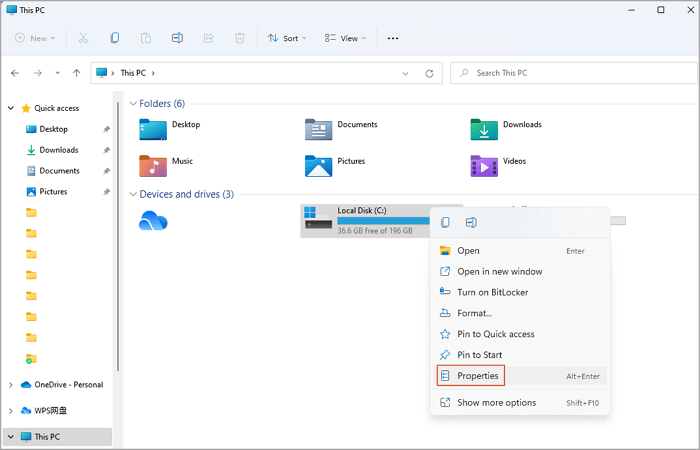
Step 2. In this window, right-click on the C drive under "Device and drives" and select "Properties."
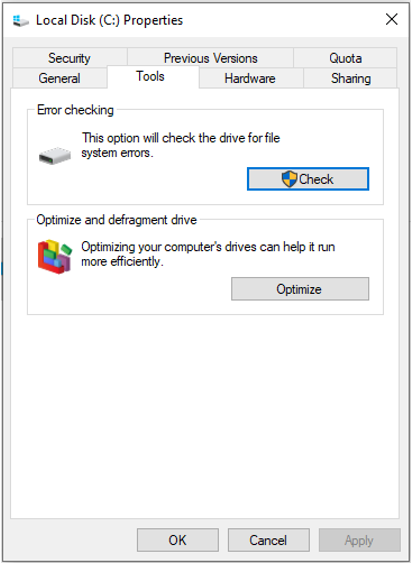
Step 3. In the "Tools" tab, click the "Check" button under the "Error checking" part.
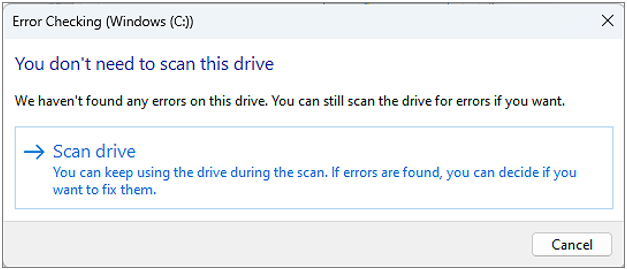
Step 4. To complete the process, select "Scan drive" in the next window to apply the operation.
Fix 3. Check Drive Status
To check the status of the C drive, go to Windows settings and use the "Drive status" tool, which provides a full report of your hard drives and offers repair solutions based on any issues found. Alternatively, you can use WMIC commands to check the C drive status, following a detailed tutorial if needed.
Step 1. To access the Control Panel, type "control panel" in the search box and click on "System and Security."
Step 2. To check the drive status, go to System and Maintenance, and then click on the Maintenance part. There, you'll find the Drive status.
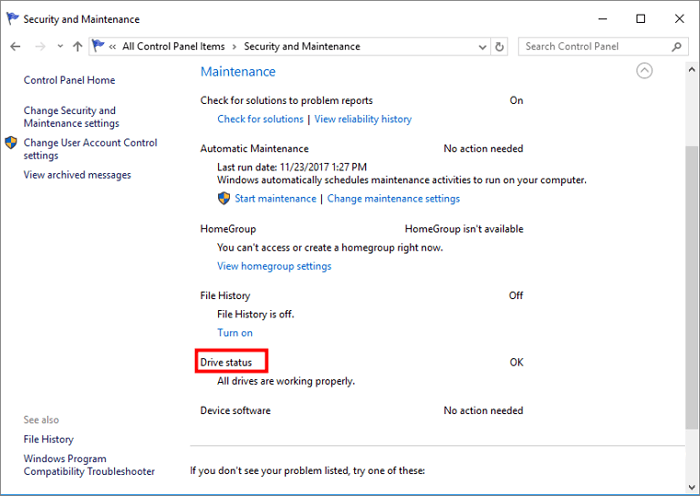
Your drive will be checked for potential faults, and any discovered will be fixed.
Extra Method: Using WMIC Command
To check the status of the C drive using wmic commands in the Command Prompt, follow these steps:
Step 1. To open Command Prompt, press the "Windows + R" key to open the Run dialog box, then type "cmd" and press Enter. This will launch the Command Prompt window.
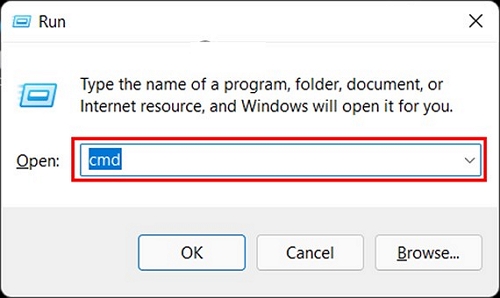
Step 2. In the CMD window, input the following two commands and remember to hit the "Enter" button after each:
- wmic
- diskdrive get status
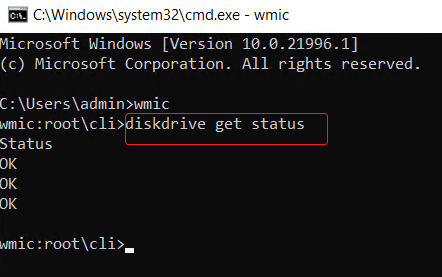
Fix 4. Run CHKDSK Scan in Safe Mode
If the above methods don't work, you can run CHKDSK to check and repair the drive. You can use various CHKDSK commands to discover and correct problems on your hard drive, such as /F to fix problems, /R to scan for bad sectors, or /C to clear the drive's bad sector list. To run CHKDSK, you can press Windows + R, type "cmd" and press Enter, then type "chkdsk" followed by the drive letter (e.g.
Step 1. To boot your Windows computer into safe mode, sign out of your Windows account and hold the SHIFT key while choosing "Restart" from the "Power" button.
Step 2. To access the command prompt in safe mode, go to the "Troubleshoot" menu, select "Advanced options", then choose "Startup Settings" and finally select "Enable Safe Mode with command prompt."
Step 3. In the Command Prompt window, type `chkdsk C: /f` and press Enter.
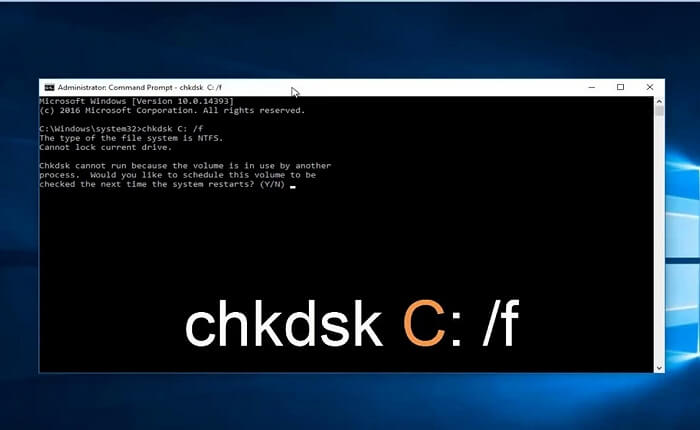
You can run chkdsk on an SSD, except on the C drive, to check for disk errors and fix any issues that may be causing performance problems. To do this, you can use the built-in chkdsk command in Windows, or use a third-party tool specifically designed for SSDs. The process typically involves running the chkdsk command with the /f or /r option, which will scan the drive and fix any errors it finds.
How to Run CHKDSK on SSD [2024 Most Efficient Ways]
CHKDSK is a command prompt tool that can be used to check and fix errors on a storage device, including solid-state drives (SSDs). To run CHKDSK on an SSD, open the Command Prompt as an administrator, type "chkdsk" followed by the drive letter of the SSD, and press Enter.
Fix 5. Use Repair-Volume-DriveLetter Command
We will use Powershell to run the Repair-Volume-DriveLetter command, which will check the drives for potential issues, and you can refer to the step-by-step procedure provided below for more details.
Step 1. To resolve the issue of Windows 10/11 not being able to connect to Wi-Fi, start by booting your Windows computer in safe mode. This will help isolate the problem and prevent any third-party software from interfering with the troubleshooting process.
Step 2. To run PowerShell, search for "PowerShell" in the search box, and right-click on the utility to select "Run as administrator".
Step 3. To repair the volume on the C drive, enter the command "repair-volume -driveletter P" (where P is the drive letter of the C drive, typically "C") and press Enter.
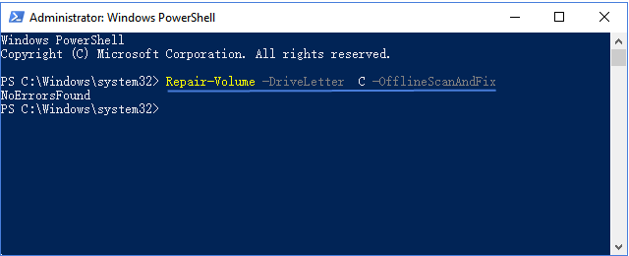
This process will start scanning and resolving the wrong part on your C drive, and then you need to restart the computer and check if the issue is fixed.
How to Avoid C Drive Errors in the Future
After repairing the C drive, it is important to prevent future corruption and errors. Regular maintenance, enough free space, reliable power, and timely disk checks can help keep the C drive stable and performing well.
C Drive Health Monitoring
To keep your C drive running smoothly and prolong its lifespan, it's recommended to monitor its performance closely. This can be achieved by using a tool like Qiling Disk Master, which features a "Disk Health" tool that thoroughly scans your drive, identifies errors, and provides reports, helping to maintain the drive's high speed and overall health.
Clean Up and Optimize C Drive
When your C drive space is running low, using a reliable disk cleaner like Qiling Disk Master can help remove junk and temporary files, clear disk fragments or errors, and improve your computer's ability to store and access data efficiently.
Defrag C Drive and Check Disk Error
Disk defragmentation is the process of reorganizing fragmented files on a hard drive into contiguous blocks, allowing for faster access and improved system performance. Qiling Disk Master's "Partition Manager" tool can be used for this purpose.
Clean Windows Registry
Your computer may accumulate unnecessary Registry entries, causing errors and slowing performance, so it's essential to clean the Windows Registry regularly. You can use the built-in Windows tool to accomplish this task, and for more options, you can also read an article on Registry Cleaners for Windows PCs.
Optimize the Startup
To improve your system's performance, consider optimizing your startup programs by removing unnecessary items and utilizing a reliable startup cleaner software to streamline your system's startup process.
Conclusion
Hard drives may develop bad sectors or physical errors over time, leading to data loss and system instability. To address this, you can conduct disk scanning and repairing to identify and fix potential issues. This can be done using various methods, including using a third-party tool like Qiling Disk Master, adjusting Windows settings through the control panel, running the built-in chkdsk tool, and utilizing command lines such as the repair-Volume-DriveLetter command.
Qiling Disk Master is a versatile companion for maintaining your disk and avoiding C drive errors. Whether you're repairing the C drive or enhancing regular optimization, it's a useful tool to have. Installing it can help your hard drives stay longer and safer.
FAQs of How to Repair C Drive
If you have additional questions about repairing your C drive, refer to the FAQ section, which provides answers to frequently asked questions and helps you troubleshoot any issues you may encounter.
1. What reasons caused the C drive error?
C drive errors can be caused by a variety of factors, including outdated BIOS, loose connections, viruses, file corruption, physical damage, abrupt shutdowns, driver and software issues, and power surges.
2. Why I can't repair my C drive?
The "Windows cannot repair drive" error can be caused by a corrupted file system, unplugging the C drive without using the "Safely remove hardware" feature, or being infected by a virus, as well as connecting the drive to multiple devices such as computers, video game consoles, or cameras.
3. How long does it take to repair a C drive?
The time it takes to scan and repair the C drive can vary greatly, potentially taking longer than two hours, depending on the drive size and number of errors. The process may stop updating around 10-11% and then suddenly jump to 100% completion.
Related Articles
- 5 Ways to Hide Drives in Windows 10 | Check Your In-depth Tutorial
- [SD Card Unavailable] Fix SD Card Wont Mount on Android & PC
- How to Format eMMC Drive [2024 Full Guide]
- How to Clone PS4 Hard Drive to SSD Without Losing Data
- Resize Windows 10 Partition with Free Windows 10 Partition Manager
To hide drives in Windows 10, you have several options. You can right-click on the drive you want to hide and select “Hide” from the context menu. - How to Resize Partition Using GParted and Qiling Partition Master
To resize GPT partitions, you can use GParted or a more handy tool like Qiling Partition Master.
Products
Articles & Tutorials
- Data Recovery
- Data Backup
- File Recovery
- File Backup
- System Backup and Restore
- Disk and Partition Clone
- Technical articles
- Mobile articles
- Disk Master Help
- Windows Data Recovery Tutorials
- Windows Secure Delete Tutorials
- Windows Partition Management Tutorials
- Windows File Backup and Restore Tutorials
- Windows System Backup and Restore Tutorials
- Windows Disk Backup and Restore Tutorials
- Windows Clone Tutorials