How to Clone PS4 Hard Drive to SSD Without Losing Data
As a PS4 user, you're likely familiar with the frustration of running out of storage space on your console, especially with the increasing size of games. Upgrading to a Solid-State Drive (SSD) can provide a larger capacity and improved performance, but it requires cloning your existing hard drive to the new SSD, saving you the hassle of reinstalling all your games. Qiling offers step-by-step tutorials to guide you through this process, making it easy to upgrade your PS4's hard drive to an SSD.
Preparations Before Cloning PS4 Hard Drive to SSD
Before going through the step-Before starting the cloning process, familiarize yourself with the necessary preparation for cloning a PS4 hard drive to an SSD. This includes reading and knowing what you'll need during the process, such as a compatible SSD, a PC with a USB port, a USB cable, and the PS4's original hard drive. Additionally, you should be aware of the potential risks and limitations of cloning, including data corruption or loss if not done correctly.
- A PS4 Console: To start, you'll need a healthy PS4 console with its original hard drive intact.
- A SATA 2.5-inch SSD: The PS4 only supports SSDs with a SATA cable, limiting the compatibility of certain SSDs in the market. When choosing an external hard drive for the PS4, it's essential to select one that meets this specific requirement.
- A Windows Computer with cloning software: A Windows computer can download software to clone a PS4 hard drive to a new SSD, allowing seamless transfer of settings and data to the upgraded storage.
- Compatible Screwdrivers: To safely and accurately remove the PS4's faceplate, you may need to prepare a Phillips head and flat-head screwdrivers.
Before proceeding, ensure you have all the necessary items ready, and then refer to the comprehensive guide in the next section to clone the PS4 hard drive to an SSD.
📖Read Also: Get More Storage on PS4
How to Clone PS4 Hard Drive to SSD
Cloning the PS4 hard drive to an SSD can free you from reinstalling games, increase the capacity, and enhance the performance. To perform this upgrade, you'll need to clone the data from the HDD to the SSD, which will save you the hassle of reinstalling games and games saves.
- Warning
- Before starting this cloning procedure, you must back up all your PS4 hard drive data to a separate external hard drive for safe data storage.
Phase 1. Remove the PS4 Hard Drive From the Console
Unplug all cables from the PS4 and ensure the console is facing upwards.
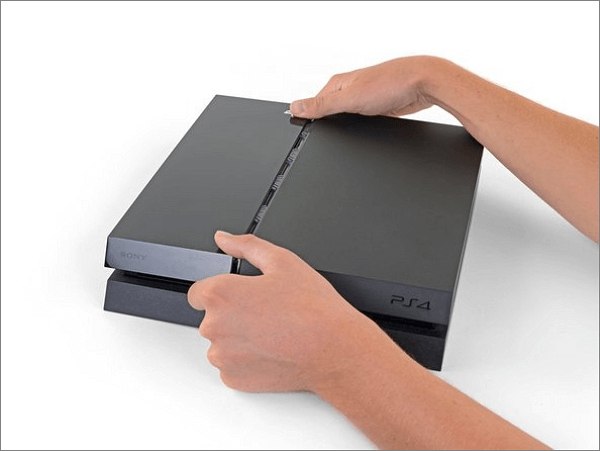
Step 1. Remove the cover of the PS4 console.
Hold the PS4 console firmly and use your thumbs to push the glossy side of the top cover until it pops to the side.
Step 2. Remove the hard drive bracket.
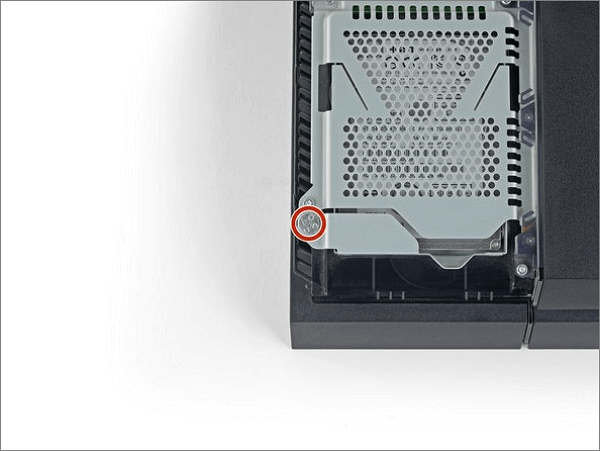
- Remove the 6.5 mm screw that holds the hard drive mount to the enclosure with a Phillips screwdriver.
- Remove the hard drive bracket from the enclosure carefully, as the internal hard drive is delicate.
Step 3. Take out the PS4 hard drive.
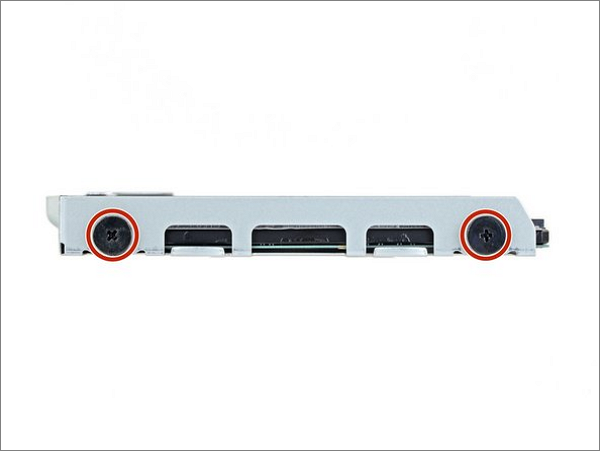
- Remove the two screws from the right and left sides of the hard drive tray.
- To upgrade your computer's storage, remove the PS4 hard drive from its tray and insert it into your computer. This allows you to utilize the PS4 hard drive as a storage device for your computer, effectively increasing its storage capacity.
Phase 2. Connect and Format the SSD
To make the SSD compatible with your PS4, you should format the external hard drive using Qiling Disk Master, which allows for a straightforward process and compatibility with various file systems on Windows systems.
Here is the easy and simplified guide:
Step 1. Launch Qiling Disk Master, right-click the partition on your external hard drive/USB/SD card which you want to format and choose the "Format" option.

Step 2. Assign a new partition label, file system (e.g.

Step 3. To format your external hard drive, USB, or SD card, click the "Proceed" button. This will initiate the formatting process, which will erase all data on the device.

Step 4. In the Warning window, click "Yes" to continue.
Phase 3. Clone the PS4 hard drive to an SSD
Cloning the PS4 hard drive is a complex task that requires professional assistance, which can be achieved by using the software Qiling Disk Master. This tool allows users to clone system/data disks and perform various other features without the risk of data loss, making it a reliable solution for PS4 users.
To clone the PS4 hard drive to an SSD using Qiling Disk Master, refer to this comprehensive tutorial for a step-by-step guide. It provides detailed instructions on how to successfully transfer the contents of the PS4 hard drive to the new SSD.
Step 1. Select the source disk.
- To clone a disk, click the "Clone" option from the left menu, then select "Clone OS Disk" or "Clone Data Disk" and proceed with the "Next" button.
- Choose the source disk and click "Next".
Step 2. Select the target disk.
- Select the desired storage device, such as a hard disk drive (HDD) or solid-state drive (SSD), as the target location and click "Next" to proceed.
- Read Warning message and confirm "Yes" button.
Step 3. To view the disk layout and edit the target disk partition size, you can use the Disk Management tool in Windows. This tool allows you to see the current partition layout of your disk and make changes to it, such as resizing or deleting partitions. You can access the Disk Management tool by right-clicking on the Start button, selecting "Disk Management," and then selecting the disk you want to modify.
To start, boot from the USB drive. Then, click "Continue" when the program warns it will wipe out all data on the target disk. If you have valuable data on the target disk, back it up in advance.
To customize your disk layout, you can choose from options such as "Autofit the disk", "Clone as the source", or "Edit disk layout". If you want to leave more space for your C drive, selecting "Edit disk layout" is the recommended choice.
Step 4. Click "Start" to start the disk cloning process.
If the full guide on cloning the PS4 hard drive refreshes you, please share this post on your social media to help others who may be interested in learning about this process. This guide provides a step-by-step walkthrough on how to clone the PS4 hard drive, which can be useful for those looking to upgrade or replace their console's storage.
Why Need to Clone PS4 Hard Drive to SSD
Cloning the PS4 hard drive to an SSD is a necessary step that offers several benefits. The main reasons for doing so include:
Gain a Bigger Capacity: The PlayStation 4's free space can be quickly depleted due to large game installations and upgrades, often prompting users to repeatedly delete and redownload games. A more effective solution is to upgrade the PS4's hard drive by cloning its data onto a larger, higher-performance SSD.
Enhance the hard drive's performance: The accumulation of junk files on a hard drive can cause slower read and write times, longer loading screens, and decreased gaming performance. This can be addressed by cleaning the disk or upgrading to a larger and better hard drive.
Conclusion
To keep your saved data and settings after upgrading the PS4 hard drive, you can clone the PS4 hard drive to an SSD. This process involves removing the PS4 hard drive, cloning it to a new SSD using a tool like Qiling Disk Master, and then installing the new SSD into your PS4. Qiling Disk Master allows you to clone the disk, format the SSD, and upgrade your PS4 storage device, enhancing your gaming experience. By following the detailed steps outlined in this article, you can successfully clone your PS4 hard drive to a new SSD and keep your saved data and settings intact.
FAQs About How to Clone PS4 Hard Drive to SSD
This section answers some common questions about cloning the PS4 hard drive to an SSD, providing more information on the process.
1. Can I clone the PS4 hard drive to an external drive?
Cloning the PS4 hard drive to an external drive like an SSD is definitely possible. To do this, remove the original hard drive from your PS4 and connect both the PS4 hard drive and the target external drive to your computer. Then, use a reliable cloning software to replicate the contents of the PS4 hard drive onto the external drive. This will create an exact copy of the original hard drive on the external drive, allowing you to use it as a replacement or for backup purposes.
2. Can I use an SSD for storage on PS4?
Upgrading the PS4 hard drive to a better SSD or connecting an SSD as a second storage device can improve the console's performance, especially when storage space runs out.
3. What is the maximum size of SSD for PS4?
The largest classical internal hard drive that meets PS4 standards is 2TB. However, you can upgrade to 8TB by using an external SSD.
Related Articles
- What Is New Simple Volume, How to Create New Simple Volume [2 Reliable Ways]
- How to Convert FAT32 to NTFS Windows 10 Without Losing Data in 3 Ways
- How Do I Run Fdisk on Windows 10/11: A Beginner's Guide
- How Long Does It Take to Format a Hard Drive? Hard Drive Takes Forever to Format Fixes
- What to Do with Corrupted Operating System
Corrupted operating system files can cause a range of problems, from halting a computer's functionality to causing significant user frustration. Fortunately, there are several options available to fix these issues. - How to Create A Partition Windows 11? [Solved]
Creating a partition in Windows 11 is a straightforward process that offers several benefits, including improved organization and management of your physical drives.
Products
Articles & Tutorials
- Data Recovery
- Data Backup
- File Recovery
- File Backup
- System Backup and Restore
- Disk and Partition Clone
- Technical articles
- Mobile articles
- Disk Master Help
- Windows Data Recovery Tutorials
- Windows Secure Delete Tutorials
- Windows Partition Management Tutorials
- Windows File Backup and Restore Tutorials
- Windows System Backup and Restore Tutorials
- Windows Disk Backup and Restore Tutorials
- Windows Clone Tutorials