What to Do with Corrupted Operating System
| Workable Solutions | Step-by-step Troubleshooting |
|---|---|
| Method 1: Free Your PC From Malware | Step 1: Install an anti-malware app. Step 2: Update the Microsoft Windows Defender database. Step 3: Scan your...Full steps |
| Method 2: Fix Windows 10 System Files through Various Steps | Step 1: Press Windows + R. Step 2: Type MSConfig. Step 3: Click on the Boot tab. Step 4: Explore Boot options...Full steps |
| Method 3: Fix a Corrupted Operating System | Step 1: Download the Windows installation file or access the folder. Step 2: Run Setup.Exe. Step 3: On the installation...Full steps |
Dealing with a corrupted operating system? Let's explore a few ways to fix that.
A corrupted operating system can cause various issues, including difficulties with basic operations and application usage. The problem may be hardware-related or due to system file corruption.

If your operating system is corrupted, try booting in safe mode, running a system file checker, or using a system restore point to revert to a previous version. You can also try reinstalling the operating system or using a recovery drive to repair or reinstall the OS. Additionally, if you're using a Windows operating system, you can try using the Windows Recovery Environment or the Windows Installation Media to repair or reinstall the OS.
Introduction: What Is A Corrupted Operating System?
Users often face the frustrating issue of a corrupted operating system, which can hinder productivity, gaming, and even everyday activities like watching YouTube videos. Fortunately, there are a few ways to resolve this problem, including follow the steps below.
- Fixing operating system files
- Checking hardware problems
- Reinstalling Windows
These methods will focus on fixing both virtual and physical problems, which are essentially hardware-related issues.
What Happens If Your Operating System Is Corrupted?
A corrupted operating system can cause a range of problems, including failing applications, frequent PC crashes, and slow performance. The common functions of a personal computer may not work properly, and signs of a corrupted OS can include failing applications, crashes, and slow performance.
- Problem loading Windows Explorer
- Applications failing to launch
- Applications crashing
- Computer facing sudden BSOD (blue screen of death)
- Sudden errors causing applications to stop working
Some common signs of a corrupted operating system include faulty Windows, but issues can also be caused by heating hardware, a dusty computer case, or a malfunctioning device.
How to Fix A Corrupted Operating System on Windows 10?
Fixing a corrupted operating system can be a challenging task due to the various elements that can cause problems, including a faulty USB plugged into your computer, which can even cause system crashes.
A sudden shutdown can corrupt necessary files, causing the computer to underperform. To fix this, you can try to repair the issues without reinstalling Windows. However, in some cases, a full reinstall may be the only solution.
Before getting started with our methods, make sure you do a few things.
- Backup all the necessary data.
- Remove files from Documents and Downloads folders and place them in another partition.
- Make sure Windows Defender is running and up to date.
- Make sure no Windows updates are pending (a common cause of corrupted files).
- Check hardware integrity, especially memory integrity.
If you have done all these methods, follow along and check our three methods to fix corrupted operating systems.
Method 1: Free Your PC From Malware
Malware might be causing your computer to underperform or crash, so remove it before fixing Windows 10 system files, as suggested by Microsoft.
Step 1: Install an anti-malware app.
Step 2: Update the Microsoft Windows Defender database.
Step 3: Scan your computer (Preferably a full scan).
Once the scan is complete and no malware is found, proceed to the next step.
Method 2: Fix Windows 10 System Files through Various Steps
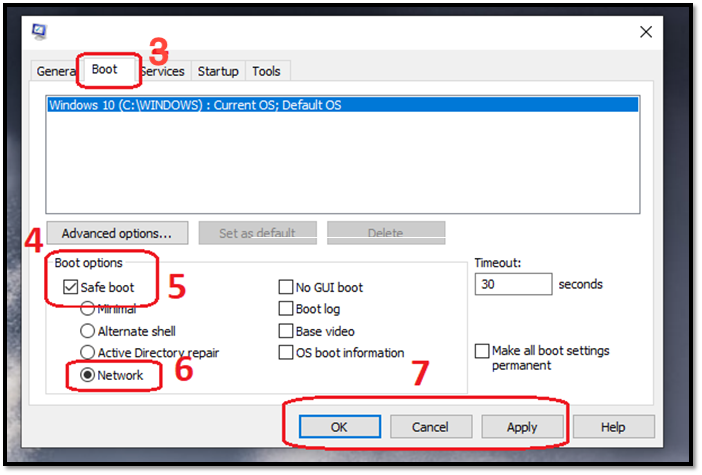
To fix Windows 10 system files using a few methods, reboot your computer into Safe Mode. This can be done by pressing the Windows key + X and selecting Restart, then pressing the Shift key while clicking Restart. Alternatively, you can press the Windows key + R, type "msconfig" in the Run dialog box, and press Enter. In the System Configuration window, click the Boot tab, and check the box next to "Safe boot" under "Boot options.
Step 1: Press Windows + R.
Step 2: Type MSConfig.
Step 3: Click on the Boot tab.
Step 4: Explore Boot options.
Step 5: Check Safe boot to unlock options.
Step 6: Check Network.
Step 7: Apply and OK.
Step 8: Restart your computer.
To check your disk for errors in Safe Mode, you can use the built-in "chkdsk" command. Here's how: Open the Command Prompt as an administrator, type "chkdsk /f" and press Enter. This will scan your disk for errors and fix them if possible.
Step 1: Press Windows + R.
Step 2: Type CMD and run as administrator.
Step 3: Type chkdsk /f /r /x.
Step 4: Type Y when prompted.
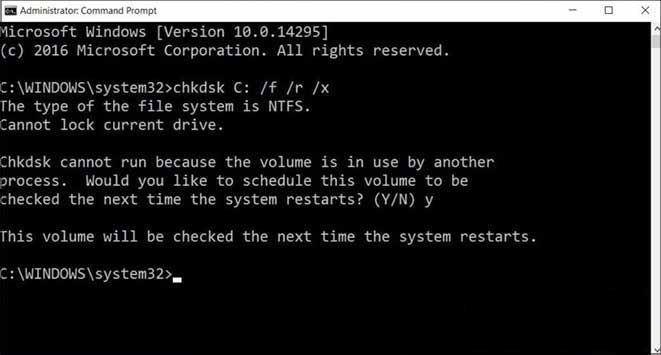
Step 5: Restart your PC.
Once your computer restarts, it will check your disk for errors, and you should not press any buttons if prompted to stop the disk checking process.
To repair corrupted operating system files, after running a check disk, you can run an SFC scan to fix any disk-related issues. This process involves running the System File Checker tool, which scans and replaces corrupted system files with healthy ones. To run an SFC scan, open the Command Prompt as an administrator, type "sfc /scannow" and press Enter. The tool will scan and replace any corrupted system files, helping to resolve issues and ensure the stability of your operating system.
Step 1: Run CMD as administrator.
Step 2: Type SFC /scannow in the command prompt.
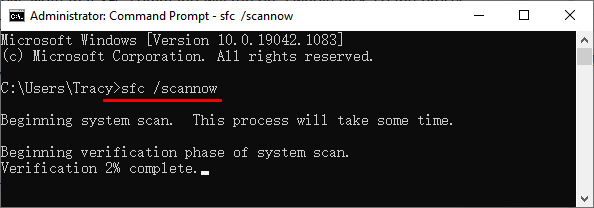
Step 3: Let it verify files.
If your computer has no detected violations, it means no necessary files are corrupted. However, if the problem persists, you can try another method, which can help solve any key Windows file issues, as long as you're still in safe mode with networking enabled.
Step 1: Run CMD as administrator.
Step 2: Type DISM /Online /Cleanup-Image /RestoreHealth.
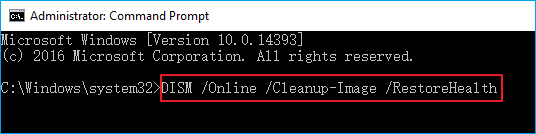
Step 3: Let it run its course.
To resolve the issue, restart your computer in safe mode, which will allow you to download additional files needed for the fix. This should improve your operating system's performance. Once you restart in normal mode, you should notice the difference.
Method 3: How Do I Fix a Corrupted Operating System
A corrupted Windows operating system can cause a range of issues, including driver crashes, and may be the root cause of failing windows operations. In this case, attempting to repair or reinstall the operating system may resolve the problem.
If your operating system files are corrupted, you can try a viable method to fix them. This involves using a tool like System File Checker (SFC) or DISM (Deployment Image Servicing and Management) to scan and replace corrupted system files.
Step 1: Download the Windows installation file or access the folder.
Step 2: Run Setup.Exe.
Step 3: On the installation screen, click Repair Your Computer.
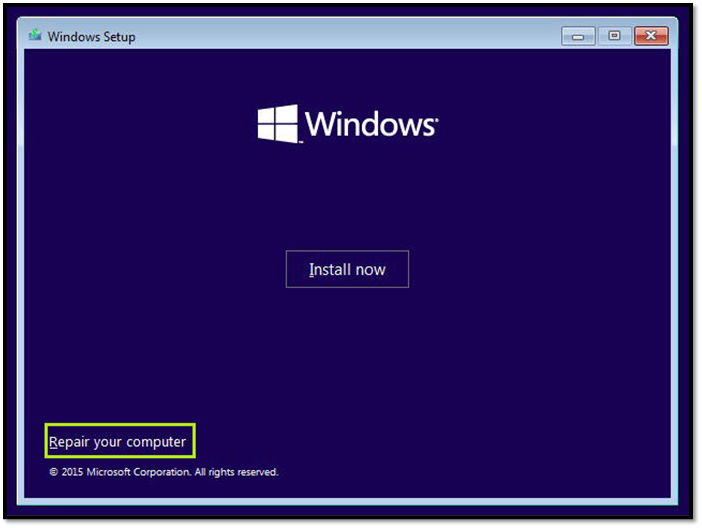
Step 4: Once the next prompt pops up, click on Keep my files.
Reinstalling the operating system files will keep all your files while fixing any corrupted, deleted, or infected Windows files, solving your problem for good.
Method 4: Dust Your PC
Dusty PCs and carbon build-Computer problems can be caused by dust buildup, which can be easily cleaned out with an air duster or air blower.
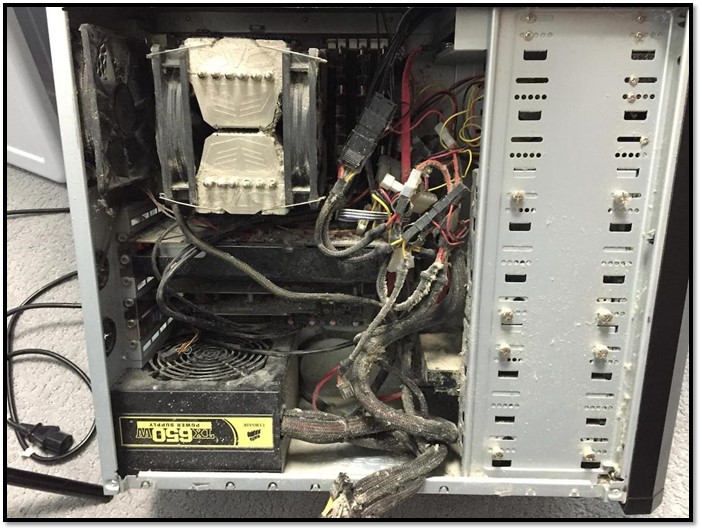
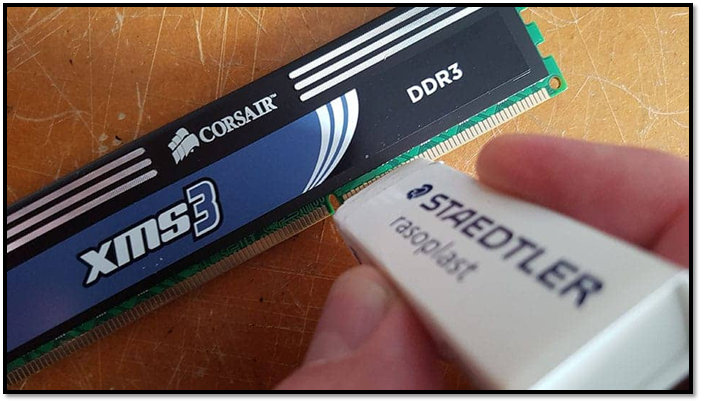
Dust accumulation can cause hardware to overheat and malfunction, leading to frequent operating system crashes. To prevent this, it's essential to clean not only the CPU and fans but also other components such as RAM, graphics cards, SSDs, and hard disk drives.
To improve your computer's performance, you can also consider upgrading your CPU, adding more RAM, or switching to a solid-state drive (SSD) for faster storage. Additionally, you can try cleaning dust from your computer's vents and fans, replacing the thermal paste on your CPU, and installing additional cooling fans to enhance airflow. By doing so, you can help your computer run more efficiently and effectively.
This provides your computer a much-needed boost and may not only fix the problem but also speed it up.
Final Verdict
If your operating system files are corrupted, you can try fixing them by following these steps. However, it's also possible that the issue lies with your hardware, such as dusty or faulty components, so be sure to check those as well. By taking these steps, you should be able to resolve the problem and get your system up and running smoothly.
Related Articles
- Why Do Games Take Up So Much Space | Free Up PC Space
- How to Convert Basic Disk to Dynamic Disk in Windows Server 2012/2016/2008
- Delete a Partition on a USB Drive in Windows 11/10
- Windows 11 VS Windows 10 Gaming: Is Windows 11 Better for Gaming
- Best PNY USB Flash Drive Format Tool Free Download👍
If you're looking for a PNY USB flash drive format tool, you'll find four reliable free format tools in this post. Follow the detailed guide to format your PNY USB flash drive. - How to Rebuild BCD | All You Should Know 🔥
If the configuration file is corrupted or missing, you must rebuild BCD to repair the unbootable problem.
Products
Articles & Tutorials
- Data Recovery
- Data Backup
- File Recovery
- File Backup
- System Backup and Restore
- Disk and Partition Clone
- Technical articles
- Mobile articles
- Disk Master Help
- Windows Data Recovery Tutorials
- Windows Secure Delete Tutorials
- Windows Partition Management Tutorials
- Windows File Backup and Restore Tutorials
- Windows System Backup and Restore Tutorials
- Windows Disk Backup and Restore Tutorials
- Windows Clone Tutorials