How to Format a Write-Protected SD Card and Make It Usable Again
In this article, you'll learn:
- Unfortunately, it's not possible to format a write-protected SD card or micro SD card using standard formatting methods. The write protection mechanism is designed to prevent accidental data deletion or corruption, and it can only be disabled or removed by the device or system that originally enabled it.
- How to Format Write Protected SD Card in Windows 11/10
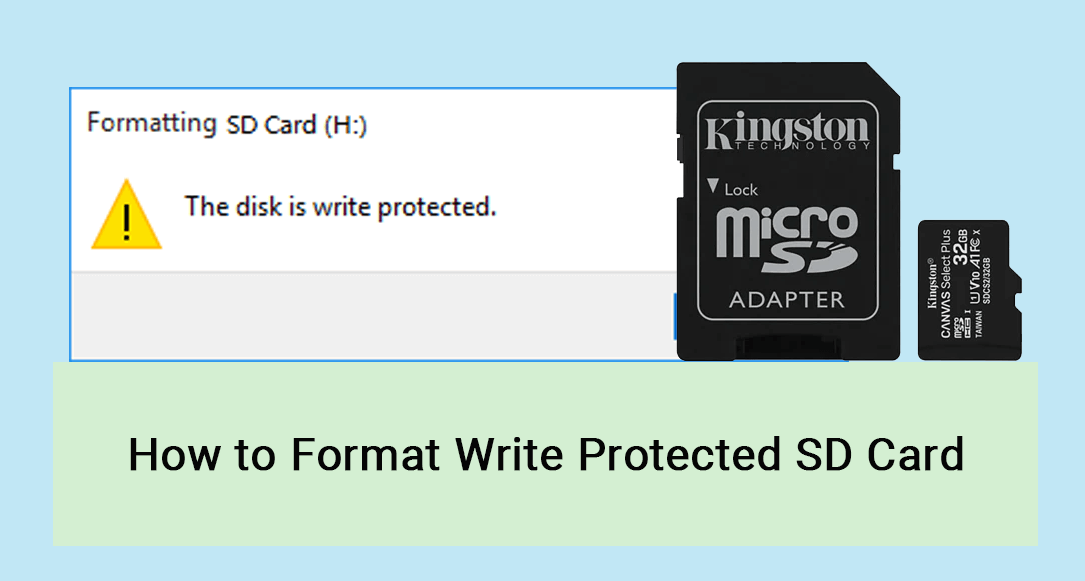
You're trying to format your SD card, but it's showing a write protection message. This means you can only read files on the card, not modify, delete, or copy them. If your card is write-protected, you won't be able to write new data to it, making it useless until the protection is removed.
If you're experiencing issues with a write-protected SD card, don't worry - the solution is easier than you think. The article provides relief and offers simple solutions to remove protection from SD cards and format write-protected ones, allowing you to repair and reuse them. Let's dive into the topic and learn how to format and fix write-protected SD cards.
Topics you may also interested: SanDisk Write Protected.
Can I Format Write Protected SD Card or Micro SD Card?
To resolve the issue of a write-protected SD card, you'll need to remove the write protection and format the card. The steps to do so may vary depending on the cause of the issue, which could be due to a hardware problem, a software glitch, or a setting that's been enabled. However, in most cases, you can simply remove the write protection and format the card to resolve the issue.
- Your SD card is locked with its physical switch
- The SD card may be write-protected, or it might be encrypted with a BitLocker password, preventing access to its contents.
- SD card gets write protected by viruses or unknown malware
- There are chances that the card is corrupted or contains bad sectors.
- SD card gets written and protected by third-party encryption software.
Unfortunately, you cannot format a write-protected SD card until you disable the write protection, allowing you to write information to it. To resolve this, you can follow the quick and easy solutions outlined below to remove the security from your SD card.
The provided solutions on this page also works to:
How to Format Write Protected SD Card in Windows 11/10
Formatting a write-protected SD card in Windows can be done using two methods. The most recommended method is the easiest and most efficient, allowing the SD card to be formatted to a normal state, making it usable by anyone without any hassle.
#1. Format Write Protected SD Card with Write Protected Format Software
If you are not tech-To format a write-protected SD card, use Qiling Disk Master, a trusted software that offers advanced write protection functionality to unlock and clear the write protection state from the SD card.
This write-To quickly format a write-protected SD card, download Qiling Disk Master and follow its straightforward user interface to simplify the process. The tool's user-friendly design allows you to get the job done efficiently, making it a reliable choice for formatting your SD card.
Format SD Card After Removing Write Protection
Step 1. To format an SD card, find the partition you want to format on your computer, right-click it, and select the "Format" option.
Step 2. Set a new partition label, file system, and cluster size to the selected partition.
Step 3. Click the "Proceed" to continue.
Step 4. The user needs to click "Yes" on a pop-up window to initiate the formatting process on their SD card.
Qiling Disk Master can handle various storage media operations, including HDD, SSD, USB, memory card, SD card, and more. It offers features to manage all storage devices.
#2. Format Write Protected SD Card Using CMD
The CMD tool allows Windows users to troubleshoot and resolve errors on a selected disk, including clearing write-protected attributes of storage devices. To remove the read-only state of an SD Card using CMD, follow these steps.
Step 1: Connect your SD card to the computer and check if the card is showing up under "Devices and drivers" in "This PC" to start the process.
Step 2: Press the Windows key + R, type "cmd" in the dialog box, and click OK.
Step 3: Type diskpart and press Enter.
Step 4: Now, paste or type the following commands one by one and press Enter after each command.
- list disk
- select disk # (# is the number of the SD card.)
- attributes disk clear readonly
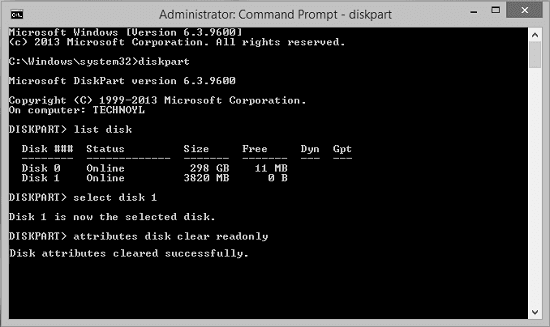
To clear disk attributes and format your SD card, first, open Command Prompt as an administrator. Type the command "chkdsk /x X:", replacing "X" with the drive letter of your SD card. Press Enter to run the check. Once the check is complete, you'll be prompted to clear the disk attributes. Type "y" and press Enter to confirm.
Step 1: Open CMD, type Diskpart, and hit the Enter Key.
Step 2: Type the list disk command and press Enter.
This command displays the list of available disks in the system.
Step 3: Use the following commands and hit Enter each time.
- select disk + disk number ( eg, select disk 2)
- list volume
- Select volume + volume number (eg, volume 10)
- format fs=ntfs quick (or format fs=exfat)
Step 4: To close the CMD window, type exit and press Enter.exit and press Enter to close the CMD window.
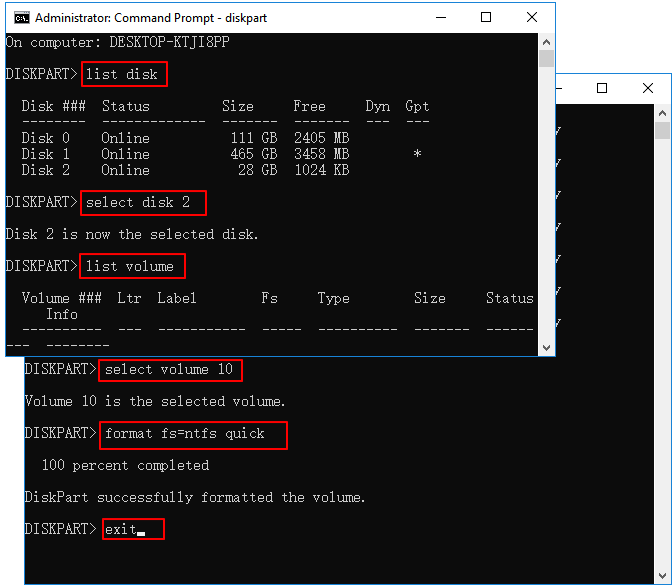
Check if your SD card is formatted successfully.
Bonus Tip: How to Protect SD Card from Write Protection Error
To resolve a write protection issue on an SD card, check if the write protect switch is enabled, as this is the most common cause. If it is, simply slide the switch to the other position to disable write protection. If the switch is not present, try removing the SD card from the device, waiting for a few seconds, and then reinserting it. If the issue persists, try using a card reader to access the SD card, as some devices may not be able to read the card when it's write-protected. If none of these solutions work, it's possible that the SD card is damaged and may need to be reformatted or replaced.
- Back up SD card data to a safe location
- Remember the BitLocker or encryption password for the SD card
- Clear viruses and remove malware from PC and SD card
- To safely plug and eject an SD card from a PC or other devices, ensure the card is securely inserted, open the file explorer, locate the SD card, right-click to select "Eject" or "Safely Remove," wait for confirmation, and then remove the card. To plug it back in, insert it into the device's card reader or adapter, and it should be recognized.
- Check the free space and properties of the SD card.
- Remove any protection from the Disk Utility in your laptop.
- If an SD card or micro SD card is not locked but is write-protected, examine the metal chips on it. The write-protect tab on the card can be used to prevent data from being written to the card.
Final Verdict
We hope this article helped you format your write-protected SD card. This guide provides two solutions to fix the issue. If you're not comfortable with the second solution that involves using the Command Prompt, we recommend using Qiling Disk Master, a reliable method to get rid of the problem and format your SD card.
Please provide your feedback or suggestions in the comment box, and share the article if you like it.
FAQs About Format SD Card from Write Protected to Normal State
Please follow this FAQ section if you have any quarry write-protected SD cards.
1. Can I format write protected sd card online?
You can't format a write-protected SD card online, but you can download software to do it.
2. How to format write protected SD card using cmd?
To resolve the write-protected issue, run the command prompt on your computer and type CHKDSK. This will automatically scan and fix any errors or corruption on your SD card, making it accessible again.
3. Can I format write-protected Micro SD cards?
You cannot format a write-To access the files on a protected SD card, you need to remove the read-only
4. Why is my SD card saying write protected?
Hey, so your SD card is saying it's write-protected, right? That means it's in read-only mode and you can't store or delete new files on it. This might be because the lock switch on your SD card is engaged, or maybe there's some malware or virus messing with it. Either way, it's not letting you make any changes to the files on your SD card.
Related Articles
- How Do I Fix Windows 10 BSOD: Blue Screen of Death Error? Here Is The Guide
- How to Format SD Card for Dash Cam on Windows/Mac/Dash Cam? [2023 Lasted Ways]
- How to Resize USB Flash Drive Partition with Magic Partition Software
- Fix for Low System Reserved Partition on MBR/GPT Disk in Windows 7/8/10
- [Solved] Secure Boot Violation Invalid Signature Detected
If you're experiencing a Secure Boot Violation, specifically an invalid signature detected error, it's a relatively straightforward issue to resolve. - How Do I Securely Erase Hard Drive/SSD, Wipe Confidential Data? Your Reliable Guide Is Here
When replacing a computer hard drive with a newer SSD or a bigger hard drive, securely erase the old disk at home before giving it away or selling it to protect your information and privacy. You can follow a how-to guide to wipe the hard drive.
Products
Articles & Tutorials
- Data Recovery
- Data Backup
- File Recovery
- File Backup
- System Backup and Restore
- Disk and Partition Clone
- Technical articles
- Mobile articles
- Disk Master Help
- Windows Data Recovery Tutorials
- Windows Secure Delete Tutorials
- Windows Partition Management Tutorials
- Windows File Backup and Restore Tutorials
- Windows System Backup and Restore Tutorials
- Windows Disk Backup and Restore Tutorials
- Windows Clone Tutorials