How Do I Securely Erase Hard Drive/SSD, Wipe Confidential Data? Your Reliable Guide Is Here
Secure hard drive disposal: how to erase confidential information on hard drive or SSD?
To completely wipe a hard drive and securely erase its contents, you can follow these steps: write a single pass of zeros to the entire disk, then write a single pass of ones to the entire disk, and finally, verify the disk is completely blank by running a disk check. This process ensures that all data is erased and the disk is ready for reuse or disposal. Additionally, you can use specialized software like DBAN (Darik's Boot and Nuke) or CCleaner to securely erase the hard drive.
If you need to erase data from an old hard drive, SSD, or external hard drive, you'll require a secure disk eraser. This guide is designed to help you with that process.
What Is Secure Erase Hard Drive
Securely erasing a hard drive, also known as a "secure wipe," involves overwriting all data on the drive with random, meaningless information, making it virtually impossible to recover. This process can completely eliminate all files, including documents, pictures, and videos, as well as any operating system and program files. As a result, the hard drive will appear empty and will no longer contain any recoverable data, effectively rendering it useless for storing sensitive information.
Erasing a disk completely wipes all saved content, including documents, images, audio files, and videos, from the storage device. There are three ways to erase a disk.
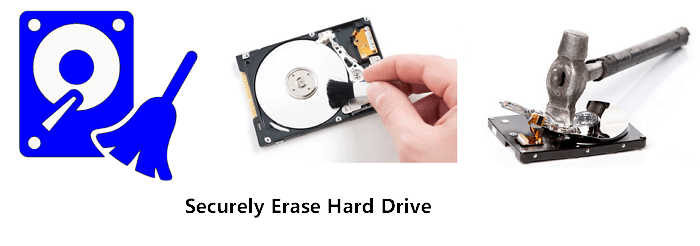
- Use disk erasing software
- Use hardware erasing devices
- Physically break the device.
Securely erasing a hard drive is more than just deleting or removing files, as this can't guarantee that the deleted data are unrecoverable. Secure erasure involves writing 0s to the storage device at a sector or cluster level, using specialized disk erasing software. This process completely wipes all confidential information and common files, ensuring that they are irretrievable.
How to Securely Erase Hard Drive/SSD or External Disk
To securely erase a hard drive, SSD, or external hard drive, you can use various methods depending on your specific needs. If you want to completely wipe a hard drive or external USB, you can use methods like DOD, Gutmann, or DoD, which involve writing random data to the drive. For more specific use cases, such as erasing sensitive data, you can use secure erase tools like DBAN or KillDisk, which can securely erase data from the drive without physically destroying it. It's also possible to use the built-in disk wiping features on your operating system, such as the "Secure Erase" feature on Windows or the "Secure Wipe" feature on macOS.
#1. Back-Up Your Data!
It's crucial to back up your important files before erasing your hard drive, as once the secure erasing operation is complete, your files will be irretrievable.
- To backup a working disk, you can manually copy files or use file backup software to copy all data to another storage device.
- To backup a failing disk, you can clone the failing disk to rescue as many files as possible.
- Notice:
- If your disk is dead and you don't need the data, you can skip to the next guide and move on with the process.
- If you need the data, turn to a professional disk repair service provider to recover data from the dead disk.
#2. Check Your Need & Select a Right Wayt to Erase Hard Drive
Here are four different situations where you might need to erase your hard drive:
- 1. Securely Erase (Data) Hard Drive for Reuse or Sell
- 2. Securely Erase Hard Drive with Windows Installed On
- 3. Wipe Hard Drive on a Dead Computer
- 4. Erase a Dead HDD/SSD
1. How to Securely Erase (Data) Hard Drive or SSD for Resue/Sell
Also works to: secure erase external hard drive in Windows 10/8/7.
Here we'll introduce two normal ways to help safely erase your target drive:
For beginners or those looking for easier solutions, using hard drive wipe software is recommended.
Method 1. Securely Erase Hard Drive using Disk Wipe Software
| Pros: The easiest way to erase a disk. | Cons: Not Free |
For beginners, using disk erasing software is often the most cost-effective way to securely wipe a disk, making all files unrecoverable with just a few clicks. To save time comparing various disk erasers on the market, we'll demonstrate how to directly wipe a hard disk using Qiling Disk Master.
What Can Qiling Disk Master Do For You
- Safely wipe hard drive in Windows 10 and protect privacy.
- Wipe hard drive without deleting Windows.
- In Windows, partitions can be deleted, formatted, or managed flexibly, allowing users to optimize their disk space. This can be done in various versions of Windows, including Windows 10, 8, 7, XP, and Vista.
- Migrating your operating system to a new HDD or SSD involves upgrading and cloning your disk, then adjusting the new disk layout with just one click.
How to Use:
We've set two options for you to wipe data. Choose the one you need.
Option 1. Wipe Partition
- Right-To erase data from a partition, click on the partition you want to erase data from and select the "Wipe" option.
- In the new window, set the time for which you want to wipe your partition.
- Click the "Proceed" button in the lower right corner after reviewing the changes.
Option 2. Wipe Disk
- Select the HDD/SSD. And right-click to choose "Wipe Disk".
- Set the number of times to wipe data. (You can set to 10 at most.).
- Click "Proceed" to start the operation.
Method 2. Securely Erase HDD/SSD Using CMD Command Lines
| Pros: Free. | Cons: Complex for beginners, false command will cause serious problems. |
This method is designed for experienced Windows users and requires some computing skills. If you're not comfortable with these, consider Method 1 instead. Please follow the steps carefully. Let's proceed.
How to Use:
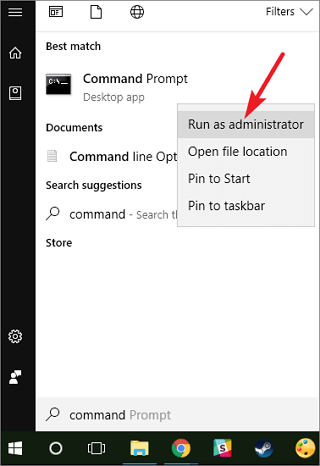
Step 1. To open Command Prompt as an administrator, press the Windows key + S, type "command prompt", right-click on the result and select "Run as Administrator".
Step 2. Click Yes to allow Command Prompt to run on your PC.
Step 3. Type diskpart and hit Enter.
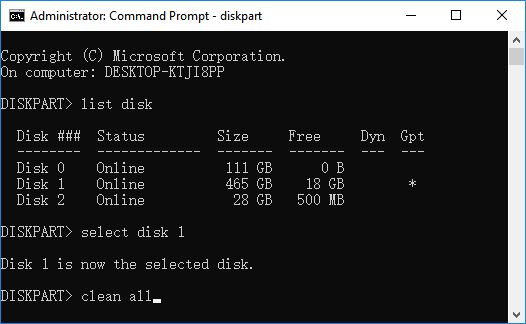
Step 4. On the Diskpart window, type the following command lines one by one and hit Enter each time:
- list disk
- select disk 1 (Replace 1 with the disk number that you want to wipe.)
- clean all
Step 5. Wait patiently, type exit when the erasing process completes.
Close Command Prompt and now your disk is empty with no data existing.
Since trying Method 1 or Method 2, your disk is now 100% clean and secure for reuse or resale.
2. How to Secure Erase Hard Drive with Windows Installed On
Also works to: Wipe old OS disk for new usage.
To safely erase a hard drive with an operating system installed on it, you can't directly erase it using the methods mentioned above. The operating system's protective mechanisms prevent users from deleting, formatting, or erasing the OS drive on a computer, making it impossible to use those solutions.
To achieve the goal of erasing a disk, a professional tool like Qiling Disk Master, which features a bootable disk, can be used to help accomplish this task.
Step 1. Connect a USB drive, flash drive, or CD/DVD disc to your computer, then launch Qiling Disk Master, go to the "Bootable Media" tab, click "Create bootable media", and proceed with the next steps.

Step 2. You can select the USB or CD/DVD option once the drive is available, then click "Proceed" after making your choice.
If you don't have a storage device, you can save the ISO file to your local drive and then burn it to a storage media later.

Step 3. To boot from a WinPE disk, connect the disk to the computer, restart it, and enter the BIOS settings by pressing F2 or Del. Set the PC to boot from the removable device or CD-ROM drive instead of the hard drive, and save the changes by pressing F10. This will allow the computer to boot from the WinPE disk.
Step 4. Install and launch Qiling Disk Master, then select the HDD or SSD you want to wipe. Right-click on the selected drive and choose "Wipe Disk".
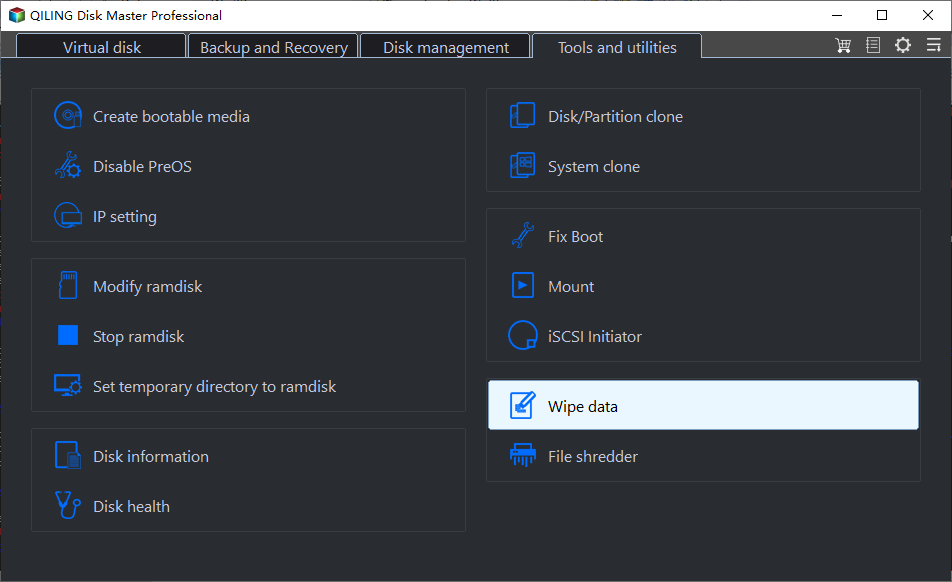
Step 5. Set the number of times to wipe data to 10, then click "OK".
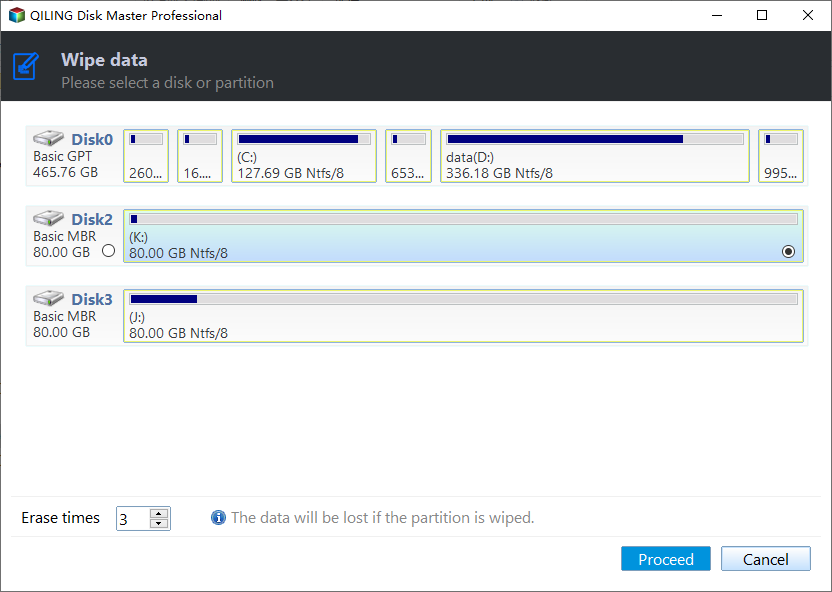
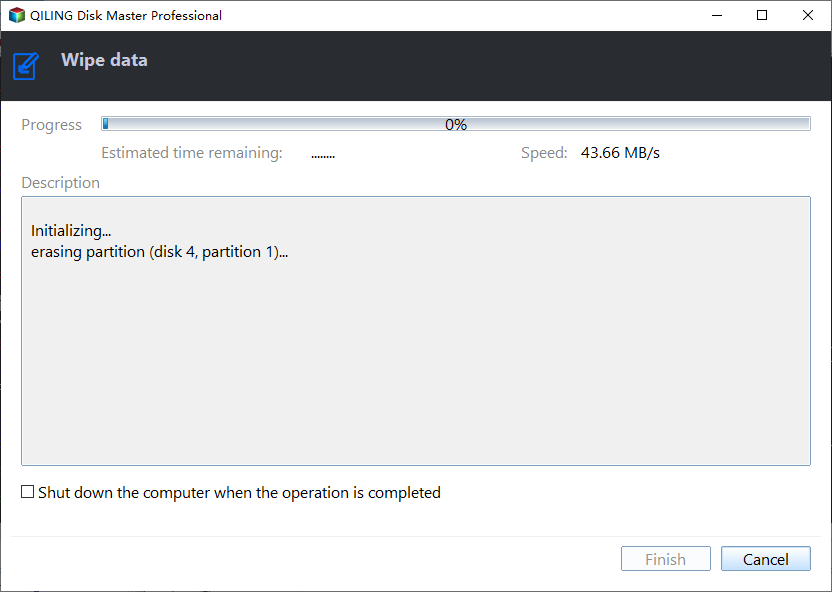
Step 6. Click "Proceed" to start wiping data.
3. How to Wipe a Hard Drive on a Dead Computer
Also works to: Wipe a failing OS disk that caused the computer unbootable.
If your computer is dead due to a non-working hard drive, you can wipe the hard drive and reinstall an OS to revive it.
If you have important files on the dead computer, recover the data first. You can find instructions on how to do this in the article "Recover Files from Dead Laptop Hard Drive".
After safely retrieving data from the damaged drive, you can turn to Qiling Disk Master, a tool that can boot from a disk, to help with the recovery process.
Just revert to steps shown in the second situation of wiping disk with OS installed on for help.
4. How to Securely Erase a Dead Hard Drive/SSD
It's not recommended to directly dispose of a dead hard drive or SSD, as sensitive data may be compromised if someone with the necessary expertise to repair it gains access.
To ensure privacy and data security on a dead disk, it's essential to handle it properly. First, you should immediately disconnect the power source and any cables connected to the dead disk. This will prevent any accidental data access or modification.
- Repair dead drive - get data out of the disk and wipe it.
- Physically break the disk.
If you have important data on the drive, take it to professionals for repair. They'll recover your data and wipe the drive. If you don't care about the data, you can manually break the drive by drilling holes or smashing it with a hammer.
What Is The Best Program to Wipe a Hard Drive
When searching for a hard drive wipe tool or hard drive eraser, Google results typically recommend various software or hardware manufacturers offering disk erasing services.
Here, we compared third-When it comes to wiping a drive, you have two options: using party software or the Windows built-in tool, Command Prompt. To decide which one is better, you can simply compare the two.
| Comparison | Disk Eraser/Disk Wipe Software | Command Prompt |
|---|---|---|
| Pros |
|
|
| Cons |
|
|
Most disk eraser software is not free, but useful in offering the easiest solution to wipe a hard drive, an SSD, or an external storage device. If you prefer an easy way to wipe a disk, consider using a disk wipe program, such as Qiling Disk Master with its Wipe feature.
To Securely Erase a Hard Drive Is Easy, You Can Do It on Your Own
When you want to replace a computer, sell an old disk, or protect your privacy from information theft, securely erasing a hard drive is crucial. This process, also known as wiping the hard disk, involves completely removing all data and information from the drive, making it impossible to recover. It's essential to erase a hard drive securely to prevent sensitive information from falling into the wrong hands.
With the right solutions, erasing a disk is no longer a difficult task. You can easily erase your HDD, SSD, or external hard disk by following the provided fixes on this page. It's a straightforward process that you can accomplish on your own.
Related Articles
- How to Format SD Card to FAT32 Successfully? [2024]
- Fix 'Windows Cannot Be Installed to Disk 0 Partition 1' Error
- How to Remove Windows 10 Password | 4 Simple Ways🎈
- Windows Can't Format USB Drive? Format USB with 6+ Fixes [Beginners' How-To Guide]
- Can I Format My Samsung SSD T7 1TB for PS5, and How?
Before you install an SSD on your PS5, you should format it to work with the PS5. Luckily, you will discover a comprehensive tutorial to format SSD for PS5. - Can I remove Samsung Micro SD Card Write Protection on My Own?
Many SD cards especially micro SD cards, have no physical write protection switch. This post will cover a reliable method of how to remove Samsung micro SD card write protection.
Products
Articles & Tutorials
- Data Recovery
- Data Backup
- File Recovery
- File Backup
- System Backup and Restore
- Disk and Partition Clone
- Technical articles
- Mobile articles
- Disk Master Help
- Windows Data Recovery Tutorials
- Windows Secure Delete Tutorials
- Windows Partition Management Tutorials
- Windows File Backup and Restore Tutorials
- Windows System Backup and Restore Tutorials
- Windows Disk Backup and Restore Tutorials
- Windows Clone Tutorials