How to Zero Fill A Hard Drive [Efficient]
The write-zero method, also known as single overwrite or zero fill, is a popular data sanitization technique that completely erases data by replacing it with zeros, making it impossible for software-based methods to recover any information from the drive.
Qiling shows you two effective hard drive writing solutions. However, zero-filling your hard drive using Command Prompt is complex and time-consuming, making it a less preferable option. Instead, consider using Qiling Disk Master, a more efficient method that minimizes the risk of data loss and errors.
Method 1. Use Qiling Disk Master - Easier and Safer
Qiling Disk Master Professional is a better choice for beginners and those looking for a time-saving solution, as it offers a "wipe" function that deletes all partitions and erases all sectors on the disk in one operation, making the process easier and more efficient.
Since no data recovery software can recover data from a wiped drive, it's a safe choice. To use it, follow the tutorial below.
We've set two options for you to wipe data. Choose the one you need.
Option 1. Wipe Partition
- Right-To erase data from a partition, click on the partition you want to erase data from and select the "Wipe" option.
- In the new window, set the time for which you want to wipe your partition.
- Click the "Proceed" button to wipe data.
Option 2. Wipe Disk
- Select the HDD/SSD. And right-click to choose "Wipe Disk".
- The number of times to wipe data can be set up to 10 times maximum.
- Click the "Proceed" button to wipe data.
In addition to securely wiping a hard drive to completely clear its data, Qiling Disk Master can also perform various tasks to manage your hard drive, including writing zero to the drive.
- Securely erase hard drive/SSD
- Wipe the external hard drive
- Format a hard drive
- Initialize a hard drive
When selling, lending, or disposing of a hard drive, use a tool to write zeros to ensure any recoverable data is erased, preventing unauthorized access.
Method 2. Use CMD - Experience Required
Here's how to wipe a hard drive using Command Prompt in Windows 10/11: You can use the command line to zero-fill your hard drive, erasing all data, by using the `cipher` command. To do this, open Command Prompt as an administrator, type `cipher /w:C:`, replacing `C:` with the drive letter you want to wipe, and press Enter. This will start the wiping process, which may take some time depending on the size of the drive.
1. To open the Command Prompt as an administrator, tap the Windows taskbar's Search button, type 'cmd' in the search box, and then right-click 'Command Prompt' and select 'Run as administrator'.
2. To format the G drive with the NTFS file system and write zeros to every sector, type `format g: /fs:NTFS /p:0` and press Enter. You can adjust the drive letter and file system type as needed.
3. Type y and hit Enter to confirm erase data.
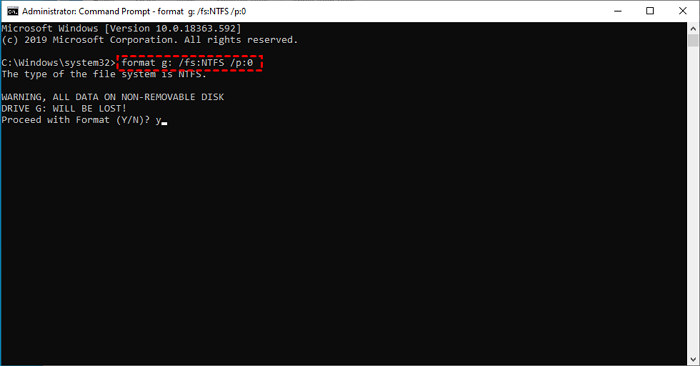
4. Wait until the format process is finished.
Notice: Formatting a drive can be a slow process, especially for larger drives, and it's normal if the progress bar doesn't move for a few seconds or minutes.
5. To format the drive, open the Command Prompt as an administrator, type `format /y X:`, where `X:` is the drive letter of the drive you want to format, and press Enter. If you want to assign a name for the drive as the new volume label, type `format /y /v Y:`, where `Y:` is the drive letter of the drive you want to format, and press Enter.
6. Wait until 'Creating file system structures' is displayed on the screen.
7. Repeat the process for any other partitions on the physical hard drive, skipping the current step if there's only one partition.
8. Type exit and hit Enter to exit Command Prompt.
If these two methods help you securely erase/zero-fill your hard drive, please don't hesitate to share these two methods with more people.
Command Prompt can be quite convenient, but it can be challenging for beginners. If you're struggling, consider using Qiling Disk Master, which can provide a more user-friendly experience.
Conclusion
Writing zeros to a hard drive means replacing all data on the drive with zeros, making it impossible to recover any information using software-based methods. This process, also known as Write Zero, Single Overwrite, or zero fill erase, effectively sanitizes the drive by overwriting all data with zeros, rendering it unrecoverable. This is a popular method for securely erasing data.
When you want to write zeros to the hard drive to erase data, you can use formatting commands or Qiling Disk Master, which is safer, simpler, and time-saving compared to formatting commands.
Write Zero to Hard Drive FAQs
Zero-Filling a hard drive with zeros is the most effective way to protect your data from being recovered. To protect your personal files, you can use one of two methods to write zeros to a hard drive, and answering the following questions can help you learn more details about this process.
1. How do you write zeros to a hard drive using CMD?
Step 1. To open the Command Prompt window, press the "Windows" key and the "R" key at the same time, then type "CMD" in the Run box that appears and press Enter. This will open the Command Prompt window.
Step 2. Then, type "format X: /fs:NTFS /p:1" (X is the proper drive letter of your hard drive, NTFS represents the file system, p:1 means writing zeros to every sector once) and hit Enter. This command will format the entire hard drive, including the master boot record and the partition table, and then write zeros to every sector on the drive, effectively clearing all data.
2. How long does it take to write zeros to a hard drive?
300 GB hard drives take around 1.5 hours, 450 GB around 2.2 hours, and 600 GB around 2.5 hours to complete a full backup. Larger hard drives take longer. Just be patient.
3. Can you write zeros to an SSD?
Writing zeros to an SSD is not recommended, as each cell has a limited number of writes possible, which can potentially ruin the SSD or shorten its lifespan. However, some third-party software allows for secure erasure of an SSD, providing a suitable alternative.
Related Articles
- How to Fix Critical Process Died Error in Windows 10/8/7🔥
- Acer Stuck on Loading Screen - 9 Quick Fixes 🔥
- I Need Solid Ways That Can Create a New Partition on the Hard Drive, Help
If you are looking for solid ways to create a new partition on the hard drive, read this article, in which you can find the partition methods with detailed tutorials. - I Need to Format a Hard Drive to Work With Windows, Help
What should I do to use my Mac-formatted hard drive on Windows? The answer is to format a hard drive to work with Windows. This page will provide a safe way to help you format the hard drive. - How to Format BitLocker Partition in Windows 11
Formatting BitLocker partition in Windows 11 requires erasing all data, so make sure to have a backup. To proceed, follow this guide, which will walk you through the steps to format the BitLocker drive. - How Do I Format a Disk in Windows 10? Follow and Learn How To [Beginners' Guide]
Formatting a disk on Windows 10 and other modern operating systems can be done efficiently with reliable solutions. Whether you're a beginner or experienced, this page will guide you through the process, providing you with a straightforward and successful disk formatting experience.
Products
Articles & Tutorials
- Data Recovery
- Data Backup
- File Recovery
- File Backup
- System Backup and Restore
- Disk and Partition Clone
- Technical articles
- Mobile articles
- Disk Master Help
- Windows Data Recovery Tutorials
- Windows Secure Delete Tutorials
- Windows Partition Management Tutorials
- Windows File Backup and Restore Tutorials
- Windows System Backup and Restore Tutorials
- Windows Disk Backup and Restore Tutorials
- Windows Clone Tutorials