Full Guides: Initialize a Hard Drive on Windows 10/11
Overview of how to initialize a hard drive:
| ⚙️Complex Level | Low, step-by-step guide for beginners |
| ⏱️Duration | 3-5 Minutes |
| 💻Applies to | Initialize a hard drive on Windows 11/10/8/7 |
| ✏️Ways |
Initialize a Hard Drive via Qiling Disk Master - Easiest |
When you connect or install a new HDD, you may find that Windows File Explorer doesn't show it, even though it's visible in BIOS/UEFI. This is because the hard drive needs to be initialized before it can be used on a Windows computer. Fortunately, there are three effective and safe methods to initialize hard drives or new hard drives in Windows 11/10/8/7, which will be provided in a step-by-step guide to help you get started. Let's learn how.
- Important
- To initialize the hard drive to GPT or MBR, you need to determine which one is suitable for your needs. GPT is a newer and more advanced format, allowing for larger drive sizes and better performance, but it may not be compatible with older operating systems. MBR, on the other hand, is a more traditional format that is widely supported, but it has limitations on drive size and performance. You can click on the link provided to learn more about the differences between MBR and GPT.
🥇Initialize a Hard Drive via Qiling Disk Master - Easiest
If you're new to computers, the safest way to initialize your hard drive is with Qiling Disk Master, a user-friendly and professional initialization tool with a clear interface. You can freely initialize the hard disk as MBR or GPT, and the process is command-free, ensuring no data loss. This makes it a great option for those who want to initialize their hard drive without any hassle.
Learn more about Qiling Disk Master:
- Nice Compatibility: Windows 11/10, Windows 8/7, and Windows XP/Vista.
- Storage Device Support: Initialize all types of storage devices, including internal and external hard disk drives (HDDs), solid-state drives (SSDs), SD cards, and other storage media, to prepare them for use or to recover data from them.
- Interface: Well-organized and clear
- Complex Level: Low, easy to use for beginners
Here is how to use Qiling Disk Master to initialize HDDs:
Step 1. Open Qiling Disk Master and got to Partition Manager.
Step 2. Right-click the target disk, whether it's a hard drive (HDD) or solid-state drive (SSD), and select either "Initialize to MBR" or "Initialize to GPT".
Qiling Disk Master offers additional features to manage a hard drive, including the following features.
- 👍Check hard drive health
- 👍Wipe the hard drive before selling
- 👍Clone a hard drive to another
- 👍Initialize a hard drive to GPT or MBR
- 👍Convert MBR to GPT without data loss or vice versa
- 👍Create/delete/merge/extend partitions on a hard drive
- 👍And more
You can download a tool to manage your hard drives by clicking the blue button below to try it out.
🥈Initialize a Hard Drive via Disk Management - Medium
Disk Management is a Windows program that allows users to manage hard disks and partitions, and also helps initialize hard drives. You can initialize your HDD using Windows Disk Management by following the instructions below.
Step 1. To open the Disk Management window, press the Windows key + R to open the Run dialog, type "diskmgmt.msc" and press OK.
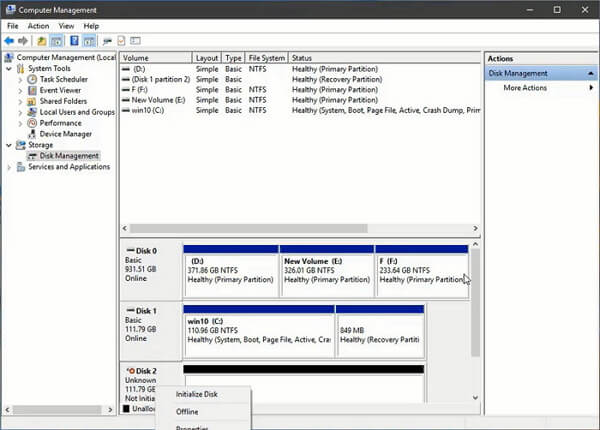
Step 2. To initialize a hard drive, right-click on the drive in the Disk Management window and select the "Initialize Disk" option from the context menu.
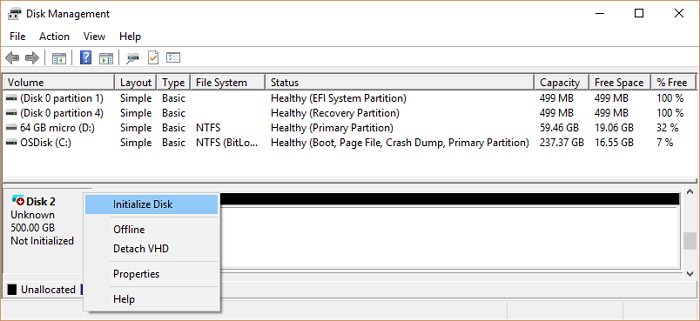
💡Note: If your HDD is marked Offline, right-click on it once and select Online.
Step 3. Select the desired disk format (MBR or GPT) in the Initialize Disk popup and click OK to proceed with initializing the HDD.
If you're having trouble initializing a hard drive in Disk Management, there are several practical solutions you can try. One approach is to check the hard drive's connection and try initializing it in a different USB port or SATA port if it's an internal drive.
The error "Can't Initialize Disk" on Windows 11/10/8/7 occurs when the operating system fails to initialize a disk, often due to issues with the disk's partition table, file system, or hardware. This can happen after a system crash, power outage, or disk formatting.
The error 'Can't initialize disk in Disk Management' is a common issue among Windows users. If you're experiencing this problem, this page provides a few solutions to help you resolve the issue.
🥉Initialize a Hard Drive via CMD - Difficult
If you're experienced with computers and comfortable using the Command Prompt, you can try initializing a hard drive. However, be sure to back up any important data first, as this process can result in data loss.
Step 1. To access the Diskpart command line tool, press the Windows key + R to open the Run dialog box, then type "diskpart" and press Enter. This will open the Diskpart command line interface, allowing you to perform various disk-related tasks and operations.
Step 2. Enter the following commands in CMD and hit the Enter key after typing each command.
- list disk
- select disk 1
- clean
- convert gpt (you can type convert mbr if you want to initialize the HDD to the MBR style.)
- create partition primary
- format quick fs=ntfs The "format quick fs=ntfs" command is used to quickly format a drive with the NTFS file system. This command is useful for quickly formatting a drive, especially when you need to prepare it for use with a Windows operating system.
- assign
- exit
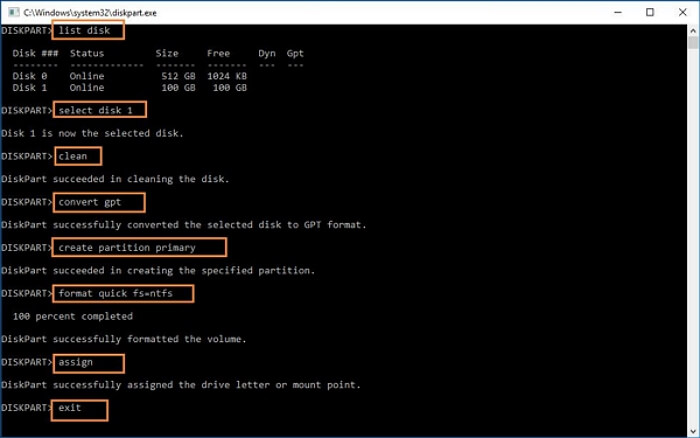
The HDD initialize process can be completed using the above commands, which may be challenging for those not familiar with command lines. A better option is to use Way 1, which is a more straightforward approach.
Extended Reading: How to Fix Disk Unknown Not Initialized Error.
Initializing an HDD to GPT or MBR can be a bit tricky, but there are three ways to do it. First, you can use the built-in disk management tool in Windows to convert a MBR disk to GPT. Second, you can use a third-party software like Qiling Partition Master to convert a MBR disk to GPT or vice versa.
Why Initialize a Hard Drive
The Windows system may repeatedly ask you to initialize your HDD due to various reasons. One reason is that the HDD is not properly configured, leading to errors and issues. Initializing the HDD ensures that the operating system can properly communicate with the drive, preventing errors and data loss.
- The new HDD does not show up on the PC:
When a brand new HDD is plugged into a PC, it may initially not be recognized, resulting in a "The disk does not show up in Disk Management/This PC/Computer" error. To make the HDD functional, it must be initialized, allowing it to be recognized and used by the computer.
- Logical Disk Manager cannot access the disk because it is not initialized:
If the hard disk isn't initialized as MBR or GPT, you'll get a warning saying "You must initialize the disk before Logical Disk Manager can access it."
- Error messages such as "Disk 0 is unknown, uninitialized, unallocated" may pop up if you try to turn on a hard drive.
This issue can occur on all Windows systems, including Windows 10/8/7, and the only way to resolve it is to fix the "disk not initialized" error.
It's necessary to initialize a Hard Disk Drive (HDD) before using it, and there are ways to do so, but if using a Solid-State Drive (SSD), a different method should be attempted.

How to Initialize SSD in Windows 10/8/7
To initialize an SSD in Windows 10/8/7, you can use the built-in Disk Management tool, Diskpart commands, or other tools. In Disk Management, right-click on the SSD, select "Initialize" or "New Simple Volume", and follow the prompts.
Conclusion
Initializing an HDD is a crucial task that can easily fix uninitialized issues on Windows. To initialize an HDD, you can use third-party software (recommended), Disk Management, or DiskPart on Windows 11, 10, 8, and 7. The process is relatively straightforward and can be completed in just a few steps.
Initialize a Hard Drive FAQs
To initialize a hard drive, you need to partition it first. This process involves dividing the hard drive into sections, called partitions, where you can store files. Windows can't detect or store files on an uninitialized hard drive, so it's essential to initialize the hard drive into the target partition style. This process typically involves using the built-in Disk Management tool in Windows or a third-party software.
1. What does it mean to initialize a hard drive?
When you initialize a hard drive, it completely erases everything on it, making it ready for Windows to use. You can then format it, allowing you to store files. Don't forget to back up your files before doing so to avoid losing them.
2. How do I initialize my hard drive in Windows 10?
Follow the steps below to initialize your hard drive:
Step 1. To access Open Disk Management with administrator privileges, type "disk management" in the search box of your Windows PC, select and hold (or right-click) Disk Management, then select Run as Administrator and confirm with Yes.
Step 2. To initialize a disk in Disk Management, select and hold (or right-click) the disk you want to initialize and choose Initialize Disk. If the disk is offline, select and hold (or right-click) the disk, then select Online before initializing it.
Step 3. In the Initialize Disk dialog, select the correct disk, then choose OK to accept the default partition style, which can be MBR or GPT.
3. Should I initialize the disk as MBR or GPT?
If you have a 2 TB or smaller hard drive, choose MBR when initializing it for the first time. For larger drives, select GPT. If you want faster boot times, choose GPT, but if your computer is BIOS-based, choose MBR.
Related Articles
- Samsung SD Card Format Tool Free Download 2024 [Step-by-step Guide]
- How to Transfer Space from One Drive to Another in Windows 11/10/8/7
- How to Create Qiling Disk Master Bootable USB
- How to Install Windows on Steam Deck in 2024? Complete Guide
- Fix the Selected GPT Formatted Disk Partition Not of Type
When managing unallocated disk space, you may encounter an error message indicating that a GPT formatted disk contains a partition not of type 'PARTITION_BASIC_DATA_GUID', and is both preceded and followed by a partition of this type. - How to Fix Windows 11 Error 0xc0000005? Answer Is Here!
Have you encountered Windows 11 error 0xc0000005? Read on this article and get several great methods.
Products
Articles & Tutorials
- Data Recovery
- Data Backup
- File Recovery
- File Backup
- System Backup and Restore
- Disk and Partition Clone
- Technical articles
- Mobile articles
- Disk Master Help
- Windows Data Recovery Tutorials
- Windows Secure Delete Tutorials
- Windows Partition Management Tutorials
- Windows File Backup and Restore Tutorials
- Windows System Backup and Restore Tutorials
- Windows Disk Backup and Restore Tutorials
- Windows Clone Tutorials