How to Wipe Hard Drive Before Selling in Windows 10/8/7 [Two Efficient Methods]
On this page, you'll learn two efficient ways to wipe a hard drive before selling them, as well as details about SSD secure erase.
To efficiently wipe your hard drive before selling it, you can learn two ways to securely erase your data in this article.
Why I Need to Wipe Hard Drive Before Selling
Wiping a hard drive before selling it is crucial for computer users, especially Windows users, to prevent sensitive data from being recovered and potentially causing problems for the buyer.
- To Protect your data from malicious recovery
Wiping a hard drive can help improve its writing and reading speed, but it also allows you to securely erase data before selling or disposing of it. To securely wipe a hard drive, you can use a software tool like DBAN (Darik's Boot and Nuke) or a disk wiping tool like CCleaner's Drive Wiper. These tools will overwrite the entire drive with random data, making it impossible to recover any information. You can also use a physical method like using a magnet to demagnetize the drive, but this is less common.
Wiping a hard drive is a crucial process that ensures your sensitive data is completely erased. There are two primary methods to achieve this: using a physical method, such as drilling a hole through the drive, or using a software method, like DBAN (Darik's Boot and Nuke), which can be run from a CD, DVD, or USB drive. For solid-state drives (SSDs), a more secure approach is required due to their non-mechanical nature.
Wipe Hard Drive Before Selling: Qiling Disk Master
Qiling Disk Master Free is a utility that can help wipe a hard drive before selling it, erasing data without damaging the drive or affecting its performance. It's easy to use, requiring only simple steps, and supports all Windows versions, including Windows 11/10/8.1/7, as well as Windows XP and Windows Vista. Download it and follow the guide to safely wipe a hard drive.
We've set two options for you to wipe data. Choose the one you need.
Option 1. Wipe Partition
- Choose "Wipe Data" in the "Tools and utilities" tab page.
- Select the partition you want to erase data from by clicking on it, then set the time for which you want to wipe your partition.
- Click the "Proceed" to wipe the partition.
Option 2. Wipe Disk
- Choose "Wipe Data" in the "Tools and utilities" tab page.
- To securely erase data, select the HDD/SSD by clicking on its icon, then set the number of times to wipe data, with a maximum of 10 iterations.
- Click the "Proceed" to wipe the disk.
With Qiling Disk Master, you can also perform various disk management tasks, such as partitioning, formatting, and deleting disks. You can also use it to create, edit, and delete partitions, as well as resize and move partitions. Additionally, Qiling Disk Master allows you to manage disk space, including checking disk usage, deleting unnecessary files, and freeing up disk space.
What Else Can Qiling Disk Master Do
The tool is a useful utility for Windows users to manage disk partitions, offering a range of features to help users effectively organize and utilize their storage space.
- Wipe external hard drive
- Windows 11 wipe hard drive
- Shrink/extend or move partitions
- Erase or wipe free space SSD safely
- Format and reformat a hard drive or external hard drive
Download it to help if you are facing disk management issues. It won't let you down.
Wipe Hard Drive Before Selling: Diskpart Commands
To wipe a hard drive before selling, you can use a third-party tool or Diskpart commands. If you choose to use Diskpart, be careful when typing the commands to avoid data loss issues. To use Diskpart, open Command Prompt as an administrator, type "Diskpart", and press Enter. Then, type "list disk" to identify the hard drive you want to wipe, and "select disk X" (where X is the number of the hard drive), and press Enter. Next, type "clean" and press Enter.
Step 1. To open the Command Prompt (CMD), press the Windows key + R at the same time, then type "cmd" and press Enter.
Step 2. Type diskpart to open Diskpart.exe.
Step 3. Hit enter each time you finish typing one command below:
- list disk
- select disk 1 (Replace 1 with the correct disk number)
- clean
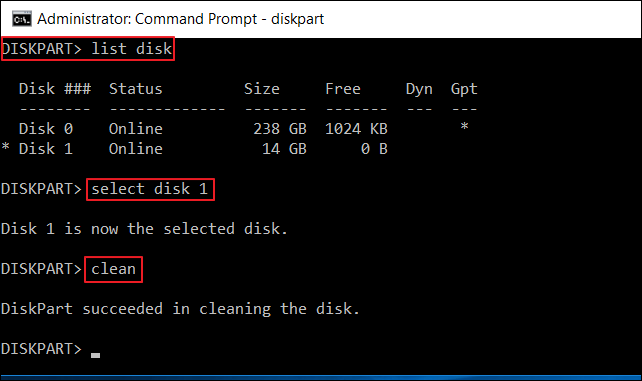
You have successfully wiped your hard drive by using the Diskpart command. Be careful when typing the commands to avoid data loss. Note that you may encounter some errors when using Diskpart, but the process has been completed successfully.
Conclusion
Qiling Disk Master is a hard drive eraser that completely erases disks, maintains HDD/SSD performance, and offers additional partition management features such as formatting, moving, merging, expanding, or shrinking. Download it to help.
To erase your hard drive, you can use commands, but be careful not to lose data. If you're unsure about using commands, you can continue reading for guidance on wiping a hard drive and resolving any other issues.
FAQs About How to Wipe Hard Drive Before Selling It
This part lists some other questions related to today's topic, which may enlighten you if you get other questions.
1. Should I wipe my hard drive before selling?
To ensure your data safety when selling a hard drive, you should wipe it completely before disposing of it. This is because even if you delete your data, it may still be recoverable using data recovery tools. Wiping the hard drive will guarantee that your data is completely erased and cannot be recovered.
2. Does wiping a hard drive remove everything?
Wiping a hard drive completely removes all data, and it's not recommended to do so frequently, especially on SSDs, as it can reduce their lifespan.
3. What is the most secure way to wipe a hard drive?
Wiping a hard drive can be done in various ways, but it's recommended to use a professional tool like Qiling Disk Master to ensure a safe and effective process. Using Diskpart commands can also help, but be cautious as they may lead to data loss if not handled properly.
Related Articles
- How to Format Bootable Pendrive/USB Flash Drive to Normal [3 Solutions]
- How to Remove Windows 10 Password | 4 Simple Ways
- Guide on Convert GPT to MBR with 3 GPT to MBR Converters
- Low Disk Space Error on Windows 11, How Do I Fix? Your Guide Is Here
- How to Fix Error No Such Partition Grub Rescue in Windows 11/10
Get error no such partition grub rescue Windows 11/10 and cannot boot your system? This page shows you how to fix error no such partition by fixing MBR and restoring the BCD, configuring the active partition, rebuilding BDC, etc. Try these solutions to solving grub rescue Windows 11/10. - Top 9 Tips | How to Fix Steam Disk Write Error in Windows 10/8/7
If you receive the message “an error occurred while updating a game - disk read error” when using Steam. You'll find nine tried and tested fixes to resolve the issue, and Steam will not stop downloading files during the process.
Products
Articles & Tutorials
- Data Recovery
- Data Backup
- File Recovery
- File Backup
- System Backup and Restore
- Disk and Partition Clone
- Technical articles
- Mobile articles
- Disk Master Help
- Windows Data Recovery Tutorials
- Windows Secure Delete Tutorials
- Windows Partition Management Tutorials
- Windows File Backup and Restore Tutorials
- Windows System Backup and Restore Tutorials
- Windows Disk Backup and Restore Tutorials
- Windows Clone Tutorials