How to Fix Windows 11 Error 0xc0000005? Answer Is Here!
When running Windows 11, you may encounter error 0xc000000r when trying to launch a program. Clicking OK on this error allows you to continue running the desired program.
Error 0xc0000005 is a frustrating issue that can occur in Windows operating systems, including the current version. Despite the different Windows versions, the error works the same way and is typically caused by the same underlying factors.
The error "STOP 0x000000F4" and "STOP 0x00000116" typically occur when a Windows application or internet browser stops responding, causing the system to freeze. This can happen with any Windows application, not just internet browsers. The error can be caused by various factors, including a faulty driver, a malfunctioning application, or a system file corruption. To resolve the issue, try restarting the application, checking for driver updates, or running a System File Checker (SFC) scan to fix corrupted system files.
Quick Access:
What is Error 0xc000005, and Why is This Error Happening?
Fix Windows Installation Error
Fix "The Application Was Unable to Start"
Fix Access Violation Exception Error
What is Error 0xc000005, and Why is This Error Happening?
The error oxc0000005 occurs mainly due to an access violation, which happens when Windows cannot configure and process the necessary data to launch a program, resulting in an error when the user tries to start it.
Windows 11 users may encounter an error on a program installer or an installed program, which can potentially cause system instability and render the operating system non-functional.
The error is caused by corrupted registries due to viruses or malware, incorrect hardware drivers, or interference from third-party antivirus programs.
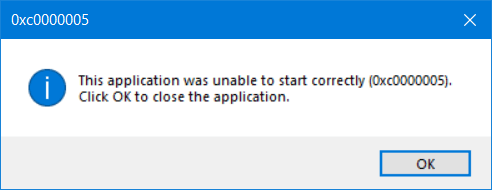
The error can display any of the following three messages:
- Windows installation error
- The application was unable to start correctly
- Access violation exception error
The error box that appears when you try to access the program can be frustrating, especially since it can't be closed without clicking OK, leaving you with no way to access the program. However, there are some simple methods that can help you resolve these issues and regain access to the program. We'll be outlining these methods in the following text.
Fix Windows Installation Error
When trying to install Windows and encountering the installation error, a common cause is a damaged installation medium. To resolve this, you can try reinstalling the program. If that doesn't work, you can try the following strategies to troubleshoot the issue.
Run Qiling Partition Master to Delete and Recreate Windows Hard Drive Partitions
0xc0000005 error in Windows installation can be caused by damaged partitions on the hard drive. To resolve this issue, deleting and re-creating the partitions may be necessary.
Deleting a partition in Windows 11 or servers creates unallocated space which can be extended to another hard drive, and Qiling Partition Master is a tool that facilitates this process.
To delete a partition or all partitions from a Windows hard drive, you can use Qiling Partition Master. Select the partition you want to delete and right-click on it, then choose Delete. Be sure to back up any important data on the partition, as deleting it will completely erase all information.
Step 1. Launch Qiling Partition Master on your computer.
Step 2. When deleting a partition or all partitions on a hard drive, you have two options: deleting a specific partition or deleting all partitions. The first option involves selecting the partition you want to delete, usually indicated by a specific drive letter or label.
- Delete single partition: Right-click on a partition that you want to delete and choose "Delete...".
- Delete all partitions: right-click a hard drive that you want to delete all partitions, and select "Delete All...".
Make sure to back up important data on the selected partition before proceeding, as this will completely remove data from that partition.
Step 3. Click "OK" to confirm the deletion.
Run Windows Memory Diagnostics
When installing windows, defective hardware can be a major issue. To troubleshoot, run a Windows memory diagnostic to check for faults in the RAM, which can help determine if the installation error is caused by hardware or motherboard failure, and identify the specific components of the hardware memory failure.
To run the diagnostics, click the "Control Panel" and select "System and Security." Under "Administrative Tools," double-click the "Windows Memory Diagnostic" shortcut. Then, select "Restart Now" and scan for errors.
After the system reboots, it automatically runs memory diagnostics, which can be checked using the event viewer once completed. If the test shows no errors, it suggests that memory is not the issue.
If there's an error, you'll need to run a thorough memory test. If the issue persists, it might be due to a faulty RAM module that needs to be replaced.
Fix "The Application Was Unable to Start"
When launching an application on your PC, if you encounter the error "the application was unable to start correctly (0xc0000005)", it's likely due to incomplete, invalid, or unsigned DLL files that the software relies on for running on Windows OS. This issue can be resolved by reinstalling the application or by repairing the registry.
Application Reinstallation
If you're encountering the error 0xc00000005 when running a program, a simple solution is to reinstall the application. This could be due to a faulty installation or compatibility issues with Windows, and reinstalling the program may resolve the issue.
Repair Registry
Corrupted registry files can cause severe issues in Windows, but repairing the registry is a delicate task that requires caution to avoid damaging system files. If you have a backed-up model of your registry files, you can use it to resolve the issue. Alternatively, create a backup file before making any changes, which will allow you to revert to a previous state if needed.
Follow the steps below to repair the registry:
- Click 'Windows + R, then type Regedit and press enter.
- Go to HKEY_LOCAL_MACHINE\SOFTWARE\microsoft\windowsNT\Currentversion\windows\LoadAppInit_DLLs
- Double click on LoasAppInit_DLLs in the registry and change the values from 0 to 1.
- Click 'OK' to confirm the adjustments, then close the window.
- Reboot the system.
To troubleshoot the issue, you can try enabling an application to see if the error still displays. This can help determine if the problem is specific to a particular application or a more general issue. Be cautious while applying this method as an invalid input can damage your files.
Fix Access Violation Exception Error
An Access Violation Exception error typically occurs when the system fails to run settings and files properly while running a program in Windows, often due to a malfunction in the register, RAM, or other system locations.
To resolve the issue, you can either turn off DEP (Data Execution Prevention) or run the System File Checker (SFC) to scan and replace corrupted system files.
Turn off DEP
The Data Execution Prevention (DEP) feature protects system memory and prevents viruses or malware from corrupting files, but it can also cause errors with programs that are not compatible, resulting in error 0xc0000005. To fix this issue, follow the guide below.
To prevent errors 0xc000005, install antivirus software, use disk monitoring systems, schedule CHKDSK scans, and run FAM diagnostics at intervals. This should resolve the error that keeps appearing on your PC.
- Click Windows + R, type "system.cpl" and click enter.
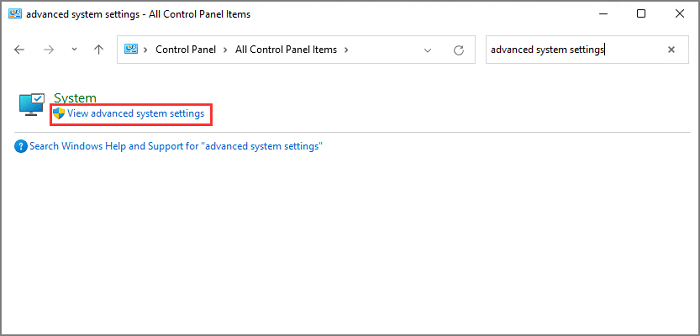
- Click on the Data Execution Protection tab.
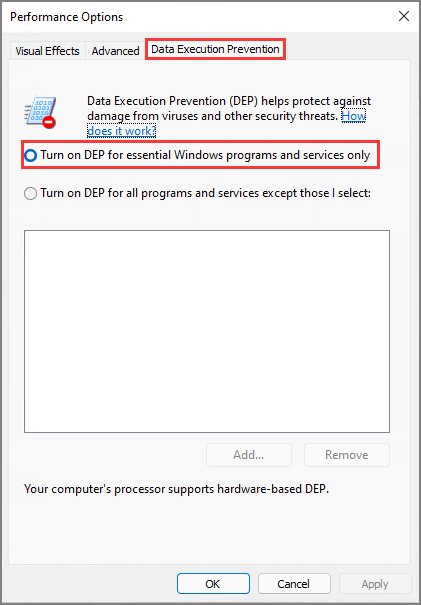
- Choose "Turn on DEP" for the programs other than those I select.
- The issue might be caused by the addition of files that are not compatible or are causing a conflict in the input files, resulting in the error.
- Click OK and reboot your PC.
- Run System File Checker (SFC)
- The System File Checker (SFC) is a tool that scans and replaces corrupted system files on your PC, helping to troubleshoot errors like 0xc000005. To run SFC, follow this simple guide.
- Input Command Prompt in your taskbar
- Select "Run as Administrator"
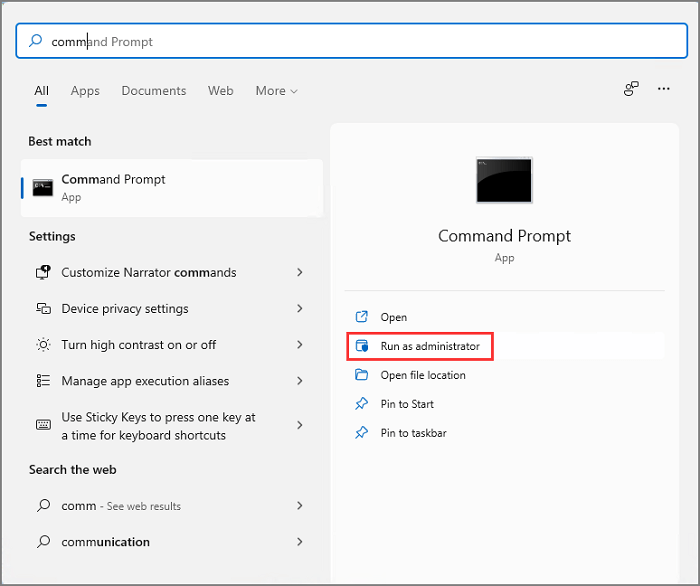
- Type "SFC /scannow" (take note of the space before "/" and the closed space after), then click enter.
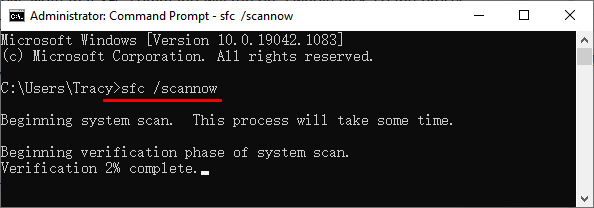
- Scanning automatically begins
- Once the scanning is completed, corrupt system files will be detected and replaced.
Final Thoughts
To prevent errors 0xc000005, install effective antivirus software, use disk monitoring systems, schedule CHKDSK scans, and run FAM diagnostics at intervals. This should eliminate the error from your PC.
Related Articles
- How to Install Operating System on SSD and Everything Else on HDD
- How to Perform Free Hard Drive Test or Diagnostic to Repair Disk Errors in Windows 10/8/7
- Complete Guide - How to Combine Two SSD Drives
- How to Fix External Hard Disk Slow to Respond in Windows 11/10/8/7
- Extend System Drive but Recovery Partition is in the Way Windows 11/10/8/7
To extend the system drive in Windows 11/10/8/7 or in a Virtual Machine or VMware, but with a recovery partition in the way, you can use a third-party tool like Qiling Partition Master instead of Disk Management. - How to Extend Windows Server Partition [Server Guide]
To extend a Windows partition, you can follow these steps: First, ensure there is unallocated space available on the disk. Then, open the Disk Management tool, right-click on the partition you want to extend and select “Extend Volume”.
Products
Articles & Tutorials
- Data Recovery
- Data Backup
- File Recovery
- File Backup
- System Backup and Restore
- Disk and Partition Clone
- Technical articles
- Mobile articles
- Disk Master Help
- Windows Data Recovery Tutorials
- Windows Secure Delete Tutorials
- Windows Partition Management Tutorials
- Windows File Backup and Restore Tutorials
- Windows System Backup and Restore Tutorials
- Windows Disk Backup and Restore Tutorials
- Windows Clone Tutorials