How to Install Operating System on SSD and Everything Else on HDD
HDD and SSD Overview
Storage devices have evolved significantly, and so has the operating system. To enhance the user experience, apps and games require faster writing and installation speeds, which is where Solid-State Drives (SSDs) come into play.
A Hard Disk Drive (HDD) is an outdated storage technology that lags behind modern Solid-State Drives (SSDs) in terms of speed. Despite being largely replaced, many PCs still use HDDs for their operating systems, leading to a slower overall experience due to the time-consuming process of fetching data and installing software.
If you're a gamer, you'll want a faster storage drive, such as an SSD, to enhance your gaming experience. An SSD will allow your games to launch, update, and load faster, making it ideal for resource-heavy games that require quick loading of graphics, resource files, and other elements. This can significantly improve your gaming experience by reducing wait times and allowing you to dive into your games more quickly.
Editing a video or downloading a large file requires a faster read-write speed, especially when rendering a video, as it can save more data in less time, making the process significantly faster, like going from an hour to just a few minutes. This is particularly helpful when needing to fix mistakes in the video.
Why Install OS on SSD and Keep Others on HDD
Installing an operating system (OS) on a Solid-State Drive (SSD) and other data on a Hard Disk Drive (HDD) makes sense because it optimizes performance and efficiency. The OS and frequently used applications on the SSD provide quick access and fast loading times, while the HDD stores less critical data, such as files and programs, that don't require the same level of responsiveness. This setup allows for a balance between performance and storage capacity, making it a practical choice for many users.
SSDs have their advantages and disadvantages, making it a user's decision whether to opt for a single SSD or a combination of both SSD and HDD.
Upgrading to SSDs is a pricey option, with a cost difference of at least 60-70% compared to traditional hard drives, making it hard to justify for every device. Additionally, SSDs have a shorter lifespan and will need to be replaced more frequently, which can add up in the long run. This makes it a less practical choice for everyday use.
Upgrading to an OS from a traditional HDD can greatly enhance your PC's performance, with faster boot times and quicker loading of apps. This means you can enjoy a smoother gaming experience, edit videos more efficiently, and have your PC ready to use almost instantly. Overall, the speed and performance benefits of an OS are significant.
Files that are not frequently accessed, such as photos, videos, and documents, can be stored on a Hard Disk Drive (HDD) due to their low resource requirements. This is why HDDs are commonly used in backup drives, offering a cost-effective and long-lasting solution with more storage space compared to Solid-State Drives (SSDs).
Installing the OS on an SSD provides the best balance, as it enhances system speed, backup, and storage, while also making it less susceptible to disk failure. For less frequently accessed files, such as backups and storage, a slower HDD is sufficient, as speed is not a priority in these cases. This dual approach allows for optimal system performance and reliability.
How to Migrate OS from HDD to SSD on Windows 10
It's often more convenient to stick with the existing storage setup, especially when switching from HDD to SSD, as it saves time and effort in reinstalling and reconfiguring everything.
Users who have installed their OS on an HDD and don't want to redownload and reinstall Windows on an SSD can use professional partition software, such as Qiling Partition Master, to directly migrate their OS from the HDD to the SSD.
Key features of Qiling Partition Master:
- Supported partitions with BitLocker
- Resize/extend/shrink/create/clone/format/delete partitions
- Merge partitions into a larger one without losing data.
- Convert MBR to GPT disk or vice versa
- Change between FAT32 and NTFS, Primary and Logical partitions
The software provides an easy-to-use interface and migration tools that allow users to clone everything from their HDD to an SSD, making the transfer process seamless and efficient.
Note: When migrating an operating system to an SSD or HDD, be aware that the process will erase existing partitions and data on the target disk if there's insufficient unallocated space. Make sure to back up any important data on the target disk to an external drive beforehand.
Step 1.To migrate your operating system to a new storage device, select "Migrate OS" from the top menu. Then, choose the SSD or HDD as the destination disk and click "Next" to proceed.
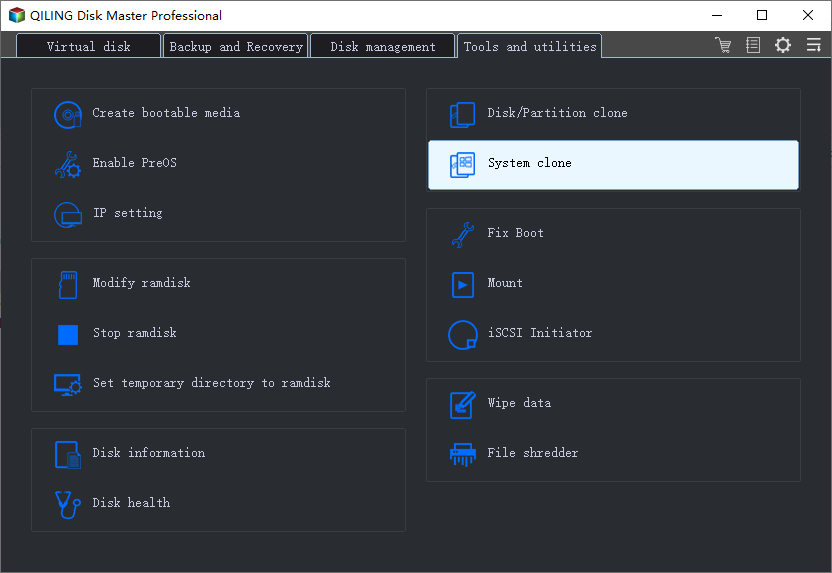
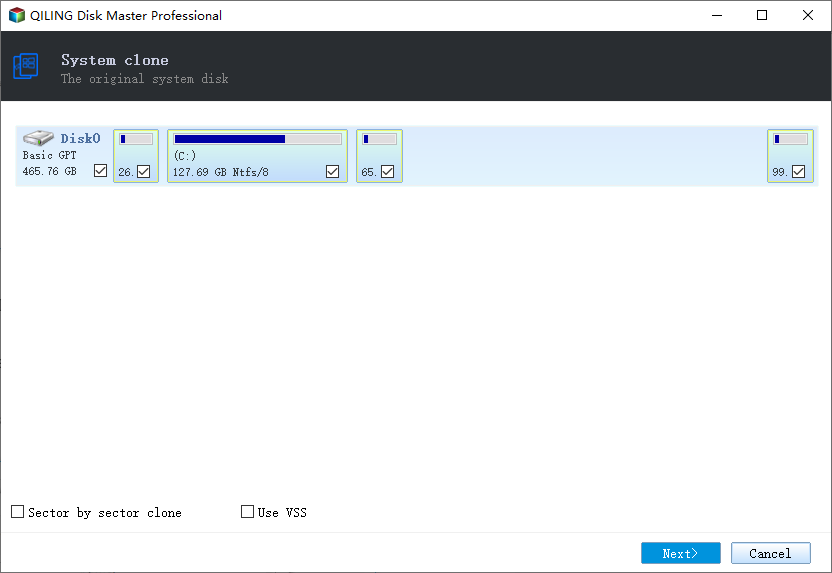
Step 2. The system partition will be selected automatically and the next step will be clicked.
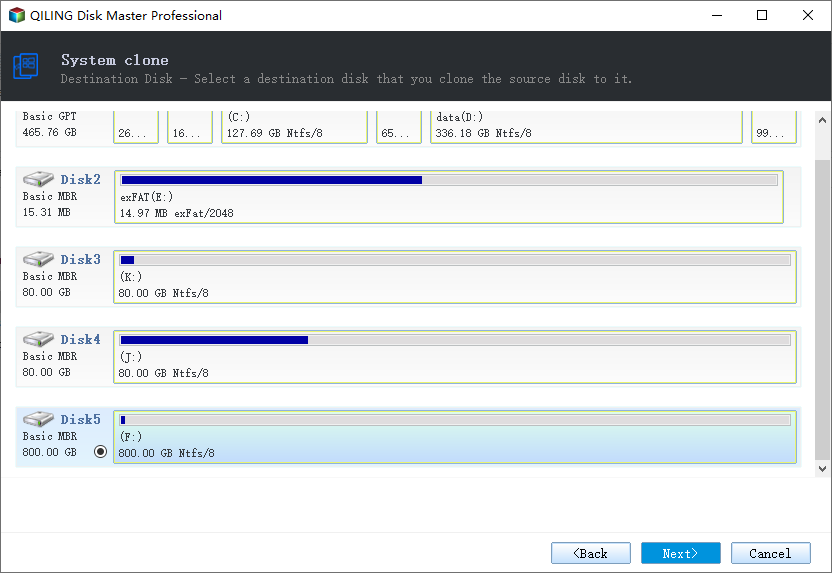
Step 3. Select the SSD or HDD as the destination disk and click "Next".
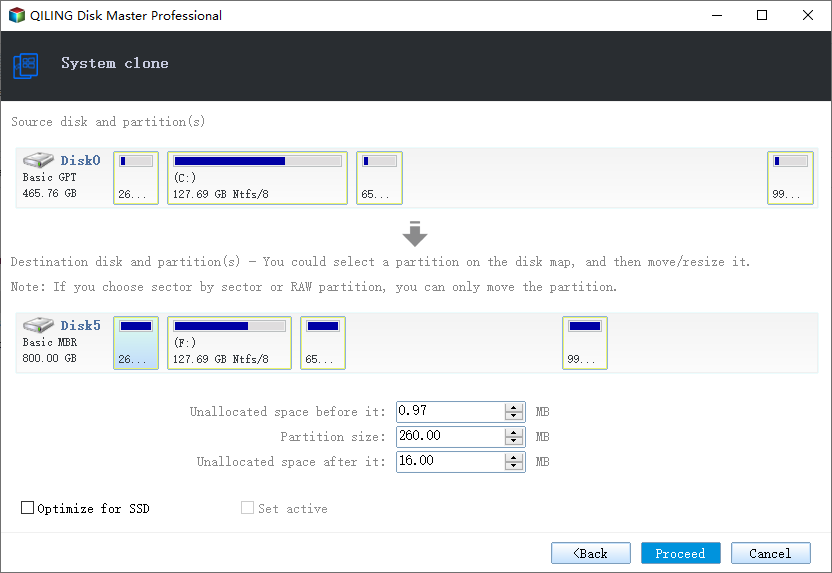
Step 4. Preview the layout of your target disk, and customize it as needed. Once satisfied, click "Proceed" to initiate the OS migration to the new disk.
Step 5. To proceed with the disk formatting, click "OK" after acknowledging the warning message. This will initiate the deletion of all data and partitions on the target disk, so make sure you have backed up any important data beforehand. If you haven't already, do so immediately.
Once you've cloned the HDD to the SSD, you can change the boot drive in the BIOS from HDD to SSD. Reboot, and you should be able to use the computer as before.
How to Migrate All Programs from SSD to HDD Without Reinstalling
Migrating everything to an SSD is only one part of the process; you also need to move what's not required to an SSD to a HDD to increase the SSD's lifespan. After migrating, use Qiling Disk Master to move applications from the SSD to the HDD in a few simple steps.
Qiling Disk Master is a PC migration software that allows users to transfer data, applications, and accounts between computers or to a new hard disk without reinstalling. The process ensures that all settings and configurations are carried over, eliminating the need to reinstall applications such as MS Office, Photoshop, and Adobe Software from scratch.
There are three transfer modes - via Network connection, local transfer, and transfer via image files - allowing for migration under any circumstances.
To move all programs from your HDD to your SSD using Qiling Disk Manager, follow these steps: First, ensure your system is set to boot from the SSD. Then, open Qiling Disk Manager and select the HDD and SSD drives.
Step 1. Connect new SSD or HDD to your PC and Run Qiling Disk Master
1. Connect the new SSD or HDD to your computer and initialize it to make the drive accessible.
2. On the main screen of Qiling Disk Master, click on the "System clone" option to proceed.
Step 2. Select apps, programs on the source disk and select SSD or HDD as target disk to transfer
1. On the source partition where you installed apps, select the desired programs (marked as "Yes") that you'd like to transfer to your SSD or HDD.
2. To move selected programs to a new SSD or HDD, click the triangle icon, select the destination, and click "Transfer".
Step 3. Wait for the transferring process to finish
When the process finishes, click "OK" to complete.
To transfer a program to a new SSD or HDD, you can copy the program's files to the new drive, then update the program's registry entries to point to the new location. You can do this by opening the Command Prompt as an administrator and using the `regedit` command to edit the registry.
Final Words
Installing a Solid State Drive (SSD) as your main storage device is a great way to improve your computer's performance. Unlike traditional Hard Disk Drives (HDDs), SSDs are much faster, making them ideal for storing your operating system, programs, and data. This can significantly boost your computer's speed and responsiveness, making it feel more like a high-performance machine.
If you're using both HDD and SSD, consider installing Windows on the SSD for improved system reliability. For older computers with HDD, consider reinstalling Windows on the SSD and using the HDD for backups. This setup can enhance overall performance and data security.
To migrate your operating system to an SSD, you can use the Qiling partition management tool. This tool allows you to easily manage your hard disk's partitions and is a must-have utility for quick, easy, and professional partition management.
Related Articles
- Master Boot Record of This Hard Drive Is Damaged | Fix MBR Windows 10/8/7/Vista/XP
- How to Format iXpand Flash Drive [SanDisk] in Windows 10/8/7
- How to Partition 1TB Hard Disk in Windows 11/10/8/7
- Easy Solutions to Fix "You cannot format this volume" on Windows 11/10
- Can I Format the System Partition? How to Fix System Partition is Not Allowed to Be Formatted
This article addresses an error message that appears when users attempt to format the system partition, which is not allowed to be formatted. If you're experiencing this issue, reading this article may help you resolve the problem. - How To Fix the Item Can Not Be Copied Because It Is Too Large for the Volume's Format on Mac and Windows 11/10
To fix the issue of being unable to copy files larger than 4GB on Mac and Windows 11/10 due to the volume's format, simply format the file system to NTFS or exFAT. This will resolve the problem and allow for seamless file transfer on USB or external hard drives.
Products
Articles & Tutorials
- Data Recovery
- Data Backup
- File Recovery
- File Backup
- System Backup and Restore
- Disk and Partition Clone
- Technical articles
- Mobile articles
- Disk Master Help
- Windows Data Recovery Tutorials
- Windows Secure Delete Tutorials
- Windows Partition Management Tutorials
- Windows File Backup and Restore Tutorials
- Windows System Backup and Restore Tutorials
- Windows Disk Backup and Restore Tutorials
- Windows Clone Tutorials