Fixed: Boot Drive Not Showing Up in BIOS | 2024 Best Tips🔥
If issues arise where the Windows boot drive is not showing up in BIOS, it can prevent booting up your Windows system. The BIOS is the firmware responsible for initiating your PC's operating system upon startup, and through it, you can configure boot priority in alignment with your preferences.
Qiling provides a comprehensive solution guide to help fix the issue, offering various strategies to efficiently resolve the problem.
How to Fix Boot Drive Not Showing Up In BIOS?
To fix the boot drive not showing up in BIOS, restart your computer to observe any improvements. If the issue vanishes, you're set. If not, learn the below methods.
- Method 1: Check Physical Connections
- Method 2: Repair MBR
- Method 3: Enable USB in BIOS
- Method 4: Restore BIOS to Default Settings
- Method 5: Check for Disk Errors
- Method 6: Replace Hard Disk
- Method 7: Hard Reset Computer

How to Fix BIOS Recognizes SSD But Won't Boot
If your BIOS recognizes your SSD but won't boot, don't worry - there are effective fixes and solutions to resolve this issue. Typically, the problem lies in the boot order or the SSD being set as a secondary drive.
Method 1: Check Physical Connections
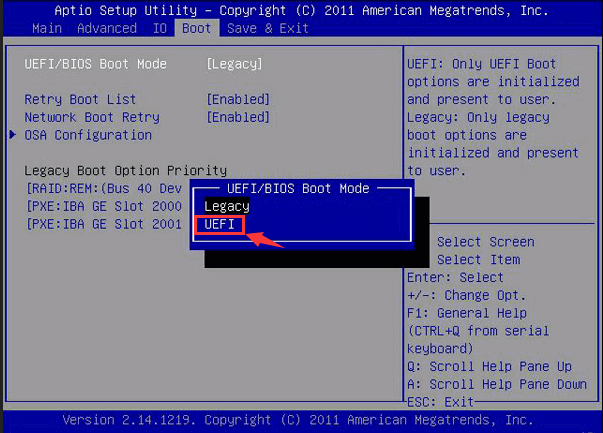
When a hard drive doesn't show up in the BIOS, it's often due to loose physical connections or corrupt USB ports. To troubleshoot, check the USB cables and ports, and try testing another USB port or changing a cable to ensure a proper boot drive connection.
Method 2: Repair MBR
A corrupted or misconfigured Master Boot Record (MBR) could be the cause of the issue. Qiling Disk Master has a feature that allows you to rebuild the MBR, which can resolve the problem and make the boot drive visible again. This method is effective in fixing MBR-related issues.
Follow the steps to rebuild MBR:
Step 1. Create a WinPE bootable disk
- Launch Qiling Disk Master, click on the "Tools" tab, and select the option to create bootable media.
- Click "Next" to finish the process.

Step 2. Boot Qiling Disk Master Bootable USB
- Connect the bootable USB or CD/DVD to your PC.
- To access the BIOS screen, press F2 or Del when restarting the computer. This will allow you to set the computer to boot from a removable device or CD-ROM drive, and Qiling Disk Master will run automatically upon booting.
Step 3. Rebuild MBR
- Right-click the disk and choose "Advanced" -> "Rebuild MBR".

- Select the disk you want to repair and choose the type of Master Boot Record (MBR) you want to rebuild, then click "Rebuild".

- The message "MBR has been successfully rebuilt on Disk X" indicates that the Master Boot Record (MBR) of Disk X has been successfully rebuilt, which is a crucial step in repairing a corrupted or damaged disk. This process typically involves scanning the disk for errors, identifying and correcting any issues, and then rebuilding the MBR to ensure the disk can be properly recognized and accessed by the operating system.
Qiling Disk Master is a product with excellent compatibility that can fix various errors requiring MBR repair, including MBR errors and other situations.
- System cannot find any bootable devices
- The computer has rebooted from a bugcheck
- Default Boot Device Missing or Boot Failed
If you're experiencing issues with a product, you can try seeking help from the product itself. Many products offer customer support features, such as chatbots or FAQs, that can help you troubleshoot problems and find solutions. You can also check the product's documentation or user manual for troubleshooting tips and guides.
Method 3: Enable USB in BIOS
If your motherboard is turning off unused USB ports in BIOS, it may cause the error "Windows boot drive not showing up in BIOS." To resolve this, you can enable USB in BIOS by following these steps.
Step 1. To quickly enter the setup utility on your PC, press the hotkey associated with it. This is usually done by pressing F2, F12, or Del, depending on your computer model.
Note: Hotkeys can vary depending on your PC's model, and may include F1, F2, F10, F12, Del, or Esc. To find the exact BIOS entry key for your computer, look for on-screen prompts or check your device's manual.
Step 2. Once you're into the BIOS, go to "Advanced."
Step 3. Move to Onboard Devices/Integrated Peripherals and hit the "Enter" button to continue.
Step 4. To enable the USB controller, select "USB Controller" and press the key to change the setting to "Enabled".
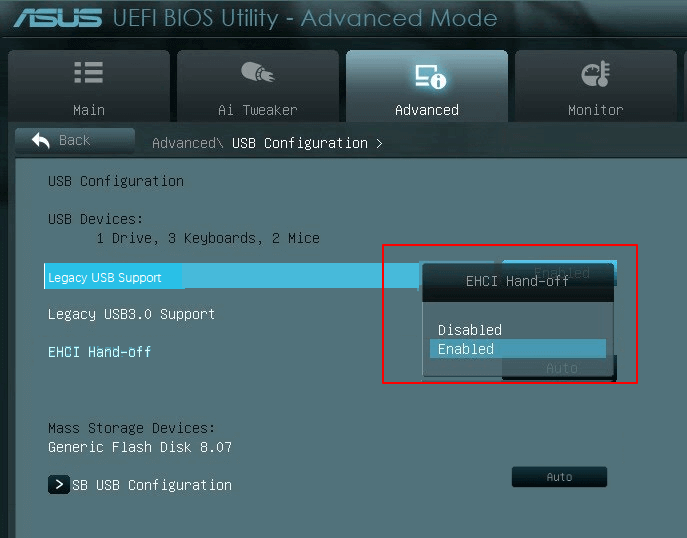
Step 5. To resolve the issue, press the F10 key to save any pending modifications, and then restart the system. This will allow you to verify if the problem has been resolved.
Read Also: Format Hard Drive from BIOS Windows 10
Method 4: Restore BIOS to Default Settings
To restore the BIOS to its default settings, follow these steps:
Step 1. Enter your PC's BIOS settings.
Step 2. Locate the option that corresponds to restoring "Setup Defaults" and press Enter to navigate to the Setup Confirmation window.
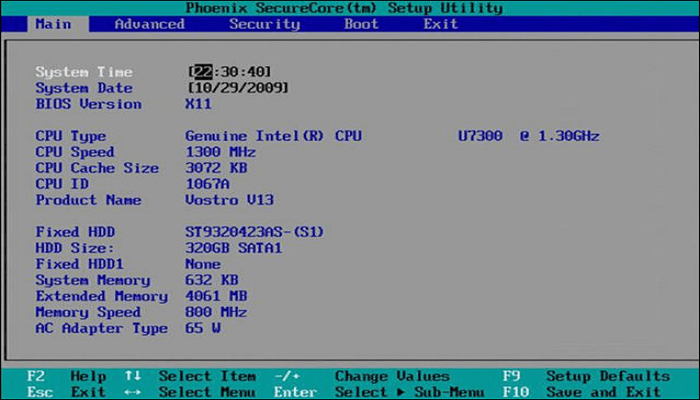
Step 3. Select "Yes" to confirm in the Setup Confirmation window.
Step 4. The BIOS will then be updated with the new version, and your PC will be restarted. Once it boots up successfully, the update is complete.
Method 5: Check for Disk Errors
Qiling Disk Master offers a solution to the "boot drive not showing up in BIOS" issue by utilizing its file system error check feature. This feature identifies and repairs file system errors that can cause the problem, bringing the system back to normal functionality.
Follow the operational steps below:
Step 1. Right-click the target partition that has a problem.
Step 2. Choose "Advanced" > "Check File System".
Step 3. Confirm if you want to hide the partition or not.
Step 4. In the Check File System window, select the "Fix the error on the disk" option.
Step 5. Click "Start" to check errors on your partition.
Qiling Disk Master is a top-notch hard drive repair tool that can even repair Windows 10 from a USB drive with a simple and easy-to-follow guide. For more details, click the provided buttons.
Method 6: Replace Hard Disk
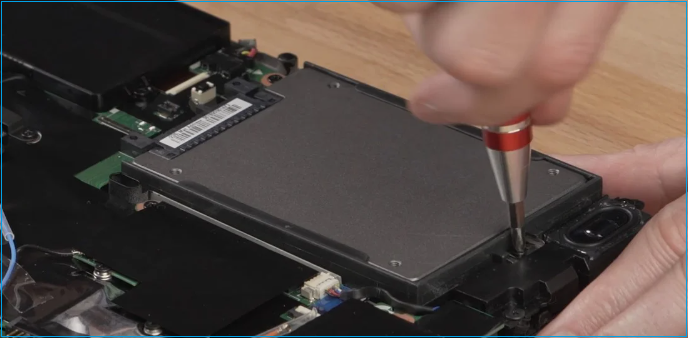
If the issue of "boot drive not showing up in BIOS" remains a mystery after trying the previous methods, it may indicate a deeper problem, such as physical damage to the boot drive. In this case, the solution would be to replace the boot drive with a new SSD or HDD to restore the system to its normal functioning state.
How to Replace Hard Drive in Dell Laptop [Step-by-Step]
This guide provides a step-by-step process for replacing a hard drive in a Dell laptop, as well as the best cloning solution to transfer data, allowing you to seamlessly move your files to a new drive.
Method 7: Hard Reset Computer
To resolve the issue of the boot drive not showing up in BIOS, you can hard reset the computer, but this will erase all data and settings. To avoid data loss, back up your data using the Qiling Disk Master Tech tool, which allows for easy data backup with just a few clicks.
If your disk drive is not detected in BIOS, a hard reset may help refresh the hardware connection. Follow the steps below to try it safely.
Step 1. Unplug your computer from the power source to shut it down completely.
Step 2. Press and hold the power button for about 20 seconds to discharge any remaining electrical charge in the system.
Step 3. Reconnect the power and start your PC.
Step 4. When started, choose the "Start Windows normally" option.
Why Boot Drive Not Showing Up In BIOS?
Your drive may not show up in BIOS due to various factors, and it's essential to understand the root causes to proactively manage the issue. Common reasons behind this error include outdated BIOS, incorrect drive configuration, faulty drive connections, loose or damaged drive cables, and issues with the drive itself, such as hardware failures or software problems. By identifying and addressing these potential causes, you can take necessary measures to resolve the issue and ensure your drive is recognized by the BIOS.
- Incorrect Cable and Port Connections: Loose cables or faulty USB ports can make your boot drive invisible.
- Incorrect BIOS Settings: Misconfigured BIOS settings can cause the boot drive to become undetectable.
- MBR (Master Boot Record) Corruption: If the MBR is corrupted, your boot drive might disappear.
- Bad Sectors on Hard Disk: Hard disks with bad sectors can cause boot drive visibility issues, making it crucial to detect and repair these sectors to ensure proper functioning.
- USB Not Enabled in BIOS: To resolve the issue of USB ports automatically turning off when not in use, enabling the USB ports can be a solution. This can be done by following the system's settings or BIOS configuration to allow the ports to remain active even when not in use. This can help prevent the ports from being disabled and ensure they are always available for use.
We hope your problem is indeed solved at this stage. Please share this guide with others so that they can also brighten the path to solving this issue.
Conclusion
The frustration of a "boot drive not appearing in BIOS" is undeniable, requiring a significant amount of time to find the reasons and solutions. However, this article aims to help by tracing the potential causes and providing the proper solutions to get relief from this challenge.
The Qiling Disk Master offers advanced functionalities to efficiently solve system issues. It features MBR repair and file system error checks to restore system functionality, making it a valuable tool to have. By downloading and installing the Qiling Disk Master, you can take advantage of its multiple features and get your system up and running smoothly.
FAQs About Boot Drive Not Showing Up In BIOS
If you're still having trouble with your boot drive not showing up in BIOS, here's a quick summary: The boot drive not showing up in BIOS is usually caused by an issue with the drive itself, such as a faulty drive, incorrect drive settings, or a corrupted boot configuration. Check if the drive is properly connected and powered on, and ensure that the BIOS is set to recognize the drive.
1. How to fix BIOS not detecting hard drive?
If your BIOS fails to detect your hard drive, you can try to fix it by checking the SATA port and cable connections, ensuring they are securely plugged in. You can also try booting from a different drive or using a different SATA port.
- Verify that the drive is connected correctly.
- Check SATA/IDE cable and power connections.
- Reboot your system and enter BIOS settings.
- If your external hard drive is not showing up in BIOS, look for the drive in the BIOS, and if missing, move to the "Hard Drive Not Showing Up in BIOS" methods mentioned earlier.
2. Why SSD not showing up in BIOS?
If your SSD is not showing up in BIOS, it may be due to a range of possible causes, including improper connections, compatibility issues, outdated BIOS, or outdated SSD firmware.
3. How to enable my hard drive in BIOS?
To enable a hard drive in BIOS, follow these steps:
- Restart your computer and enter BIOS settings.
- Navigate to the "Advanced" tab.
- Navigate to Onboard Devices/Integrated Peripherals.
- To enable the USB controller, select "USB Controller" and change the setting to "Enabled" using the appropriate key press, then press F10 to save and restart the system.
Related Articles
- Featured Partition Magic for Windows Server Free Download 2024
- Windows 10 Not Accepting Password? 7 Quick Solutions
- Windows 11 Home VS Pro, Which Is Better? Your Tips Are Here
- How to Format SD Card on Windows 11? Here Are 4 Ways for You in 2024
- Would Installing an SSD into a Computer Make It Faster
Would installing an SSD into a computer make it faster? The answer is yes. This short page focuses on this issue and explains how SSDs help with computer performance. - How Can I Write a USB Drive Formatted as EXT4 in Windows 11?
On this page, you will learn the detailed answer and steps of how to write to a USB drive formatted as ext4 in Windows 11. And you will also get one of the best tools to help you with the formatting operation.
Products
Articles & Tutorials
- Data Recovery
- Data Backup
- File Recovery
- File Backup
- System Backup and Restore
- Disk and Partition Clone
- Technical articles
- Mobile articles
- Disk Master Help
- Windows Data Recovery Tutorials
- Windows Secure Delete Tutorials
- Windows Partition Management Tutorials
- Windows File Backup and Restore Tutorials
- Windows System Backup and Restore Tutorials
- Windows Disk Backup and Restore Tutorials
- Windows Clone Tutorials