How Do I Format SD Card for Galaxy S7/S5? 2024 Step-by-Step Tutorial
If you have a Galaxy S7 or S5 and plan to use an existing SD card, you may need to format it to bring it under your personal use.
Remember that formatting clears up all the data, so back up the content, as you don't want it to be accidentally deleted.
In this article, you'll learn:
- Why Need to Format an SD Card for Galaxy S7/S5?
- What Format Should My SD Card Be for Galaxy S7/S5?
- How Do I Format an SD Card for Galaxy S7/S5?
Formatting an SD card for your Galaxy S7/S5 can be done quickly and easily. To do this, you will need to access the Settings menu on your device, then select the "Storage" option.

Why Need to Format an SD Card for Galaxy S7/S5?
You might need to format an SD card on Galaxy S7 or Galaxy S5 if it becomes corrupted or if you're trying to fix issues with it, such as not being able to access or transfer files. Formatting the SD card will erase all data on it, so make sure to back up any important files before proceeding.
- To set up the SD card as an internal storage, follow these steps: Insert the SD card into the SD card slot on your device. Go to Settings > Storage > SD card > Settings.
- To set up the SD card as portable storage, you can follow these steps: 1. Insert the SD card into your computer's SD card reader or a USB adapter.
- To make an SD card readable and writable on a Galaxy S7 or S5, you can follow these steps: Ensure the SD card is properly inserted into the phone's SD card slot. Go to Settings > Storage > SD card, and check if the card is recognized.
- A quick cleanup of the SD card is required
- To format the SD card, you can follow these steps:
- You need extra storage space so that you can store more files.
What Format Should My SD Card Be for Galaxy S7/S5?
To use your SD Card on a Samsung Galaxy S7/S5, it should be formatted in exFAT, which allows files larger than 4 GB, or FAT32, which is compatible with all platforms but has the 4 GB file size limit.
NTFS is not supported by Android, and while other formats like ext4 may work depending on the ROM, exFAT is the most compatible format for use with Android.
To learn more details, follow this link:
When properly formatted, the SD card can be used to save files, applications, and other data which can be easily accessed from your phone.
How Do I Format an SD Card for Galaxy S7/S5?
Here are the methods to format SD cards for Galaxy S7/S5:
- #1. Format SD Card with SD Card Formatter Software
- #2. Format SD Card Using Windows Formatting Tool - File Explorer
- #3. Format SD Card Using Galaxy S7 or Galaxy S5
If you're planning to sell, trade-in, or recycle your phone, make sure to back up your data, including contacts, photos, and other important files. This will ensure that you don't lose any valuable content when you remove the SD card.
To format an SD card for Galaxy S7/S5, follow the respective guide. First, insert the SD card into your Galaxy S7/S5, then go to Settings > Storage > SD card > Format SD card.
#1. Format SD Card for Galaxy S7/S5 Using SD Card Formatter
The most suitable way to format an SD Card for beginners is by using a reliable third-party solution, such as Qiling Disk Master Free, which automates the process without requiring manual work.
The SD Card Formatter has several fantastic features, including the ability to format SD, SDHC, and SDXC memory cards, as well as support for exFAT, FAT32, and FAT file systems. It also has a user-friendly interface and is compatible with Windows, Mac, and Linux operating systems.
- It is an all-in-one software designed for individual users.
- It efficiently formats disks or wipes partitions.
- There is an Undo button to prevent accidental deletion.
- It easily formats big SD cards to FAT32, such as formatting a 128GB SD card to FAT32.
- It supports multiple storage devices and operating systems.
Download Qiling Disk Master Free to format your SD card in just a few clicks, making it easy to reuse and recycle your storage devices.
Step 1. To format an SD card, locate the card and right-click on the partition you want to format, then select the "Format" option.
Step 2. Set a new partition label, file system, and cluster size to the selected partition.
Step 3. Click the "Proceed" button to start formatting your SD card.
Step 4. Click "Yes" on the pop-up window to continue.
#2. Format SD Card for Galaxy S7/S5 with File Explorer
To format your Galaxy S7/S5 SD Card with File Explorer, you should follow these steps:
Step 1. To access your SD card, connect it to your computer, then navigate to File Explorer and click on 'This PC' on the left-hand side of the screen. This will allow you to view and interact with the contents of your SD card.
Step 2. You will see your SD card listed as a device.
Step 3. Right-click on it, then choose 'Format'.
Step 4. In the new window, you can choose your desired file system, either NTFS or FAT32 for 32GB SD cards, or exFAT for 64GB SD cards.
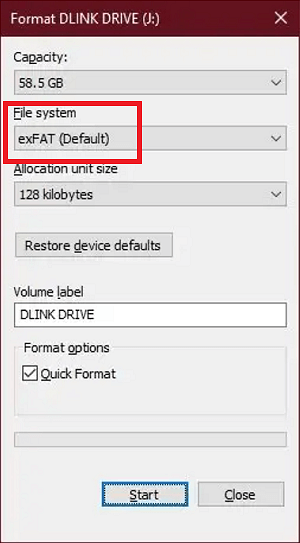
Step 5. To start the formatting process, click the 'Start' button. This will initiate the formatting of your SD Card, which should take only a few seconds to complete.
#3. Format SD Card on Samsung Galaxy S7/S5
To format your SD card in Samsung Galaxy S7/S5, follow these steps. If you want to use the SD card as internal storage, go to Settings, then Storage, and select the SD card. Tap on the three dots at the top right corner, and select "Format as internal storage.
Guide 1: Format SD Card as Internal Storage on Galaxy S7/S5
Internal Storage is the storage found within the smartphone system, where the operating system and pre-installed applications with their data are installed by manufacturers.
Android phones have an added feature that allows you to expand your phone's internal storage using an SD card.
The option to format an SD card as internal storage is available on Android devices running Marshmallow (6.0) and earlier versions, but is not available on newer versions such as Android 10.
To format your SD Card as internal storage, you'll need to follow these steps: First, go to Settings on your device, then select Storage & USB options. Next, choose the SD Card you want to format and select the "Format as internal" option.
Step 1. Go to your device's Settings and choose 'Storage.'
Step 2. Select your SD Card.
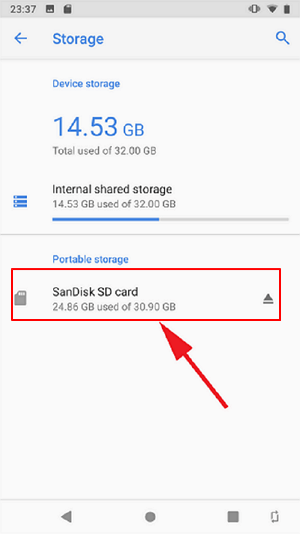
Step 3. Now select 'Format as internal.'
Step 4. To erase and format your SD card, click on the "Erase & Format" option. This will reformat the SD card as internal storage, effectively making it a part of your device's internal storage.
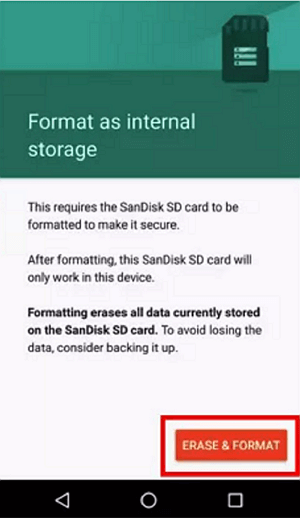
Restart your Samsung device for a successful result.
Guide 2: Format SD Card as Portable Storage on Galaxy S7/S5
Formatting an SD card allows it to be used as portable storage for data transfer and media storage, such as photos, videos, and music.
To format your SD card as portable storage, insert it into your computer or a card reader, open the disk management tool, select the SD card, and choose the option to format it as a portable storage device. This will erase all data on the card, so make sure to back up any important files before proceeding.
Step 1. To format your Samsung SD card as a portable storage device, go to your phone's Storage settings, select the SD card, and choose the option to 'Format as Portable Storage.' This will erase all data on the card and reset it to its factory settings, allowing you to use it as a portable storage device for other devices.
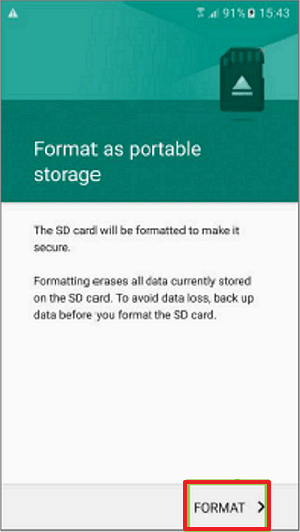
Step 2. Tap 'Done.'
Final Verdict
Formatting an SD card on your Galaxy S7/S5 requires careful consideration, as it will erase all existing data. Before proceeding, it's essential to backup SD card to prevent losing valuable files. Once backed up, you can format the SD card using various methods, which we have detailed in this article to ensure a smooth process.
To easily format an SD card, download Qiling Disk Master, which supports formatting large SD cards to FAT32 and converting between NTFS and FAT32 without formatting.
FAQs about Formatting SD Card on Galaxy S7/S5
If you're looking for more information on formatting SD cards or have questions, check out our FAQs for answers.
1. Why can't I format my SD card on Samsung?
Here are some reasons which are preventing you from formatting your SD Card on Samsung:
- The SD card is physically damaged
- Another program is using it
- Virus has infected the card.
- There are bad sectors on the Samsung SD card
- The SD card is write protected
- The Samsung SD card has turned into a RAW file system.
2. Are there any tips for safely using an SD card on Galaxy S7/S5?
Be careful not to insert the SD card incorrectly, as this can damage the card or the phone. Make sure the card is fully inserted and the tray is closed securely.
- Moving frequently used apps to your SD card can slow them down due to the SD card's slightly slower speed compared to your Android's built-in storage. This can cause apps to take longer to open.
- Never take the Samsung SD card out without ejecting it.
- To avoid losing important files, back up your files to Google Drive or Microsoft OneDrive before formatting your SD card. This will ensure that your data is safely stored and can be easily accessed later.
3. What format should an SD card be for Samsung phones?
The FAT32 file system is the most compatible format for Samsung devices, as not all Android devices can recognize exFAT or NTFS formatted SD cards.
Related Articles
- How to Check Seagate SSD Temperature on Windows 10/11
- How to Convert a Dynamic Disk to Basic Windows Server
- How to Install Windows 10 from USB Drive [Step-by-Step]
- PS4 Storage Full? Learn How to Get More Storage on PS4
- Qiling Disk Master Full Version Free Download with Serial Code/Key
Qiling Disk Master got promoted into a new version 7.2 and it's available for you with newly added features now. You can free download Qiling Disk Master full version with serial code or key to managing partitions with ease now. - Quick Format VS Full Format, Which Should I Use? Check The Answer Here
If you're unsure whether to use Quick Format or Full Format, this guide provides a clear explanation of the two methods and their differences.
Products
Articles & Tutorials
- Data Recovery
- Data Backup
- File Recovery
- File Backup
- System Backup and Restore
- Disk and Partition Clone
- Technical articles
- Mobile articles
- Disk Master Help
- Windows Data Recovery Tutorials
- Windows Secure Delete Tutorials
- Windows Partition Management Tutorials
- Windows File Backup and Restore Tutorials
- Windows System Backup and Restore Tutorials
- Windows Disk Backup and Restore Tutorials
- Windows Clone Tutorials