How to Fix Disk Management Console Is Not Up to Date Error [7 Effictive & Quick Methods]
If you're experiencing the "Disk Management console view is not up-to-date" issue when assigning a drive letter or formatting a partition, this article can help you resolve the problem. It provides seven ways to fix the error without causing any damage to your data.
Why Does the "Disk Management Console Is Not Up to Date" Error Occur
Disk Management is a built-The Windows Disk Management utility is a program that allows users to maintain partitions and drives on their system. It is well-optimized for Windows systems, making it easy to perform tasks such as formatting partitions, assigning drive letters, and viewing partition properties. However, users may still encounter errors, such as the "disk management console is not up to date" error, when using the utility.
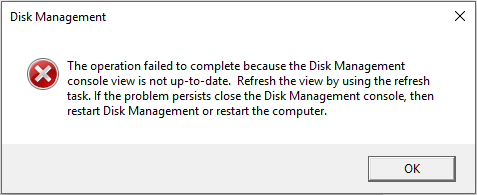
Why does this error occur? Usually because:
- Outdated disk driver
- Power loss or system crash
- The partition does not have a drive letter
- Partition corruption caused by viruses or wrong operation
The system prompts the user to close the Disk Management console and then restart it or reboot the computer to resolve the error, but this solution often fails to work.
To fix the Disk Management console is not up to date error, you can try updating the Disk Management console by running the command "winmgmt /bootperf /t:boot" in the Command Prompt as an administrator. This command will update the Disk Management console and resolve the error. You can also try restarting the Windows Server service, which may also resolve the issue.
You may also like the following:
How to Fix Disk Management Console Is Not Up to Date Error
To resolve the error, you can try refreshing the view using the refresh task, although this often doesn't work. If that fails, you can try one of five alternative fixes. These include.
- Fix 1. Assign a Drive Letter
- Fix 2. Recover the Partition
- Fix 3. Delete the Partition and Create a New Partition
- Fix 4. Uninstall Inaccessible Partition
- Fix 5. Check if Automount Is Enabled
- Fix 6. Run System File Checker
- Fix 7. Update the Disk Driver
To resolve the error, you can try the suggested utilities one by one until the issue is eliminated. Starting with the first option, Qiling Disk Master Professional, a utility tool that can help perform the necessary steps to remove the error. Its features can be learned about further.
Features of Qiling Disk Master:
- Change drive letter
- Easy and safe Windows 11 upgrade
- Clone system or hard drive to upgrade disks
- Convert MBR to GPT for Windows 11 upgrade
- Resize/Extend the partition to solve the "C drive full" error
- Delete/create partitions on USB drive or other external hard drives
Fix 1. Assign a Drive Letter
If Disk Management shows "The operation failed to complete because Disk Management console is not up to date," you can assign a new drive letter to the partition using a professional tool like Qiling Disk Master, which allows you to assign or change a drive letter with simple steps.
Step 1. Run Qiling Disk Master, right-click the target partition, and select "Change Drive Letter" from the context menu.
Step 2. To assign a drive letter to the new partition, click on the down arrow next to the "Drive" field and select a drive letter from the drop-down menu. This will assign the selected drive letter to the new partition.
Step 3. To change the drive letter of the selected partition, you can use the disk management tool in Windows. After waiting for a while, the drive letter of the selected partition will be updated.
You can change a drive letter in several ways, but it may not be the most straightforward process. While you can change a drive letter using Disk Management, you may encounter issues such as.
You can use Qiling Disk Master to assign a new drive letter and avoid problems such as drive letter conflicts and disk errors.
Fix 2. Recover the Lost Partition
A virus attack or misuse may corrupt the partition table, rendering the partition inaccessible. To recover the partition, Qiling Disk Master can be used to rebuild the partition table and recover data. This tool can be downloaded to assist in the recovery process.
Step 1. Open Qiling Disk Master and click "Partition Recovery". Select the target disk with your lost partition and click "Scan".
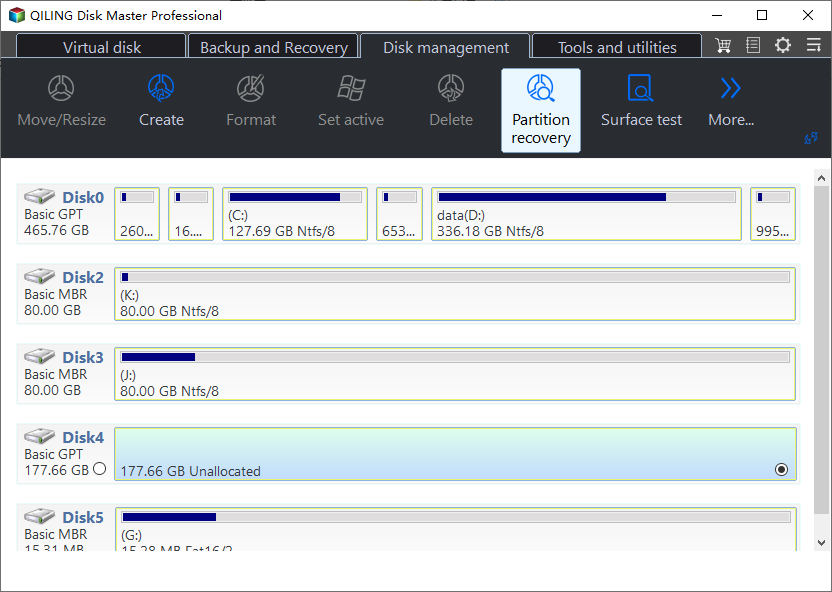
Step 2. Wait patiently for the software to execute a "Quick Scan" and "Full Scan" operation. It will mark the deleted partition as "lost" in the Status section. Select the lost partition and click "Recover".
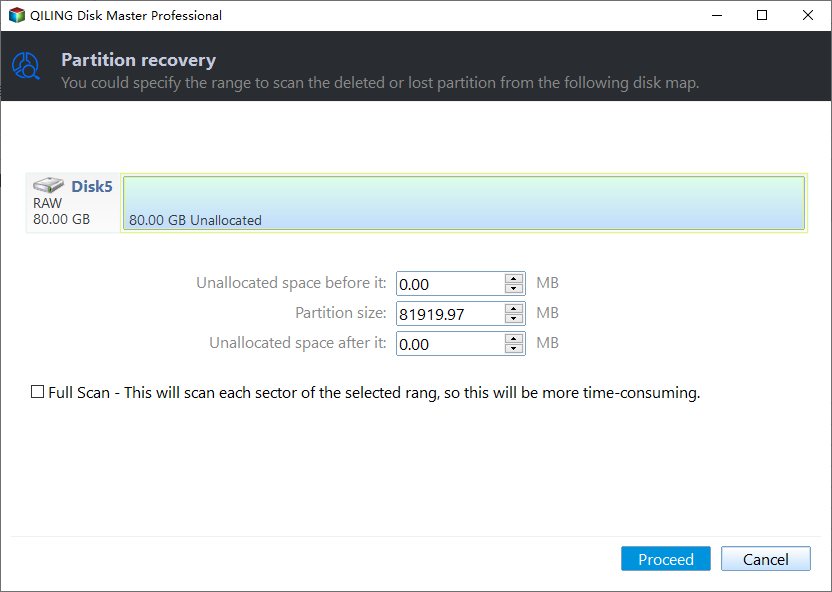
Double-click on the partition you're looking for to preview its content, and then click "Recover" to confirm.
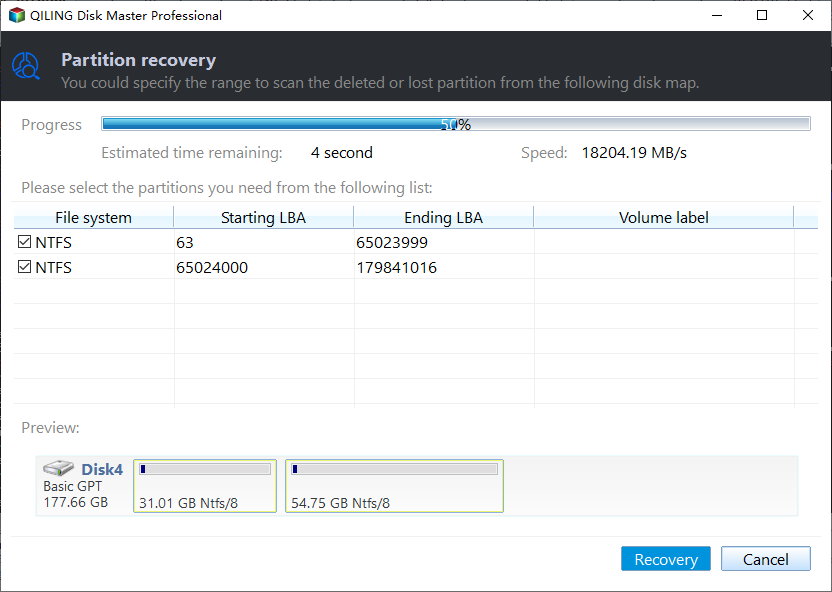
Step 3. Wait patiently and the partition recovery process completes.
Qiling Disk Master can help recover lost partitions.
Fix 3. Delete the Partition and Create a New Partition - Without Data Loss
If your partition is inaccessible due to an outdated Disk Management console, you can try deleting it and creating a new partition. Qiling Disk Master, a professional disk manager, can assist you with deleting and creating new partitions. You can download it and try it out.
Guide 1. Delete the Partition
Step 1. Launch Qiling Disk Master, and click "Partition Manager".
Before deleting any partition on your disk, make sure to back up the important data to prevent loss.
Step 2. You are given the option to delete a specific partition or delete all partitions on your hard drive. This means you can choose to remove just one partition, such as the one containing your operating system, or you can opt to erase all partitions, effectively wiping the entire hard drive clean.
- Delete single partition: Right-click on a partition you want to delete and select "Delete".
- Delete all partitions: To delete all partitions from a hard drive, right-click on the drive you want to modify and select "Delete All" from the context menu. This will remove all existing partitions, making the drive empty and ready for new partitions to be created.
Step 3. Click "Yes" to confirm the deletion.
Step 4. Click "Execute xx Task" and then "Apply" to save the change.
0:00 - 0:26 Delete single volumes; 0:27 - 0:53 Delete all partitions.
- Notice:
- After deleting the partition, you need to use Deep Data Recovery to recover your important data to avoid unnecessary data loss.
Guide 2. Create a New Partition
Now, the partition has become an unallocated space. Then, follow the video below to create a new partition based on it.
Fix 4. Uninstall the Partition
To resolve the "Disk Management console view is not up to date" error when creating a new partition or after finishing creating a partition, try uninstalling the partition and follow the guide to remove the error.
Step 1. To launch Device Manager, type the command "devmgmt.msc" in the Search box.
Step 2. In the Device Manager window, look for unknown devices. If you can't find the device, click View and select "Show hidden devices" to display any devices that are not currently being used.
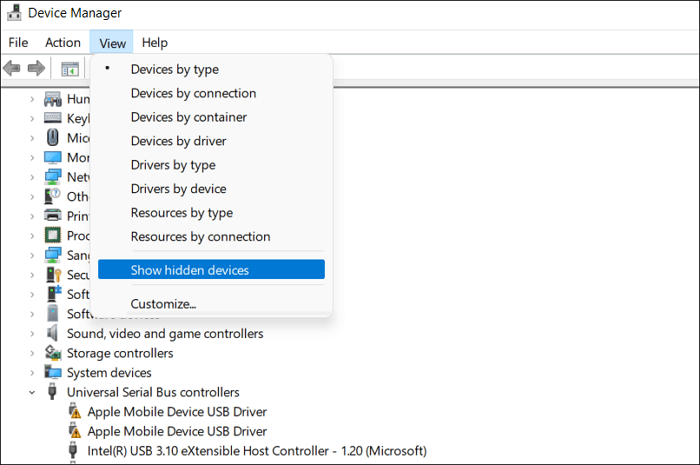
If you still can't find an unknown device after two attempts, look for the "Storage Volumes" and expand it, or look for "Other devices" and expand it.
Step 3. Right-click your unknown device, choose "Uninstall," and confirm your operation.
Step 4. If your computer prompts you to restart, do so and then you'll be able to access the partition.
Fix 5. Check if Automount Is Enabled
Automount is a service that is used to mount each new disc. If it is disabled, you will not see the attached discs in File Explorer or My Computer. Follow the fix to remove this error.
Step 1. Right-click the Windows icon and select the "Run" option.
Step 2. Type cmd to open the Command Prompt. Press Enter every time you put in a command:
- diskpart
- automount
- automount enable
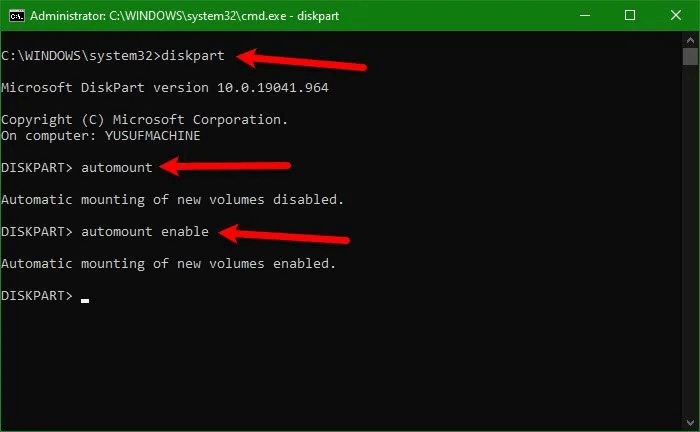
In this way, you can enable the automount.
Fix 6. Run System File Checker
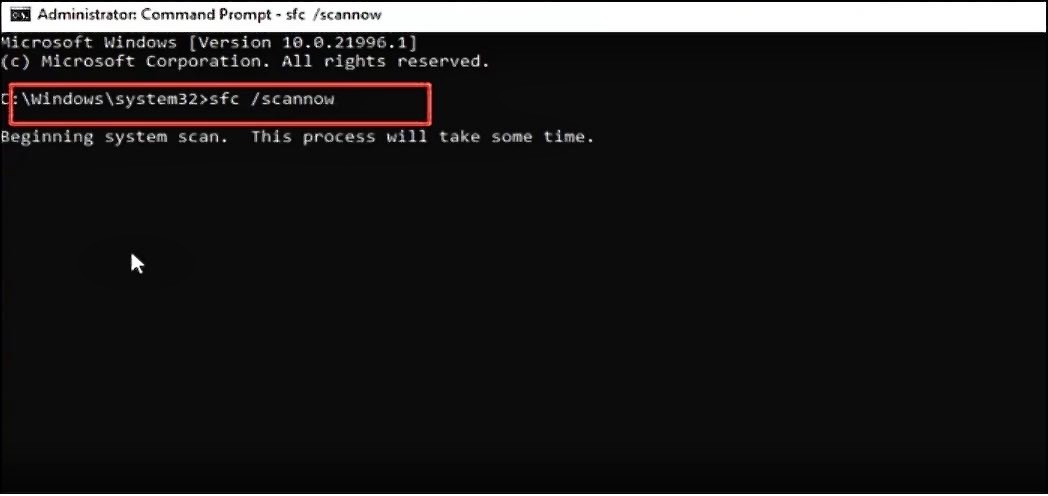
If none of the methods above work, your file system may get corrupted, so run the commands to check the error.
Step 1. To open Command Prompt, press the Windows key, type 'cmd' in the search box, and press Enter.
Step 2. Choose Command Prompt and run as administrator.
Step 3. Type the command and hit Enter:
sfc /scannow
Fix 7. Update the Disk Driver
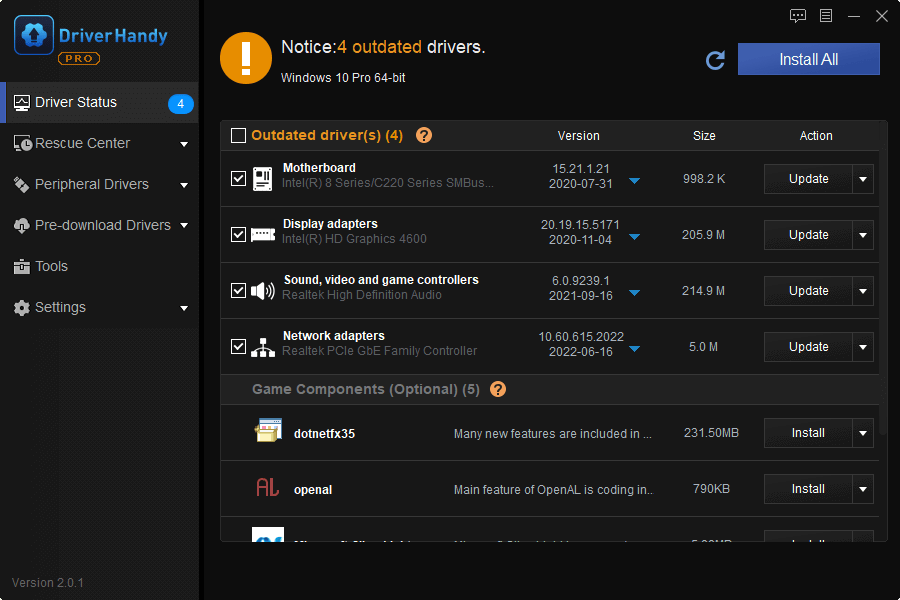
An outdated driver may also cause this error message, so updating the disk drive and trying to remove the error is necessary. To do this, you can use a tool like Qiling DriverHandy, which is easy to use.
Follow the steps to remove this error:
Step 1. Launch Qiling DriverHandy and click "Scan."
Step 2. Locate your disk driver and update it.
Conclusion
You may encounter the "Disk Management console is not up to date" error when trying to access a partition. This issue can be resolved using one of seven methods, with Qiling Disk Master being a helpful alternative to the Disk Management console and Diskpart commands that can help avoid common errors.
By the way, the following part shows some frequently asked questions. If you are interested, continue to read.
Fix Disk Management Console Is Not Up to Date Error FAQs
Do you know how you can fix the Disk Management console is not up to date error now? If you still get other questions, this part may help you.
1. How do I fix the Disk Management console view is not up to date?
If your computer is unresponsive, try restarting it. If that doesn't work, you can use Qiling Disk Master to assign a new drive letter, recover the partition, and create a new partition after deleting the old one.
2. How do you fix Diskpart has referenced an object which is not up to date?
To check if there's a problem with your Diskpart, you can scan it. Simply follow these steps: 1. Open Diskpart, 2.
Step 1. Press "Windows + X" simultaneously, choose "Search", type "cmd", and run it as administrator.
Step 2. Type in "sfc /scannow" in the Command Prompt and press Enter.
Step 3. The errors in your Diskpart will be noted in the window.
3. How do I fix the Disk Management error?
If you're encountering Disk Management errors, there are several potential causes. To resolve the issue, you can try various methods such as checking for disk errors, running a disk check, updating your operating system and drivers, and restarting your computer. Additionally, you can also try running a System File Checker (SFC) scan, checking for malware, and running a disk cleanup to free up space.
- Update Your Device
- Fix or replace the corrupted system files
- Configure the Windows service settings
- Check the hardware devices and scan your disk
- Run the Windows Hardware and Devices Troubleshooter to check
Related Articles
- Can I Upgrade Windows 8.1/8 to Windows 11? Detailed Guide
- How Do I Clone Windows to New Computer/PC? Your Checklist in 2024 [New]
- How Do I Securely Erase Hard Drive/SSD, Wipe Confidential Data? Your Reliable Guide Is Here
When replacing a computer hard drive with a newer SSD or a bigger hard drive, securely erase the old disk at home before giving it away or selling it to protect your information and privacy. You can follow a how-to guide to wipe the hard drive. - How to Fix Selected File Is Not a Proper BIOS [4 Ways]
Learn 4 effective methods with our expert troubleshooting guide to resolve the selected file is not a proper BIOS issue easily to get your system running smoothly again. - Top 5 ISO Burner for Windows 10 in 2026 [New Checklist]
If you're looking for a reliable ISO burner for Windows 10, this guide can help. This article lists the top 8 Windows 10 ISO burners and their features, allowing you to choose one that meets your needs. - Top 5 Best Kingston USB Formatter Utility and Software Recommend in 2026 [Pros and Cons]
Got a Kingston USB? Well most of us have used them as they are pretty popular among the masses. Click here for the 5 best Kingston USB formatter software and tools to assist Kingston USB users to fully format their USB drives with ease.
Products
Articles & Tutorials
- Data Recovery
- Data Backup
- File Recovery
- File Backup
- System Backup and Restore
- Disk and Partition Clone
- Technical articles
- Mobile articles
- Disk Master Help
- Windows Data Recovery Tutorials
- Windows Secure Delete Tutorials
- Windows Partition Management Tutorials
- Windows File Backup and Restore Tutorials
- Windows System Backup and Restore Tutorials
- Windows Disk Backup and Restore Tutorials
- Windows Clone Tutorials