How to Fix "Unable to Connect to Virtual Disk Service" Windows 10/11
If you're experiencing issues with the "unable to connect to virtual disk service" prompt on Windows 10 or 11, or getting stuck in "connecting to the virtual disk service" in Disk Management on Windows 7, the problem is likely caused by corrupted system files or a malfunctioning virtual disk service. To resolve this, try running the System File Checker (SFC) tool to scan and replace any corrupted system files. Alternatively, you can try restarting the virtual disk service or reinstalling the Disk Management tool. If none of these solutions work, you may need to consider a more comprehensive system repair or reinstalling Windows.
To resolve the issue with the virtual disk service, first, try restarting the service. This can often resolve connectivity issues.
Why Unable to Connect to Virtual Disk Service
You are wondering why your Disk Management cannot connect to the virtual disk service. Here are some of the reasons why.
- The remote computer does not support VDS.
A computer won't connect to a virtual disk service if it doesn't support it. So always check the laptop's specifications to know if it supports the virtual disk service before attempting to connect.
- The connection is blocked by Windows Firewall.
The Windows Firewall, which monitors network traffic, may be the cause of the errors, as it determines which traffic to block or allow based on security rules.
- Other reasons, such as faulty devices.
You could check on external storage devices like an external hard drive, a card reader, or a USB drive, as they might be faulty or incompatible with Disk Management, causing the errors.
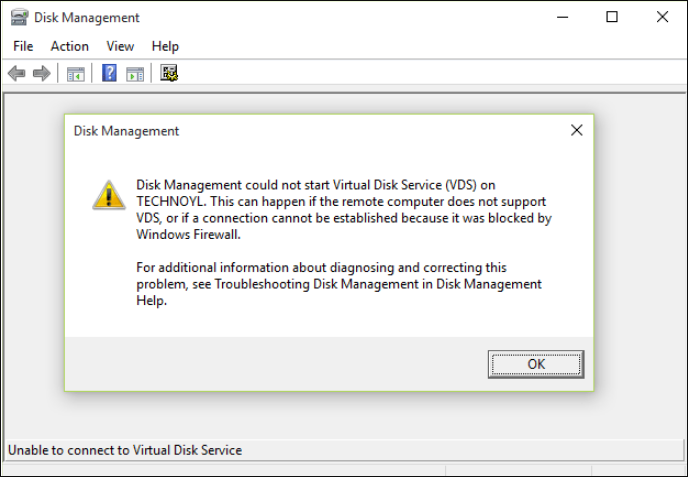
To fix the virtual disk service error, try restarting the Windows PC or Server, or check for any disk errors using the built-in Check Disk utility, and then run a System File Checker to scan and replace any corrupted system files. If the issue persists, consider running a System Restore to revert to a previous point when the virtual disk service was working properly. Additionally, you can try to disable and re-enable the virtual disk service or update the drivers for the virtual disk controller.
How Do I Fix the "Unable to Connect to Virtual Disk Service" Error
Here are possible ways to fix the "unable to connect to virtual disk service" prompt:
Fix 1. Use Alternative Software for Disk Management
Fix 2. Disable Windows Defender
Fix 3. Enable Virtual Disk Service
Fix 4. Use SFC or DISM to Fix the Error
Fix 5. Unblock Windows Firewall
Fix 6. Check All External Storage Devices
The first fix is to add a missing closing tag. This is a common issue where the HTML code is not properly closed, leading to errors.
Fix 1. Use Alternative Software for Disk Management
You can use Qiling Disk Master Free as an alternative software for Disk Management, which can serve the same purpose without any issues, making it a suitable replacement in all aspects.
Using a solid-state drive (SSD) is a more efficient and safer alternative to traditional disk management. It offers numerous benefits, making it an ideal choice for those looking to upgrade their storage solution.
- You can delete/create partitions on USB drives, SD cards, and other drives.
- Resize/Move partition: This tool can resize encrypted partitions or move unallocated space to the C drive.
- To make the most of available or unallocated space and speed up your PC, you can extend the system partition using the "Extend" feature.
- With this tool, merging partitions on an SSD or a USB drive becomes a straightforward process.
- You can format a disk or delete a partition using the free Qiling Partition Manager.
You can't wait to try it out with the features listed. Click the button below to download.
Fix 2. Disable Windows Defender
Sometimes disabling the built-in Windows Defender antivirus can prevent the error from occurring.
To disable them, follow these steps.
Step 1: To open the Local Group Policy Editor, press the "Windows + R" keys and type in "gpedit.msc".
Step 2: To access the Windows Defender Antivirus settings, navigate to the Computer Configuration section, then select Administrative Templates, followed by Windows Components, and finally Windows Defender Antivirus.
Step 3: Go to Windows Defender Antivirus in the list of installed programs, and click on it to select it. Then, double click on the "Turn off Windows Defender Antivirus" option to disable it.
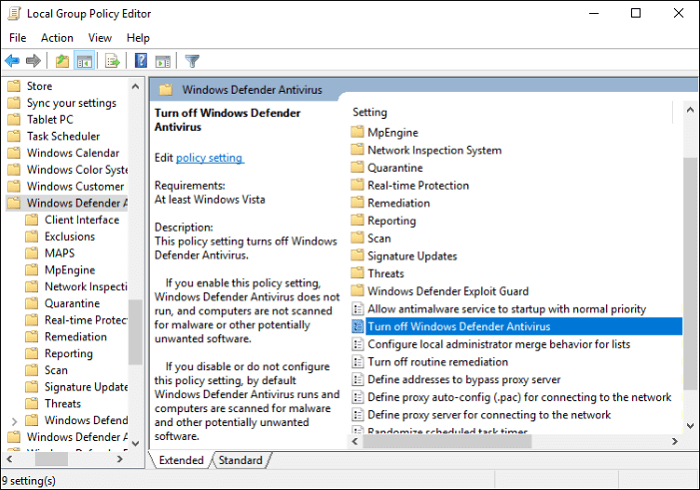
Step 4: Mark "Enabled," then "Apply," and "OK" to save the changes.
Step 5: Reboot the computer to effect the changes.
Fix 3. Enable Virtual Disk Service
The virtual disk services might not be enabled; to enable them, follow this guide.
Step 1: Press the "Windows + R" keys simultaneously to open the Run dialog box.
Step 2: To open Windows Services Manager, type "services.msc" in the Run box and press Enter.
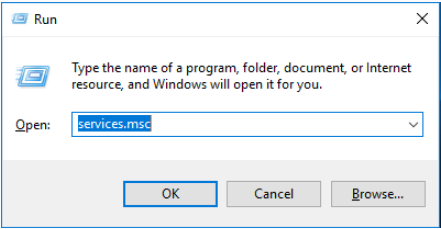
Step 3: To access the Virtual Disk Service, scroll down and double-click on it to open it.
Step 4: Click on the "Startup" tab, then choose Automatic/Manual for the startup type, and click "OK" to save the changes.
Fix 4. Use SFC or DISM to Fix the Error
Step 1: To open the Command Prompt window, you can type "command prompt" in the Search bar and then right-click on the Command Prompt icon that appears, selecting "Run as administrator" from the context menu. This will open the Command Prompt window with administrator privileges.
Step 2: Type "sfc /scannow" and press the Enter key. Then, wait until the procedure ends.
If the SFC command fails to fix the issue, you can try running the DISM command to see if it can repair any corrupted system files, which may be causing the issue with loading Disk Management.
The steps for running the DISM command are given below.
- Similarly, launch Command Prompt as an administrator.
- Type this:
exe /Online /Cleanup-image /Scanhealth
exe /Online /Cleanup-image /Restorehealth
- Close the Command Prompt window after the procedure ends and test whether the error is solved.
Fix 5. Unblock Windows Firewall
To unblock the Windows Firewall, which often acts as an obstacle due to its security rules, follow the steps below.
Step 1: To access the Windows Firewall settings, select the Start button, then click on Settings, followed by Update & Security, and finally Windows Security. From there, click on Firewall & network protection.
Step 2: Select "Windows Defender" and click "Open Windows Defender Security Center."
Step 3: Click "Firewall & network protection" and "Allow an app through firewall."
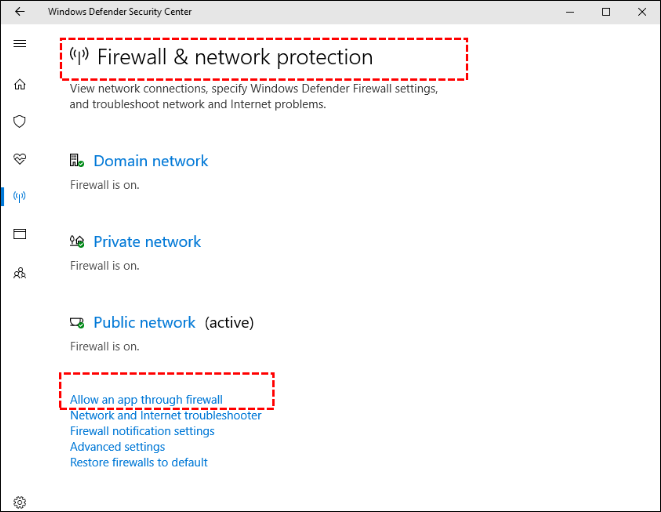
Step 4: In the new window, click "Change settings."
Step 5: To enable Remote Volume Management, go to the settings menu, find the "Remote Volume Management" option, and toggle both switches to the "On" position, then click the "OK" button to confirm the changes.
Fix 6. Check All External Storage Devices
If your computer is having trouble recognizing external storage devices, you can try troubleshooting by removing each device one by one to see if any of them are faulty. This includes devices like card readers, USB drives, or external hard drives. Additionally, make sure your USB drivers are up to date. This might resolve the issue.
Conclusion
The virtual disk service allows for the management of disks, file systems, volumes, and storage arrays, but is prone to errors.
To resolve the issues, you need to check if the remote computer is capable of using the remote desktop feature, if any external storage devices are broken, or if the Windows firewall has blocked the connection. There are six ways to resolve these issues, regardless of whether a Windows PC or Windows Server is involved.
When using Disk Management, you may encounter issues such as disk partition problems. Some of these issues include disk size limitations, partition style restrictions, and the inability to resize or move partitions. Additionally, you may experience difficulties with disk formatting, partition deletion, or creating new partitions.
FAQs Related to Unable to Connect to Virtual Disk Service
Some of the frequently asked questions with answers related to being unable to connect to virtual disk service are provided here.
1. What is the Virtual Disk Service?
The Microsoft Windows service handles various tasks, including querying, configuration, volume, and disk management, as requested by end users, scripts, and programs.
2. How do I enable virtual disk services?
The article provides information on how to enable virtual disk services.
3. Can I restart the virtual disk service?
Yes, you can. Below are a few steps to do this.
Step 1. Press the Windows key + R on the Keyboard.
Step 2. Type services.MSC and hit Enter.
Step 3. In the Services Window, look for Virtual Disk service and stop it.
Step 4. To resolve the issue, restart the computer, then start the Virtual Disk Service and set it to Automatic.
Related Articles
- Checksum Error in WinRAR? How to Fix the Checksum Error (2023)
- How to Fix 'Switch User' Option Missing in Windows 10/11
- How to Upload Files to Google Drive Automatically
- 5 Best SSD For Long Term Storage Recommendations in 2023
- How to Set Separate Wallpapers on Dual Monitors in Windows 10/11
Adding wallpapers to dual monitors can be done in various ways, with the simplest method being to use the settings app to personalize the setup. - Should I Convert to Dynamic Disk and How to Do Dynamic Disk Convert
Learn whether you should convert to dynamic disk, compare basic and dynamic disks, and understand the risks before changing disk type.
Products
Articles & Tutorials
- Data Recovery
- Data Backup
- File Recovery
- File Backup
- System Backup and Restore
- Disk and Partition Clone
- Technical articles
- Mobile articles
- Disk Master Help
- Windows Data Recovery Tutorials
- Windows Secure Delete Tutorials
- Windows Partition Management Tutorials
- Windows File Backup and Restore Tutorials
- Windows System Backup and Restore Tutorials
- Windows Disk Backup and Restore Tutorials
- Windows Clone Tutorials