Checksum Error in WinRAR? How to Fix the Checksum Error (2023)
In this article, you'll learn:
- Use the Keep Broken Files Feature in WinRAR
- Download the RAR File Again
- Remove and Reinstall WinRAR
- Repair Your Archive With WinRAR
- Run a CHKDSK Scan
Overview: The Checksum Error in WinRAR
If you're experiencing a Checksum error in WinRAR when extracting RAR, ZIP, or other archive formats, don't worry - we have solutions. This error often occurs during file extraction, and the main culprit is usually a corrupted archive file. However, other reasons can also cause Checksum Errors, which we'll explore further.
What Causes Checksum Error WinRAR
Before getting into the solution part, it's necessary to understand the reason behind the checksum error WinRAR. Let's discuss this in detail.
Research suggests that this error often occurs due to several factors, including (list the reasons provided).
- 😵Bad sectors on the storage drive
- ❌Improper download of the source file
- 🛑Interrupted the transfer process of the file
- ⛓️Insufficient disk space during extraction
- 🦠Virus/malware attacks in the RAR extraction process
We will discuss six working solutions to fix the checksum error in WinRAR in the next part. To get a complete idea, read the post until the end.
6 Fixes to the Checksum Error in WinRAR
If you're experiencing a checksum error in WinRAR, there are six potential fixes you can try. First, run the CHKDSK scan on the command prompt to fix bad sectors on your hard drive. If that doesn't work, try running the WinRAR repair tool to check if the file is corrupted. You can also run a full system scan to check if the file is infected with a virus. If none of these methods work, try reinstalling WinRAR and trying to extract the file again.
To fix the checksum error in WinRAR, you can try the following solutions. First, check the file integrity by verifying the file's checksum using a reliable tool like HashCheck. If the file is corrupted, you can try to repair it using WinRAR's built-in repair feature.
1. Use the "Keep Broken Files" Feature in WinRAR
To resolve the checksum error in WinRAR, select the "Keep Broken Files" option, which allows you to extract corrupted media. By ticking this option, WinRAR will automatically ignore the corruption and extract content from the Zip folder. This process enables you to quickly resolve the issue and access the content within.
Step 1. To extract the contents of a Zip or RAR file, right-click on it and select "Extract Files" from the context menu.
Step 2. To keep broken files, go to the Miscellaneous section and select the "Keep Broken Files" checkbox.
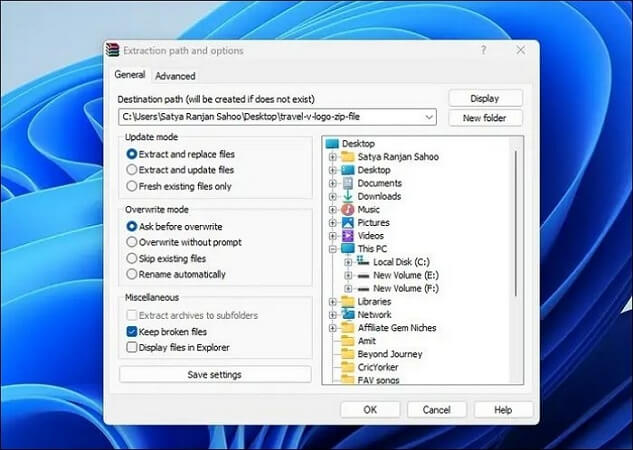
Step 3. To resolve the issue, select an extraction location and click "OK" to execute the changes. This should resolve the problem.
Many Windows 10/11 users have found success with this solution. If you're experiencing the issue, consider sharing this post on social media platforms like Facebook, Twitter, Instagram, and others. This may help others resolve the problem as well.
2. Download the RAR File Again
To resolve the checksum error in WinRAR, download the source RAR file again from a different location, ensuring a fast and stable internet connection. This may resolve the issue.
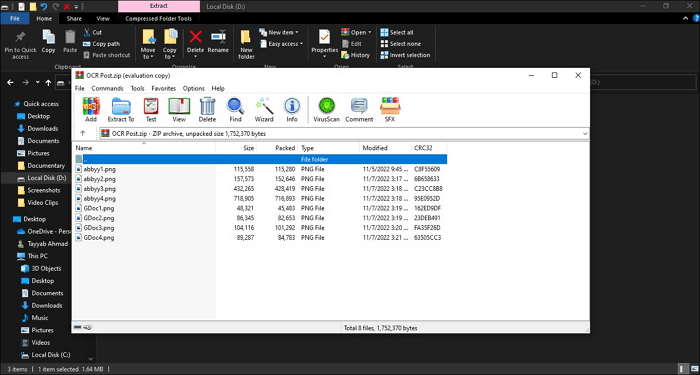
How to Open RAR Files on Windows
On Windows 10, you can extract and open RAR files using four different methods. This post will cover both free and paid options, providing you with a comprehensive guide to accessing your RAR files. From free tools like 7-Zip to paid software like WinRAR, we'll explore all the necessary information to get you started.
3. Remove and Reinstall WinRAR
If the Checksum Error occurs due to bugs, viruses, or glitches with Win RAR, you can try manually uninstalling and reinstalling the software. To do this, follow these steps:
Step 1. To open the Run dialog, press the Windows and R keys simultaneously on your keyboard. This will open a small window where you can type the name of an executable file or a command to run.
Step 2. To open the Program and Features page, type appwiz.cpl and click "OK".
Step 3. Scroll down the items in the Programs and Features window to find the WinRAR program. Right-click on the "WinRAR" app and click "Uninstall".
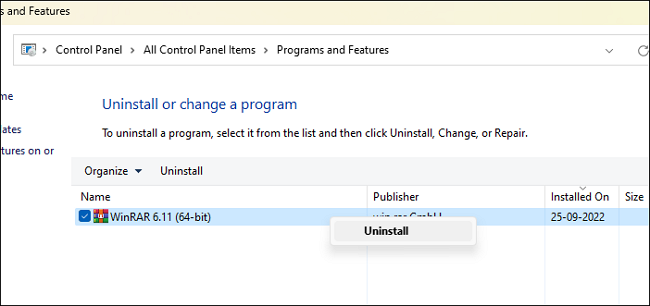
Step 4. After uninstalling the software, restart your computer and visit the official website to download and install it again.
Before uninstalling WinRAR, protect your data using Deep Data Recovery, a powerful tool with a 99.7% data recovery success rate.
- The trial version allows for the recovery of 1000+ deleted files, including various types of media and documents such as videos, images, PDFs, Word documents, Excel spreadsheets, and PowerPoint presentations.
- To recover an archive file, start by identifying the file type and the software used to create it. Then, use the appropriate software or a compatible alternative to extract the contents of the file.
To understand the working process of the tool, follow the below steps.
Note: To increase the chances of successful data recovery, install Qiling data recovery software on a different disk from the one where you lost your files.
Step 1. Launch Deep Data Recovery on your Windows computer, select the affected disk partition or storage location, and click "Scan" to start the recovery process.

Step 2. This recovery software will scan the disk to find lost and deleted files, and then allow you to filter the results by file type.

Step 3. Preview and restore lost Windows files by scanning them, double-clicking to preview, selecting the target data, and clicking the "Recover" button to save them to a safe spot.

The software has a macOS version that can help recover deleted Zip and RAR files on a Mac.
4. Repair Your Archive with WinRAR
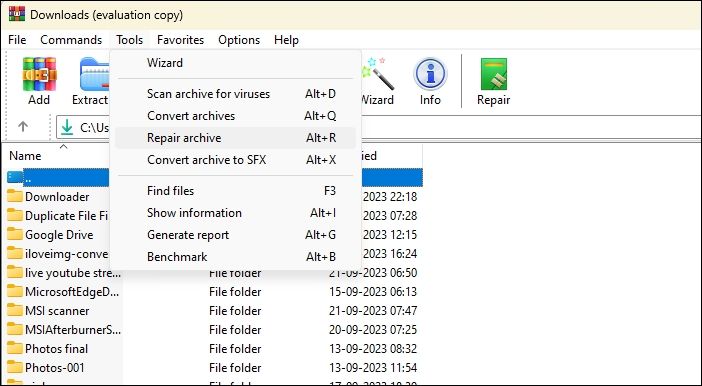
To fix a checksum error in WinRAR, use the "Repair archive" option available in the software. This feature can often repair a corrupt archive file. To do this, open WinRAR, select the archive file, and click on the "Repair archive" option. Follow the prompts to complete the repair process.
Step 1. To extract the corrupted RAR or Zip file, right-click on it and select the "Open" with the WinRAR option. This will allow you to view and potentially recover the contents of the file.
Step 2. After opening WinRAR, click the "Tools" tab at the top and select the "Repair" archive option from the context menu.
Step 3. 1. Click the "Browse" button to select the destination folder for the repaired RAR or Zip files.
Step 4. Select the "Treat the corrupt archive as RAR" option if your archive is a RAR file, or the "Treat the corrupt archive as ZIP" option if it's a ZIP file, and click "OK" to proceed.

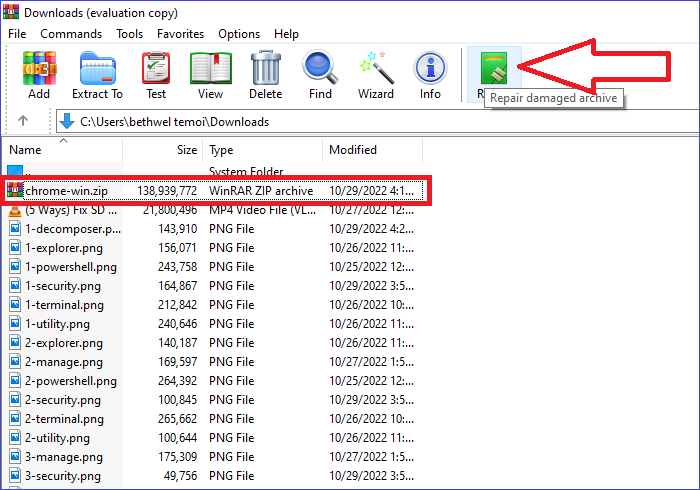
To fix the issue where the archive is either in an unknown format or damaged, you can try extracting the archive using a different software or tool. If that doesn't work, you can try repairing the archive using a repair tool or by using a command line utility like `7z` or `zip`.
Opening a zipped file using WinRAR or File Explorer can sometimes be problematic. If you're experiencing issues, there are a few possible fixes to try. unknown or damaged archive fix is available for further information.
5. Increase Free Disk Space
To fix the Checksum Error caused by insufficient disk space during RAR archive extraction, create some space on your PC by clearing temporary files or deleting unused files. This will allow the extraction process to proceed without errors.
6. Run a CHKDSK Scan
The Checksum Error may occur due to a bad sector on your hard drive, and running a CHKDSK scan can help resolve the issue. CHKDSK scans the hard drive for bad sectors and missing files, and repairs any issues it finds. To run a CHKDSK scan, follow these steps: the steps below.
Step 1. To access the Command Prompt, click on the Start Menu, type "Command Prompt" in the search bar, and select the "Run as administrator" option from the right panel.
Step 2. The command to type in the Command Prompt window is: expand -f *.* -d D:\ and press Enter. Replace "D" with the drive letter where the archive file is stored.
chkdsk/r D:
Once the CHKDSK scan is complete, restart your PC and check if the issue is resolved. The scan typically takes a long time to finish, so be patient.
Bottom Line
If you're experiencing a Checksum Error, try the six solutions provided and see which one works best and is less time-consuming. However, be aware that attempting these solutions may result in data loss, so it's recommended to download the Deep Data Recovery software to quickly recover any lost data.
Checksum Error WinRAR FAQs
In this section, we will answer some of the frequently asked questions related to this topic, which may clear your additional doubt, so don't skip this part.
1. How do I fix a checksum error?
To resolve a checksum error, you can try uninstalling and reinstalling the WinRAR app on your PC, and also run a CHKDSK scan to fix the issue.
2. Why checksum error?
A checksum error typically occurs due to a corrupted archive file, but it can also be caused by other factors such as a faulty download, incorrect extraction method, or an incomplete or interrupted transfer process.
- Bad sectors on the storage drive
- Improper download of the source file
- Insufficient disk space during extraction
- Interrupted the transfer process of the file
- Virus/malware attacks in the RAR extraction process
3. How do I fix a corrupted WinRAR file?
WinRAR has a built-in repair archive option that allows you to quickly fix corrupted archives. This feature can be accessed by right-clicking on the corrupted archive and selecting the "Repair" option from the context menu.
4. What is the error in extracting RAR files?
You may get the Checksum error while extracting RAR files, which is usually caused by the corruption of the RAR files themselves.
Related Articles
- [8 Fixes] How to Fix Windows 10 File Sharing Not Working After Update 1803/1809/1903
- Fixes for Windows 10 Corrupt/Crash in Boot
- Guide on Diskpart Create FAT32 Partition | How to Create FAT32 Partition with Diskpart
- Fixed: Windows 10 File History Doesn't Recognize the Hard Drive
- Steam Deck Format SD Card Grayed Out? How to Fix
Fix Steam Deck format SD card grayed out. Learn why formatting is unavailable and how to prepare or repair the SD card. - Steam Deck Save File Location(All You Should Know)
Many users get confused when trying to find the Steam Deck save file location. However, accessing and transferring game saves between the Steam Deck and PC is a relatively straightforward process, and this post will provide a detailed guide on how to do so.
Products
Articles & Tutorials
- Data Recovery
- Data Backup
- File Recovery
- File Backup
- System Backup and Restore
- Disk and Partition Clone
- Technical articles
- Mobile articles
- Disk Master Help
- Windows Data Recovery Tutorials
- Windows Secure Delete Tutorials
- Windows Partition Management Tutorials
- Windows File Backup and Restore Tutorials
- Windows System Backup and Restore Tutorials
- Windows Disk Backup and Restore Tutorials
- Windows Clone Tutorials