How to Fix "the Archive Is Either in Unknown Format Or Damaged"
Have you ever tried opening a compressed RAR or ZIP archive file and encountered the error "the archive is either in unknown format or damaged?" Did you find the cause of the error? What technique did you apply to fix it?
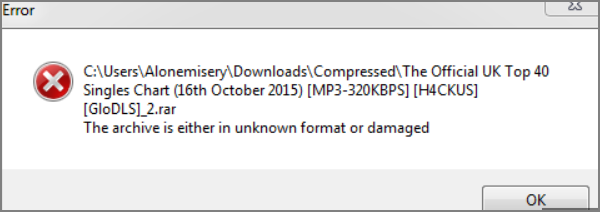
This article provides 100% working solutions to fix the archive error that occurs when opening a zipped file using WinRAR or File Explorer. It's a common issue that can be resolved by trying various fixes, which are outlined in the article. By following the possible solutions, users can successfully open their zipped files without any errors.
Why the Archive Is Either in Unknown Format or Damaged
Several factors could lead to the problem "the archive is either in unknown format or damaged", including corrupted or incomplete archives, incompatible file formats, incorrect file extensions, and issues with the archive's compression or encryption.
- Disk errors that lead to file corruption
- Virus/malware attack
- A faulty WinRAR software
- The file that you've attempted to open is very old
- Unstable network leading to file download errors
- An error during file compression
- A corrupted archive extension
You're likely to receive the error because your archive is either in an unknown format or damaged. The next section discusses the possible fixes to resolve this issue.
How to Solve the Archive Is Either in Unknown Format or Damaged
Since the archive error could occur for several reasons, different ways exist to address it. Once the problem is solved, you'll have the opportunity to open your zipped file normally. Some of the fixes that we'll discuss in this article include checking the integrity of the zip file, verifying the zip file's permissions, using a different zip program, checking for viruses and malware, and reinstalling the zip program. Once the problem is solved, you'll have the opportunity to open your zipped file normally.
- Fix 1. Downloading Files Again
- Fix 2. Check Disk Errors via Qiling Disk Master
- Fix 3. Use the Repair Archive in WinRAR
- Fix 4. Use Windows Default Decompressor
- Fix 5. Scan the Virus via Windows Defender Security Centre
Let's discuss how you can use these five methods to solve the "archive is either in unknown format or damaged" error.
Fix 1. Download Files Again
If your ZIP or RAR archive has an incomplete download, it may not open properly. Try re-downloading the files to see if that resolves the issue.
If the error persists, it could be due to corrupted file sections, so trying the second fix might resolve the issue.
Fix 2. Check Disk Errors via Qiling Disk Master
If re-Downloading the archive file doesn't solve the issue, to troubleshoot, use a third-party tool like Qiling Disk Master to check for disk errors on your computer. This tool optimizes disk performance and can clean up your USB and hard drives.
To resolve the "archive is either in unknown format or damaged" error, you can use the check disk feature in Qiling Disk Master to scan your disk and work on corrupted files. This process involves simple steps, including scanning your disk for errors, identifying and repairing damaged files, and resolving the issue causing the error.
This software allows users to check for partition errors, among other features for optimizing disk performance.
- Fix corrupted file system to repair corrupted disk
- Check the disk partition health state and bad sectors
- Completely wipe hard drive to protect the data
- To switch a disk partition from primary to logical and vice versa, you can use the `fdisk` command. Here's a step-by-step guide:
- Hide or unhide a disk partition to avoid accidental deletion
To start using Qiling Disk Master's disk partition features, download and install the software on your computer by following the provided button.
Fix 3. Use the Repair Archive in WinRAR
WinRAR offers a repair feature to fix damaged ZIP or RAR files by automatically scanning them for errors and correcting them. The time required for this process is dependent on the size of the file, which can take longer for larger files.
Step 1. Open WinRAR and locate the corrupted file.
Step 2. To fix a corrupted zip or rar file, click on it and select the 'Repair' icon, or double-click on it and go to Tools>Repair archive.
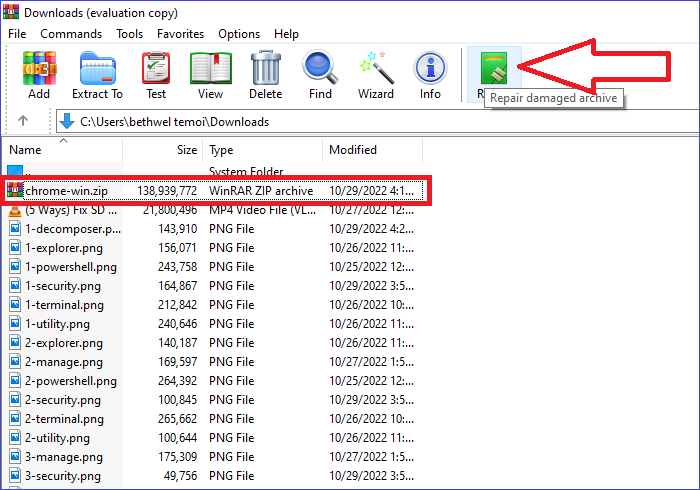
Step 3. To repair a corrupted WinRAR archive, select the archive file and click on the "Repair" option. Next, choose a location to save the repaired archive and click OK. WinRAR will then begin the file editing process and sort out corrupted files.
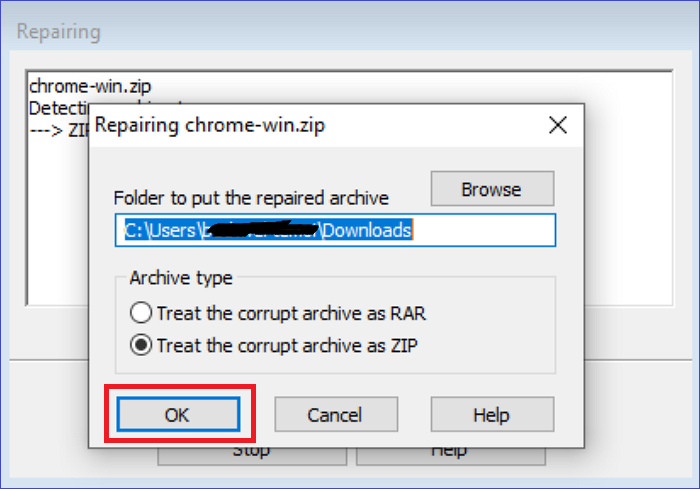
Step 4. After the process finishes, click the Close button. Then, navigate to the folder containing your edited archive and open it. If the error "the archive is either in unknown format or damaged" has been resolved, the archive should open normally. If everything is okay, you should be able to access the archive without any issues.
Fix 4. Use Windows Default Decompressor
In Windows 10 devices, you can use the built-in compression and decompression feature to resolve archive errors. This feature primarily works for files in ZIP format. To solve the error "the archive is in unknown format or damaged," follow these steps:
Step 1. Locate the corrupted zip file and right-click on it.
Step 2. Scroll down the context menu and select "Extract here."
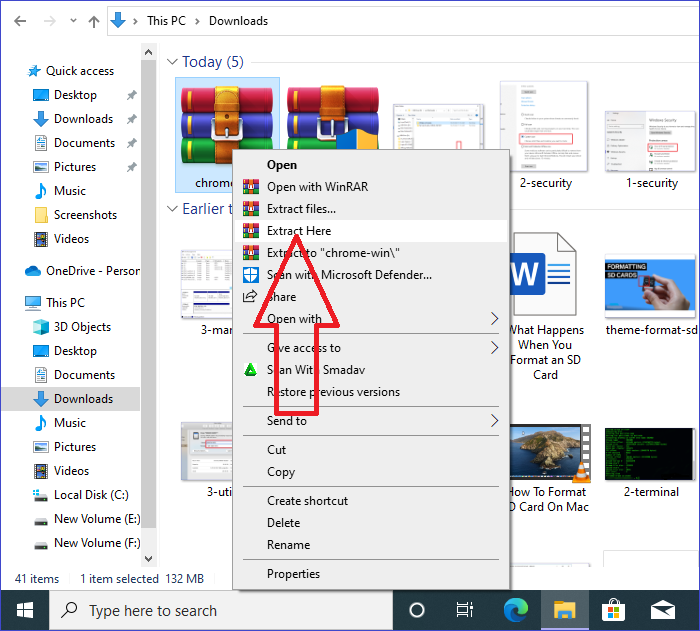
Step 3. The system will automatically decompress the selected zip file and save it in the same location, allowing you to try opening it to see if the error message has been resolved.
Fix 5. Scan the Virus via Windows Defender Security Center
If you encounter an archive error after downloading a zip file from an unofficial website, it's possible that the file contains a virus or malware. To resolve this issue on Windows, you can scan the file for viruses by opening Windows Defender, which can be accessed using a series of steps.
Step 1. Open your Windows Settings and click on "Update & Security."
Step 2. Click on "Windows Security" in the left panel.
Step 3. Click on "Virus and Threat Protection."
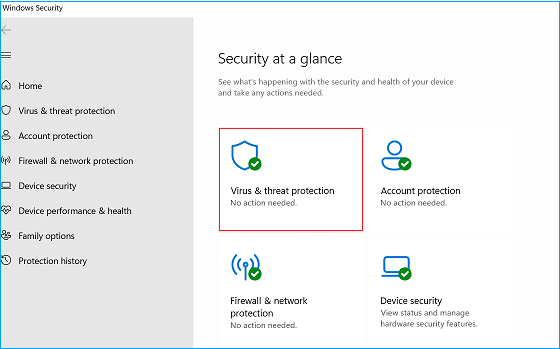
Step 4. To access the scan options for virus and threat protection, click on the link labeled "Scan options" under the "Virus and Threat Protection" section.
Step 5. Select the "Custom Scan" option.
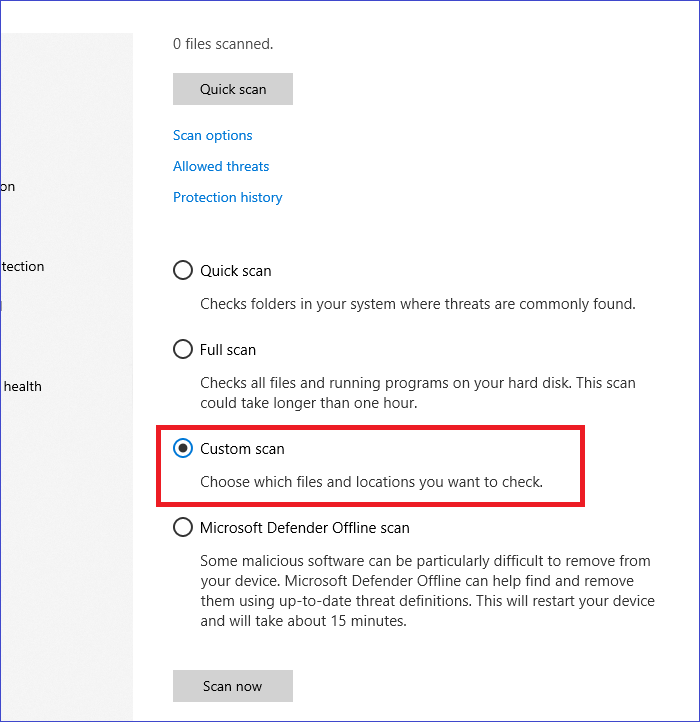
Step 6. To resolve the issue, click on "Scan now" and select the location for your affected ZIP/RAR folder. This will initiate a scan of the specified folder for corrupted files.
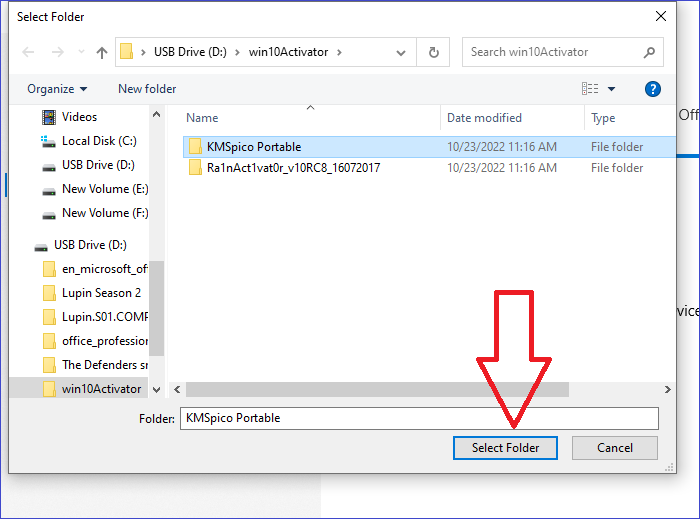
Step 7. After selecting the file, click on "Scan now" to initiate the virus check. If a virus is detected, remove the zip file and download a new one from a trusted source.
Conclusion
The error "the archive is either in unknown format or damaged" can be caused by various factors, including corrupted downloads, disk errors, or viruses. To fix this issue, you can try re-downloading the files, check for disk errors using Qiling Disk Master, repair archives using WinRAR, use Windows' default decompressor, or scan for viruses via Windows Defender Security Center. The most effective solution is likely to be using Qiling Disk Master to check for disk errors.
This disk performance optimizer tool enables checking disk errors and performing a surface test to fix corrupted files, ensuring optimal disk performance.
FAQs of the Archive Is Either in Unknown Format or Damaged
The error "the archive is either in unknown format or damaged" is a problem that occurs when trying to access or extract data from an archive file, such as a ZIP or RAR file, but the file's format is not recognized or the file itself is corrupted. This can happen due to various reasons like incomplete download, file transfer issues, or file corruption during storage. To resolve this issue, you might need to recreate the archive from scratch or seek assistance from the original creator or a third-party tool to repair or extract the data.
1. What Does Archive Corrupted Mean?
A corrupted archive file is one that has become unusable or inoperable due to disk errors, a virus attack, or faulty software, making it impossible to access ZIP/RAR files.
2. How Can I Repair a Damaged RAR File?
You can repair damaged RAR files using a free tool like Qiling Disk Master, which can check file system errors and fix damaged RAR files, as well as run a surface test to check the health of disk partitions.
3. How Do I Repair an Archive File?
You can repair a damaged archive file using WinRAR's "Repair Archive" feature, which automatically scans the corrupted files for errors and fixes them. The time required to scan and fix a file error largely depends on its size.
Related Articles
- Boot From USB HP Laptop | Everything You Need to Know
- Steam Deck Save File Location(All You Should Know)
- How to Factory Reset Laptop Windows 7 [2023 Ultimate Guide]
- How to Solve OneDrive Sync Pending Error in Every Possible Way
- New Computer Keeps Freezing? Find Causes & Solutions Here
Are you facing issues with your computer freezing and lagging? This article will provide reasons and solutions to overcome this problem, so keep reading to find out more! - When Is the Next Apple Event 2024: September Event [macOS Sonoma included]
The next Apple event after WWDC 2024 will take place in September, followed by a final event in October 2024. For more information on these upcoming events and the latest Apple products to be released, you can refer to this article.
Products
Articles & Tutorials
- Data Recovery
- Data Backup
- File Recovery
- File Backup
- System Backup and Restore
- Disk and Partition Clone
- Technical articles
- Mobile articles
- Disk Master Help
- Windows Data Recovery Tutorials
- Windows Secure Delete Tutorials
- Windows Partition Management Tutorials
- Windows File Backup and Restore Tutorials
- Windows System Backup and Restore Tutorials
- Windows Disk Backup and Restore Tutorials
- Windows Clone Tutorials