How to Solve OneDrive Sync Pending Error in Every Possible Way
OneDrive is a popular cloud storage and sync app that provides complete control over data, allowing businesses and consumers to sync files across devices with ease, whether it's a large business with millions of files or an individual with a large collection of photos and videos.
OneDrive syncs with your Microsoft account and is secure, but sometimes, a OneDrive sync pending error will occur, causing issues with syncing files.
What Does OneDrive Sync Pending Mean
Windows allows users to sync files and folders from their PC to the cloud using OneDrive, adding a completion flag to track changes made to those files.
OneDrive sync and pending status both involve downloading files from OneDrive, but a pending file hasn't been downloaded yet, whereas a sync is a file that has been downloaded to OneDrive, with the pending file typically being merged with the official OneDrive within 5 days.
If a file is in sync, it is considered "watched" (aka a pending file). A sync pending, on the other hand, is a file sent to OneDrive that is not believed to be "watched" or in sync, and is instead referred to as a "pending" file.
To check if the sync is pending, launch Windows File Explorer, click the OneDrive icon on the left, and see the sync status on your cloud provider's website. If a sync pending flag appears, Windows may still need to detect and back up all files in your OneDrive account.
Why Does OneDrive Sync Pending Error Happen
"We're experiencing issues with synchronizing files with OneDrive, which is unusual since we've never had problems with other Microsoft products used in a similar way. This requires an active sync process, which is still a new feature for us, and we're frequently encountering pending errors with OneDrive."
OneDrive sync pending errors can occur for a variety of reasons, including issues with internet connectivity, problems with the OneDrive app or service, conflicts with other cloud storage services, and outdated or corrupted files. Additionally, sync errors can also be caused by limitations on storage space, file size, or type restrictions, as well as issues with the operating system or device being used.
- Unresolved OneDrive sync errors can occur if you're running an older version of an application.
- If you run out of cloud storage space, synchronization may stop.
- OneDrive has a file size limit for uploads, which can cause pending syncs to get stuck on files that exceed this limit.
- Windows is having trouble updating the operating system.
- Something denied permission to sync files to OneDrive.
- The OneDrive application has too many cache stacks.
Unstable network connectivity or an excessive number of folders and files to sync can cause OneDrive to be pending, while a limited upload size offered by OneDrive can also trigger the "Sync pending" issue when a file exceeds this size limit.
How to Solve OneDrive Sync Pending Stuck Error
If you're experiencing the OneDrive sync pending issue, don't worry - this guide can help. To resolve the problem, simply read through the following points patiently and follow the steps to fix the issue.
- Solution 1. Reset OneDrive
- Solution 2. Uncheck Files On-Demand
- Solution 3. Troubleshoot OneDrive APP
- Solution 4. Pause and Resume OneDrive Syncing Process
- Solution 5. Check Storage
Solution 1. Reset OneDrive
If you encounter OneDrive pending sync issues, you can try resetting OneDrive, which can be done in two ways. To reset OneDrive using the Settings app, open the Settings app, click on "Apps" or "Applications", find OneDrive, click on it, click on "Advanced options", and click on the "Reset" button. Alternatively, you can reset OneDrive using the Command Prompt by typing `net stop "OneDrive"`, `net start "OneDrive"`, and `OneDriveSetup.
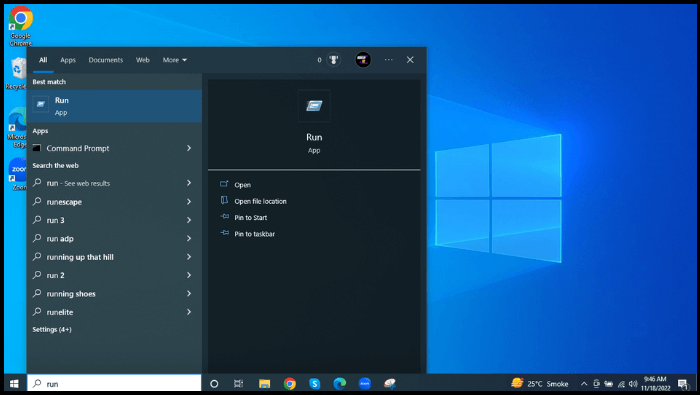
1. Search for Run:
Step 1. To search on your Windows PC, click on the search box on the taskbar and type what you're looking for. You can also press the Windows key + S on your keyboard to quickly open the search bar.
Step 2. Enter the following command and press OK. (%localappdata%\Microsoft\OneDrive\onedrive.exe /reset)
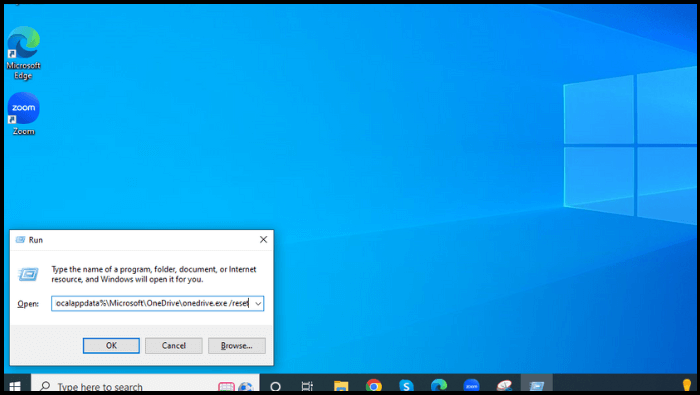
Step 3. 1. Press the Windows key + R to open the Run dialog box.
(%localappdata%\Microsoft\OneDrive\onedrive.exe)
Once the syncing process is complete, a blue arrow will appear on the OneDrive icon, indicating that the files are in sync. To verify that all files are syncing correctly, check the OneDrive icon after syncing is complete, and the issue should be resolved if everything is syncing properly.
2. From OneDrive settings
If you can't access the OneDrive settings, try resetting OneDrive by going to the Start menu, typing 'OneDrive', and selecting 'OneDrive' from the search results. Then, click on the three dots at the top right corner of the OneDrive window, select 'Settings', and click on 'Reset' at the bottom of the settings window.
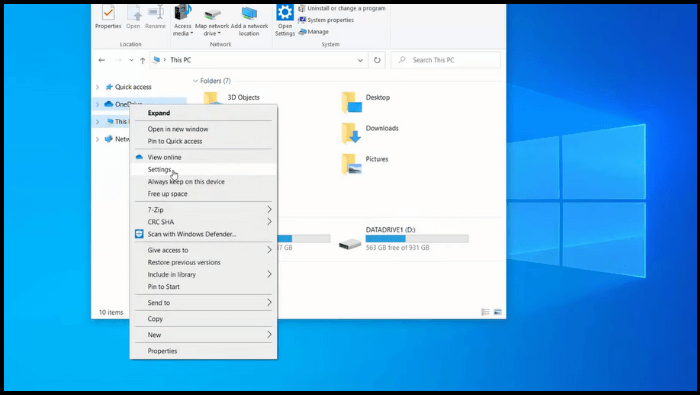
Step 1. To access OneDrive settings, open the folder explorer, right-click the OneDrive icon, and select Settings from the context menu.
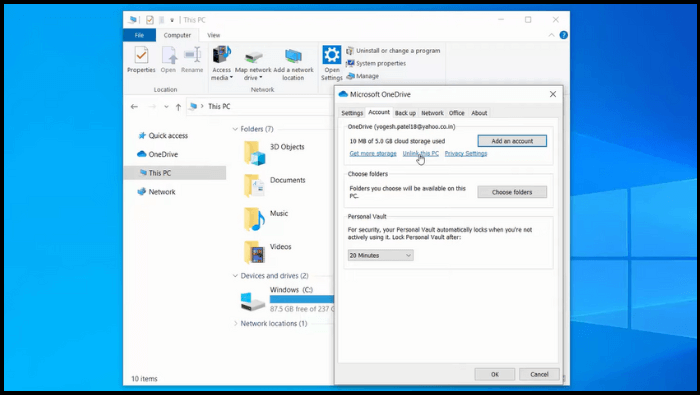
Step 2. Afterward, you must go to the "Account" tab.
Step 3. Click "Unlink this PC".
Step 4. To complete the OneDrive setup, follow the on-screen instructions to configure the wizard. This may involve signing in with your Microsoft account, agreeing to terms and conditions, and setting up your OneDrive storage. Once you've completed the setup, you should see a confirmation message indicating that OneDrive is now set up on your device.
Solution 2. Uncheck Files On-Demand
If both files and folders are pending sync, unchecking the "Save space and download files/documents as you use the option" in the Files on Demand section is a proven solution. This will sync all your files and folders instantly to OneDrive and other devices.
Step 1. Open OneDrive settings and click the Settings tab.
Step 2. Uncheck the option "Save space and download files as you use them" and click OK to save the changes.
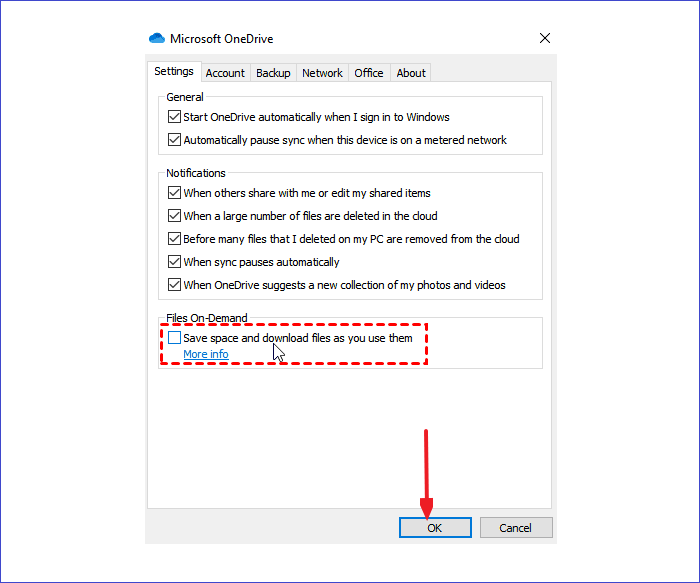
Files or folders stuck in sync pending state can be left as is, ideally finalized, without any further action required.
Solution 3. Troubleshoot OneDrive APP
If OneDrive is experiencing issues or is pending sync, you can troubleshoot the problem. To do this, try restarting the OneDrive sync process by clicking on the OneDrive icon in the system tray, right-clicking on it, and selecting "pause" or "stop" and then "start" again.
Step 1. To open Settings, press the Windows key + I. Then, type "Find and fix problems with Windows Store apps" in the taskbar and select it.
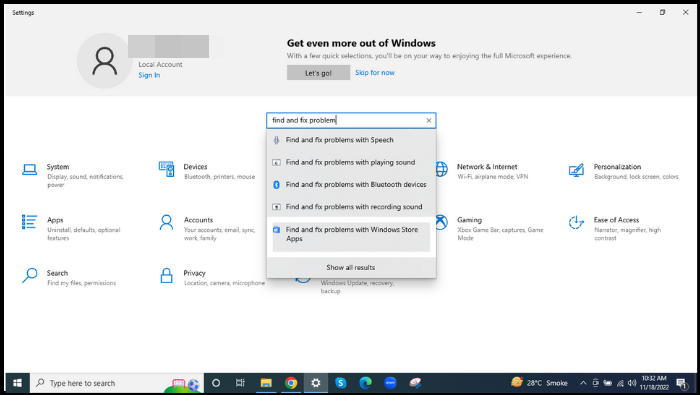
Step 2. Run a scan to identify potential issues in apps installed from the Store, then select the option to automatically apply repairs, follow the prompts to resolve the errors.
Solution 4. Pause and Resume OneDrive Syncing Process
If you're still experiencing the OneDrive sync pending error, try the pause and resume method. To do this, follow these steps:
Step 1. To pause OneDrive syncing, right-click the OneDrive icon from the taskbar, select "Help & Settings", and then choose "Pause syncing" with a 2-hour duration.
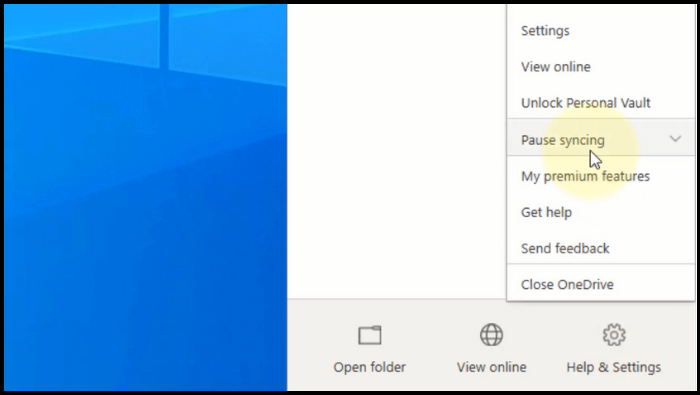
Step 2. You can find the sync folder by opening the OneDrive storage path, then selecting the files you want to drag to your desktop.
Step 3. To resolve the issue, go to your taskbar, right-click on OneDrive, and select Resume Sync from the menu. This should restart the syncing process and allow you to check if OneDrive is functioning correctly.
Solution 5. Check Storage
If your OneDrive account runs out of storage space, you may encounter the OneDrive sync pending issue.
To solve this issue, follow the below-stated instructions:
Step 1. To check your OneDrive free space, go to the OneDrive interface, sign in with your account credentials, and check the available storage space.
Step 2. Check the used and free space of OneDrive. If running out of disk space, delete unnecessary files to free up space.
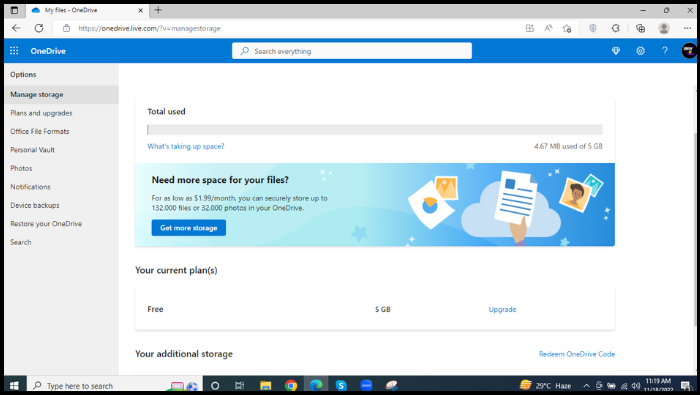
Step 3. Check the disk space by right-clicking your local hard drive, clicking Properties, and then clicking Disk Cleanup on the General tab to manage storage.
Better Solution: Backup Files via Cloud Backup Software
OneDrive is a great cloud backup tool, but it only offers 5GB of free storage space and may experience issues. To overcome these limitations, consider using a third-party backup software like Qiling Backup. This tool allows you to back up data to various locations, including the cloud, local drives, NAS, and Security Zone, providing a more comprehensive and reliable backup solution.
Qiling Backup Home is a powerful backup tool that automatically backs up files like pictures, documents, music, and videos. It also allows creating an iso image of your operating system and a bootable USB drive for Windows 11/10/8/7, and can reinstall Windows without losing games, or clean install Windows 11. Additionally, it provides 250G free cloud storage.
To back up files on your computer, start by identifying the files and folders you want to save, such as important documents, photos, and videos. Next, choose a backup method, either using an external hard drive, cloud storage services like Google Drive or Dropbox, or a USB drive.
Step 1. To begin the backup process, click the File backup button.

Step 2. The left-hand side of the screen displays lists of both local and network files, allowing you to expand the directory and select the files to be backed up.

Step 3. Please select the location where you want to save your backup. Choose from the options provided on the screen.

Step 4. To ensure your backup is secure, encrypt it by setting up a password or key, and schedule it to run at a specific time by clicking on Options in Backup Options.

You can also choose to start the backup at a certain time in Backup Scheme by clicking Options, and explore other customizable options.

Step 5. You can store the backup file on your computer, in Qiling's cloud service, or on a network-attached storage device (NAS).

Step 6. Qiling Backup allows customers to store backup copies of their files on either a third-party cloud drive or the company's own cloud storage.
To back up your data on a third-party cloud drive, select Local Drive and scroll down to add Cloud Device, then fill in your account information.
Step 7. Click on "Proceed" to initiate a backup, which will then be displayed as a card on the left side of the screen. Upon completion, a right-click on the backup card will allow for further details and management of the backup job.

Final Words
To fix the OneDrive Sync pending issue, try the above-illustrated solutions and note the main points that cause the problem to avoid it effectively. Additionally, using Qiling Backup to back up your files can make it easier, as it won't face the issue mentioned earlier or other OneDrive sync pending problems.
FAQs
1. Why is syncing taking so long?
Synchronization can be hindered by various factors, including improper user connections, database corruption, slow internet connections, and low disk space, which can all slow down running processes.
2. Does syncing delete everything?
A device backup doesn't delete anything; it includes all data from the device that hasn't been saved, and syncing allows you to easily restore lost items by resyncing them.
3. What happens when sync is on?
Sync ensures that changes made to files on your desktop or cloud services are synchronized, so each copy of the file reflects the latest changes.
When syncing is turned on, all profile information, including bookmarks, history, and passwords, is automatically saved to a Google Account, allowing users to access their Chrome info across all devices. This sync can be turned off if users prefer to keep their data separate.
4. Why are OneDrive files not syncing?
If OneDrive isn't syncing, go to Settings, click the Office tab, uncheck "Use Microsoft Office to sync Office files", click OK, and reboot the drive. If the issue persists, try the earlier solutions.
Related Articles
- How to Fix a Disappearing Dock in macOS Ventura/Monterey/Big Sur
- Windows 10 Quick Access Not Working, Not Responding, Slow to Open
- How to Factory Reset PS4 [2022 Complete Guide]
- Solved: System Restore Is Restoring the Registry Windows 11/10/8/7
- How to Transfer Data from Xbox 360 to Xbox One
Step-This tutorial provides step-by-step guides on how to transfer data from Xbox 360 to Xbox One, with or without cloud, to transfer old games and save files to the new console. This includes support for Windows 7, and Qiling Disk Master is available to help solve any problems that may arise. - Transfer Firefox Passwords to New Computer
If you're moving to a new PC or browser, or want to transfer your passwords, this post will guide you on how to do it, even without internet access. You can also use a third-party password exporter to easily manage and transfer all your passwords.
Products
Articles & Tutorials
- Data Recovery
- Data Backup
- File Recovery
- File Backup
- System Backup and Restore
- Disk and Partition Clone
- Technical articles
- Mobile articles
- Disk Master Help
- Windows Data Recovery Tutorials
- Windows Secure Delete Tutorials
- Windows Partition Management Tutorials
- Windows File Backup and Restore Tutorials
- Windows System Backup and Restore Tutorials
- Windows Disk Backup and Restore Tutorials
- Windows Clone Tutorials