How to Boot an HP Laptop from USB
People can now easily boot up the Windows OS on their HP laptop using a USB, making the traditional methods of loading the OS onto CDs/DVDs obsolete.
What Does HP Laptop Boot From USB Mean
With time, older laptops lose their performance due to various factors and may need to be upgraded to a new OS.
A new operating system (OS) can enhance the overall computer experience by running efficient programs and algorithms. This improved OS can be installed on an HP laptop using a bootable USB, which is a USB file containing the OS software that can be used to boot up and install the new system on the laptop.
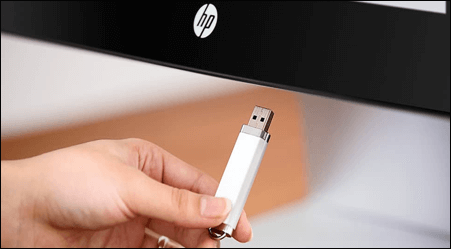
Why Do We Need to Boot HP Laptop With USB
With the convenience of USB drives, it's now easier to boot computers with new software, making the old disc/CD/DVD method a thing of the past. Some users prefer carrying a portable USB for easy Windows access, rather than the whole laptop. To achieve this, you simply need to create an ISO file of your OS and load it onto a USB drive, which can then be used as a portable USB or a bootable drive.
How to Boot From HP Laptop USB on Windows 10/11
You can invoke BIOS setup in two ways. To boot your HP laptop from a USB drive using system configuration, follow these steps below. Alternatively, you can also use the boot menu method.
1. From Settings
With the advancement of technology, the traditional method of using hotkeys to invoke the BIOS setup to boot up computers with USB drives has become less relevant for normal users. Instead, most laptops now allow you to boot from a USB drive directly from the settings, eliminating the need to access the BIOS. To do this, you can follow the steps below for a guide.
Step 1. To access the Windows Settings, you can either use the search function or press the keys Windows + I simultaneously. This will open the Windows Settings application, where you can customize various settings, including display, network, and security options.
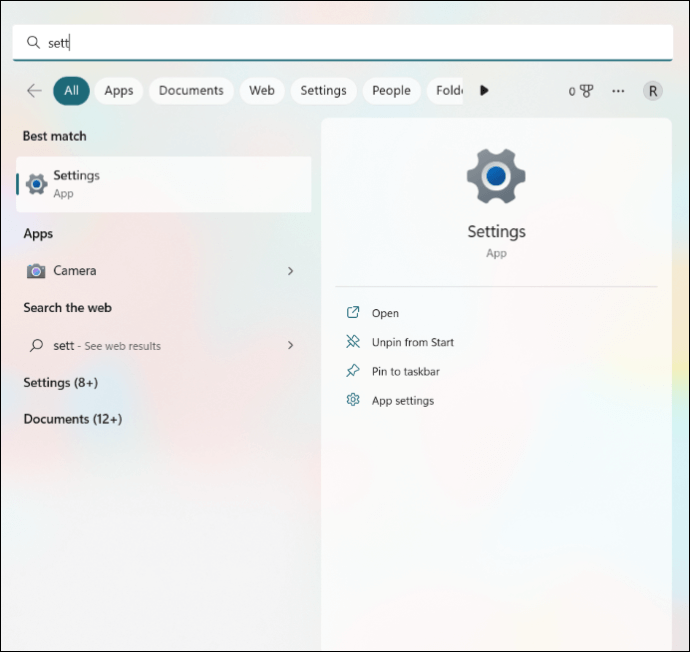
Step 2. Go to the Update & Security tab, scroll down and find the Update & Security window.
Step 3. Select Recovery > Restart Now.
The Restart Now button allows you to reboot the PC for configuration or restoration. After the reboot, a special menu appears with options to "Use a device", "Continue", "Turn off your PC", or "Troubleshoot".
Step 4. Select Troubleshoot > Advanced options > UEFI Firmware settings.
This action invokes the BIOS settings on your Windows computer.
Step 5. Confirm the restart.
Boot Device Not Found Hp Laptop? How to Fix?
If you're experiencing a 'Boot device not found HP laptop' error, follow these steps to resolve the issue: Check the boot order in the BIOS settings, ensure the bootable device is properly connected and powered on, and try booting from a different device or a USB drive. If the issue persists, consider running a disk check or a system file check to identify and fix any corrupted system files.
2. Using System Configuration
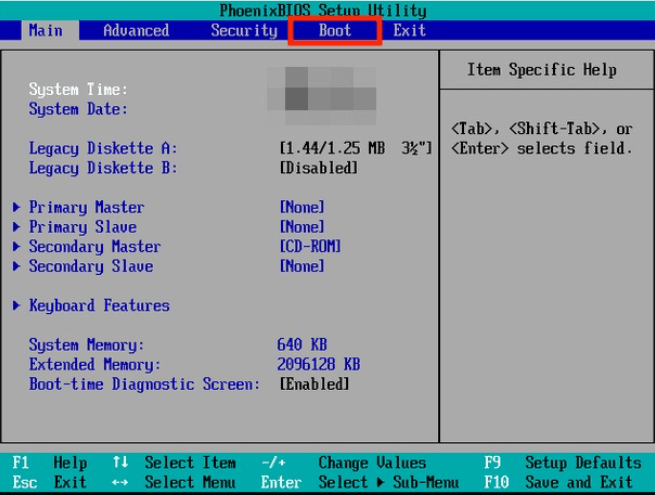
To boot up the HP laptop with a USB drive, we need to make the USB device the first boot option in the BIOS settings. This can be done by invoking the BIOS setup using the settings or BIOS keys, and then following these steps: change the boot order to USB first, save the changes, and exit the BIOS setup. The laptop will then boot up from the USB drive instead of the system's OS.
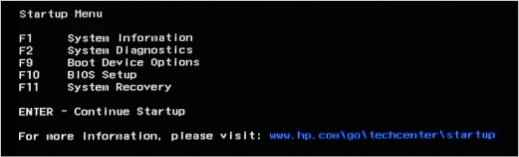
Step 1. To access the startup menu on your PC, turn it on and press the ESC key multiple times as soon as the boot process begins. This will open the startup menu.
Step 2. In the Startup menu, click on F10 to open the BIOS setup utility.
Step 3. To navigate between the options, use the arrow keys and go to System Configuration > Boot options.
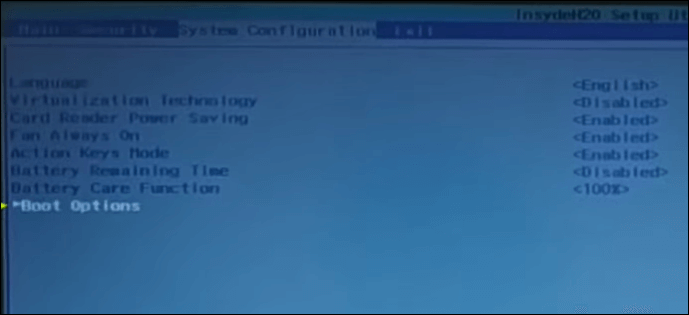
Step 4. To set the USB boot to enabled, navigate to the BIOS settings using the arrow keys and enter buttons, and then enable the USB boot option.
Remember: To enable USB boot on your computer, check your BIOS settings and look for the USB or Removable devices option. If you can't find it there, try searching under Hard Drive settings, as some computers may list it differently. Enable this option to allow your computer to boot from a USB drive.
Step 5. To prioritize the USB Hard Disk in the boot order, navigate to the UEFI Boot Order section and use the F5 and F6 buttons to move the USB Hard Disk to the top position. This will ensure it boots first.
Step 6. Select Legacy Support and disable it.
Step 7. To confirm your exit, navigate to the Exit section, select Exit Saving Changes, and then press Enter to select Yes.
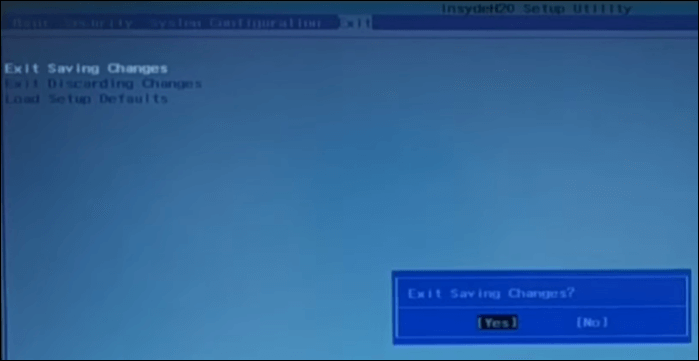
Step 8. To access the Startup menu, connect the USB to the computer's USB port and press the ESC key once every second. This will reopen the menu.
Step 9. To boot from a USB flash drive on an HP laptop, press F9 (Device Boot Options) and select the USB Flash Drive option, then press Enter. Follow the on-screen instructions to complete the process.
HP Laptop Not Booting From USB on Windows 10/11
The HP laptop booting from a USB drive is usually a straightforward process, but sometimes issues may arise. If the laptop is not booting or the USB drive is not showing in the boot menu, it could be due to problems such as loose disk connections, incorrect boot order, driver issues, or outdated BIOS settings. In such cases, troubleshooting and resolving these underlying issues can help resolve the problem and get the laptop up and running from the USB drive.
1. Reconnect USB
Try removing the USB connection to the system and reconnecting it. Sometimes, a fresh connection can resolve the issue, and booting from the USB HP with the new software again may work.
2. Change USB Configuration
Newer computer generations often come with both USB 3.0 and USB 2.0 ports, which can cause driver issues. Since most BIOS systems support USB 2.0, the operating system can only be loaded with USB 3.0 drivers. To resolve this, you can configure the USB 3.0 to automatically switch to USB 2.0 mode, allowing the system to boot normally.
Step 1. To access the USB 3.0 mode, go to System Utility, then Configuration, then BIOS/Platform Configuration (RBSU), followed by System Options, USB Options, and finally USB 3.0 Mode. Select Enter.
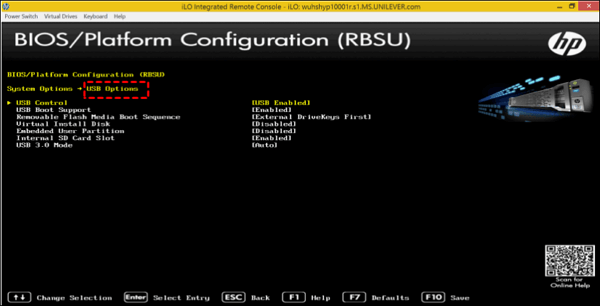
Step 2. Select the Auto option as USB 3.0 and press Enter to allow the PC to operate at USB 2.0 speed during the pre-boot environment, enabling smooth booting of the HP laptop with the USB.
Step 3. To save changes and restart the USB drive to boot the PC with the new software, press the F10 key.
3. Configure the Boot Order
The BIOS settings may get a little tricky if you are on a Windows 10 computer. The Fast Boot and Secure Boot options may halt the process, so disable them. The steps are given below.
Step 1. Press the HP boot menu key ESC on your laptop to access the startup menu after turning it on or restarting it.
Step 2. Press F10 for the BIOS setup from the four options.
Step 3. To disable Fast Boot and Secure Boot, navigate to Advanced > Boot Options, then uncheck or disable both Fast Boot and Secure Boot.
Step 4. To enable Legacy boot mode and set the USB hard drive as the first boot option, navigate to the Boot mode section, select Legacy, and then use the F5 and F6 keys to reorder the UEFI Boot Order, making the USB hard drive the first boot option.
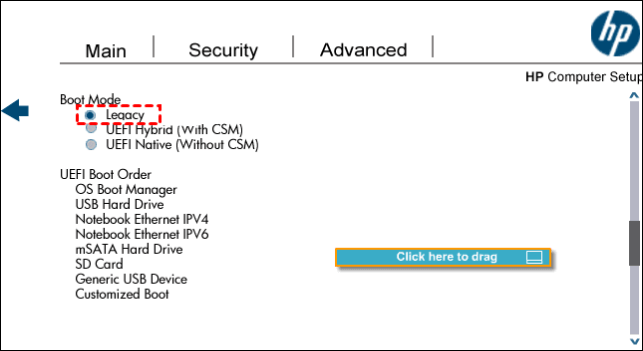
Step 5. Click the save button, click yes to confirm the changes, and restart the computer.
Step 6. To resolve the issue, completely shut down the HP laptop, hold the power button for 30 seconds to discharge any residual power, and then try booting the laptop with the USB drive again. This should allow the USB drive to be recognized and the laptop to boot properly.
4. Reset the Boot Order
To reset the boot order to default, you can press the F9 key during boot-up on most HP laptops, and then select the "Reset Boot Order" option. Alternatively, you can enter the BIOS settings by pressing the F2 key during boot-up, navigate to the "Boot Order" section, and select the "Reset Boot Order" option. Once you've done this, save the changes and exit the BIOS settings.
Step 1. Turn on your laptop and immediately press the HP boot menu key ESC to access the startup menu.
Step 2. Press F10 for the BIOS setup from the four options.
Step 3. To reset the computer BIOS to its default settings, go to File > Apply defaults and Exit. This action will restore the computer BIOS to its default settings and automatically exit the Stepup window.
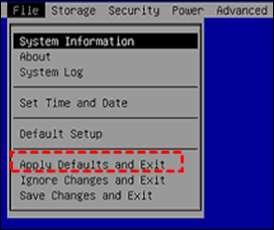
If your HP laptop is not booting from a USB drive on Windows 10/11, you can try updating the firmware drivers and updating the BIOS settings on the computer. This may resolve the issue.
Pro Tip: How to Backup HP Laptop for Data Security
The boot process can be unpredictable, making it challenging for even experienced users to execute tasks smoothly. To ensure data security, it's essential to make regular backups of important data. A reliable tool for backing up data and safeguarding it on any laptop is the Qiling Disk Master, a top-notch backup software that provides peace of mind.
Qiling Disk Master Pro is a professional tool that offers quick and secure data backup services, including system backup, disk/partition backup, and file backup, with advanced backup programs and scheduling capabilities, and also allows cloning with a bootable disk.
There are some key features of Qiling Disk Master:
- Award-winning automatic backup solutions for all situations.
- Reliable cloning software for upgrades, backups, and disk duplications.
- Efficient and secure backup for disks, systems, and files.
- The basic plan Offers multi-path and cloud storage of up to 250GB.
In a word, this third-Party software offers powerful functions, including backing up disks, partitions, files, SD cards, and other external drives. This makes it a reliable tool for securing your data, and it's recommended to use it to back up your HP laptop.
Conclusion
To boot from a USB drive on an HP laptop, simply access the BIOS settings, change the preferences to allow USB drive boot-up, make the necessary changes in the boot options, load the software onto the USB drive, and use it to boot the laptop from the USB drive. A tool like Qiling Disk Master Home can assist with this process.
If you want to learn more information about the boot, here are two articles you may be interested in:
FAQs About Boot From USB HP Laptop
Here are some related questions on the boot from a USB HP laptop. If you have similar queries hope this will help you.
1. What Key Do I Press to Boot From USB on HP?
To boot from a USB on an HP device, you can use two keys to access the boot options. This allows you to select the USB as a boot device, making it possible to boot from the USB.
- The ESC or F9 keys (the HP boot menu key) should be pressed immediately after the restart.
- The F10 key, also known as the BIOS key, is repeatedly pressed after a restart until the BIOS setup screen appears.
2. How Do I Get to My HP Laptop's Boot Device Selection Menu?
To change the boot device selection, you need to access the BIOS setup by using the HP boot menu (ESC) or BIOS key (F10). Once in the BIOS setup, navigate to System Configuration and Boot Options to make the necessary changes.
3. How Do I Enable USB Boot on UEFI?
Step 1. Make sure your device is turned off.
Step 2. You need to plug the bootable USB drive you created into the computer you want to boot from.
Step 3. To boot from the USB drive using the UEFI menu, turn on your computer and access the UEFI menu. From there, select the option to boot from the USB drive, and the device should boot into Factory OS.
Related Articles
- How to Factory Reset MacBook Pro, Air [Erase MacBook]
- Windows Update Not Installing - Try These 6 Fixes
- macOS Monterey Update Not Found | How to Solve Monterey Update Issue
- What Format Works on Both Mac and PC [Best Choice]
- [Fixed] PS4 External Hard Drive Not Working/Recognized [Step-by-Step]
Fix a PS4 external hard drive that is not working or not recognized with practical checks, repair steps, and data protection tips. - PS4 Internal Hard Drive Format: What Is the Best & How to Format [Full Guide]
After using the old hard drive in PS4 for a long time, it may lose its energy and performance, requiring a full format to restore its original version. To format the PS4, multiple methods can be followed, with the preferred file format system being exFAT.
Products
Articles & Tutorials
- Data Recovery
- Data Backup
- File Recovery
- File Backup
- System Backup and Restore
- Disk and Partition Clone
- Technical articles
- Mobile articles
- Disk Master Help
- Windows Data Recovery Tutorials
- Windows Secure Delete Tutorials
- Windows Partition Management Tutorials
- Windows File Backup and Restore Tutorials
- Windows System Backup and Restore Tutorials
- Windows Disk Backup and Restore Tutorials
- Windows Clone Tutorials