[Fixed] PS4 External Hard Drive Not Working/Recognized [Step-by-Step]
PS gamers often use external hard drives to expand their storage, but sometimes the PS4 may not recognize or work with the added storage, preventing access to saved games and programs.
If your PS4 external hard drive is not working, it could be a problem with the hard drive itself or a problem with the PS4 system. The issue may have started from the beginning or the hard drive was working fine before but stopped working. Regardless of the case, you can find a solution in the following content.
| ⏱️Reading Time | 2-3 minutes |
| ✍️ Preparation | PS4 controller, external hard drive, Windows PC |
| 💿Suitable for | Seagate, WD Elements, Toshiba hard drives |
| 🧑💻Cases |
Why PS4 External Hard Drive Not Working
PS4 Extended Storage not working is likely due to a faulty PS4 Extended Storage device, incorrect setup or configuration, or a software issue with the PS4 system itself. To resolve this issue, you can try resetting the PS4 Extended Storage device, checking the device's compatibility with your PS4 model, and ensuring that the device is properly connected to the PS4.
- "Multiple factors may be contributing to the issue, including the external hard drive's status, the USB connection, potential software problems, or issues with the console itself."
- Common causes for the issue include a corrupted external drive, an incompatible file system, a connection problem, or outdated PS4 software.
No matter what your situation is, you can find a suitable solution in the content that follows.
Note: The solutions in this tutorial are suitable for all PS4 external hard drives, including Seagate and WD Elements external hard drives that don't work.
How to Fix PS4 External Hard Drive Not Working
The PS4 External Hard Drive may not work in two scenarios: when the drive is not properly formatted for the PS4, or when the drive is not recognized by the PS4 console, which can be due to a faulty drive or a problem with the PS4's USB port.
- The PS4 external hard drive is not recognized from the start, resulting in it not functioning properly.
- The PS4 External Hard Drive stopped working suddenly, without any prior issues.
We will analyze the two cases of PS4 external hard drives not working in detail. Firstly, we will examine the scenario where the external hard drive is not recognized by the PS4, and explore possible solutions such as checking the USB port, updating the PS4's software, and verifying the external hard drive's compatibility.
Case 1. PS4 External Hard Drive Not Working from Original
If your PS4 external hard drive is not showing up or being recognized, try checking the drive's compatibility and formatting it to FAT32 if necessary. Ensure the drive is properly connected to the PS4 and that the USB ports are functioning correctly.
Fix 1. Check PS4 Connection
To fix the issue, first ensure your PS4 is properly connected to the internet and that your router is working correctly. If that doesn't work, try restarting your router and modem, checking for software updates on your PS4, or using a different internet connection.
- To use an external hard drive with your PS4, you need to connect it to the console using a USB cable. The PS4 system does not support wireless external hard drives, so you'll need to use a wired connection to transfer your data. This will allow you to access your external hard drive and use it to expand your PS4's storage capacity.
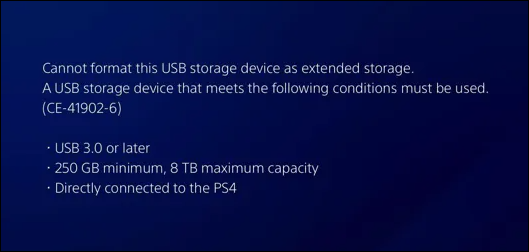
- To ensure the external hard drive is compatible with the PS4, check for a USB 3.0 or higher port and a storage capacity of at least 250GB.
- Cross-The external hard drive should be directly connected to the PS4 through one of its USB ports, and it should be using a USB 3.0 or higher connection to ensure optimal performance.
- The PS4 can only recognize one external storage device at a time, so ensure you only have one external storage device connected to it.
PS4 external hard drive requirements:
Fix 2. Format the PS4 External Hard Drive
To use a PS4 external hard drive, you'll need to initialize the disk and format it to the correct file system, which is either exFAT or FAT32, as the PS4 system doesn't support NTFS. This will allow the console to recognize the external hard drive and use it for storage.
Here are the steps to format a PS4 external hard drive:
Step 1. Launch Qiling Disk Master, right-click the partition on your external hard drive/USB/SD card which you want to format and choose the "Format" option.

Step 2. Assign a new partition label, file system (NTFS, FAT32, EXT2, EXT3, EXT4, exFAT), and cluster size to the selected partition.

Step 3. To start formatting your external hard drive, USB, or SD card, click the "Proceed" button. This will initiate the formatting process, which will erase all data on the device.

Step 4. In the Warning window, click "Yes" to continue.
If you want to use your PS4 external hard drive for your Windows PC, you can also reformat your PC's PS4 hard drive to erase all game data, making it compatible with your PC.

Solved: PS5 Not Recognizing External Hard Drive - 2024
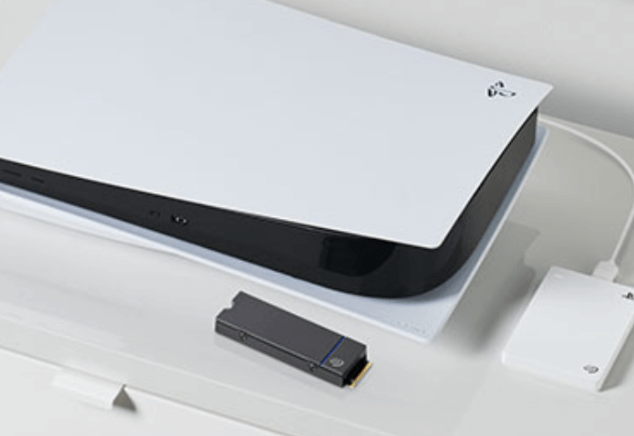
The PS5 may not recognize a USB drive due to various reasons, including a faulty drive, corrupted system files, or incorrect drive settings. To resolve this issue, try restarting your console, checking the drive's compatibility, and ensuring it's properly inserted. If the problem persists, you may need to format the drive or contact Sony support for further assistance.
Fix 3. Check the External Hard Drive Health
If the external hard drive is damaged, the PS4 won't recognize it. To troubleshoot the issue, simply connect the external hard drive to your computer, and a healthy drive will prompt a message saying "Your device is ready to use". If you get an error message instead, it's likely the drive is damaged.
You can continue checking for bad sectors or health conditions with Qiling Disk Master. If there are too many bad sectors to repair, you may need to replace the drive with a new one.
Fix 4. Updated PS4 System Software
If the external hard drive is working fine on other devices, it's likely a PS4 issue. Try updating the system software to see if that resolves the problem with the external hard drive not showing up or being recognized.
Step 1. Connect PS4 to the Internet and go to the Home screen.
Step 2. Go to Settings> System Software Update.
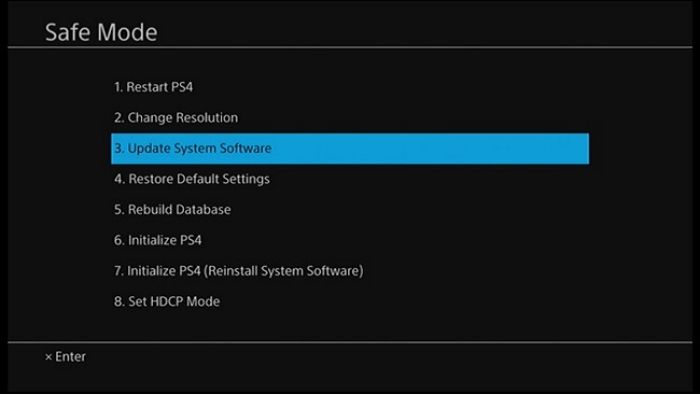
Step 3. If an update is available, connect to the next step.
Step 4. Install the downloaded update.
Connect the external hard drive to the PS4 and see if it works after updating the system firmware.
We'll continue to analyze another situation where a PS4 external hard drive is not working. If you find this guide helpful, click the social buttons to assist others who may be in need.
Case 2. PS4 External Hard Drive Stopped Working Suddenly
If the external hard drive was previously recognized and working on the PS4, but suddenly stopped, it's likely due to disk corruption. You can verify this by connecting the drive to a PC or another PS4, and if so, fix it using the method 2 from case 1.
If you're experiencing issues with your PS4, try the following fixes first: check if there's a problem with the drive. If not, try restarting the console, checking for software updates, and ensuring the hard drive is properly seated.
Fix 1. Restart PS4
Restarting your PS4 can often resolve most issues. To do this, press and hold the power button on your controller until the console shuts down, then wait for about 30 seconds and press the power button again to turn it back on. This simple step can sometimes resolve problems with the console.
Step 1. Turn off the PS4.
Step 2. Disconnect the external hard drive.
Step 3. Run PS4 without any external devices.
Step 4. Turn off the PS4 again.
Step 5. Connect the external hard drive and turn on PS4.
Fix 2. Rebuild PS4 Database
The PS4 has a feature called "Rebuild Database" that scans the console's drive and creates a new database of all PS4 content, helping to organize the content database and improve the console's performance.
If your PS4 external hard drive is not working, you can try to fix it by clearing your PS4 memory in Safe Mode. This process will clear your PS4 memory but will not affect existing data. To do this, follow the steps to enter Safe Mode and select the option to clear the system cache. This may resolve the issue with your external hard drive.
Step 1. To turn off your PS4, press the power button located on the front of the console, which is usually a small, circular button. This will immediately shut down the console.
Step 2. Press and hold the power button on your computer until it shuts down. Then, press the power button again to turn it back on.
Step 3. To turn on the PS4 in safe mode, connect the controller using a USB cable and press the PS button.
Step 4. To rebuild the database in safe mode, select the "Rebuild Database in Safe Mode" option and press the X button to confirm the operation.
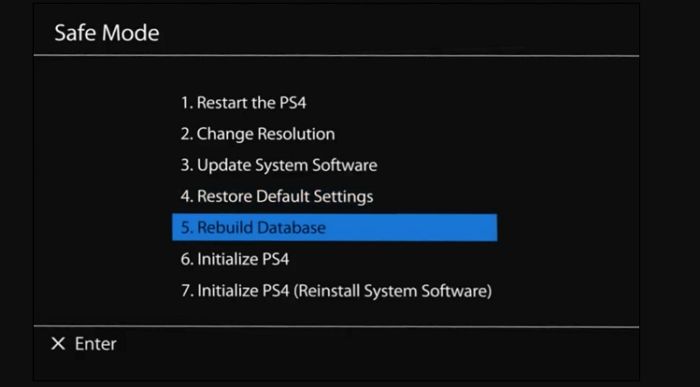
Wait patiently for the PS4 to rebuild the database process. After completing this process, you can restart it and check if it works properly.
Fix 3. Initialize PS4
If all solutions fail, you can try initializing the PS4. This will erase the hard drive and delete all saved data, so make sure to back up any important data beforehand.
This option also needs to be performed in safe mode:
Step 1. After following the steps in Fix 2 to enter Safe Mode, select the Initialize PS4 (reinstall system software) option.
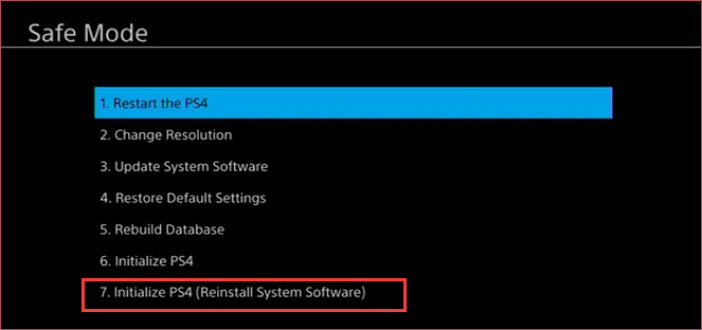
Step 2. After initializing the PS4, update to the latest system software version to ensure you have the most recent features and security patches. This process typically involves going to Settings > System Software > Update System Software, and following the on-screen instructions to download and install the latest software.
Step 3. Connect the external hard drive and check if it is now working.
The PS4 system may suffer irrecoverable damage if you close the console during the initialization of the PS4 and the rebuilding of the PS4 database.
See also:
Conclusion
If your PS4 external hard drive is not working, you can try using Qiling Disk Master to repair the external drive if the issue is with the drive itself, or use the techniques in the article to troubleshoot and resolve the problem if the issue is with the PS4 system.
FAQs About PS4 External Hard Drive not Working
The PS4 external hard drive not working issue can be caused by a faulty drive, incorrect settings, or a corrupted system. To resolve the problem, try checking the drive's connection and power, resetting the PS4, and updating the system software. If the issue persists, consider using a different drive or seeking professional assistance.
1. Why PS4 extended storage not working on PS5?
If your PS4 external hard drive isn't working on your PS5, it could be due to a USB connection issue, such as a loose USB cable or a faulty USB bridge for the PS4 external hard disk, or a malfunctioning USB port or hub on the PS5.
2. Why is PS4 not reading the external hard drives?
PS4 problems, including issues with the system itself and external hard drives, may be caused by a combination of factors, such as hardware malfunctions, software glitches, or corrupted data, leading to errors and unreadable content on the console.
- The external hard drive doesn't have a wired connection.
- The PS4 platform does not support the external hard drive.
- The external hard drive's file system is in the incorrect format. This can cause issues with compatibility and data access.
- Your PS4 is connected to a further external storage device.
3. How to fix PS4 external hard drive beeping and not working?
If a beeping sound is occurring on your PS4 due to a problem with the external hard drive or other hardware, here are some steps to troubleshoot the issue:
- Get power from both ports of the PS4.
- Fix a cable or port failure.
- Clean the write head or read head.
- Fix drive failure.
Related Articles
- [Fixed]Unable To Update Minecraft Native Launcher 2024
- How Many Pictures Can a 32GB SD Card Hold [Full Info]
- How to Solve Mouse Not Working Windows 10? [Step by Step]
- Genshin Impact File Location| Where's the Game Data?
Find the Genshin Impact file location on PC and learn how to change the game directory, move files, or locate screenshots and installation data. - How to Change Network Names on Windows
To change the name of your network on Windows 10, you can follow the steps outlined in this post, which offers two methods to update your network name. By reading the full post, you'll be able to determine which method is most suitable for your needs. - Quickly Check If a Hard Drive Is Failing Using SMART on WIndows 10/11 [2023 New Guide]
It's essential to keep a check on the hard drive's health, and in this post, we will share how you can check if a hard drive is failing using SMART technology. However, it will only work on the drives which support SMART, and most modern storage devices support it.
Products
Articles & Tutorials
- Data Recovery
- Data Backup
- File Recovery
- File Backup
- System Backup and Restore
- Disk and Partition Clone
- Technical articles
- Mobile articles
- Disk Master Help
- Windows Data Recovery Tutorials
- Windows Secure Delete Tutorials
- Windows Partition Management Tutorials
- Windows File Backup and Restore Tutorials
- Windows System Backup and Restore Tutorials
- Windows Disk Backup and Restore Tutorials
- Windows Clone Tutorials