How to Upgrade PS4 Hard Drive [Step-by-Step Tutorial]
Key Takeaways:
- Make the full preparation for PS4 hard drive replacement.
- Get the step-by-step guide to upgrade PS4 hard drive to a bigger hard drive or SSD without losing data.
When you use your PS4 for an extended period, you may experience issues such as insufficient storage space, slow performance, or long loading times. To improve your gaming experience and boost performance, consider upgrading your PS4's hard drive to a larger capacity or replacing it with a faster SSD. This can help resolve storage space issues, reduce loading times, and enhance overall system performance.
If you're looking to replace your PS4 hard drive, don't worry - you can do it without losing your data. Whether you have a PS4, PS4 Pro hard drive, or PS4 Slim hard drive, you can follow the step-by-step instructions in this tutorial to run a successful replacement.
Check out the following necessary information to upgrade your PS4 hard drive:
| ⏱️Duration | About half an hour |
| ✍️Difficulty | Detailed step-by-step instructions make the upgrade process easy |
| 🧑💻Software required | Qiling Disk Master |
| ⛏️Prepared materials |
✔️Phillips screwdriver ✔️A Windows computer ✔️Internal and external hard drives |
| 🎮Supported PS | PS4, PS4 Pro and PS4 Slim hard drive |
| 💿Suitable for | Upgrade PS4 hard drive to 1TB, 2TB, 4TB HDD/SSD |
The next article will provide more detailed information about PS4 hard drive upgrades. Please read on.
How to Upgrade PS4 Hard Drive
PS4 system storage capacity is limited, making it difficult for game enthusiasts to meet their needs. To address this issue, upgrading the PS4 hard drive performance is necessary. Research suggests that an SSD can break the PS4's built-in hard drive storage capacity limit, with the PS4 reaching up to 16TB, and the PS4 Pro and PS4 Slim reaching 10TB of storage capacity.
Upgrading your PS4's hard drive is a relatively simple process that involves trading in your old one for a new one. This guide provides detailed step-by-step instructions for the different stages of the upgrade process, making it easy to follow and complete.
- What Do You Need to Upgrade PS4 Hard Drive
- Choose the Best PS4 Hard Drive Replacement
- Remove the Hard Drive From the Enclosure
- Upgrade PS4 Hard Drive With Professional Tool
- Install the Hard Drive
What Do You Need to Upgrade PS4 Hard Drive
Before you start, prepare the following tools:
- 1 PS4
- PS4 controller
- A Phillips screwdriver
- A working Windows computer
- A portable storage device with a minimum of 1GB of available space.
- A standard SATA II hard drive or solid-state (flash) drive that is no thicker than 9.5 mm.
Choose the Best PS4 Hard Drive Replacement
Before taking apart your PS4, PS4 Slim, or PS4 Pro, you'll need to choose a compatible hard drive replacement. Select a drive that's no thicker than 9mm and has a capacity of at least 160GB. Based on reviews from Android Central, here are three popular PS4-compatible drives to consider.
- Seagate FireCuda Gaming SSD
- Seagate Game Drive for PS4
- Western Digital Blue SSD
The PS4 uses a 2.5-inch hard drive for storage, which can be upgraded to a larger capacity if needed.
The cost of replacing the hard drive on a PS4 varies depending on the storage size, with 1TB and 2TB options ranging from $110 to $224, while 4TB and 8TB options can cost up to $450 and $899, respectively. Users can choose from budget-friendly, high-speed SSDs, or HDDs.
Remove the Hard Drive From the Enclosure
To upgrade the PS4's hard drive, start by selecting the hard drive you want to replace. Then, depending on the PS4 version, you'll need to remove the internal hard drive. The exact procedure may vary, but follow the steps to safely remove the PS4's internal hard drive.
Step 1. To completely turn off your PS4, go to Power > Power Options > Turn off PS4, and then unplug all cables.
Step 2. Turn on the hard drive. For different PS4 models, the position of their lids varies slightly:
- Original PS4: Remove the 7 screws that hold the glossy panel in place. You will find them on the left side of the PS4.
- PS4 Slim: To remove the port, turn the unit, apply pressure to the port's left side, and then remove it.
- PS4 Pro: To remove the panel, place the system on a flat surface, locate the notch on the side, and use the small tab next to the Ethernet port to eject the panel.
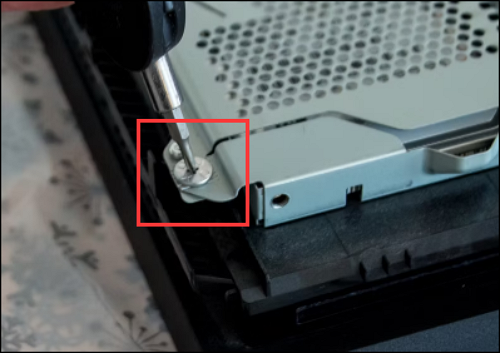
Step 3. To remove the hard drive, you'll need to use a Phillips screwdriver to unscrew the screws that hold the frame in place, allowing you to loosen and remove the drive. The hard drive itself may not be fully visible when the cover is removed, requiring you to access it through the frame. This step is necessary to free the drive from its housing.
Upgrade PS4 Hard Drive With Professional Tool
To upgrade your PS4 hard drive, connect the original drive to your computer along with a new, better one, and use a professional disk tool like Qiling Disk Master to make the upgrade. This powerful and secure tool provides a clean interface to help you seamlessly integrate the new and old hard drives, solving any potential problems that may arise.
Download and use this tool for free to help you upgrade your PS4 hard drive without losing data:
1. Initialize the New Hard Drive
If you're experiencing an "uninitialized hard drive" error, it's likely because your new hard drive needs to be initialized to MBR or GPT format first, which is a common step for most disks. If you're unsure, refer to the following steps to resolve the issue.
Step 1. Open Qiling Disk Master and got to Disk Partition Manager.
Step 2. Right-click the target disk, select "Initialize to MBR" or "Initialize to GPT", and wait for the changes to save.
Once the initialization is complete, you can proceed to use the tool to clone the game data and settings to a new hard drive to use.
2. Clone PS4 Hard Drive to A New
Using Qiling Disk Master can save you a lot of time and effort when cloning an old hard drive to a new one. This tool can also clone only the used space, making it a convenient option. To get started, simply download Qiling Disk Master and follow its instructions.
Step 1. Select the source disk.
- To clone a system or disk/partition, click on the "Tools and utilities" tab page and select the "System Clone" or "Disk/partition Clone" function.
- Choose the source disk and click "Next".
Step 2. Select the target disk.
- Select the desired hard drive or solid-state drive (HDD/SSD) as your destination and click "Next" to proceed.
- Read Warning message and confirm "Yes" button.
Step 3. View the disk layout and adjust the target disk partition size as needed.
To erase a disk, download and install the software, then select the target disk and click "Continue" when the program warns it will wipe out all data on the target disk. If you have valuable data on the target disk, back it up in advance to avoid losing it.
You can choose to have the disk automatically fit the available space, clone the disk as the source, or edit the disk layout to customize it, with the option to edit the layout for more space on the C drive.
Step 4. Click "Proceed" to start the disk cloning process.
This tool can check for issues with your old PS4 hard drive, repair them, and also upgrade your Steam Deck SSD with ease.
As a PS game user, you may also be interested in learning about various topics related to your gaming experience, such as the latest PS game releases, tips and tricks for improving gameplay, and strategies for completing challenging levels. You might also want to know about the different PS game modes, such as online multiplayer and co-op, and how to troubleshoot common issues with your PS console or games.
Install the Hard Drive
After cloning the data, replace the old hard drive with the new one by installing it into the hard drive case, reversing the steps taken to remove the old drive. This involves putting the new drive into the case and securing it in place, then reconnecting the cables and power supply to complete the replacement.
Step 1. Place the new hard drive into the hard drive cage.
Step 2. To secure the PS4's tray back into place, you need to screw the four screws to the side and then place the tray back into the console. This will ensure the tray is properly aligned and secure.
Step 3. Secure the tray case and place the plastic hard drive cover back on.
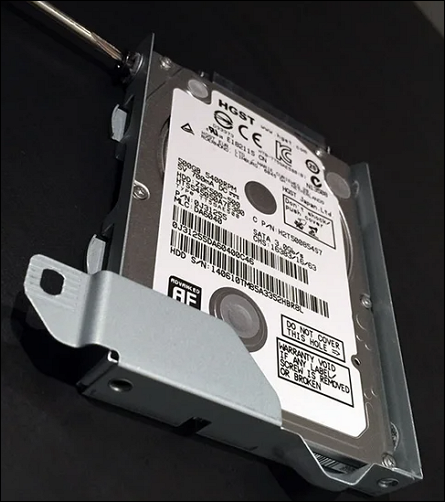
After reinserting the drive into the PlayStation 4, you can plug in the power cord and turn it on to use it again.
Note: Qiling Disk Master can clone the PS4 hard drive to an SSD, but if the cloned SSD doesn't work, you may need to re-clone or initialize the new hard drive and re-download the PS4 software from safe mode.
If you still have questions about the PS4 hard drive, you can check out a detailed guide on YouTube from Austin Evans, which provides a comprehensive walkthrough.
Upgrading your PS4's hard drive to a larger one allows you to increase storage capacity and resolve the "PS4 storage full" error. This process involves backing up data, purchasing a compatible hard drive, and replacing the original drive with the new one. By doing so, you can free up space and continue playing games without storage limitations. For additional solutions to expand PS4 storage, click the provided link.
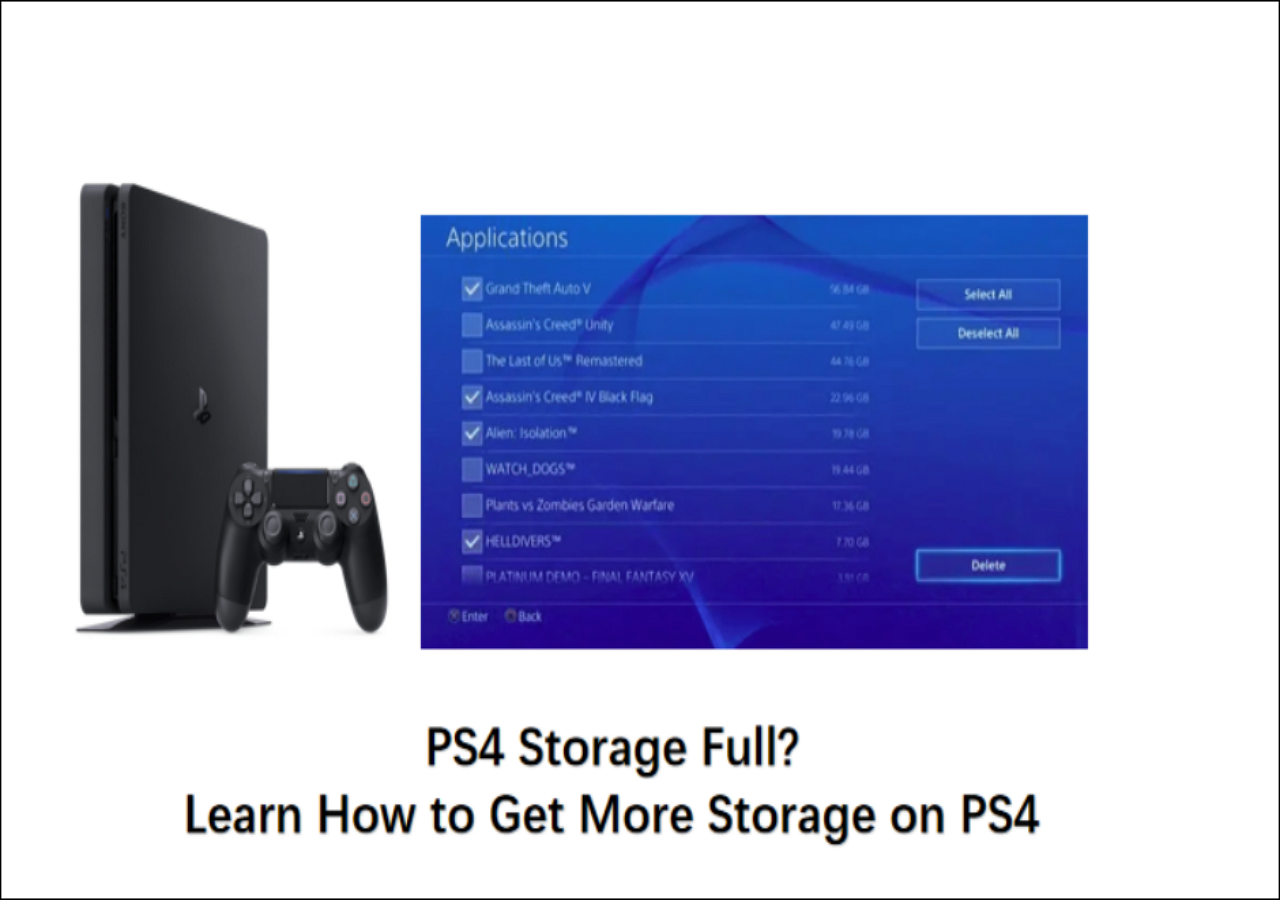
If your PS4 storage is full, you can free up space by deleting unused games, apps, and files. You can also use an external hard drive to expand your storage. The PS4 can support external hard drives up to 8TB, and you can format it as an internal drive.
PS4 storage full is a frustrating issue, but don't worry, I've can help! If you're looking for a solution, check out this helpful guide that provides a step-by-step solution to get more storage on your PS4.
Conclusion
Upgrading your PS4 hard drive is a straightforward process that allows you to replace your existing drive without reinstalling games or downloading software. With the help of Qiling Disk Master, you can initialize a new hard drive and clone your games and data to the new drive, ensuring a seamless transition. Once complete, you'll enjoy significantly shorter game load times, getting you into your favorite games as quickly as possible.
If you found this guide helpful for upgrading your PS4, you can click the social buttons below to help others in need.
FAQs About How to Upgrade PS4 Hard Drive
Upgrading your PS4 hard drive is a relatively simple process, but it does require some additional considerations. If you are interested in upgrading your PS4 hard drive, you will need to purchase a compatible hard drive, which is typically a 2.5-inch SATA drive.
1. What is the best PS4 internal hard drive format?
The PS4 uses a 2.5-The external hard drive is a 1TB PS4 internal hard drive that is connected via a 3.5 inch SATA HDD. Its file system format is exFAT, which is considered the best format for PS4 internal hard drives. This format provides efficient space allocation, reliable technical support, and secure file storage.
2. What is the largest hard drive that a PS4 can support?
The PS4 can support any USB 3.0 drive, with a maximum capacity of 8TB.
3. Can I upgrade PS4 to 2TB?
You can upgrade your PS4 from 500GB to 2TB, which provides you more storage space, up to a maximum of 8TB. This will allow you to load more games and content.
4. Is it worth replacing hard drive in PS4?
Upgrading the PS4 hard drive can provide more storage space for games, improve loading speeds, and reduce game crashes when switching to an SSD.
Related Articles
- How to Create Qiling WinPE Bootable Disk in Windows 10/8/7
- Panasonic SD Formatter Windows 10 [2023 Full Guide]
- How to Stop Programs from Running in the Background on Windows 10/11
- 4 Ways to Troubleshoot Reboot and Select Proper Boot Device Error
- Why Do Games Take Up So Much Space | Free Up PC Space
Are you looking for an answer on why do games take up so much space? Here is a quick guide on how to free up your PC space! - Windows 10 Boot Drive Size & How to Create a Windows 10/11 Bootable Drive
Creating a Windows boot drive is a great option if you need to repair or fresh install Windows on your PC. There are three simple ways to create a bootable USB drive, which can be easily followed.
Products
Articles & Tutorials
- Data Recovery
- Data Backup
- File Recovery
- File Backup
- System Backup and Restore
- Disk and Partition Clone
- Technical articles
- Mobile articles
- Disk Master Help
- Windows Data Recovery Tutorials
- Windows Secure Delete Tutorials
- Windows Partition Management Tutorials
- Windows File Backup and Restore Tutorials
- Windows System Backup and Restore Tutorials
- Windows Disk Backup and Restore Tutorials
- Windows Clone Tutorials