Solved: PS5 Not Recognizing External Hard Drive - 2023
To resolve the issue, try restarting your PS5 in Safe Mode, then plug in the external hard drive and see if it's recognized. If not, try formatting the drive on your PC and then plug it back into your PS5. If the drive still isn't recognized, check the drive's power cord and make sure it's properly connected to the PS5. If none of these steps work, consider using a different external drive or contacting Sony support for further assistance.
| 💡Aspects | 🧩Details |
|---|---|
| 🔎Complex Level | Low, step-by-step guide |
| 🚩Fixes | |
| 💻Causes |
|
The frustration of a PlayStation 5 not detecting an external drive can be caused by various reasons such as incorrect external hard drive format, incorrect installation, console errors, or corrupted hard drives. However, with the help of Qiling's guide, you can easily fix the PS5 Not Recognizing External Hard Drive issue by following the instructions in each method, and enjoy a seamless gaming experience.
6 Fixes for PS5 Not Recognizing External Hard Drive Error
If your PS5 is having trouble detecting an external hard drive, don't worry - there are several ways to troubleshoot and fix the problem. You can try one of six effective methods to get your PS5 and external storage working together without issues. Follow any of these methods to resolve the problem of your PS5 not recognizing your external hard drive.
Fix 1. Check the Cable
Make sure the PS5 data cable is firmly plugged in and not damaged, as physical damage or excessive bending can prevent the console from installing the drive. Inspect both ends of the cable for any signs of cracks or damage, and replace it with a compatible one if necessary. If using a new cable, try a different USB port on the PS5. If the issue persists, proceed to check the external hard drive's health.
Fix 2. Check External Hard Drive Health
If your external hard drive is not recognized by the PS5, it's possible that the drive itself has faulty sectors or is corrupted, and not the data cable. Check the drive's condition before use and consider using a tool like Qiling Disk Master to assess its health.
The "Disk health" feature allows for a quick analysis of a drive's performance, health, read/write speed, and the detection of bad sectors, providing real-time results to help identify any issues preventing the PS5 from recognizing an external hard drive.
You only need to connect your external hard drive to your computer and download Qiling Disk Master. Head to these quick steps to check external hard drive health.
Step 1. Launch Qiling Disk Master and click the blue arrow to activate the "Disk Health" feature under the "Tools and utilities" tab page.

Step 2. Select the target disk and click the "Refresh" button to view its health condition.

This guide helps you check the external hard drive health for PS5. It examines the disk's complete health report to determine if the drive is ready for use, and if it's in good condition, the problem may be due to poor installation, which can be fixed by following the correct installation steps.
Fix 3. Install the External Hard Drive Correctly
To install the external hard drive correctly on your PS5, you need to follow these steps. First, ensure the external hard drive is compatible with your PS5. Then, insert the external hard drive into the PS5's USB port, and the console should recognize it automatically. If the PS5 fails to recognize the external hard drive, you need to install the hard drive manually. To do this, go to Settings > Storage > USB Extended Storage, and select the external hard drive.
Step 1: Insert the USB cable into the USB port 1 of your PS5.
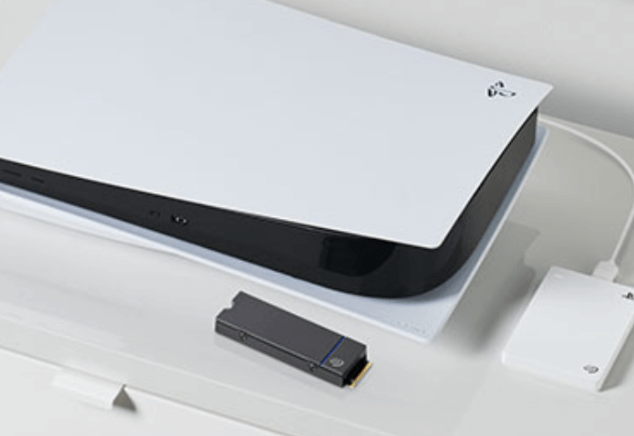
Step 2: Go to "Settings" and select the "Storage" option.
Step 3: To format a drive as USB Extended Storage, click on "USB Extended Storage" and select "Format as USB Extended Storage." Follow the on-screen instructions to complete the formatting process.
If the PS5 doesn't recognize the external drive, try resetting it to factory settings. This will erase all data on the drive, so make sure to back it up before doing so. To reset the drive, unplug it, press and hold the power button for 30 seconds, then plug it back in and turn it on.
Fix 4. Make the External Hard Drive Compatible with PS5
The PS5 may not recognize an external drive until it's formatted in a compatible file system. To resolve this, format the external drive in exFAT or FAT32, with exFAT being the recommended format for PS5 gaming consoles. To do this, simply unplug the external drive and connect it to a computer, where you can reformat it to make it compatible with your PS5.
To format a disk, download the specialized tool Qiling Disk Master, which offers a user-friendly interface to simplify the process. This tool is designed to format disks in one click and supports all types of storage drives, including hard drives, SSD, USB drives, SD cards, and more.
Download this tool and follow the steps to format your external drive.
Step 1. Launch Qiling Disk Master, right-click the partition on your external hard drive/USB/SD card which you want to format and choose the "Format" option.

Step 2. Assign a new partition label, file system (NTFS, FAT32, EXT2, EXT3, EXT4, exFAT), and cluster size to the selected partition.

Step 4. To proceed, please select the drive you want to format from the list. If the drive is not visible, ensure it is properly connected and powered on.

Step 3. In the Warning window, click "Yes" to continue.
This tool can also assist with various PS5 issues, including storage formatting, drive checks, and external drive troubleshooting.g.
Fix 5. Rebuild the PS5 Database
Rebuilding the PS5 database can be a solution to fix issues where the console doesn't recognize an external hard drive. This process maintains the software workflow and improves the console's performance. By scanning the internal storage, rebuilding may resolve potential bugs and create a new database, increasing the chances of successfully detecting the external hard drive.
- Important
- Rebuilding the PS5 database won't affect saved data or games, but it's recommended to create a backup using Qiling Disk Master to prevent data loss.
Follow the given steps to build the PS5 database:
Step 1: Turn off your PS5 completely, and ensure the console isn't in Rest Mode. This will prevent any potential issues with the console's power supply or the USB ports not functioning.
Step 2: Press the power button and hold it until you hear two beep sounds, then the console will boot in Safe Mode, taking 5 to 8 seconds.
Step 3: Once the Safe Mode is on, connect a DualSense controller using the USB cable.
Step 4: To rebuild the database on your PS controller, press the PS button and navigate to the "Rebuild Database" option from the menu using the controller.
Step 5: The user is instructed to press the "X" button on the controller to confirm the rebuild operation and then follow the on-screen instruction to move forward.
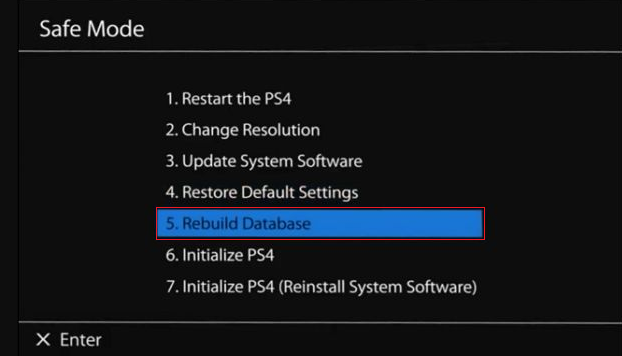
You can try to resolve the issue by restarting the console after completing the rebuilding process. If the problem persists, try the following method to fix it.
Fix 6. Restart PlayStation 5
If your PS5 is not recognizing an external hard drive, restarting your console may resolve the issue. To restart your PS5, simply press and hold the power button on the controller until the console shuts down, then press the button again to turn it back on. This simple step can often resolve connectivity issues and get your external hard drive recognized by your PS5.
Step 1: Press the PS button on the controller and close any open application.
Step 2: Restart the PlayStation and disconnect the external hard drive.
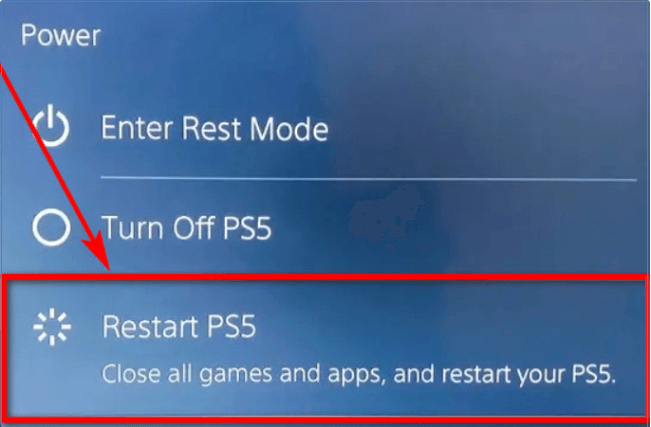
Step 3: Turn on the PS5 without an external drive and turn it off again.
Step 4: Connet the external hard drive and turn the PS5 on.
The PS5 may encounter certain issues, which can be read about in more detail through the following links.
Why Does PS5 Not Recognizing External Hard Drive
Your PS5 may not recognize an external hard drive due to various reasons such as the hard drive not being compatible with the PS5, the hard drive being damaged or faulty, the USB port on the PS5 being faulty, or the external hard drive being improperly formatted or partitioned. Additionally, the PS5 may not recognize the external hard drive if it is not properly connected to the console, or if the external hard drive is not set up as a storage device in the PS5's settings. It's also possible that the external hard drive is not supported by the PS5's operating system, or that there is a conflict with other external devices connected to the console.
- Incompatibility: The PS5 may not recognize an external drive due to its incompatible file format, which is likely not exFAT or FAT32.
- Faulty drive: A corrupted external hard drive may cause recognition issues due to the presence of bad sectors within the drive.
- An issue with USB Cable: Issues with the USB cable may be hindering the proper operation of the external hard drive.
- Faulty USB Interface: The PS5's USB interface may be malfunctioning, preventing it from detecting and reading an external hard drive.
- Software Issue: The PS5's software may have hardware damage, potentially causing issues with the console's ability to recognize external drives.
Does Any External Hard Drive Work with PS5
Not all external hard drives are compatible with the PS5, but those that meet specific criteria, such as being from a reputable brand, can provide a smooth gaming experience with good read and write speeds.
When shopping for a PS5 external drive, don't just focus on the storage size - check the manufacturer's specifications for load times, data transfer speeds, and other important details. Investing in extra storage is a great way to expand your gaming library and prevent running out of space.
The PS5 cannot play games directly from an external hard drive, and using an incompatible external hard drive may cause errors or improper device recognition. To use an external hard drive with a PS5, it must meet specific requirements.
Compatibility: The external hard drive should be compatible with the PS5 gaming console. This means it should be able to read and write data in the PS5's format, and should be recognized by the console as a valid storage device.
Storage Capacity: A hard drive with a storage capacity of at least 250 GB is recommended to store multiple games simultaneously.
File System Format: The PS5 console supports external hard drives with FAT32 or exFAT file formats.
USB 3.0 Support: The PS5 required a USB 3.0 interface for better connectivity and to ensure fast data transfer speeds.
Read Speed: An external hard drive will work with the PS5 if it has a minimum read speed of 5 MB/s.
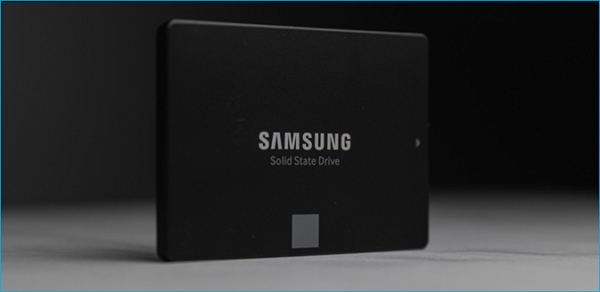
The best external hard drive for PS5 is a topic of much debate, but some top contenders include the Seagate 2TB Expansion Card, which offers a massive storage capacity and is specifically designed for PS5, and the WD Black P50, which boasts high-speed performance and a sleek design. However, other options like the Samsung T7 Touch and the ADATA HD770 also deserve consideration, as they offer impressive storage capacities and transfer speeds.
Data Recovery is no longer a challenge. Qiling provides a reliable data recovery service that retrieves lost data with just a few clicks.
Conclusion
The post provided helpful solutions for the issue of the PS5 not recognizing external hard drives. Various fixes were suggested, and users can choose the one that best suits their needs, as all the methods have been proven to work in making the drive detectable.
We invite you to leave comments below and share this post with others who may be facing similar challenges. This will help them benefit from your experiences and insights.
FAQs About PS5 Not Recognizing External Hard Drive
If you have additional inquiries related to PS5 recognizing external hard, please feel free to follow this FAQs section. Let's address some frequently asked questions to find relevant answers:
1. How do I get my PS5 to read my external hard drive?
To ensure the external hard drive works with your PS5, it must meet the system's requirements, which include using a USB 3.0 or 3.1 Gen 1 connection, supporting exFAT or FAT32 file formats, and having a storage capacity between 250 GB and 8 TB. Additionally, make sure the hard drive is properly connected and that the PS5 can read its contents.
2. Why my external HDD cannot be detected?
Your external HDD may not be detected due to various reasons such as incompatibility with the console, a faulty data cable, or a malfunctioning USB-SATA bridge in the external hard drive. It could also be a software issue on the PS5 or the wrong file format installed on the hard drive. To troubleshoot, check the device's compatibility, try a new cable, and test the drive on a different device.
3. Are all external hard drives compatible with PS5?
The PS5 has specific requirements for external hard drives, including USB 3.0 or 3.1 Gen 1 compatibility, and supports reputable and reliable drives, but not all external hard drives are compatible. The drive must be formatted with exFAT and meet the manufacturer's specifications. To avoid any issues, it is recommended to review the manufacturer's specs before purchasing an external drive. This ensures smooth performance and compatibility with the PS5. The PS5 supports certain capacity restrictions and reputable drives, making it essential to choose a compatible drive to store games and data.
Related Articles
- How to Write Zero to Hard Drive - Pictures Guide 💡
- 5 Best FAT32 Format Tools Free Download for Windows🔥
- How to Unlock ASUS Laptop Without Password - Tutorial
- Fixed: The Computer Has Rebooted From A BugCheck [2026]
- Windows Convert to GPT Grayed Out? Solve it Easily!
If you're unable to convert a disk to GPT in Disk Management. There are ways to successfully convert a disk to GPT. You can try using other tools or methods to achieve this. - What's the Difference Between GPT and MBR Partition Style?
When initializing a new disk, you have to choose between MBR and GPT. What's the difference between MBR and GPT? Is there any benefit using MBR or GPT? How to check if your disk is MBR or GPT? This article will explain all the questions.
Products
Articles & Tutorials
- Data Recovery
- Data Backup
- File Recovery
- File Backup
- System Backup and Restore
- Disk and Partition Clone
- Technical articles
- Mobile articles
- Disk Master Help
- Windows Data Recovery Tutorials
- Windows Secure Delete Tutorials
- Windows Partition Management Tutorials
- Windows File Backup and Restore Tutorials
- Windows System Backup and Restore Tutorials
- Windows Disk Backup and Restore Tutorials
- Windows Clone Tutorials