PS5 No Sound? 8 Fixes Here! [Reasons Explained]
This article from Qiling is to remove the PS5 no sound error. However, if you have the same problem, you can read the following to solve it:
| ⚙️Complex Level | Low, step-by-step guide |
| ⏱️Duration | 5-8 minutes |
| 💻Applies to |
|
| ✏️Stages |
|
| 🔨Causes | HDMI cables, system bugs, wrong settings, and more...
|
The PS5's silence when the volume is muted may seem like a major issue, but it's easily resolved. The problem is often related to HDMI cables, system errors, or incorrect settings, making it a relatively simple fix.
Why Does PS5 Put Out No Sound
The PS5 has been affected by various issues since its release in 2020, with one common problem being the no sound bug, where users experience no sound from games, videos, music, or voice chat, as seen in a real user case on Reddit.
Your PS5's sound issue might be caused by the console overheating due to being left on for an extended period. Try unplugging it, letting it cool down for about 30 minutes, and then plug it back in to see if the sound returns. If not, you might need to perform a factory reset or contact Sony support for further assistance.
There is no one paragraph summary. The conversation started with a user complaining about an annoying error and then mentioned that they had found the reason for the error. However, there is no further information or context provided in the conversation to summarize.
- 🖥️System error.
- 🔍Wrong TV video input.
- 🔧The HDMI cable is bent or damaged.
- 🧩The console's HDMI port is dusty or faulty.
- 🧰Problems with the HDMI port on the TV.
- 🔨The console is physically damaged.
- 🔗Too many devices are connected to your TV or console.
- ✂️To fix the issue, go to Settings > Audio and ensure that the correct audio settings are selected. If you have enabled 3D audio mode, ensure that you have a 3D audio device connected and selected. You can also try disabling 3D audio mode and see if the issue resolves.
You may also like:
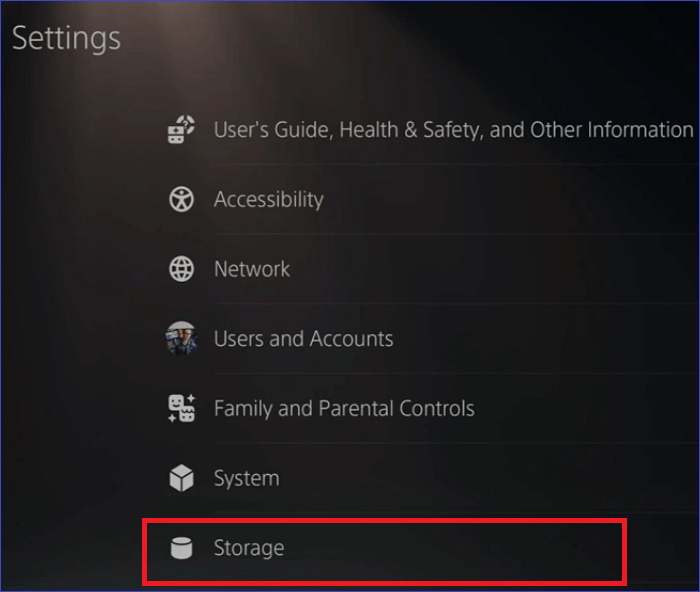
If your PS5 won't start a game or app, there are several potential causes and solutions. Firstly, ensure the game or app is compatible with your PS5.
The PS5 may display an error message stating it cannot start a game or app, accompanied by error codes such as CE-100095-5, CE-107891-6, CE-107885-9, and others. To resolve this issue, users can try nine different fixes, including checking the game's disc or digital version, ensuring the correct disc is inserted, updating the console, resetting the console, and more.
Based on the reasons mentioned, we will provide eight fixes in the next part to help you. After that, you can share this article on your social media to help more people.
8 Fixes to Remove PS5 No Sound
If your PS5 is experiencing no sound through headphones or a soundbar, it can significantly impact your gaming experience. To resolve this issue, try the following fixes one by one:
Fix 1. Unmute the System with The PS5 Controller
If your PS5 is not producing sound, it's likely because the mute button was accidentally pressed. Check the mute button, if it's yellow or orange, press it again to restore sound.
Fix 2. Disable 3D Audio Mode on PS5
Enabling the 3D audio mode on the PS5 can result in no sound being heard, likely due to the current limitation that only headsets support this feature, such as the PS5's Pulse headset. Additionally, some games may not support 3D audio, which can also cause the issue.
To disable 3D audio mode, you just need to
Step 1. Go to "Settings" > "Sound."
Step 2. To disable 3D audio, go to the audio settings, select the audio output, and toggle off the enable 3D audio option.
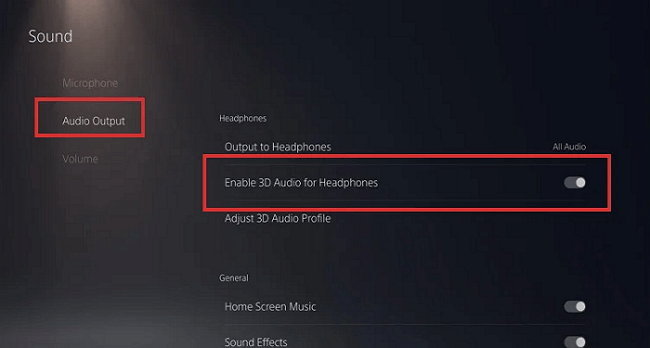
If your headset is connected to DualSense, you won't hear any sound from the PS5 speakers. Unplug your headphones or unpair your wireless headphones to switch audio to your TV.
Fix 3. Make Sure the TV's Correct Output
If your TV is on mute, you won't be able to hear the sound from your PS5. To fix this, simply unmute your TV. This should resolve the issue and allow you to hear the sound from your PS5 again.
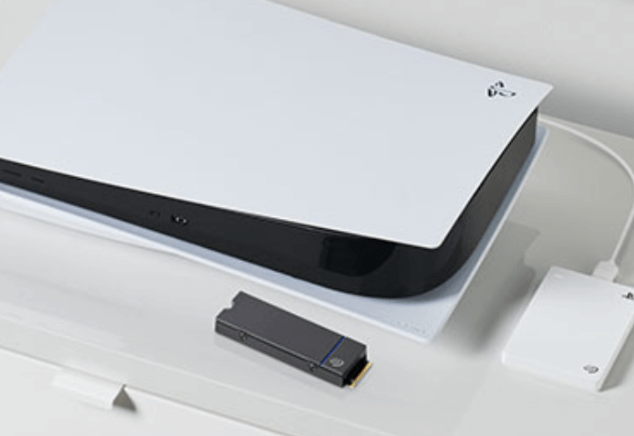
Solved: PS5 Not Recognizing External Hard Drive - 2023
If your PS5 isn't recognizing your USB drive, there are several potential reasons behind this issue. One possible cause is that the drive isn't properly formatted for use with the PS5, or it may be damaged and need to be replaced. Additionally, the drive may not be inserted correctly into the console's USB port, or it could be a software issue with the PS5 itself.
Fix 4. Check Your HDMI Port and Cable
The PS5 console is connected to the TV via an HDMI cable, which can sometimes cause PS5 no sound issues due to a faulty HDMI port or cable.
To check if the HDMI port on your PS5 is working, try connecting it to a different HDMI port on your TV, as the console can use any HDMI. For the best gaming experience, use an HDMI 2.1 port if your TV supports it, or an HDMI 1.4 port if it doesn't.
To troubleshoot your HDMI cable, try using it with a different device, such as a different TV or computer, to see if the issue persists. Alternatively, swap out the HDMI cable itself with a different one to rule out any issues with the original cable.
Fix 5. Use Standard HDMI Mode
Users experiencing no sound on their PS5 have reported that changing the HDMI mode on their TV from Enhanced to Standard resolves the issue, making it a good troubleshooting step to try.
Fix 6. Change Your Sound Settings on PS5
To fix the PS5 no sound issue, check your PS5 sound settings and set the default audio output device to your speakers or TV.
Step 1. Go to "Settings" > "Sound" > "Audio Output."
Step 2. Select your TV or speakers and press X to change.
To enhance the audio quality, you can enable the Dolby sound system by going to the sound settings, selecting "AUDIO Format (Priority)", and setting Dolby Digital as the priority audio format, then saving the changes.
Fix 7. Install the Latest PS5 System Software Update
If you experience no sound on your PS5 after updating your system software, your update may have been installed incorrectly or contained corrupt software. To remove this issue, please install the latest PS5 system, as new updates usually bring bug fixes, new features, or other improvements. To download the latest PS5 system software, you have two choices.
Guide 1. Update PS5 via Settings
The first method is relatively simple to operate, requiring only that you.
Step 1. Ensure PS5 is connected to a working network.
Step 2. While on the Home screen, select Settings.
Step 3. To update your system software, go to System > System Software, select System Software Update and Settings, and then download and install the latest system software.
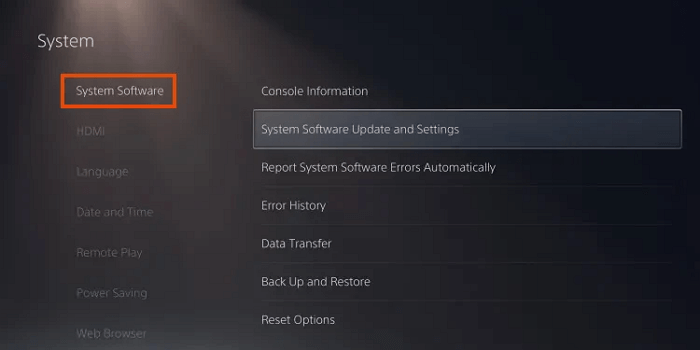
Guide 2. Update PS5 via a USB
If you're not getting system software updates in the PS5's "Settings," you can try installing the latest system using a FAT32 formatted USB drive.
The PS5 console can recognize the FAT32 file system, which has better compatibility compared to other system files. To utilize this feature, follow the steps:
Step 1. Format the USB drive as FAT32 using a third-party tool like Qiling Disk Master Free, especially if you're not experienced.
This tool is perfect for beginners to format USB drives, and to learn how to do it, click the link below to get started.
Extended Reading: How to Format USB for PS4/5
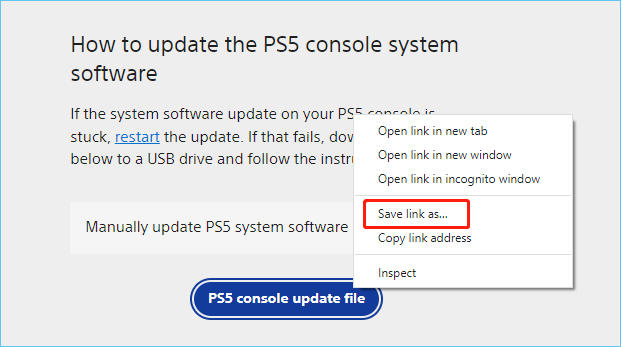
Step 2. Download the latest PS5 update file from the official website.
- To open File Explorer on the same PC, press the Windows key and the E key at the same time. This will instantly launch File Explorer, allowing you to access and manage files on your computer.
- In File Explorer, access your USB flash drive and create a folder called PS5 UPDATE.
- Open a web browser like Google and go to the official PlayStation website.
- To update your PS5 console, start by locating the download link for the update file. Once you have the link, right-click on it and select "Save Link As" to save the file in the UPDATE folder you previously created on your computer. This will allow you to easily locate the file and initiate the update process on your PS5 console.
Step 3. Install the update file on the PS5 console.
- Once your PS5 console has completely shut down, connect the USB drive to the PS5 console.
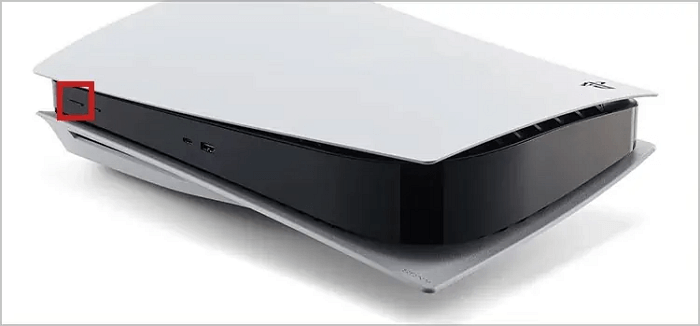
- Press and hold the PS5 power button for about seven seconds, releasing it after the second beep.
You may also like:
Fix 8. Take Your PS5 Console for Repairs
If no method solves your problem, you must send the console in for repair. Hardware damage requires professional handling. If no method solves your problem, you must send the console in for repair.
Editor's Thought
The PS5 no sound issue can significantly impact your gaming experience, whether it's due to a Samsung TV with no sound or the PS5 itself having no sound after a system update. This problem can arise from various causes, including issues with the HDMI cable/port, incorrect audio settings, or problems with a system software update. To troubleshoot, start by checking the HDMI port/cable or the mute button, and if that doesn't resolve the issue, try the fixes outlined above. Sharing this article with others who may be experiencing the same problem can also be helpful.
PS5 No Sound FAQs
The PS5's tendency to become silent while gaming is a frustrating issue for many users. If you're experiencing this problem, you're not alone. Fortunately, there are potential solutions to this issue that you can explore further if needed.
1. How do I turn the sound back on my PS5?
To turn the sound back on your PS5, follow the steps:
Go to the PS5 home screen, select Settings, then Sound.
To fix the issue, go to Settings, then choose Audio Output, and turn the sound back on under the General Audio Settings.
2. Why is my Playstation not putting out sound?
If your PlayStation has no sound, it's likely due to a hardware issue with the HDMI interface or cable, or a software problem, such as the sound mode being set incorrectly, or the mute button being turned on.
3. How do I unmute my PS5?
To unmute your PS5 system, simply tap the Mute button, which will turn off the orange or yellow light that indicates mute mode. When the light is off, the system is no longer muted.
Related Articles
- Locked Out of MacBook Pro, Air? You Can Reset MacBook Password Now
- How to Download and Install macOS 13 Ventura [Step by Step Navigation]
- How to Recover Deleted Chrome Bookmarks on Mac
- How to Fix Cannot Delete a Protected Partition in Diskpart [Ultimate Guide]
- Computer Restarts When Playing Games | 10 Fixes🔥
The issue of computer restarts when playing games can be easily resolved if we understand the underlying reasons. This post explores the common causes and provides ten practical solutions to solve the problem, allowing you to enjoy gaming without interruptions. - Computer Shuts Down When Put to Sleep: Fixes Are Here
If your computer is shutting down when put to sleep, it can be due to various reasons, and you need to fix this immediately. The issue can be caused by a faulty power management system, outdated drivers, or a malfunctioning sleep mode. - Fix Windows 11 No Sound (2026 Guide)
Products
Articles & Tutorials
- Data Recovery
- Data Backup
- File Recovery
- File Backup
- System Backup and Restore
- Disk and Partition Clone
- Technical articles
- Mobile articles
- Disk Master Help
- Windows Data Recovery Tutorials
- Windows Secure Delete Tutorials
- Windows Partition Management Tutorials
- Windows File Backup and Restore Tutorials
- Windows System Backup and Restore Tutorials
- Windows Disk Backup and Restore Tutorials
- Windows Clone Tutorials