Computer Restarts When Playing Games | 10 Fixes🔥
PC restarts while gaming can be frustrating, not only ruining the mood but also affecting game progress. If your computer restarts frequently while playing games, it's essential to identify the underlying causes. This post will explore the reasons behind computer restarts when playing games and provide ten practical solutions to resolve this issue.
Why Does My Computer Keep Restarting When Playing Games
The computer restarts while gaming due to various reasons, primarily related to the game's graphics, power, and resource requirements. The system's PSU (Power Supply Unit) may also be at fault if it's unable to supply enough power to run the game smoothly.
Sometimes, issues with graphics or device drivers, or misconfigured power options, can cause the problem, leading to PC restarts or random CPU restarts after prolonged use.
Users have reported various issues related to computer restarts when playing games, including sudden shutdowns, freezes, and crashes. These problems can occur due to a range of factors, such as outdated graphics drivers, overheating, or incompatible game settings.
- Overheating Issues: Every computer has a threshold temperature level, beyond which it automatically restarts to prevent overheating and potential system damage.
- Power Supply Unit (PSU) issues:If the power supply unit (PSU) can't provide the required power, the computer shuts down.
- Drivers issue: If the graphic or device drivers are incompatible with the games, it can cause a range of issues, including crashes, glitches, and poor performance. This is because the drivers are responsible for communicating between the game and the graphics card or other hardware, and if they are not compatible, this communication can break down, leading to problems.
- Overclocking the PC:It may sometimes malfunction if you overclock your PC for more performance.
- Unmet system requirements: If your PC does not meet the minimum gaming requirements.
- Malware intrusion: Computer viruses and malware can significantly impact your PC's performance, causing it to slow down or even freeze. They can also consume system resources, leading to a decrease in overall speed and efficiency.
How to Fix Computer Keeps Restarting When Playing Games
If your computer is restarting when playing games, there are several practical fixes to consider. Firstly, ensure your computer meets the minimum system requirements for the game, as running a game that's too demanding can cause system crashes. Additionally, check for any updates for your graphics drivers, as outdated drivers can cause compatibility issues.
- Way 1. Cool Your Computer
- Way 2. Disconnect External Peripherals
- Way 3. Scan PC for Malware
- Way 4. Check Computer Hardware
- Way 5. Update Graphics Card Drivers
- Way 6. Install the Latest Windows Updates
- Way 7. Disable Windows Automatic Restart
- Way 8. Run System File Checker
- Way 9. Change Power Settings
- Way 10. Disable the Overclocking Settings
Way 1. Cool Your Computer
The CPU may shut down or restart due to overheating issues, lack of resources, or overlord problems, which can be caused by old thermal paste that deteriorates heat radiation, leading to PC overheating.
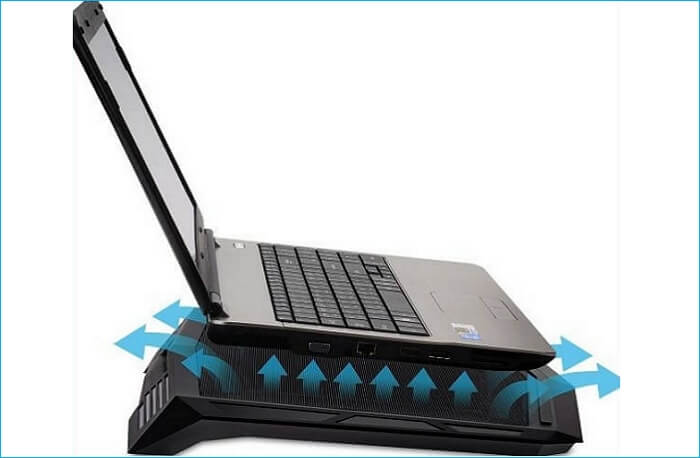
To avoid overheating issues, consider using high-quality heatsinks for your motherboard and cooling system. Additionally, ensure your PC has proper ventilation and fans to keep the heat out. If you're experiencing overheating, try giving your computer a break to cool down and then restart.
Way 2. Disconnect External Peripherals
External peripherals may also be the cause of computer restarts while playing games, so it's worth checking them to see if the issue resolves.
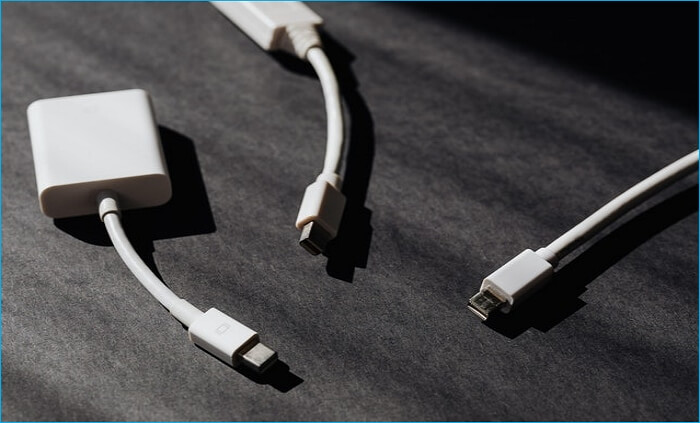
External peripheral devices such as a mouse, keyboard, and USB drives can sometimes cause issues with a computer. To troubleshoot, try disconnecting all external devices and see if the problem resolves. If not, try reconnecting one device at a time to identify the problematic device and remove it. If this solution doesn't work, proceed to the next fix.
Way 3. Scan PC for Malware
If your PC restarts while gaming, it's possible that malware is the culprit. To troubleshoot, it's recommended to run a complete scan to check for malware, which can be done by following the steps below. This will help identify and remove any malicious software that may be interfering with your gaming experience.
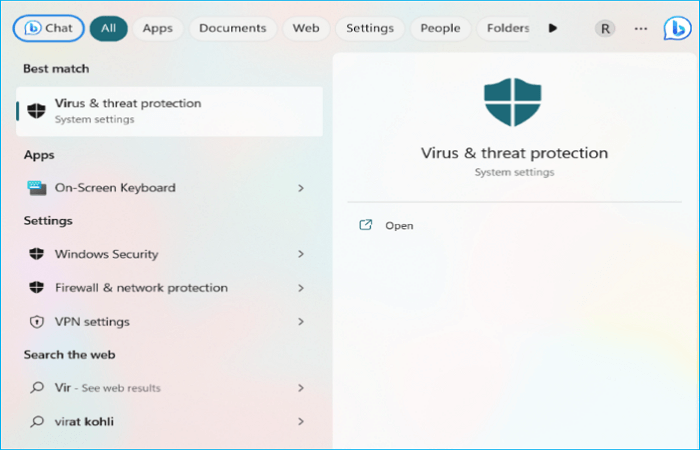
Step 1: Search for Virus & Threat Protection and open it.
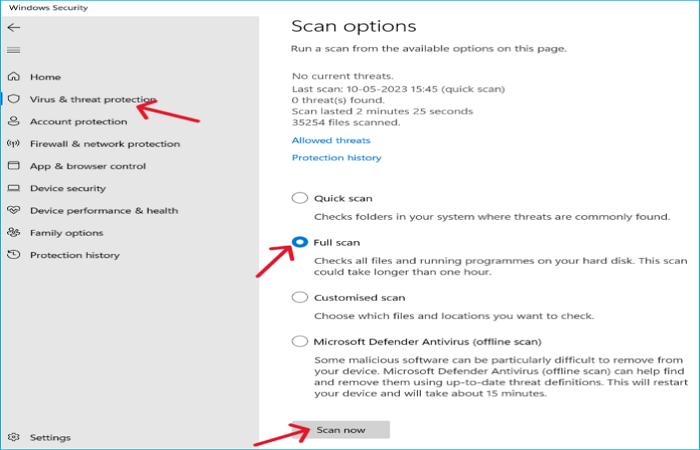
Step 2: Click on Scan Options and Check the Full Scan option.
Step 3: To initiate the system update process, click on the "Scan Now" button located at the bottom of the screen. This will start the scanning process, which may take a few minutes to complete, depending on the system's specifications and the size of the update package.
If you find any external software, try to remove it from your system and try gaming. If not, go to the next step.
Way 4. Check Computer Hardware
To ensure optimal PC performance, it's essential for software and hardware to work in harmony. While software updates can resolve issues, hardware checks are necessary to identify potential problems. A step-by-step process can be followed to perform a comprehensive hardware check, which includes running diagnostic tests and generating a report. This process helps to identify hardware-related issues and provide a clear understanding of the PC's hardware configuration.
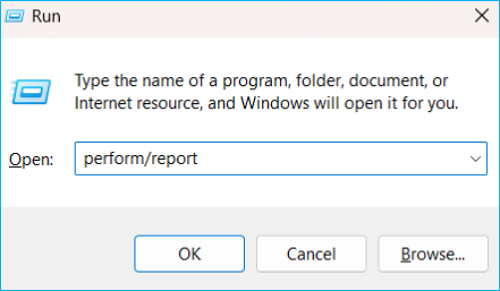
Step 1: To access the Performance Monitor in Windows, press the Windows key + R to open the Run dialog box, then type "Perform/report" and press Enter. This will open the Performance Monitor, allowing you to view system performance metrics and troubleshoot potential issues.
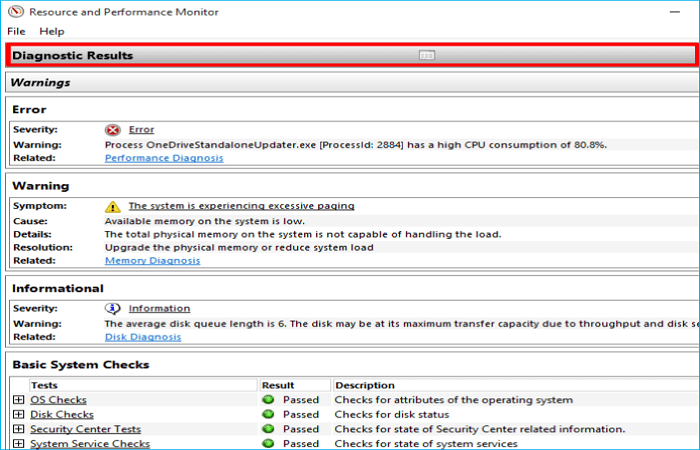
Step 2: The software gathers data for over 60 seconds and then displays diagnostic results, which can be accessed by clicking on the "Diagnostic Results" section, providing detailed information about the condition of various computer components in separate subsections.
Way 5. Update Graphics Card Drivers
The majority of the game's issues are caused by outdated or misconfigured graphics card drivers and device drivers, which act as a medium between hardware and software. To resolve this, it's essential to update the drivers to ensure they're in sync with your PC. To do this, follow the steps below to update your graphic and device drivers.
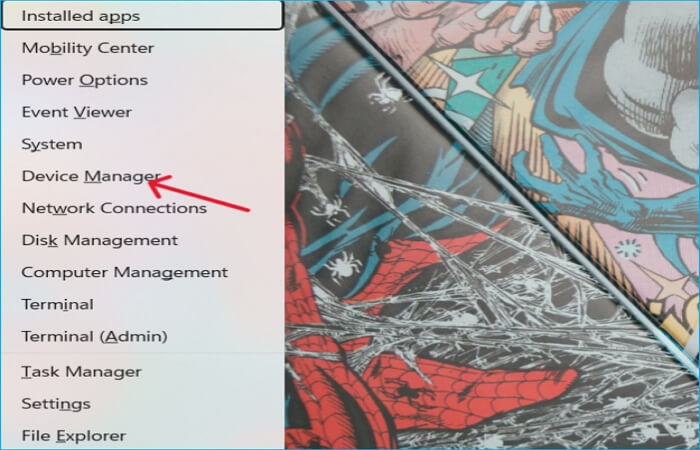
Step 1: To open the Device Manager, press the Windows key + X on your keyboard or right-click on the Windows icon and select "Device Manager" from the Quick Access menu. This will open the Device Manager window, where you can manage and troubleshoot your computer's hardware devices.
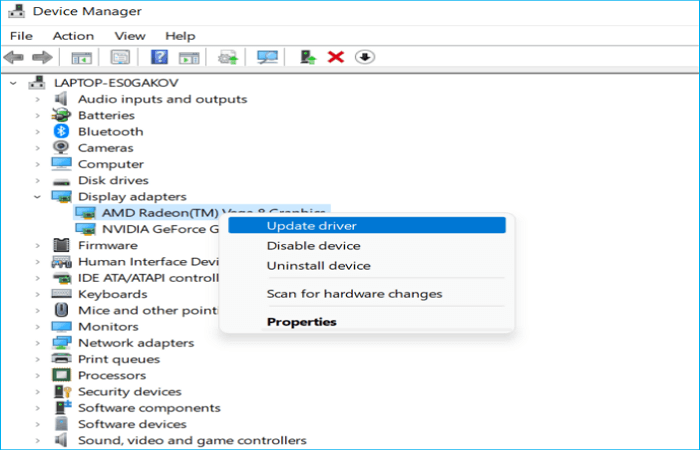
Step 2: Expand the Display Adapters sections to see the graphic card drivers.
Step 3: Right-click on the graphic drivers and select Update driver from the options.
Step 4: In the next windows, select Search automatically for drivers.
To resolve the computer restarts when playing games issue, the best available drivers will be installed on your device. This should fix the problem.
Way 6. Install the Latest Windows Updates
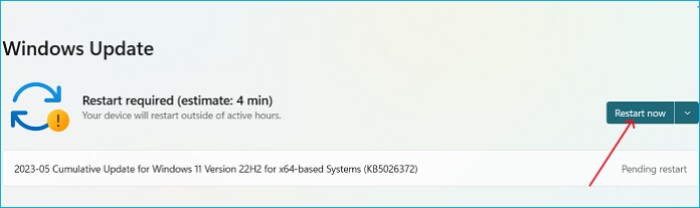
Updating to the latest Windows OS version has been reported to resolve the issue of PC restarting while gaming. To update, follow these steps:
Step 1: Press Windows + I to open Settings.
Step 2: To check for updates on Windows 11, navigate to the Windows Update and click on it. On Windows 10, go to Update & Security.
Step 3: Click Check for Updates and get the latest version.
Way 7. Disable Windows Automatic Restart
Disabling the Windows Automatic Restart feature can potentially resolve the issue of your computer restarting when playing games. This feature, which is built into Windows, automatically restarts the system in case of updates or problems. By disabling it, you may be able to prevent the computer from restarting unexpectedly while playing games. To do this, follow the steps outlined above.
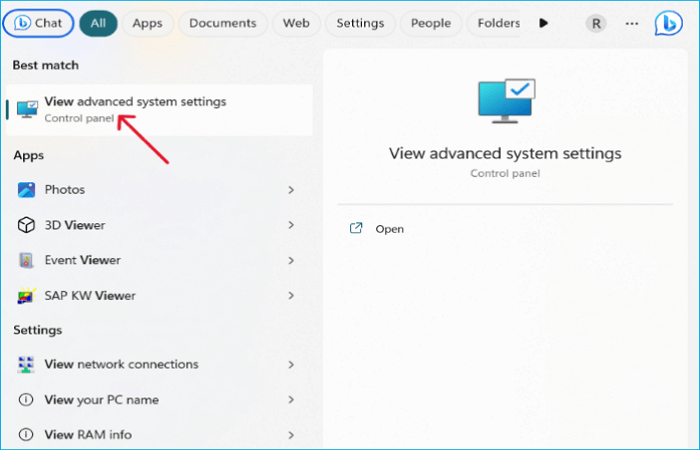
Step 1: To access the advanced system settings, you can search for "View advanced system settings" in the Control Panel and open it. This will allow you to access additional settings and options.
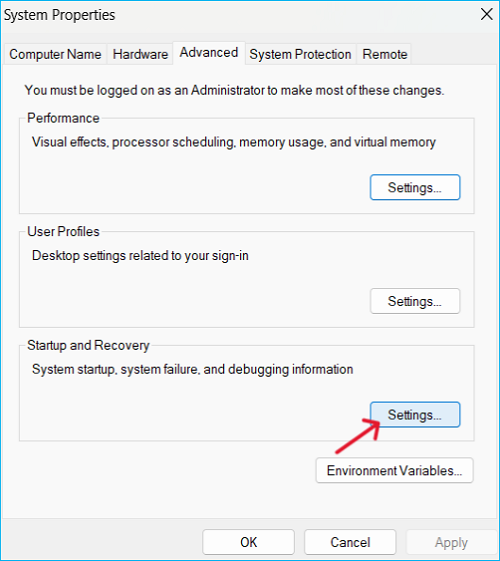
Step 2: You can see the Settings button under "Startup and Recovery", click on it.
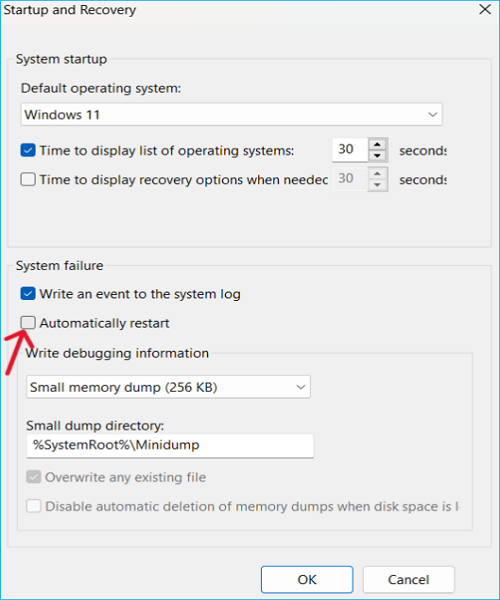
Step 3: To disable automatic restart, uncheck the "Automatically Restart" option under the "System failure" section.
Way 8. Run System File Checker
If the OS files are corrupted or go missing, it can affect the system in multiple ways. However, running the System File Checker scan can detect and repair the damages or missing files, ensuring the Windows OS runs smoothly without errors. To do this, follow the steps below.
Step 1: Open the Windows Search, and type CMD.
Step 2: Launch the Command Prompt as an administrator.

Step 3: To run the System File Checker (SFC) tool, open the Command Prompt as an administrator, type "sfc /scannow", and press Enter. This will allow the tool to scan and replace any corrupted system files.
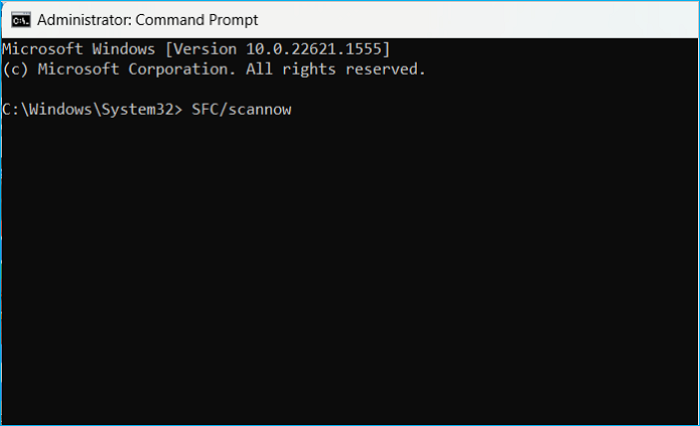
The command will scan and fix system files that are corrupted or missing, ensuring the integrity of the system.
Way 9. Change Power Settings
A computer might malfunction if its power supply unit (PSU) is insufficient for a game to run smoothly. To resolve this issue, ensure the PSU is working properly and can power the graphics card. A failing PSU can also cause the PC to restart while gaming, which can be diagnosed using a power supply tester.
Step 1: Search for Control Panel and open the app.
Step 2: Click on the Power Options.
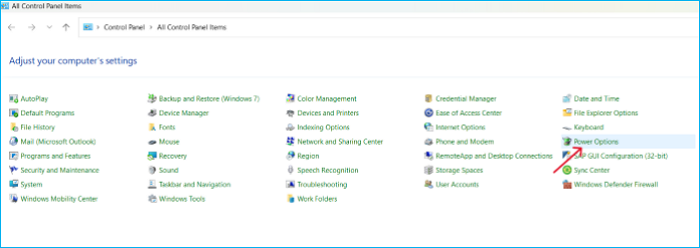
Step 3. Click the "Changes Plan Settings".
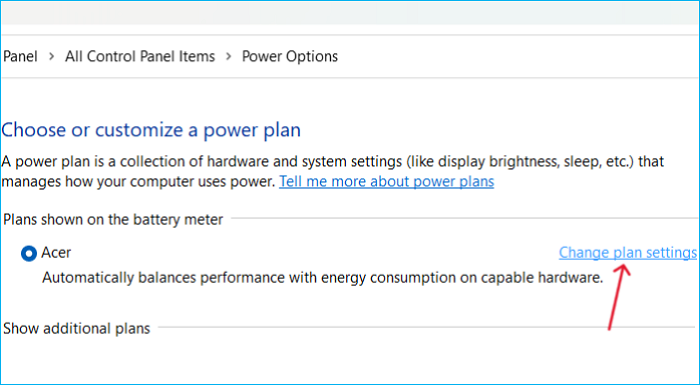
Step 3: Click Change Advanced Power Settings.
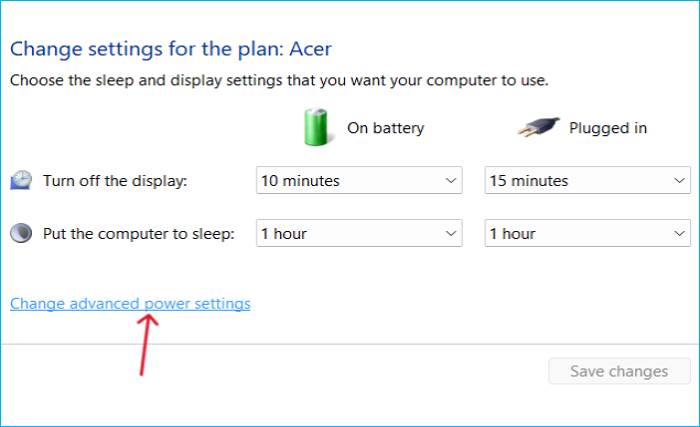
Step 4: Set the Processor power management > Minimum processor state to 5% or a low number and click Ok.
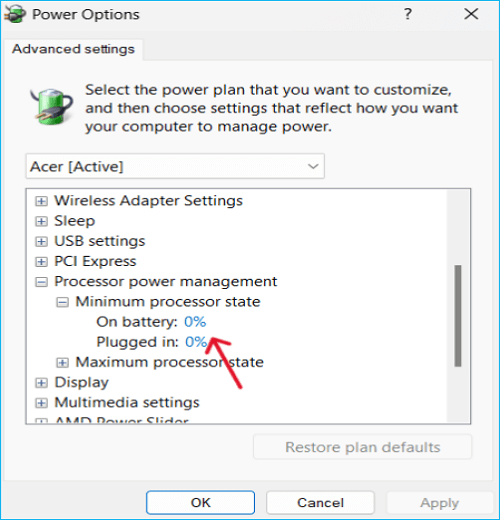
Step 5: Reboot the PC to see the changes.
Way 10. Disable the Overclocking Settings
Some users have found that removing or reducing the overclocking settings can help resolve the issue, as it may be causing the system to produce performance beyond its capabilities, leading to frequent restarts and gaming issues.
If you're experiencing issues with your phone's performance, try removing any overclocking settings and uninstalling apps that claim to boost gaming performance. If the problem persists, you can try performing a system restore to reset all settings to their default values, but be aware that this will result in data loss.
Pro Tip: How to Back up Your Game Saves on Windows PC
To avoid losing game save files when your computer restarts, you can make a smart backup plan for your game files. This can be done using the incremental backup method, which allows you to back up your game saves to the Cloud.
Qiling Disk Master can restore missing game save files by scanning the computer's hard drive and re-creating them from scratch, allowing players to recover their game progress even if the original save files are lost or corrupted.
Qiling Disk Master Pro is a backup and restore utility that allows you to back up your system, disk, partition, file, and computer app, as well as back up PC game saves, Steam cloud saves, custom data, config files, and even the entire game disk.
This software allows you to transfer your operating system to another computer, create backups, and reinstall Windows without losing games, among other advanced backup options.
Key Features of Qiling Disk Master:
- Offers system images and bootable disk creations
- Install Windows from one PC to another
- The software saves backups to the cloud, offering 250GB of free cloud storage, allowing users to access their backed-up files from anywhere.
- Great backup management: delete, merge, split, and compress options
- Users can schedule backups on a daily, weekly, or monthly basis and create automatic backups.
The steps are as follows:
Step 1. To initiate the backup process, click the "Select backup contents" button.

Step 2. There are four main categories of data backup: File, Disk, OS, and Mail. These categories refer to the type of data being backed up, including individual files, entire hard drives or disks, the operating system itself, and email accounts.

Step 3. Lists of local and network files are displayed on the left-hand side of the screen, allowing you to expand the directory and select the files to back up.

Step 4. Follow the on-screen instructions to select the desired location for storing the backup.

To set up a backup, ensure that it is encrypted and schedule it by clicking on "Options" in "Backup Options". You can also specify a start time in "Backup Scheme" by clicking on "Options". Additionally, you can explore other customizable options available.

Step 5. You can store the backup file on your computer, in Qiling's cloud service, or on a network-attached storage device (NAS).

Step 6. Qiling Disk Master allows customers to store backup copies of their files on a third-party cloud drive or the company's own cloud storage.
To back up your data on a third-party cloud drive, select Local Drive and scroll down to add Cloud Device, then fill in your account information.
Click Qiling Cloud, then sign up and log in with your Qiling account if you wish to store backup files to Qiling' own cloud storage service.
Step 7. To start a backup, click on "Proceed" and the backup process will begin. Once completed, the backup job will be displayed as a card on the left-hand side of the screen, and a right-click will allow for further details and handling options.
To Wrap Things Up
If there's a mismatch between the game and the PC, issues like computer restarts when playing games can occur more often. To ease the gaming process, it's essential to manage both the game and PC properly. Fortunately, there are ten practical solutions to solve the PC restart while playing problem, which can be found in this post.
In case of losing game progress or reinstalling the game, backing up game saves is necessary to prevent data loss, and Qiling Disk Master is a suitable solution for all backup needs.
FAQs on Computer Restarts When Playing Games
1. What causes a PC to randomly restart?
PC restarts can be caused by several factors, with overheating, faulty PSUs, outdated graphics card drivers, random CPU crashes, viruses, and overclocking issues being the most common culprits.
2. Why does Windows 11 keep restarting when I play games?
Computer restarts while playing games can be caused by not meeting minimum requirements, overheating, or PSU failures, which put excessive pressure on the CPU, prompting it to restart the PC to prevent damage.
3. Why does my computer freeze and restart randomly?
Computer overheating can cause random freezes and restarts, often due to faulty or malfunctioning heatsinks or CPU fans, or when running demanding tasks at high performance settings.
Related Articles
- External Hard Drive Heating Up: Everything You Should Know
- What Is Chrome.exe *32 and How to Remove Chrome.exe *32 Malware
- Hard Drive Not Spinning? Causes and Fixes Here!
- Best Ways To Fix Windows PowerShell Keeps Popping Up
- Find / Change Thunderbird Storage Location (Step-by-Step Guide)
Find the Thunderbird storage location on Windows, Mac, and Linux. Learn where Thunderbird stores profiles, emails, settings, and how to back them up. - Any Tools to Check SD/MicroSD Cards Health? Sure!
There are tools to check the health of SD/microSD cards, and this article discusses one such tool that helps check the condition of these cards.
Products
Articles & Tutorials
- Data Recovery
- Data Backup
- File Recovery
- File Backup
- System Backup and Restore
- Disk and Partition Clone
- Technical articles
- Mobile articles
- Disk Master Help
- Windows Data Recovery Tutorials
- Windows Secure Delete Tutorials
- Windows Partition Management Tutorials
- Windows File Backup and Restore Tutorials
- Windows System Backup and Restore Tutorials
- Windows Disk Backup and Restore Tutorials
- Windows Clone Tutorials