Find or Change Thunderbird Storage Location (Step-by-Step Guide)
Mozilla Thunderbird is a free email client that manages emails, contacts, calendar entries, notes, and other personal information, storing it all in a separate Profile folder from the program files.
To back up your Thunderbird data or move it to another location, it's essential to know the storage location of your profile folder. This article will guide you through the steps to find and change the Thunderbird storage location, as well as back up your data to ensure the safety of your saved information.
Where is Thunderbird File Stored
The Thunderbird Profile folder is stored in the following locations by default:
- Windows: C:\Users\UserName\AppData\Roaming\Thunderbird\Profiles
- Mac OS: ~/Library/ thunderbird
If you customized the installation or changed the Thunderbird profile location, you can find your file location by checking the "Help" menu within Thunderbird or your system's file manager.
Method 1. Find Thunderbird Storage Location within Thunderbird
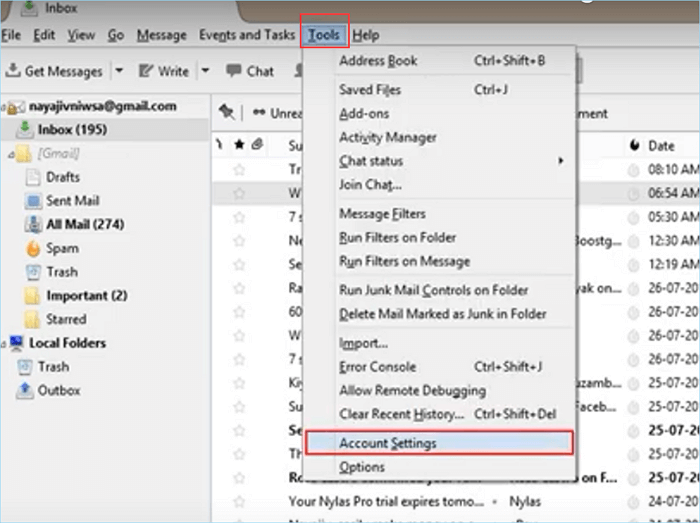
Step 1. Open Mozilla Thunderbird, go to Tools > Account Settings.
Step 2. In the Account Settings window, select "Service Settings" from the left column.
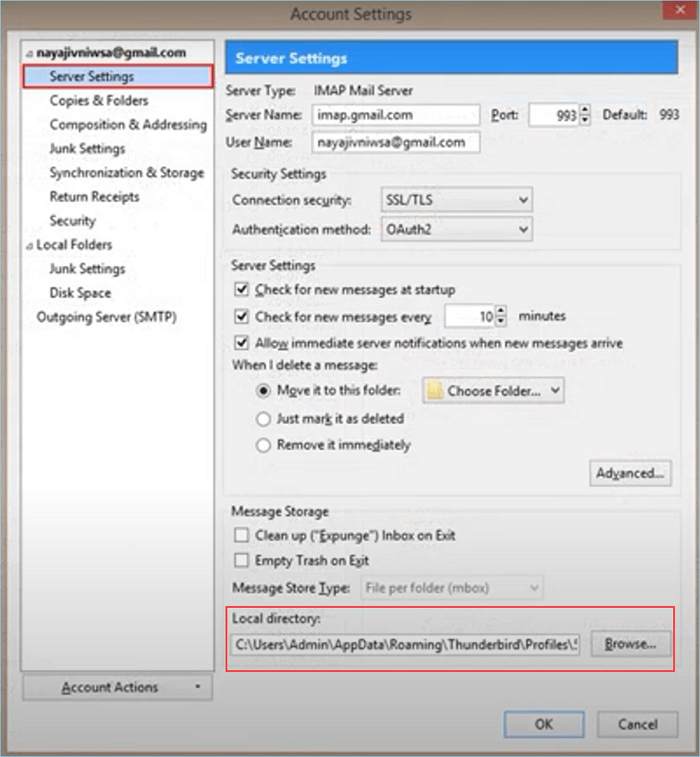
Step 3. To view the specific Thunderbird profile location, click on "Local directory" and then click the "Browse…" button to open the folder.
Method 2. Find Thunderbird Storage Location without Thunderbird
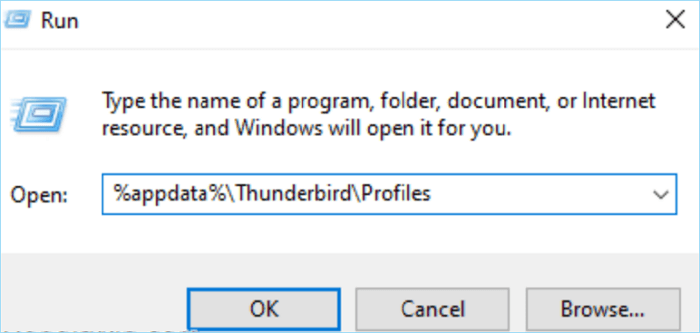
Step 1. Press the Windows key + R keys simultaneously to open the Run command.
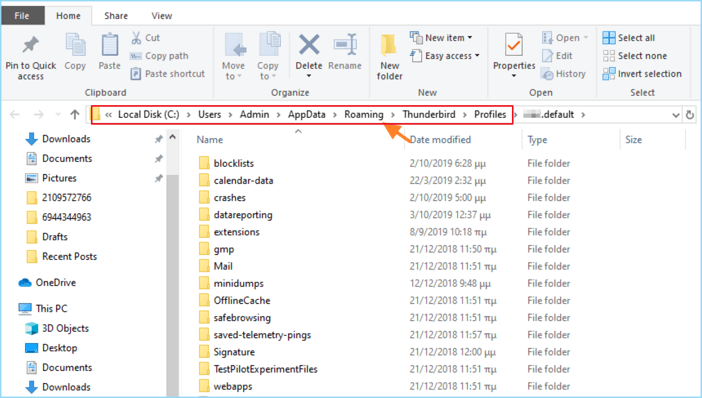
Step 2. To access the Thunderbird profile folder, you need to copy and enter the following content into the Run dialog box: %APPDATA%\Thunderbird\Profiles\, and then click OK.
Step 3. The saved data of your Thunderbird account is now visible to you.
How to Move the Location of Thunderbird Saves
Moving Thunderbird files from their default profile location can be useful in certain situations, such as storing Thunderbird saves on a different hard drive with more storage or backing up Thunderbird data on an external device.
To move the Thunderbird storage location, follow these simple steps: first, close Thunderbird if it's currently running, then navigate to the location where you want to store your data, such as an external hard drive or a cloud storage service, and create a new folder for Thunderbird's data; next, open Thunderbird and go to the "Edit" menu, select "Preferences," and then click on the "Advanced" tab; in the "Advanced" tab, click on the "Storage" button and select the new location for your data; finally, restart Thunderbird to ensure the changes take effect.
Step 1. Quit Thunderbird if it's running.
Step 2. To relocate your profile data, navigate to the folder containing your profile data, which is usually located in the "AppData" or "Library" folder, depending on your system. Once you've found it, right-click on the folder and select "Cut" or press Ctrl+C to copy its contents.
Step 3. To access the service settings in Thunderbird, go to Menu > Tools > Account Settings and then select Service Settings from the list on the left. This will allow you to configure settings for your email service.
Step 4. Click the "Browse…" button next to Local Directory and select the new Thunderbird profile folder location.
Step 5. Select OK and restart Thunderbird for changes to take effect.
How to Keep Thunderbird Storage File Safe
The Thunderbird profile files are stored separately from the static program files, and the local profile folder changes when your settings, passwords, mailboxes, etc., change. To keep your Thunderbird saves safe and secure, it's essential to back up your Thunderbird profile regularly. This way, even if you accidentally delete a Thunderbird storage file or the app fails, you can restore your Thunderbird data with the help of the backup.
Qiling Disk Master Pro is a Windows software that helps you easily backup and restore your Thunderbird profile, allowing you to create a backup in case of data loss, schedule backups, and restore data with just a few clicks.
Backup Thunderbird saves:
Step 1. Click the "Select backup contents" button to start backup.

Step 2. There are four data backup categories, including File, Disk, OS, and Mail, which can be accessed by clicking on the "File" option.

Step 3. Files from both local and network locations will be displayed on the left, allowing users to expand directories and select the files they wish to back up.

Step 4. Follow the on-screen guide to save the backup at the desired destination.

Click "Options" to encrypt the backup with a password, set the backup schedule, and choose to start the backup at a certain event, among other customizable options.

Step 5. You can save backups to your local drive, Qiling's cloud service, or a Network-Attached Storage (NAS) device.

Step 6. Qiling Disk Master allows users to back up data to both third-party cloud drives and its own cloud drive.
To back up data to a third-party cloud drive, select Local Drive, then scroll down to add a Cloud Device. You can then add and log in to your account.
Step 7. Click "Proceed" to start the backup process. Once completed, the backup task will be displayed as a card on the left panel, where you can right-click to further manage it.
Restore Thunderbird saves:
Step 1. Launch Qiling Disk Master, click "Browse to Recover".
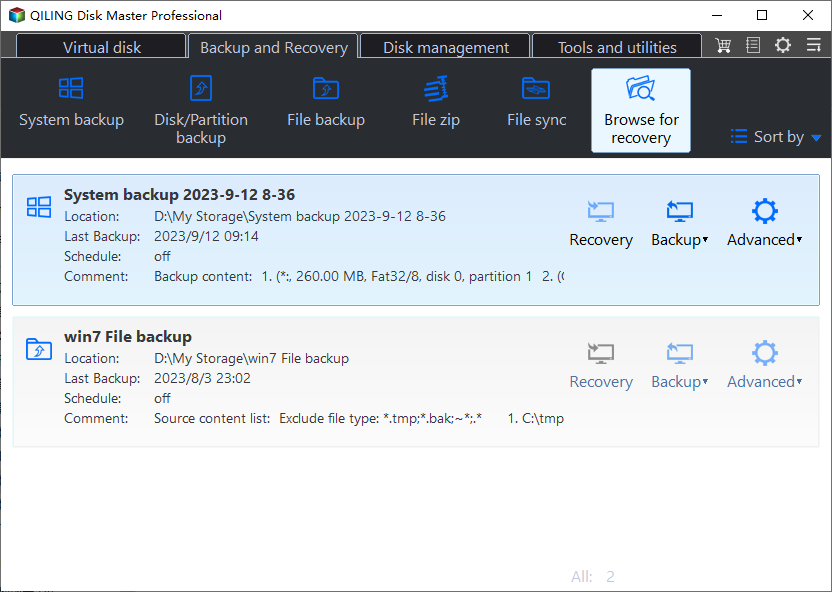
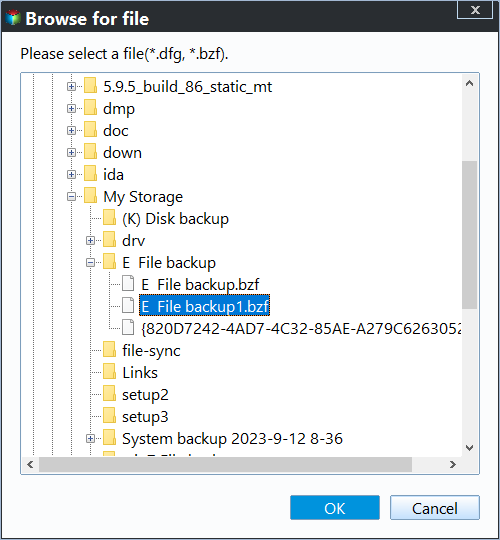
Step 2. To recover a backup, go to your backup destination and select the pbd file you want to recover, which was created by Qiling Disk Master.
Step 3. You can choose to recover data to a specific location or back to its original location.
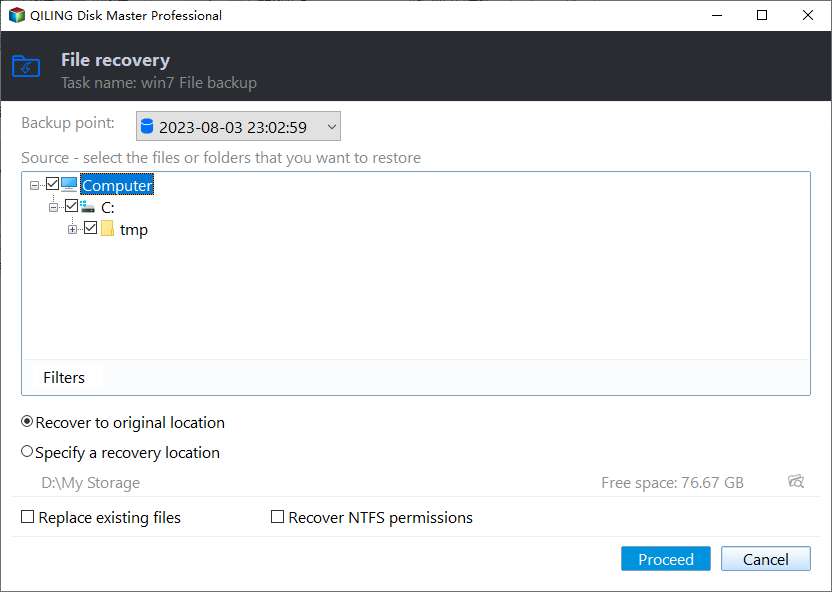
Step 4. Click "Proceed" and the recovery would start.
If you're using Mac OS X, Time Machine is the most convenient way to back up Thunderbird data.
You may be interested:
Wrapping Up
This article guides you through finding and changing the Thunderbird storage location, as well as backing up your Thunderbird data to protect your saves from potential risks. By understanding where Thunderbird stores its profile folders, you can better manage your Thunderbird data and take necessary steps to safeguard it.
Qiling Disk Master Pro Qiling Disk Master Pro is the best thunderbird profile folder backup software for Windows users, offering an all-in-one thunderbird storage solution.
FAQ on Thunderbird Storage Location
Where is the Thunderbird file stored?
The Thunderbird file is stored on your computer in the Profile folder, which can be found in C:\UserName\AppData\Roaming\Thunderbird\Profiles/.
Can I move thunderbird data to an external device?
To move Thunderbird data to an external device, simply copy and paste the Thunderbird profile folder from the default storage location to the external device. This will transfer emails, address books, and settings.
How do I back up thunderbird data?
If you're using Windows, Qiling Disk Master is the best software for backing up Thunderbird saves, while if you're using Mac OS X, Time Machine is the most convenient way to back up Thunderbird data.
Does Thunderbird save emails locally?
When you change the Thunderbird storage location, the emails you've saved locally are still stored in the Thunderbird profile folder, but now it's located in the new storage location you've specified.
Related Articles
- How to Free Download Candy Crush Saga on PC/Android
- Fixed: CPU Isn't Supported | CPU Isn't Compatible with Windows 10/8.1/8
- How to Factory Reset ASUS Laptop [Step-by-Step Guide]
- Google Chrome Sync Keeps Pausing? Find Fixes Here
- Resolve Outlook Cannot Connect to Server
There are several reasons why the Outlook cannot connect to server error occurs. This article will discuss the potential reasons and show you how to Fix Outlook Not Connect to Server Error. - How to Resolve reCAPTCHA Not Working in Any Browser
If you're experiencing issues with reCAPTCHA not working in your browser, it may be due to outdated browser versions, VPN errors, or malware intrusion.
Products
Articles & Tutorials
- Data Recovery
- Data Backup
- File Recovery
- File Backup
- System Backup and Restore
- Disk and Partition Clone
- Technical articles
- Mobile articles
- Disk Master Help
- Windows Data Recovery Tutorials
- Windows Secure Delete Tutorials
- Windows Partition Management Tutorials
- Windows File Backup and Restore Tutorials
- Windows System Backup and Restore Tutorials
- Windows Disk Backup and Restore Tutorials
- Windows Clone Tutorials