How to Factory Reset ASUS Laptop [Step-by-Step Guide]
A factory reset on an ASUS laptop restores the system settings to their default factory settings. This is often done to improve performance, erase data for resale, or troubleshoot issues, and can be performed even if you're not logged in.
In various situations, you may need to factory reset your ASUS laptop, and there are 5 methods to do so. Whether you're looking to sell your laptop, troubleshoot issues, or simply start fresh, this guide can help. From resetting your laptop using the built-in recovery mode to using a USB drive or CD/DVD, we'll walk you through the process.
What is ASUS Factory Reset & Why You Perform It
A factory reset erases all data on a computer, returning it to its original state, removing all files, apps, settings, and configurations.
A factory reset can be a helpful solution in many situations, and it is proven to solve many issues on computers. Factory resetting an ASUS Laptop can be performed for various reasons, including to troubleshoot problems, resolve software conflicts, and restore the device to its original settings. This process can help resolve issues such as system crashes, slow performance, and software glitches, and can also be used to prepare the laptop for resale or to give someone else access to the device.
- To improve performance: If you're experiencing a slow system, a reset can help improve performance by clearing any clutter and refreshing the system.
- Get rid of malware: If the system is infected with malware or some external threat, a factory reset will remove the infection.
- Selling or Giveaway: If you give away your laptop, all the files and personal data on it will be erased. This is because the new owner will likely wipe the laptop clean before using it.
- Starting fresh: Some people just want to erase everything and start fresh.
- Fixing a software issue: A factory reset can be a helpful solution when trying to fix a software issue on your computer, as it can restore the system to its original settings and potentially resolve the problem.
See also:
What to Prepare Before Laptop Factory Reset
To factory reset an ASUS laptop, ensure you have backed up all your important files and data, as the process will erase everything on the device. Also, note down your Windows product key, as it will be required during the setup process. Disconnect any external devices, such as USB drives, printers, and external hard drives, to prevent any potential issues.
- Backup Important Data: Backing up all important files, documents, photos, and media to an external drive is crucial. You can use professional backup software like Qiling Disk Master to create a backup of your essential data with just a few clicks.
- Save License Keys: Make sure you save license keys or registration info.
- Disconnect external devices: To ensure a smooth and conflict-free installation of the new operating system, remove all external devices and peripherals such as USB drives, CDs, DVDs, external hard drives, and printers. This will prevent any software conflicts that may arise from multiple devices being connected at the same time.
- Charge the device: To safely reset your system, ensure it has a sufficient power supply to finish the reset process, usually requiring a power source of at least 50% of the system's maximum capacity. This will prevent any potential damage or data loss during the reset.
[5 solutions] How to Factory Reset Asus Laptop
- Reset ASUS Laptop via Settings
- Reset ASUS Laptop using Windows Recovery Environment
- Factory Reset ASUS Laptop with ASUS System Recovery Partition
- Reset ASUS without logging in
- Hard Reset ASUS Notebook
(1) Reset ASUS Laptop via Settings.
1. Press Windows + I to open Settings.
2. To access the recovery settings on Windows 10, go to Update & Security > Recovery. On Windows 11, go to System > Recovery.

3. Click on Get Started to start the reset process.
4. You can either choose to keep your files or remove everything, depending on your needs.
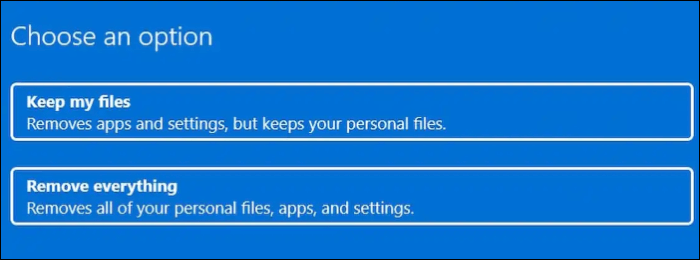
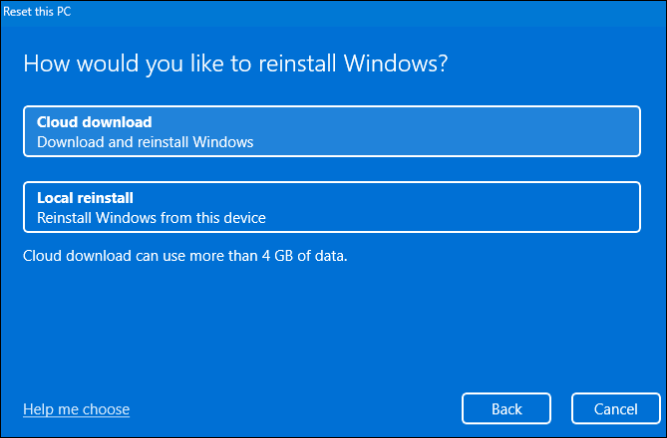
5. There are two ways to download the reset files: Cloud download and Local download. Cloud download retrieves the necessary files and installs them, while Local download uses existing files on the laptop.
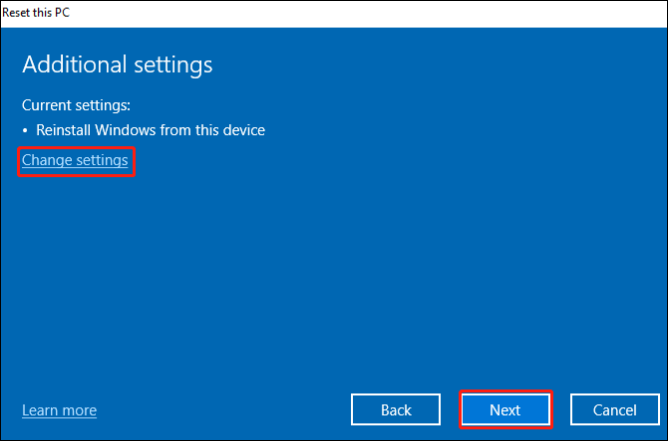
6. You can make changes using the Change Settings button. Click Next.
7. Finally, click Reset to start reinstalling Windows OS.
(2) Reset ASUS Laptop using Windows Recovery Environment (WinRE)
1. There are two situations where you need to enter the Windows Recovery Environment on your ASUS laptop. Firstly, you can boot your laptop from a Windows installation media, such as a USB drive or CD/DVD, and then follow the prompts to enter the Recovery Environment. Secondly, if your laptop is set up to boot from the hard drive, you can restart your laptop and immediately start tapping the F2, F11, or Del key to enter the BIOS settings, and then navigate to the "Advanced" tab and select the "Boot" option to choose the Windows Recovery Environment as the boot device.
- Search for "Change advanced startup options" in Settings, click on "Restart now" under the Advanced startup section, and restart your device.
- To start your ASUS laptop in WinRE, press and hold the F9 key and then click the Power button, or press and hold the F12 key if F9 doesn't work, and release the key once the laptop enters WinRE.
2. In the WinRE interface, select Troubleshoot and click on Reset this PC.
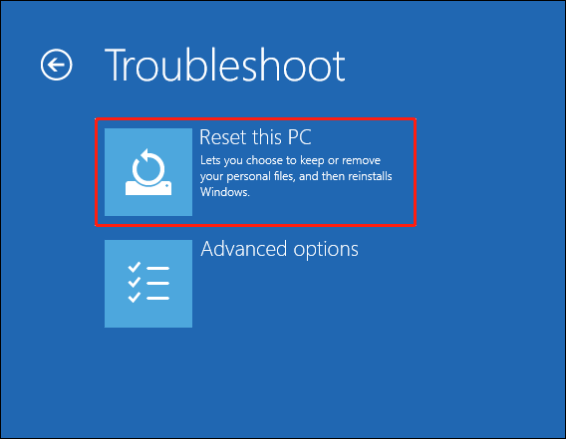
3. To completely wipe a laptop, click on the "Remove Everything" option and let the laptop restart. Once it's back on, select the "Fully Clean the Drive" option.
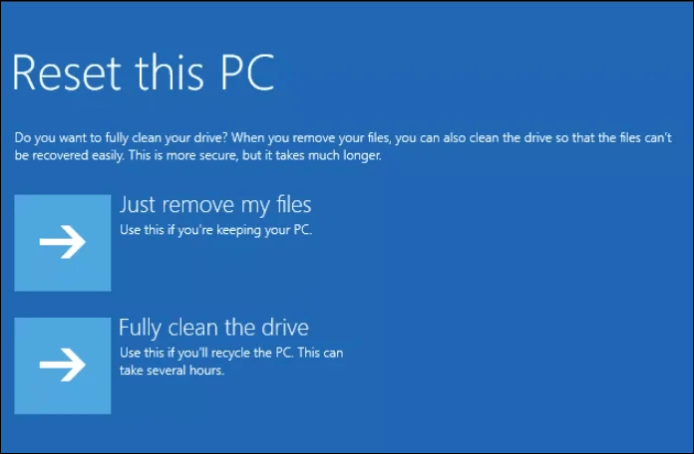
4. Now, just like the above methods, choose from the on-screen options according to your needs.
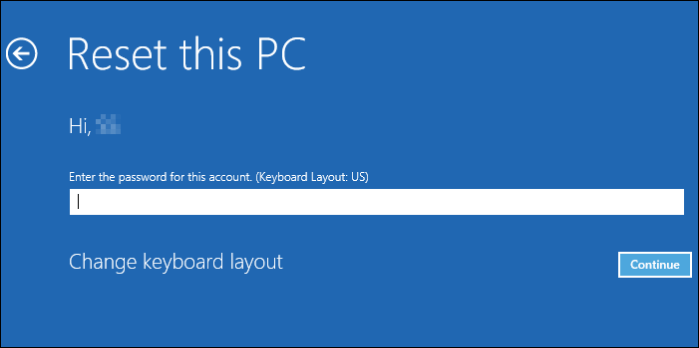
5. Enter your account password when prompted and click on Continue.
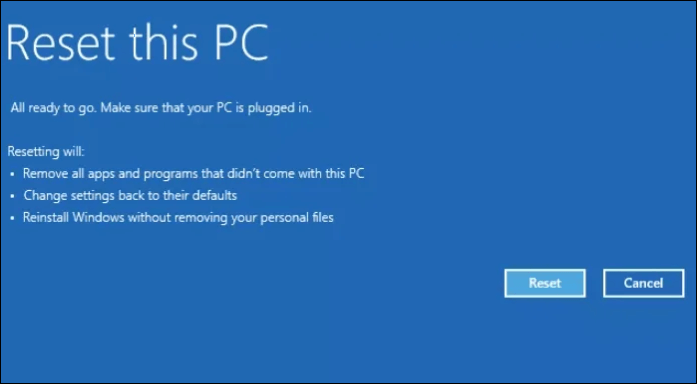
6. In the end, click on Reset to start the reinstallation.
(3) Factory Reset ASUS Laptop with ASUS System Recovery Partition
ASUS provides a recovery mechanism called the ASUS system recovery partition, which contains the necessary files and tools to troubleshoot or recover the laptop in case of any uncertain events. This system allows for a fast and easy restoration of the laptop to its original state. To factory reset the ASUS laptop, you can utilize the ASUS system recovery partition.
1. To enter ASUS laptop recovery mode, turn it on and press F9 repeatedly.
2. In the Windows Boot Manager, select the Windows Setup [EMS Enabled] option.
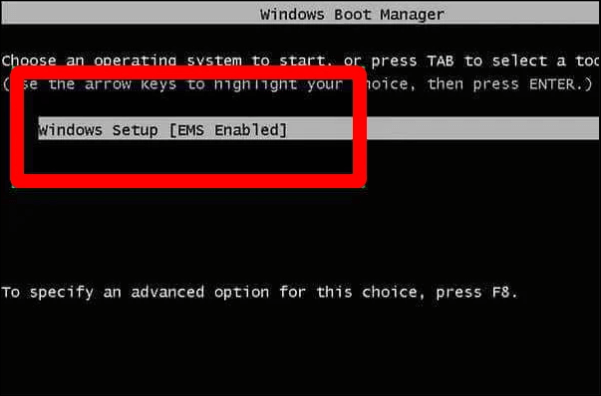
3. The ASUS Preload Wizard will guide you through the process of selecting the type of recovery you wish to continue with. You will be presented with appropriate options in the ASUS Preload Wizard Window. Please select the type of recovery you wish to proceed with.
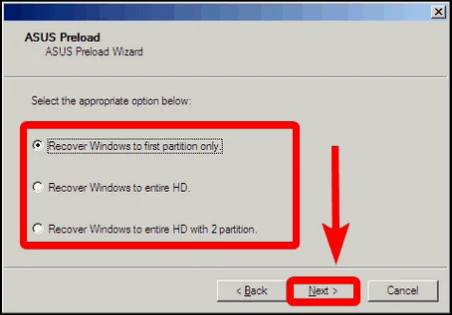
4. Click the Next button.
5. After that, follow the on-screen instructions to complete the process.
(4) Reset ASUS without logging in
If you've forgotten your password or your ASUS laptop is unresponsive, you can restore it to its factory settings without logging in. This process allows you to bypass the login process and reset your laptop to its original state, effectively resolving any issues related to password recovery or system freezes. To do this, you'll need to access the BIOS settings, which can usually be done by pressing a specific key (such as F2, F12, or Del) as your laptop boots up.
1. Click on the Power icon on the login screen.
2. While clicking on the "Restart" option, hold down the "Shift" key.
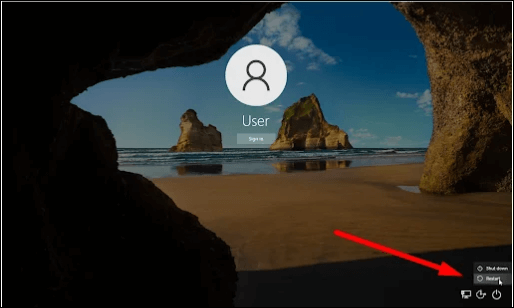
3. To reset your computer in the Advanced Startup setup, go to Troubleshoot, then Reset This PC, and finally Remove everything.
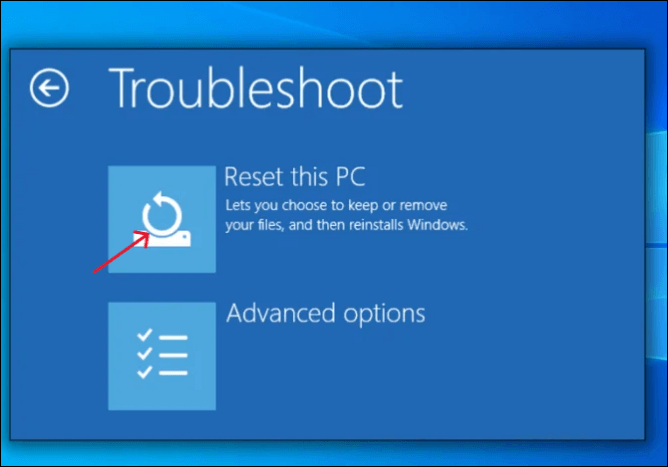
4. Now, just like the above methods, choose from the on-screen options according to your needs.
5. Your ASUS laptop will reboot now.
6. Click Reset to start the factory reset process without logging in, and wait for the laptop to start with factory settings.
(5) Hard Reset ASUS Notebook
If you're wondering how to reset your ASUS Notebook, you can do so with either removable or built-in batteries.
1. Hard reset on an ASUS Notebook with a built-in battery:
- Remove the AC adapter from your ASUS Notebook.
- Press and hold the power button for about half a minute.
- Plug the adapter back into the Notebook and turn it on.
2. Hard Reset on an ASUS Notebook with a removable battery:
- Carefully disconnect and remove the adapter, and take out the battery from your notebook.
- Press and hold the Power button for about 30 seconds.
- Place the battery back into the notebook.
- Finally, reconnect the adapter and power on the device.
📑Tips you can follow after ASUS laptop factory resetting.
- It's crucial to have a backup of your data to prevent loss in case of an emergency.
- Keep your Power adapter handy.
- Check for updates and update Windows, drivers, and apps.
- Enable security and firewall software.
Conclusion
A factory reset can be a helpful solution for ASUS users in many cases, as it's a proven fix for various problems on your PC. If you're unsure of how to factory reset an ASUS laptop, this article can guide you through the process, providing methods for different situations, making it easier to resolve issues on your ASUS laptop.
To factory reset your PC without losing data, you can use a backup tool like Qiling Disk Master, which has advanced backup methods to protect your data in various emergencies and safeguard it during a factory reset.
FAQs
Here are some of the most frequent FAQs asked on how to factory reset an ASUS laptop. If you have similar queries hope this will help you.
1. Is ASUS Factory Reset a secure process?
The SystemSystem itself performs the whole process, and the factory reset is done to eliminate threats from external sources by deleting all downloaded traces and resetting it to its original form.
2. How long does ASUS Factory Reset take?
The factory reset process on an ASUS laptop takes around 10 to 15 minutes to complete, depending on the amount of data, files, and apps stored on the device, which will all be deleted during the Reset, including programs and settings.
3. Why is Factory Resetting an ASUS Laptop important?
A factory reset is crucial in case you're facing laptop issues, especially if you've encountered threats from external software. This process not only deletes all your data but also helps when giving away or selling your laptop, and can even serve as a last resort to fix major problems on your device.
If you're looking for a way to improve your mental health and well-being, consider trying mindfulness meditation. This practice involves focusing your attention on the present moment, without judgment, to reduce stress and increase feelings of calm and clarity.
Related Articles
- How to Fix 'Disk Showing as Raw Instead of NTFS' [2 Methods]
- How to Open .DAT Files in Windows 10/11
- Efficient Ways To Fix PS4 Disc Drive Not Working! Error Reading!
Are you facing a disc drive reading error on your PS4 or is it just not working? This is an easy-to-fix issue. Continue reading this article to learn exactly how to fix the issue and what you can do to prevent it from happening again. - REFS Volume Showing as RAW: How to Fix Without Lossing Data
Is your REFS partition showing as RAW? Are you unable to access the data? Then follow this easy guide where we share the reasons and solutions that can help you fix the problem where REFS Volume Shows as RAW and without any data loss. - How to Find Saved Passwords on Chrome [Windows & Mac]
If you're setting up a new PC or Mac and want to use an account password that's saved on your old Chrome browser, you can view and export the saved password from your old Chrome browser, which is especially helpful if you didn't sync your passwords across devices. - How to Find Steam CD Key or Game Product Key on Your Own - Qiling
If you're looking for a Steam CD key or game serial key, this guide provides two practical solutions to help you locate it. If the CD key doesn't appear, Qiling Disk Master can resolve the issue for you.
Products
Articles & Tutorials
- Data Recovery
- Data Backup
- File Recovery
- File Backup
- System Backup and Restore
- Disk and Partition Clone
- Technical articles
- Mobile articles
- Disk Master Help
- Windows Data Recovery Tutorials
- Windows Secure Delete Tutorials
- Windows Partition Management Tutorials
- Windows File Backup and Restore Tutorials
- Windows System Backup and Restore Tutorials
- Windows Disk Backup and Restore Tutorials
- Windows Clone Tutorials