Google Chrome Sync Keeps Pausing? Find Fixes Here
Google Sync feature has been convenient for accessing Chrome bookmarks, histories, and settings across devices, but some users experience a problem where Google Chrome sync keeps pausing, potentially leading to data loss and inconvenience.
Google Chrome sync can keep pausing due to various reasons such as internet connectivity issues, corrupted Google account data, or outdated Chrome browser. To fix this issue, users can try restarting Chrome, checking their internet connection, and ensuring their Google account data is up-to-date.
Causes for Google Chrome Sync Keeps Pausing
The Google Chrome sync keeps pausing issue is likely caused by issues with Google account settings and permissions, which can be triggered by various factors, such as incorrect account settings, expired or invalid permissions, or other related problems.
- Your Google account is not set up correctly.
- You haven't given Google enough permission to access your data on different devices.
- The Google sync feature is disabled or out of date.
- You are using an outdated Google Chrome version.
- The conflict is between the Google account "account1" and "account2". The Google account "account1" was created on the device, but the Google account "account2" was created on the Google account page.
You may be interested:
Solutions to Fix Google Chrome Sync Keeps Pausing
Google Chrome sync keeps pausing due to various reasons such as a slow internet connection, a malfunctioning sync server, or a corrupted sync file. To resolve this issue, you can try restarting your browser, checking your internet connection, or deleting the sync file to resolve the problem. Additionally, you can also try updating Google Chrome to the latest version, or resetting your browser settings to their default values.
- Warm Tip
- The sync function in Google Chrome may not work smoothly, potentially leading to data loss during the process. To avoid this, it's recommended to create a backup of your Google Chrome account before troubleshooting. An alternative tool, Qiling Disk Master, offers a more flexible way to back up Google Chrome data without any data loss, and more information can be found in the section "Back Up Google Chrome Regularly to Keep Your Account Safe".
Solution 1. Enable the Google Sync Feature & Update the Version
You should check if Google sync is enabled on your device, enable it if not, and update Google Chrome to the latest version.
To do this, you can follow the steps:
Step 1. Launch Google Chrome and click the Profile icon on the top-right corner.
Step 2. Click on the "Turn on sync…" option.
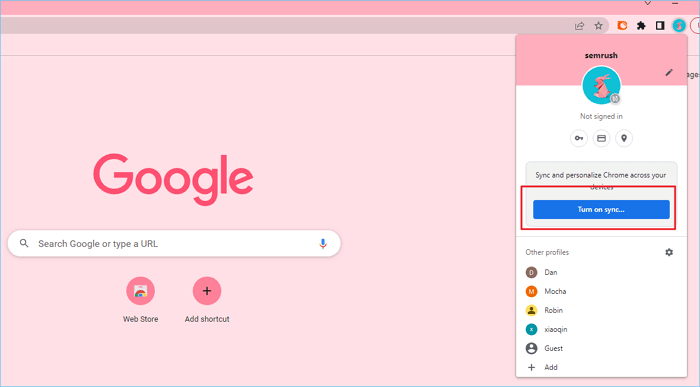
Step 3. To ensure your Google Chrome browser is up-to-date, you should check for updates and install the latest version on your device.
Solution 2. Run Google Chrome As An Administrator
If Google Chrome sync keeps pausing, running Google Chrome as an administrator may resolve the issue. To do this, right-click on the Google Chrome icon and select "Run as administrator" from the context menu. This will launch Chrome with elevated privileges, and you can test if the sync issue is resolved.
Step 1. Right-click the Google Chrome icon on the desktop, then click "Properties" from the context menu.
Step 2. To resolve the issue, tap the Compatibility volume and ensure the "Run this program as an administrator" option is checked.
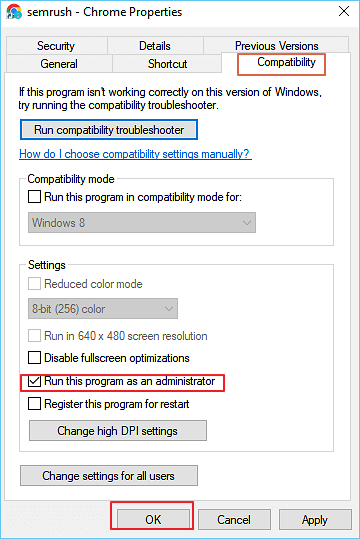
Step 3. To resolve the sync keeps pausing issue, click "OK" to finish the process, and verify that the sync issue has been resolved effectively.
Solution 3. Disable All Google Chrome Extensions
Google Chrome extensions may block Google sync and services, causing sync issues, so disabling all extensions temporarily can help resolve the problem.
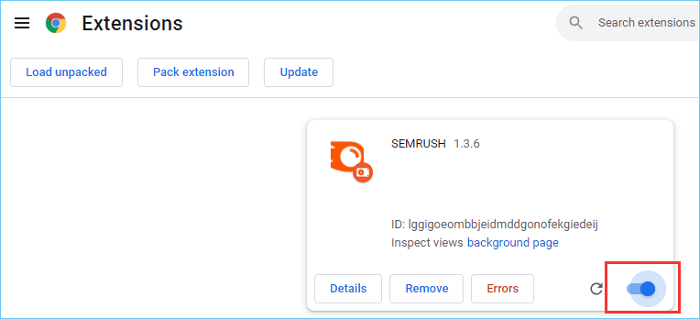
Step 1. To access the list of installed extensions, click on the "Extensions" icon located at the top-right corner of the browser window, and then select the "Manage extensions" option from the dropdown menu.
Step 2. To close all extensions that are turned on, click the sliding blue button in the pop-up window.
Solution 4. Add A Google Account Page to These Allowed Sites
Google Chrome sync pausing can be caused by Google permission settings, which can be resolved by adding a Google account page to the allowed sites list.
Step 1. To access Google Chrome settings, open the browser, type "chrome://settings/content" in the address bar, and press Enter.
Step 2. Click the "Cookies and site data" under the content option.
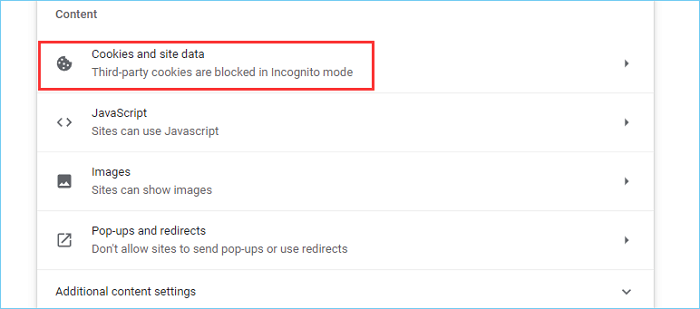
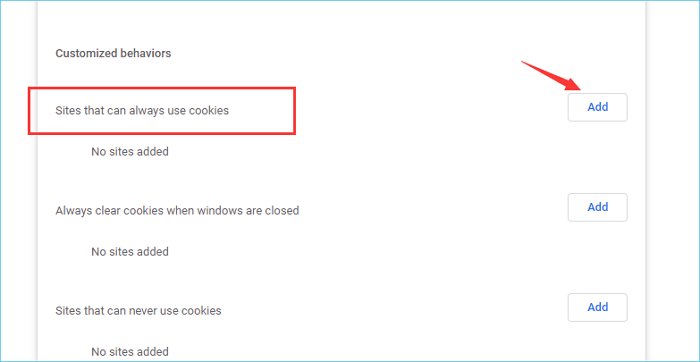
Step 3. Scroll down to find the "Site that can always use cookies" option and click the "Add" button next to it.
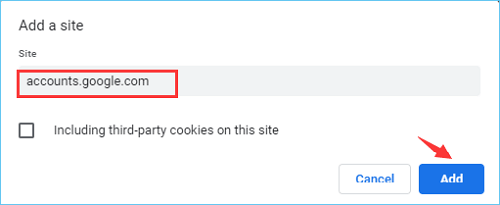
Step 4. In the pop-up window, type "accounts.google.com" and click "Add."
Step 5. To troubleshoot the issue where Google Chrome sync keeps pausing, try restarting the browser. This simple step can often resolve the problem and allow syncing to resume normally.
Solution 5. Reset All Google Chrome Settings
If all four solutions above can't help you fix the Google Chrome sync keeps pausing issue, you can try resetting all the Google Chrome settings.
Step 1. To reset Google Chrome, open Google Chrome and type "chrome://settings/reset" in the address bar and press Enter. This will take you to the Chrome settings page where you can initiate the reset process.
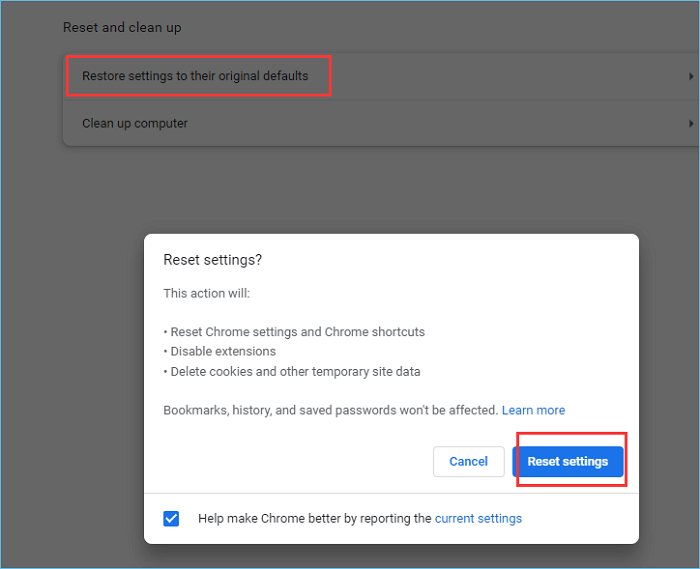
Step 2. To reset your browser settings, click on the "Restore settings to their original defaults" option and then click the "Reset settings" button in the pop-up window that appears, confirming your action.
Step 3. If the Google sync keeps pausing issue persists, try restarting the Google browser to see if it resolves the issue effectively.
We hope these solutions can help you fix the Google sync keeps pausing issue successfully.
You Should Back Up Google Chrome Regularly to Keep Your Account Safe
Backing up Google Chrome regularly is a wise move to safeguard your Google account data in case of data loss caused by a Google Chrome sync pausing issue. To make the process even safer, consider using a reliable tool that allows scheduled backups, eliminating the need for manual backups each time. A tested and trustworthy option is Qiling Disk Master Pro, which enables you to back up your Google Chrome data with ease.
For more information on backing up Google Chrome Bookmarks and Password, please refer to our guide, which provides two easy ways to back up Google Chrome, including with Qiling Disk Master.
Conclusion
If Google Chrome sync keeps pausing, there are four potential solutions to try. Backing up Google Chrome regularly is also a good idea to keep your Google account data safe. Hopefully, these tips will help you resolve the issue effectively.
FAQ on Google Chrome Sync Keeps Pausing
1. Why does my Google Chrome sync keep pausing?
Google Chrome sync may keep pausing due to various reasons such as incorrect Google permission settings, issues with Google Chrome extensions, administrator settings, or other factors.
2. Are there any sync alternatives that can back up your Google Chrome account?
Google Sync may seem like a convenient option for saving account data across devices, but it's not the safest choice, as it can lead to data loss during syncing or sync issues. A better solution is to use Qiling Disk Master, which allows for a safer backup of your data, including disks, systems, and more, providing absolute security for your digital work.
Related Articles
- How Do I Update My Mac When It Says No Update | 8 Tested Methods for Mac
- How to Fix Apps Not Working on macOS Sonoma
- How to Open Dmg Files on Mac Ventura/Monterey/Big Sur/Catalina [4 Fixes]
- Reset MacBook to Factory Settings | Complete Guide in 2023
- Copy vs. Xcopy vs. Robocopy | What Is the Difference Between Them
Copy, Xcopy, and Robocopy are three Windows file-copying commands. Copy is the most basic; Xcopy adds directory and timestamp support; Robocopy offers advanced features like mirroring, multi-threading, and network resilience. - 2022 TOP| Corrupt File Repair Software Free Download & Online Free
Need to fix corrupted files? Download free corrupt file repair software to repair JPEG, Excel, Word, MP4, and ZIP files on Windows and Mac. Also explore online repair tools for quick fixes.
Products
Articles & Tutorials
- Data Recovery
- Data Backup
- File Recovery
- File Backup
- System Backup and Restore
- Disk and Partition Clone
- Technical articles
- Mobile articles
- Disk Master Help
- Windows Data Recovery Tutorials
- Windows Secure Delete Tutorials
- Windows Partition Management Tutorials
- Windows File Backup and Restore Tutorials
- Windows System Backup and Restore Tutorials
- Windows Disk Backup and Restore Tutorials
- Windows Clone Tutorials