How to Fix Cannot Delete a Protected Partition in Diskpart [Ultimate Guide]
In Windows, partitions are created to separate and organize data on a hard drive, with protected partitions being inaccessible to users and unable to perform functions. However, when trying to delete these protected partitions to free up space, they cannot be removed from the computer.
The "cannot delete a protected partition" error can be frustrating, but don't worry, this article has got you covered. To resolve this issue, we'll provide a step-by-step guide to help you understand and fix the problem, making it easy to delete the protected partition and free up space on your computer.
Why Cannot Delete a Protected Partition?
To delete a partition using Diskpart, a utility for managing disks in Windows, you may encounter an error saying "cannot delete a protected partition." This usually occurs when you've entered incorrect parameters. If the error is due to a complete parameter mismatch, you'll need to use a different set of commands to delete system-protected and hidden partitions. Simply using the basic "delete volume" command won't suffice, as it won't allow you to delete protected partitions.
The error message "Cannot delete a protected partition without the force protected parameter set" occurs when trying to delete a protected partition, and to resolve this, the Diskpart utility requires an additional command to remove the partition from the computer.
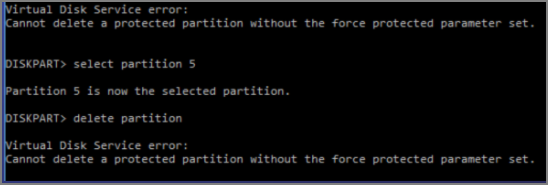
To understand the command and how to eliminate the "cannot delete a protected partition," you must look into the fixes provided in the following parts.
How to Fix Cannot Delete a Protected Partition
We'll now tackle the issue of "cannot delete a protected partition" in your Windows device. To resolve this, we've identified two effective fixes: these solutions will help you overcome the problem and successfully delete the protected partition.
Method 1. Delete A Protected Partition Using Qiling Partition Master
If you're uncomfortable using command-line programs to delete protected partitions, you can consider using a third-party service like Qiling Partition Master, which offers a straightforward option for deleting partitions, including protected ones, saving you time.
If you're experiencing the "cannot delete a protected partition" issue with Qiling Partition Master, don't worry, we've got you covered. To resolve this problem, you can follow these steps: ensure that the partition you're trying to delete is not set as a system or boot partition, check if the partition is being used by any operating system or programs, and try deleting the partition in a safe mode. If none of these solutions work, you may need to use a third-party tool or consult the Qiling Partition Master user manual for further assistance.
Step 1. Launch Qiling Partition Master, and click "Partition Manager".
Before deleting any partition on your disk, make sure you've backed up the important data to prevent any potential loss.
Step 2. You can either delete a specific partition or completely wipe all partitions on the hard drive, removing all data and formatting the drive to its original state.
- Delete single partition: Right-click on a partition you want to delete and select "Delete".
- Delete all partitions: To delete all partitions from a hard drive, right-click the drive you want to delete from and select "Delete All".
Step 3. Click "Yes" to confirm the deletion.
What Else Can Qiling Partition Master Do?
Qiling Partition Master is a powerful tool that provides a user-friendly interface for managing disk partitions. It allows users to create, resize, and delete partitions, as well as copy and move data between partitions. This convenience is beneficial for users who need to manage their disk space effectively, especially when dealing with large files or multiple operating systems.
- Delete all partitions at one time, including the OS
- Delete NTFS partition and delete FAT32 partition
- Create, merge, extend, shrink and split partitions
- Resize/move partitions to solve the low disk space issue
Qiling Partition Master is a powerful partition manager that can help you fix various problems related to partitions and disks, making it a great tool for both beginners and experts.
Method 2. Delete A Protected Partition Using Override Parameter
To delete a protected partition using Diskpart, you can use the command "select disk #", followed by "list partition" to identify the partition you want to delete, then "delete partition override" to bypass the protection. However, be cautious as this will delete all partitions on the selected disk. Alternatively, you can use the "delete partition" command with the "override" parameter to delete the protected partition, but this will only work if the partition is not in use. If you're unsure, it's recommended to use a third-party partition manager or seek professional help to avoid data loss.
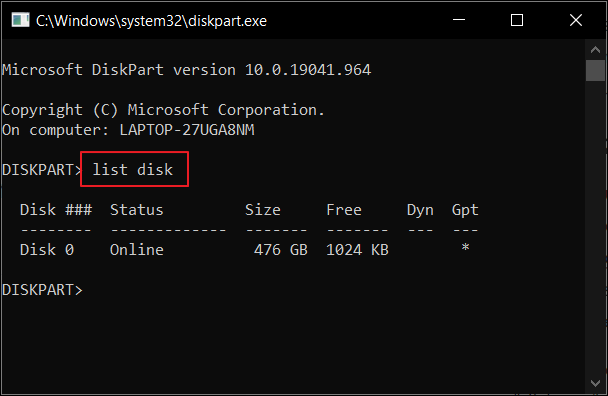
Step 1: To access the Run program, press the "Windows + R" keys combination. Then, type in "diskpart" and open the utility. Next, use the "list disk" command to display all the disks present in the device.
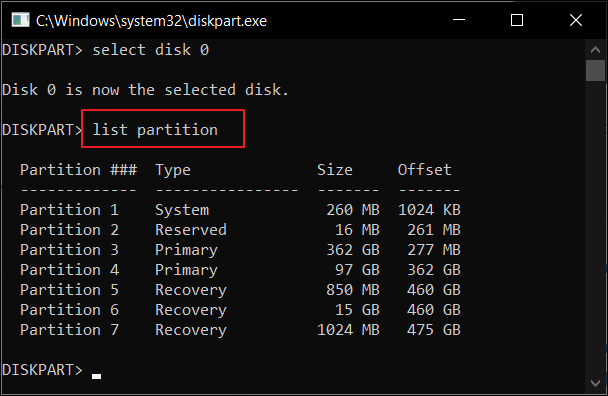
Step 2: To format or delete a disk, first select the disk using the command "select disk x" and then list its partitions with the command "list partition".
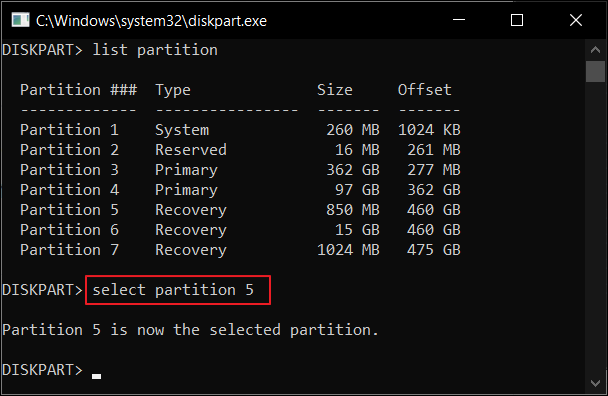
Step 3: You must identify the partition to be deleted and proceed with the command "select partition x" to select it.
Step 4: Use the "delete partition override" command to delete a protected partition, then exit Diskpart to close the program.
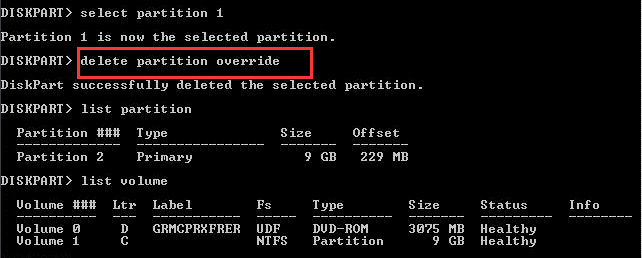
The Diskpart override command allows you to delete any type of partition, but if it's not working, you may need to use Qiling Partition Master instead.

[Solved] Diskpart Delete Partition Override Not Working
The Diskpart delete partition override command is used to remove hidden or protected partitions, but it may not work due to errors. In such cases, using a free partition manager like Qiling can help delete partitions without issues.
Conclusion
The error "cannot delete a protected partition" can be resolved by using administrator privileges, disabling the write protection, or deleting the partition through the command line, or by using a third-party tool. This allows you to delete the protected partition and utilize the free space.
If the protected partition is not deleting with the override command in Diskpart, you can use a tool like Qiling Partition Master to delete it without encountering difficulties. This alternative method provides a workaround for the protected partition deletion issue.
FAQs of Cannot Delete a Protected Partition
If you're experiencing issues deleting protected partitions on your Windows computer, you may have questions about the process. Let's address these concerns to alleviate any uncertainty. Can you clarify what you're trying to delete and why it's protected?
1. Cannot delete the protected partition without force?
To delete a protected partition, you'll need to use the override parameter in Diskpart, as normal parameters aren't available for deleting protected partitions. This will allow you to force the deletion.
2. Can I delete a protected partition without the force-protected parameter set?
No, you cannot delete a protected partition without the force-protected parameter set. You will have to utilize the appropriate function for executing this.
3. How do I delete a partition with a force-protected parameter?
Deleting a partition using the force-protected parameter can be achieved through two solutions. Qiling Partition Master can automate the process without requiring human intervention, but if you prefer to use commands, you can utilize Diskpart to execute the task.
Related Articles
- How to Cancel Windows 10 Updates Once Started
- How to Format USB on Mac? Your Secure & Step-by-Step Guide Is Here
- Back Up and Restore Outlook 2016 for Mac
- Solved: What Is Taking Up Space on My Hard Drive in Windows 10/8/7
- How to Uninstall Dell Backup and Recovery on Windows 10 [Full Guide]
This guide explains what Dell Backup and Recovery is on Windows 10 and provides a step-by-step guide on how to uninstall it. We will cover the basics of Dell Backup and Recovery, and then provide instructions on how to remove the application from your Windows 10 device. - Easy Ways to Fix "Unrecognized Database Format" Error
Formatting a USB drive on a Mac is a straightforward process. You can format your USB drive to various formats, including ExFAT, APFS, Mac OS Extended, NTFS, or FAT32, using two easy methods.
Products
Articles & Tutorials
- Data Recovery
- Data Backup
- File Recovery
- File Backup
- System Backup and Restore
- Disk and Partition Clone
- Technical articles
- Mobile articles
- Disk Master Help
- Windows Data Recovery Tutorials
- Windows Secure Delete Tutorials
- Windows Partition Management Tutorials
- Windows File Backup and Restore Tutorials
- Windows System Backup and Restore Tutorials
- Windows Disk Backup and Restore Tutorials
- Windows Clone Tutorials