How to Format USB on Mac? Your Secure & Step-by-Step Guide Is Here
To format a USB drive on a Mac, go to Applications > Utilities > Disk Utility, select the USB drive from the left sidebar, click the "Erase" button, choose the desired format (such as MS-DOS or ExFAT), and then click "Erase" again to confirm. Alternatively, you can also use the "Format" option in the Finder by selecting the USB drive, going to File > Format, and choosing the desired format. Make sure to back up any data on the USB drive before formatting it, as the process will erase all data on the drive.
To format a USB drive to FAT32 on a MacBook Air, go to Disk Utility, select the USB drive from the left sidebar, click the "Erase" tab, choose "MS-DOS (FAT)" from the format dropdown, and click "Erase". This will erase the entire drive and convert it to FAT32. Be sure to back up any important data on the drive before formatting, as all data will be lost. Alternatively, you can use the "Quick Format" option to speed up the process, but this may not work for larger drives.
If you're looking for a straightforward guide to formatting a USB drive on a Mac, you're in the right place. This guide will walk you through the best format for a USB drive on a Mac, as well as step-by-step instructions on how to format your USB drive to NTFS, FAT32, ExFAT, or APFS. By following this guide, you'll be able to choose the perfect format for your USB drive and get it set up in no time.
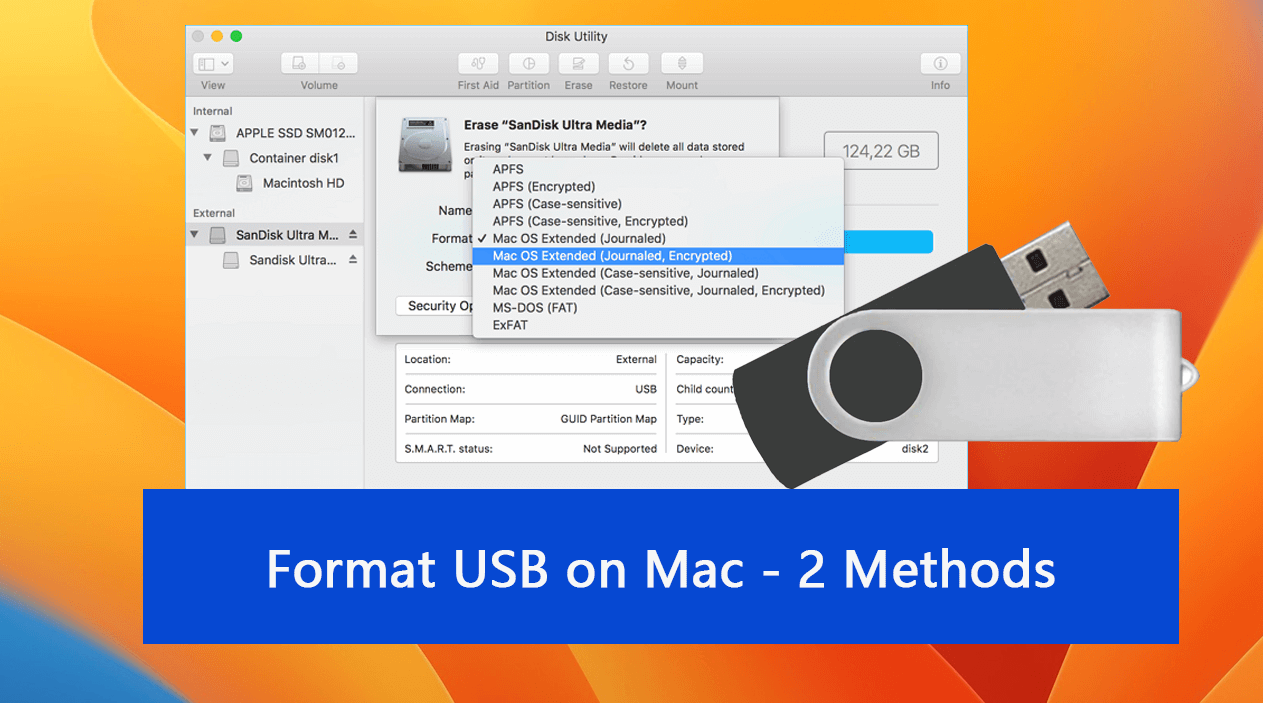
Note: Formatting a hard drive on Mac can also be used to format external hard drives, SD cards, and disks. If you need help with formatting a hard drive on your Mac, the solutions provided on this page can be applied to assist you in the process. Let's get started with the guide to assist you in formatting a hard drive on Mac.
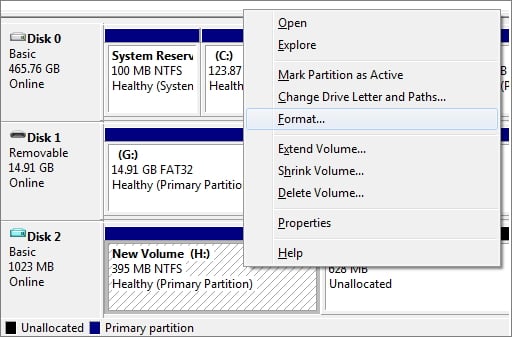
For Windows and macOS users, formatting a USB drive is a straightforward process. To format a USB drive on Windows, go to "This PC" or "Computer," right-click on the USB drive, and select "Format.

How Do I Format a USB for Mac and PC
If you're looking to format a USB drive for use on either a PC or Mac, you have the option to use the built-in formatting feature or a third-party tool, depending on your personal preference. For more information, you can check out the details on how to proceed.
What to Do Before Formatting USB on Mac
Here are two essential tips to follow before formatting a USB drive on a Mac:
#1. Backup USB Data to Another Location
If you store data on a USB drive, it's crucial to back up your valuable files to an external hard drive or another safe location on your Mac computer to prevent data loss in case the USB drive fails or is lost.
- Connect the USB and an external hard drive to your Mac. The external hard drive should be recognized by the Mac, and you should see it in the Finder window.
- Locate and double-click the USB drive icon on the desktop.
- To open the external hard drive from the Mac desktop, click on the "Finder" icon in the dock, then click on "External" in the sidebar, and select the name of the external hard drive from the list. Alternatively, you can also click on the "Go" menu in the top menu bar, select "External" from the dropdown menu, and choose the name of the external hard drive from the list.
- Select all the valuable files on the USB drive, and move them to the external hard drive by dragging and dropping them.
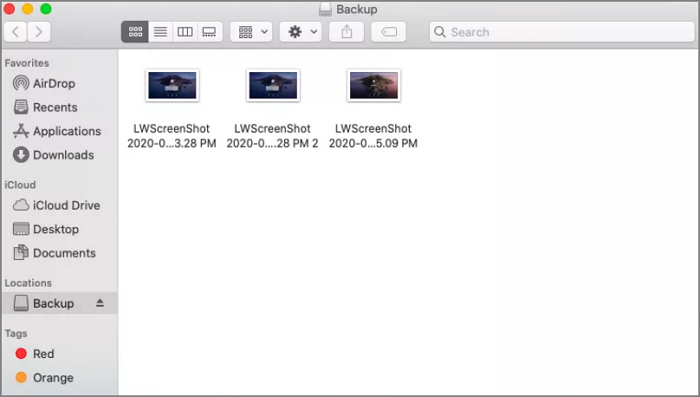
To move and backup all files from a USB drive to an external hard drive, repeat the process of copying files from the USB to the external drive, and then back up the external drive to a local folder on a Mac computer. This ensures that all files are safely copied and backed up.
#2. Select the Best Format USB Drive on Mac
Mac computers mainly support four types of file system format for both internal and external hard drives, which are APFS, HFS+, HFS, and exFAT.
- APFS: available for macOS 10.13 or newer macOS systems.
- Mac OS Extended (Journaled): for macOS 10.12 or older macOS systems.
- MS-DOS (FAT): also known as FAT32, compatible with both Mac and Windows.
- ExFAT: available on both Mac and Windows computers.
The best format for a USB drive on a Mac depends on the intended use. If you want to transfer files between Macs, the HFS+ (Hierarchical File System Plus) format is recommended. However, if you need to transfer files between a Mac and a PC, the exFAT (Extended File Allocation Table) format is a better choice. If you're unsure, you can follow a simple guide to determine the best format for your USB drive based on your specific needs.
- 1. To use a USB drive on both Mac and Windows computers, use MS-DOS (FAT) formatting for a 32GB or smaller USB drive.
- 2. Use ExFAT for any storage device that is 64GB or larger, such as a larger USB drive or an external hard drive.
- 3. APFS and Mac OS Extended are designed for internal disk format on Mac.
The NTFS file system is not supported on Mac computers, but there are two guides that can help you understand more about NTFS and choose between FAT32 and NTFS for a USB drive on Windows and Mac.
How Do I Format a USB Drive on Mac? 2 Free Methods Available Here
To format a USB drive on a Mac computer, you can use the Disk Utility app, which is a built-in tool that allows you to erase and reformat the drive. Alternatively, you can use the "Erase" feature in the Finder. Both methods are reliable and easy to follow.
Which one is better? Here is a comparison table that compares some basic features between Disk Utility and Terminal, and you can follow this table to learn which is more suitable for you:
| Comparison | Disk Utility | Terminal |
|---|---|---|
| Interface | Software interface | Command line window |
| Supported features |
|
|
| Complexity Level | Medium | Complex |
Disk Utility is used for basic disk management operations, while Terminal is more powerful and complex, offering a wider range of functionalities.
For Mac beginners and ordinary users, Disk Utility is the smart choice to format a USB. To do so, follow the respective guide below: first, open Disk Utility, select the USB drive, and click "Erase" to format it; alternatively, connect the USB to your Mac, go to the Finder, right-click on the USB drive, and select "Erase" to format it.
#1. Format USB on Mac with Disk Utility [Easier]
Before formatting a USB drive on a Mac, make sure to backup any important data stored on the device to prevent loss.
Step 1. Connect your USB drive to your Mac via a connection cable.
Step 2. Go to Finder, click "Applications" and "Utilities".
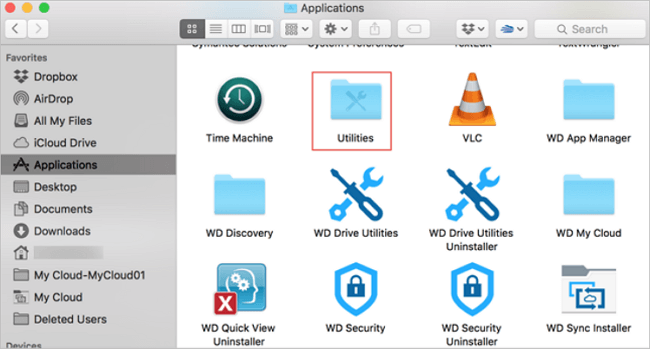
Step 3. Double-click "Disk Utility" to open this tool.
Step 4. In Disk Utility, select the USB drive from the left panel, then click the "Erase" button at the top of the window.
Step 5. Then, set a new format to the USB drive - APFS or Mac OS Extended. Click "Erase" to confirm.
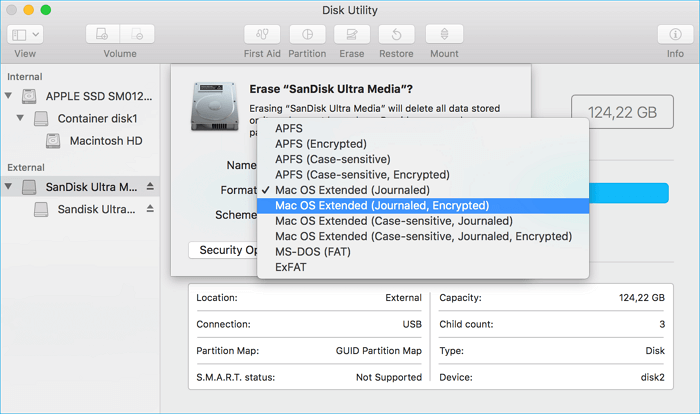
You also set the format as "MS-To format a USB drive to FAT32 on a Mac using Disk Utility, follow these steps: open Disk Utility, select the USB drive from the sidebar, click the "Erase" button, choose "Quick Erase," select "MS-DOS (FAT)" as the format, and click "Erase." This will erase the drive and format it to FAT32, making it compatible with both Mac and PC devices.
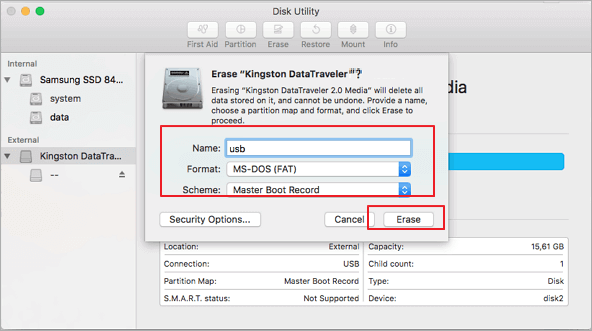
If you have a Windows computer and need to format a USB drive, you can use the built-in Disk Management tool, which serves as a Windows Disk Utility alternative. Alternatively, you can use a simpler tool like Qiling Partition Master to format your USB drive to NTFS, FAT32, ExFAT, or Ext2/3/4 in just a few clicks.
#2. Format USB on Mac Using Terminal
Be extremely cautious when using the terminal, as incorrect operations can lead to severe consequences. Ensure all data on the USB is backed up before proceeding with the following steps. would you like me to add anything else to this response?
Step 1. Connect your USB drive to the Mac computer via a connection cable.
Step 2. To open the Terminal app on a Mac, press the Command + Space keys to open Spotlight, type "Terminal", and then press the Return key to open it.
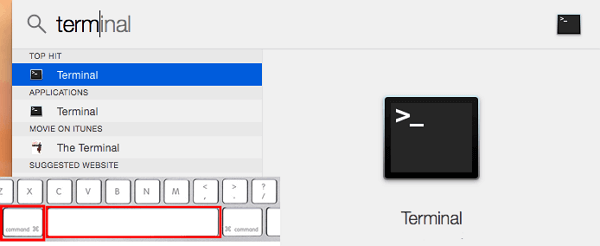
Step 3. Type the following command lines one by one and hit Return each time to complete formatting disk on Mac:
- diskutil list
- sudo diskutil eraseDisk APFS MBRFormat /dev/disk2
- Sudo is to obtain the user right.
- Diskutil opens the disk utility program.
- eraseDisk is the command to format a device.
- FAT32 The file system you want to format the USB to is FAT32. This is the most commonly used file system for USB drives, and it is supported by most operating systems.
- MBRFormat The command "diskutil" is used to format the disk with a Master Boot Record (MBR), which is a type of partition table used to boot operating systems. The command is written in a single line, with the "erase" option specifying the type of format, and the "MBR" option specifying the type of partition table to use.
- /dev/disk2 is the location of your USB drive.
You can also replace APFS with other formats, like FAT32, ExFAT, or Mac OS Extended, etc. for compatibility with other devices.
Formatting USB on Mac Is Not Complex, Any Mac Users Can Do It
If you need to format a USB drive on your Mac, there are two free methods you can use. You can either use the built-in Disk Utility app to format the drive, or you can use the Terminal app to do it.
Before using a USB drive, it's a good idea to back up all essential files to another safe location. Additionally, deciding which file system format to set for your USB is important, especially if you plan to use it on multiple devices. For example, formatting the USB to FAT32 allows for use on both Windows and Mac, while APFS or Mac OS Extended are suitable for use on Mac only.
For Mac beginners, we recommend using Disk Utility to format a USB drive on a Mac, as it's much more user-friendly than Terminal, which can be overwhelming for those new to Macs.
FAQs About Formatting USB on Mac
If you have further questions about formatting a USB drive on a Mac, you can find answers below.
1. How to format USB on MacBook Air?
- Connect USB to MacBook Air
- Open Disk Utility, select USB and click "Erase" on the top menu.
- Set MS-To format a USB drive, connect it to your computer, open File Explorer, right-click on the drive, and select "Format." Then, choose the file system (e.
2. How to format USB to exfat on Mac?
- Connect USB to your Mac computer.
- Launch Disk Utility and select USB to Erase.
- Set the format to ExFAT and click on Erase to format the USB.
3. What is the best format for a USB drive on Mac?
If you need to use a USB on both Mac and Windows, it's best to format it as FAT32 or ExFAT. If you only need to use it on a Mac, you can format it as ExFAT.
Related Articles
- Task Manager Not Opening or Responding in Windows
- Linux File Backup - 5 Best Softeware for Linux Desktop and Server
- How to Restore Files from OneDrive to PC [A Full Guide]
- Windows 10 File History Backup, Everything You Should Know
- How to Find QuickBooks Product Key or Serial Number [6 Ways] - Qiling
This page introduced ways to help you find the missing QuickBooks product keys. Follow solutions to find your lost QuickBooks serial number or product key successfully. - How to Find Saved Passwords on Chrome [Windows & Mac]
If you're setting up a new PC or Mac and want to use an account password that's saved on your old Chrome browser, you can view and export the saved password from your old Chrome browser, which is especially helpful if you didn't sync your passwords across devices.
Products
Articles & Tutorials
- Data Recovery
- Data Backup
- File Recovery
- File Backup
- System Backup and Restore
- Disk and Partition Clone
- Technical articles
- Mobile articles
- Disk Master Help
- Windows Data Recovery Tutorials
- Windows Secure Delete Tutorials
- Windows Partition Management Tutorials
- Windows File Backup and Restore Tutorials
- Windows System Backup and Restore Tutorials
- Windows Disk Backup and Restore Tutorials
- Windows Clone Tutorials